How to Use the List Widget on Dashboards
Introduction
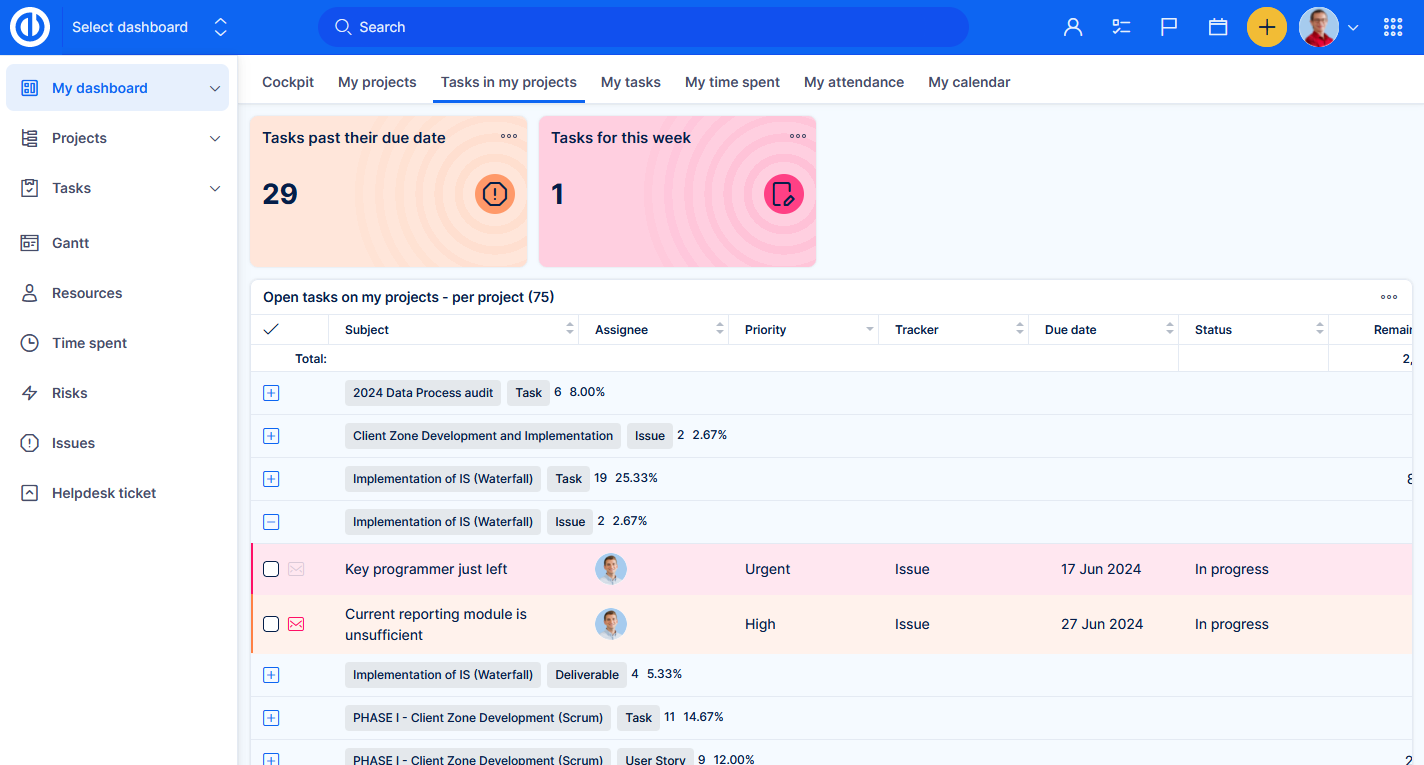
This guide shows you how to set up the List widget on a dashboard in Easy8. The widget shows a table view of any entity type, such as tasks, spent time or milestones. It is the most commonly used dashboard widget.
Target Audience
User
Prerequisites
Before you start, make sure you have:
- Access to an existing dashboard
- Permission to customise the dashboard
How to Set Up the List Widget
Open the dashboard, click Customise and add the List widget. Then set it up as follows.
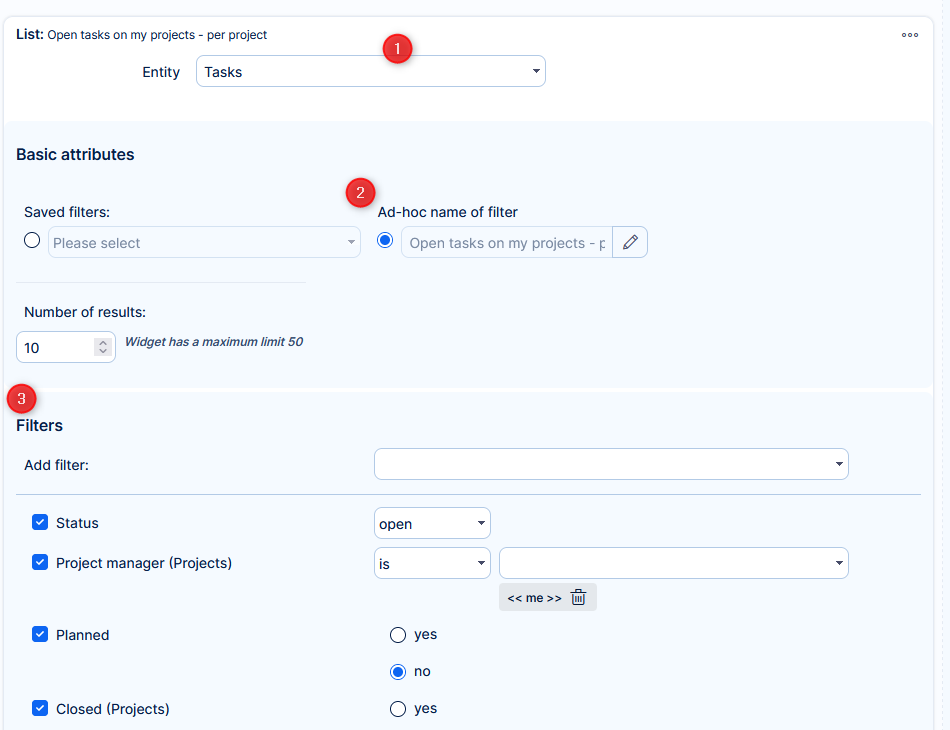
- Select the entity type.
- Select an already saved filter, or create an ad-hoc filter with a name for this particular widget.
- If you create an ad-hoc filter, define which items are shown, based on their attributes.
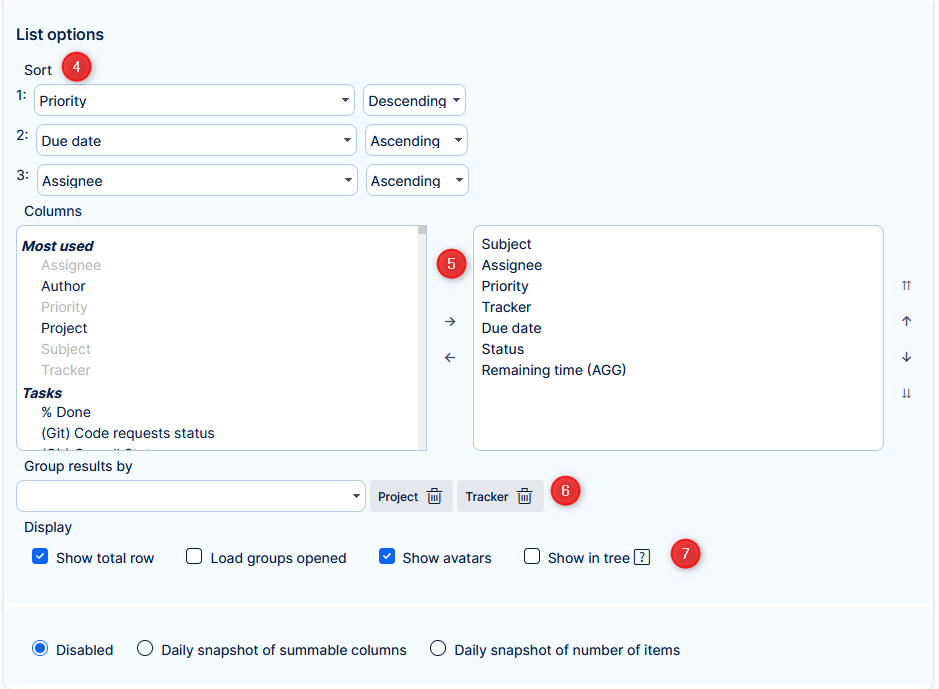
- Set up to three sorting criteria.
- Select the columns to show. Do not show more columns than needed. For example, if it is clear from the name of the filter or widget that you show only top priority tasks, you do not need the Priority column. Users can also open a task in the Quick task editor, where they find the other attributes.
- Group the items when the list would show too many of them. You can group items by more than one attribute. Each group then represents one unique combination of the grouping attributes.
- Set the additional options for the list, described below.
Additional Options
- Total row applies to numeric columns that can be summed.
- When you use grouping, leave the groups closed (collapsed), so that the widget loads faster.
- Avatars save space when a column represents users.
- Showing the list in a tree is useful only when the list contains the full structure of parent tasks and subtasks. If a parent task is missing because it does not match the filter, the view is misleading.
Our Recommendations
- Use one or two lists on a dashboard. A dashboard made only of lists is not really a dashboard.
- Show only the items that every user visiting the dashboard must see. For example, list the top priority tasks on the dashboard of each project, so that any visitor gets a quick idea of the current situation at first sight.
Conclusion
You have set up a List widget that shows the selected items directly on the dashboard. Keep the number of lists and columns low, so that the dashboard stays easy to read.