


Introduction
This guide explains how to use My Dashboard in Easy8. My Dashboard is your personal workspace where you can see the most important information related to your tasks, time, and performance. It is designed to help you stay organized and work more effectively.
Target Audience
- User
Prerequisites
- A user account in Easy8
- A user type or role assigned by the administrator
- Permission to customize your dashboard (if allowed)
How to Use My Dashboard
Step 1: Access My Dashboard
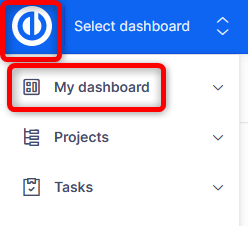
- Navigate to My Dashboard from your Easy8 interface.
- This is your default personal dashboard.
Note: My Dashboard is usually set up automatically based on your user type assigned by Administrator.
Step 2: View Your Personal Data
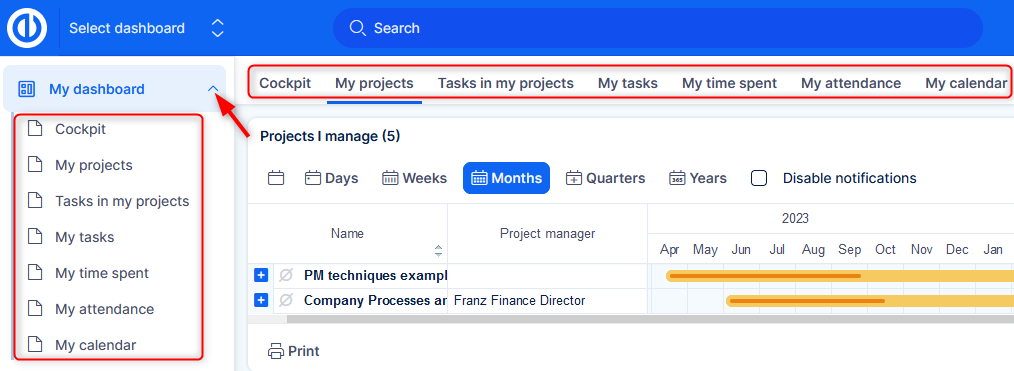
- You will see widgets showing your tasks, calendar, time reports, and other role-based information.
- These widgets help you track what needs to be done and monitor your daily or weekly workload.
- There can be multiple tabs showing widgets.
Common widgets include: task lists, spent time gauge, attendance calendar, and charts.
Step 3: Customize the Dashboard (If Allowed)
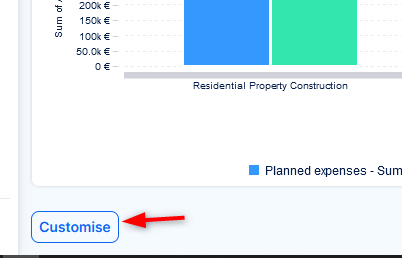
- If you have permission from your administrator, click Customise.
- Add, remove, or move widgets to fit your personal workflow.
- You can rearrange items and choose what data you want to see.
- Add more tabs if needed for better arrangement of information.
Note: Not all users may have the right to customize their dashboard — this depends on settings made by your administrator.
Conclusion
My Dashboard is your personal control center in Easy8. It reflects your role and responsibilities, and helps you stay focused. If allowed, you can further customize it to suit your needs and improve your daily work experience.
