


Introduction
This guide explains how the option “Update task/milestone/subproject dates according to project start date” works when creating a new project from a template in Easy8. This option helps shift planned dates based on the new project start date, but it requires proper setup of the template for accurate results.
Target Audience
- Project Managers
- Administrators
Prerequisites
Before using this feature, make sure:
- The project template has a clearly defined start date and due date, OR these dates are set to be calculated from tasks.
- Tasks in the template have defined start and due dates.
How to Update Dates Based on New Start Date
Step 1: Create a Project from Template
- Click the yellow plus button on right in the top bar.
- Select the Project option.
- Click Project from a template option at the top of the page.
- Select a template clicking the plus button at the end of its row.
or
- Go to Global menu > Administration > Project templates.
- Right-click on the chosen template and select Copy to project.
- In the form that opens, choose the target project and set a start date.
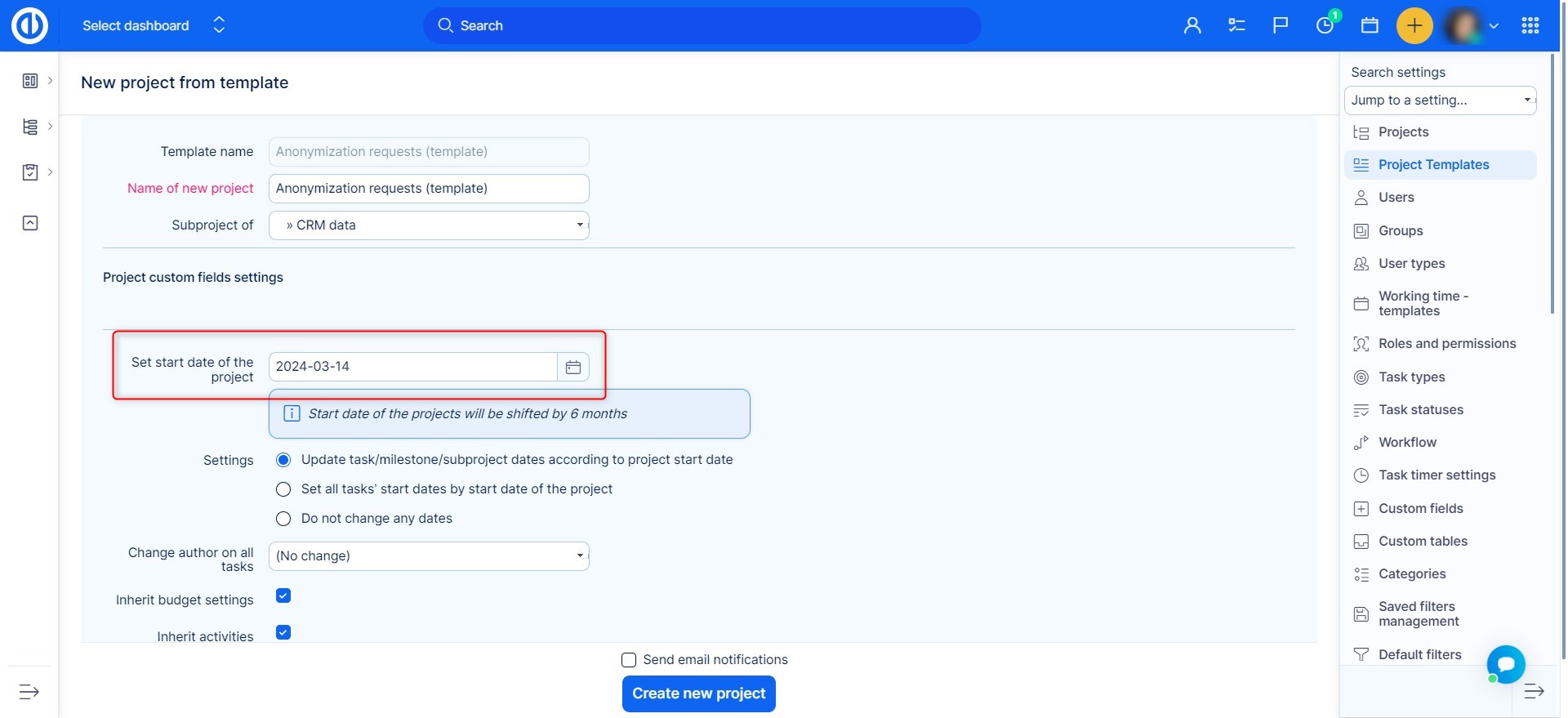
Step 2: Enable Date Shifting Option
- Check the box: “Update task/milestone/subproject dates according to project start date”.
How It Works
This option calculates the date difference between:
- The original project start date in the template, and
- The new start date set for the project being created.
Based on this difference, it shifts the following:
- Task start and due dates
- Milestone dates
- Subproject dates
- Task creation dates
Example
- Project start date in the template: January 1
- New project start date: May 1
- A task in the template starts: February 1
- The same task in the new project will start: June 1
Note: If the template has no start date, the date shifting will not work, even if you set a new start date during creation.
Important Notes and Common Issues
Data Loss Warning
If you initially enable "Calculate project start/due date from tasks" and later disable it in administration settings, templates created earlier may lose their start and due dates.
Best Practices for Template Setup
- Always include start and due dates in tasks when creating templates.
- Avoid excessive linking between tasks:
- Too many dependencies may make the Gantt chart unclear.
- It may also make adjusting timelines harder in real projects.
Conclusion
By correctly using the update dates option and properly preparing your project templates, you can easily adjust entire timelines when starting new projects. This keeps planning accurate and saves time—if the template is configured the right way.
