


Introduction
This guide explains how to track project activity and set up email notifications in Easy8. These features help you stay informed about changes in your projects and keep team communication clear and consistent.
Target Audience
- Project Managers
- Team Members
- Administrators
Prerequisites
Before setting up notifications or tracking activity, ensure you have:
- Access to Administration settings (for global configuration).
- Permission to edit your own user profile (for personal notification settings).
How to Set Project Notifications and Overall Activity
Step 1: Configure Default Email Notifications (Global Settings)
- Go to Administration > Settings > Email notifications.
- Set the "From" email address — it can be any valid email format (e.g., something@somewhere.com).
- Choose whether to send notifications in HTML or Plain text.
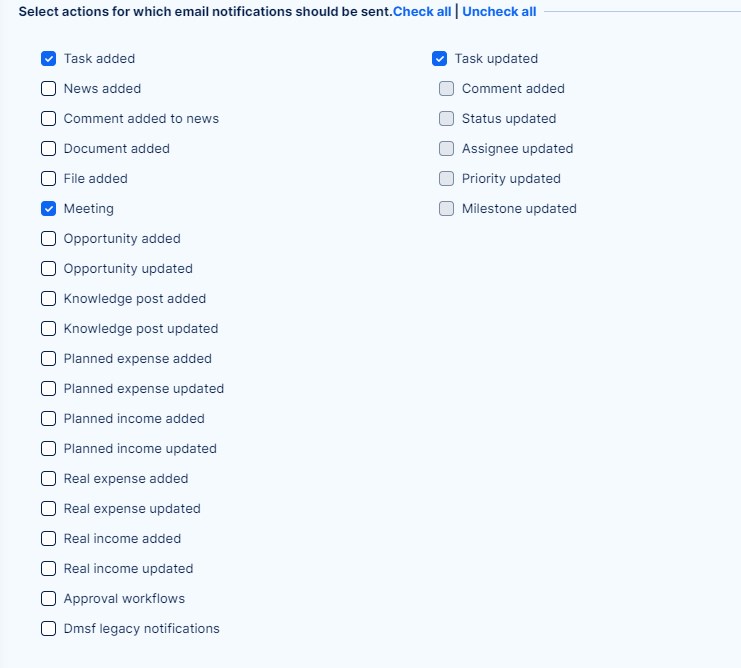
- Select which actions or events should trigger email notifications.
- Optional: Add a header and footer to personalize the email content.
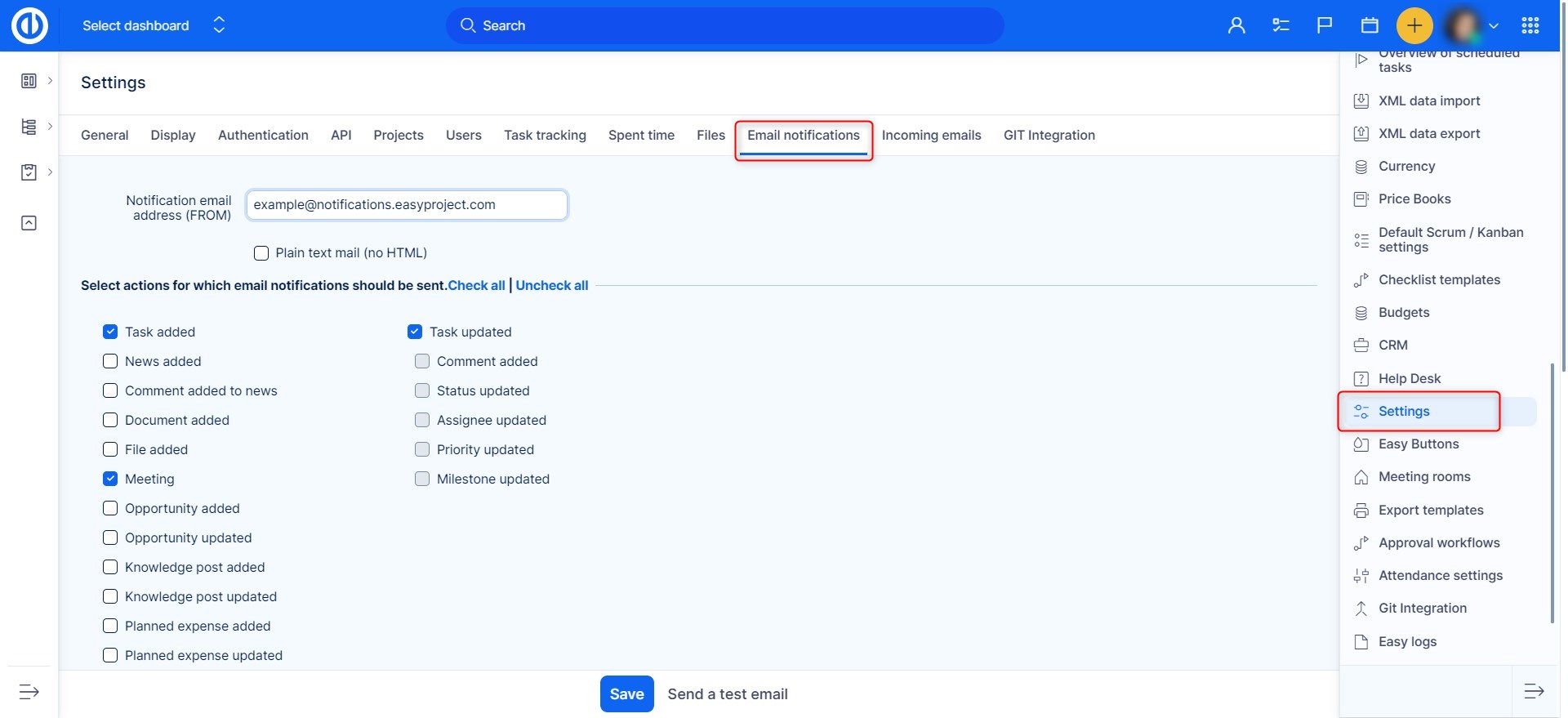
Email Notifications of a User
How to Choose Your Notification Scope
- For any event on all my projects: Get notified about all events across all your projects.
- For any event on selected projects only: Get notified about all events, but only from selected projects.
- Things where I am the assignee, co-worker or author: Only get notifications related to tasks where you’re involved.
- Only for things I am assigned to: Only get updates on tasks you’re assigned to.
- Only for things I am the author of: Only get updates on tasks you created.
- No events: You will not receive any email notifications.
These settings can be accessed via your user profile, if you have permission to edit it.
Additional Notification Settings on User Profile
To adjust personal behavior for email alerts:
- Edit your profile via Administration > Users.
- Use the following checkboxes:
- I don't want to be notified of changes that I make myself – avoids getting alerts about your own updates.
- I don't want to be notified from closed tasks – disables updates on closed tasks.
- Do not notify anyone about updates made by me – disables notifications to others when you make a change.
Tracking Overall Project Activity
Step 1: Set Default Events for Activity View
- Go to Administration > Settings > Projects.
- Find the section called Default events for overall activity.
- Check the activity types you want to track (e.g., task updates, comments, document changes).
- Save the settings.
Step 2: View Project Activity
- Open the desired project.
- Click Overall activity from the project’s sidebar.
The view will show all selected activity types. You can adjust filters manually for each project.
Conclusion
With email notifications and activity tracking in Easy8, you can stay on top of all important changes in your projects. Customize settings globally or per user, and use the activity view to see what’s happening at a glance.
