Ticket lifecycle and communication with Clients in Helpdesk
Introduction
This article describes how tickets are submitted and processed in HelpDesk, depending on how a ticket is created and what access the client has to your system. You will find tips on what to watch out for in different ticket process configurations.
The article gives tips and recommendations for different configurations, not step-by-step instructions for setting them up. For those, see these articles:
- HelpDesk documentation
- Owner's manual (workflow, notification settings)
Three main communication routes
Let's start with a diagram of the ticket lifecycle in simple situations, where a ticket follows only one route from start to finish:
- Full user in the application
- HelpDesk user
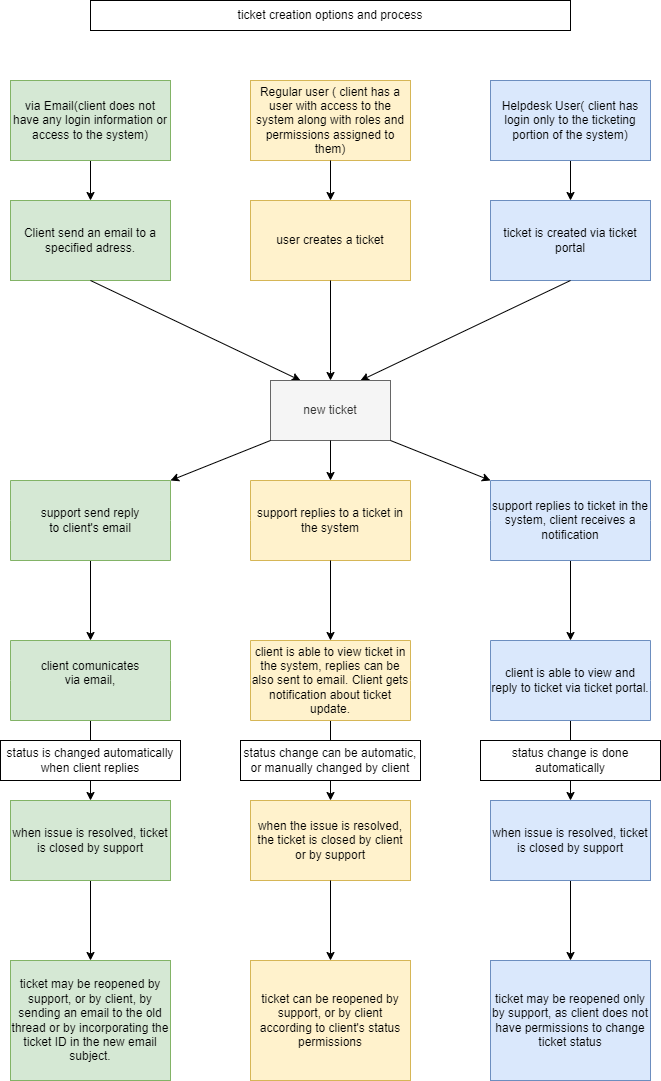
Ticket creation and further communication
Ticket creation and further communication within a ticket can combine the routes above.
You can create a ticket by email and continue the communication in the application (as a full user or a HelpDesk user). You can also create a ticket in the application and continue by email only.
Example 1
- The client creates a ticket by email – they send a new email to the HelpDesk address.
- The client logs in to the application and sees the ticket, because they are its author.
- The client can change the status and other fields and add comments, according to their permissions.
Example 2
- The client logs in to the application and creates a new ticket.
- The client receives updates by email, only follows them and doesn't log in to the application again.
Example 3
- The client creates a ticket in the HelpDesk portal.
- The client decides to follow the ticket by email only and no longer logs in to the portal.
- Later, the client decides to follow the ticket in the portal, logs in and replies there.
For your clients' convenience, you can decide which methods they can use to create and update tickets. Most importantly, cover every possible situation so that no ticket ends up in a dead end. Workflow and other settings provide all the options you need.
Common issues
The client replies to a task notification, but the reply isn't processed correctly
This situation relates to Example 2. The client thinks they are replying to the ticket by email, but the email isn't paired with the existing ticket. Instead, a new ticket is created, or the email doesn't reach the system at all. The client replies to a system notification or writes a new email by mistake.
Cause: System email notifications don't expect replies to the notification address.
Solution: The client's reply must be sent to the HelpDesk address and must contain the ticket number. You can set the address notifications are sent from (Administration » Settings » Email notifications » Notification email address (FROM)) to the same address as HelpDesk. Client replies are then caught and paired with the ticket the notification came from.
Another option is to turn off regular email notifications for client users completely. Clients then receive only the emails that HelpDesk agents actively send them using HelpDesk email templates.
Key takeaway: Clients naturally tend to reply to every email they receive. Make sure they only receive messages whose replies the system can process.
The client changed the ticket to an "incorrect" status
This mostly happens when the client has a full user in the application (instead of a HelpDesk user). The client can edit many fields, including the status, and may misinterpret what the statuses mean. Or, on the other hand, they don't change the status when you expect them to.
Cause: The client is responsible for setting the correct status.
Solution: The client shouldn't have to remember any rules for task statuses.
One solution is to change the client's account from a full user to a HelpDesk user. HelpDesk users can create tickets and add comments to existing tickets. Status changes follow the HelpDesk settings, so the client can't "break" your process. Updates from HelpDesk users follow the same logic and settings as HelpDesk email communication. The only difference is that the user actually sees the ticket and can work with it.
If you need to keep full users for your clients, we recommend disabling all status changes (and changes to other fields) that could break your internal processes. Track tickets that need your attention in other ways – for example, filter by Task last updated (date of the last update) and Last updated by (who made the last update). You can also show the last comment as a column in the list, so it's clear that the client made the update.
Example 1 is a more complicated scenario: you allow communication by email and also let clients log in as full users. Watch out for the following:
- The status change after a client replies by email is set in the global HelpDesk settings.
- Logged-in users aren't forced to change the status – they can always keep it as it is.
In this case, make sure your response queues cover both situations: tickets updated by email (for example, a filter for a specific status) and tickets updated by the client in the application (for example, a ticket list with the Last comment column).
Key takeaway: Clients shouldn't have to worry about your internal processes. They just need a place to report their problem and communicate with you. The processes are up to you, and the application offers various options to set them up firmly.
Mixing full users and HelpDesk users
We strongly advise against combining solutions that were never meant to be combined. Choose whether to use:
- HelpDesk users – free of charge, with fixed, limited access, or
- Full users – regular licensed users, where you decide what they have access to.
Don't use both at the same time, especially not for the same clients. Full users and HelpDesk users are technically separate accounts. They use the same login page, but they represent different fields on tasks (Author vs. HelpDesk author). So there is no reason to confuse your clients by offering them both types of access.
It is technically possible to give some clients full users and others only HelpDesk users. However, this requires precise process descriptions and training for your agents, so they don't mix up the processing of tickets from these very different routes. Because of the organisational effort, we strongly recommend choosing only one type of client access.
Summary
The table below summarises the situations that can occur depending on the type of access your clients have to your system.
| Client access to the application | Options to submit a ticket (client) | Notifications from the ticket (agent) | Options to update a ticket (client) | Our recommendations |
| No access | Sends an email to the HelpDesk address. | The agent sends an email from the ticket using a template. |
|
|
| Full user |
|
|
|
|
| HelpDesk user |
|
The agent sends an email reply from the ticket using a template. |
|
|