Task categories
How to use task categories
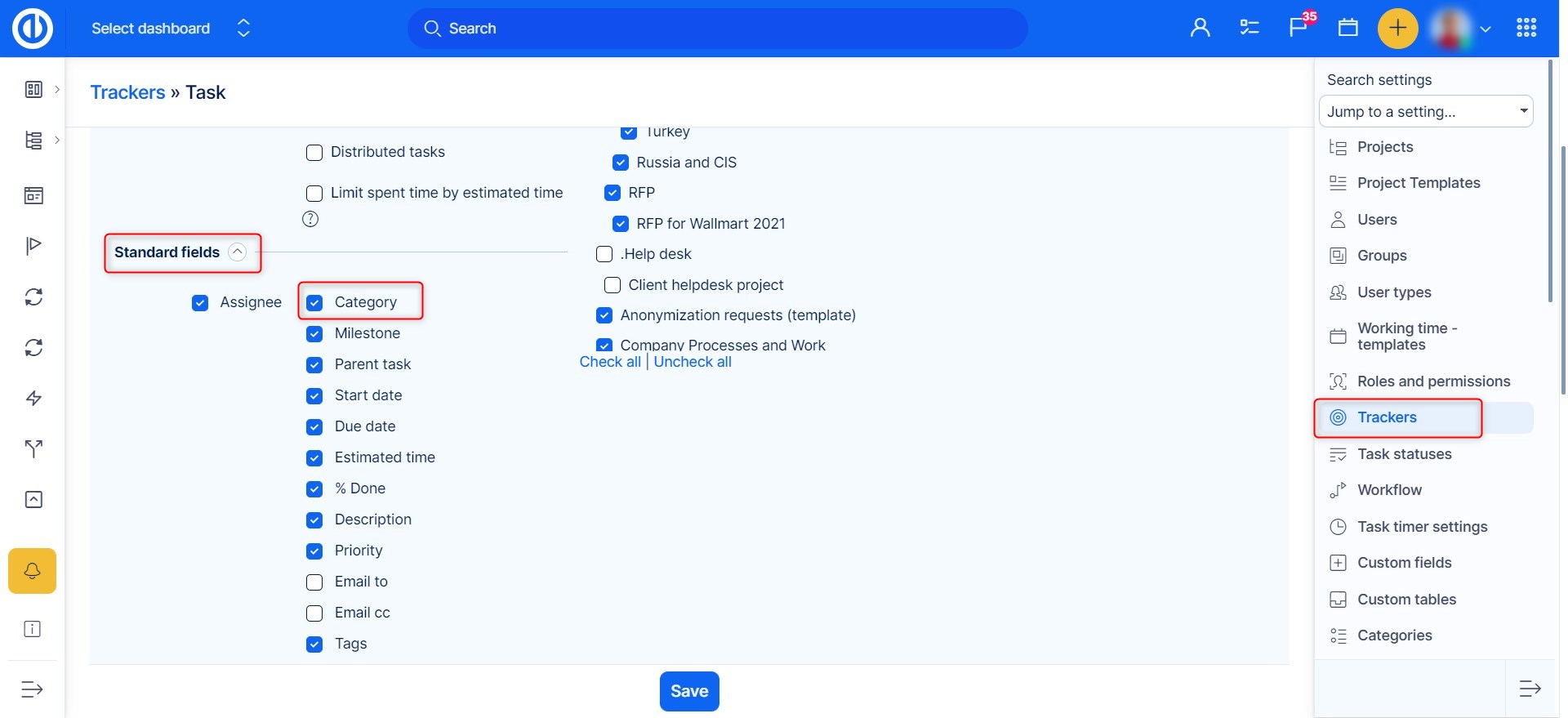
Task categories are like groups you can sort your tasks into. The main purpose is to ease the task structure and improve its ability to be found quickly. Like the tasks themselves, the task categories can have their hierarchy composed of parent categories and child categories. Above that, each task category may have an assignee, who is responsible for that category as a whole. If you want to use task categories on a project, the first step is to enable the standard field Category in a task tracker (Global menu >> Administration >> Trackers - select one >> Standard fields).
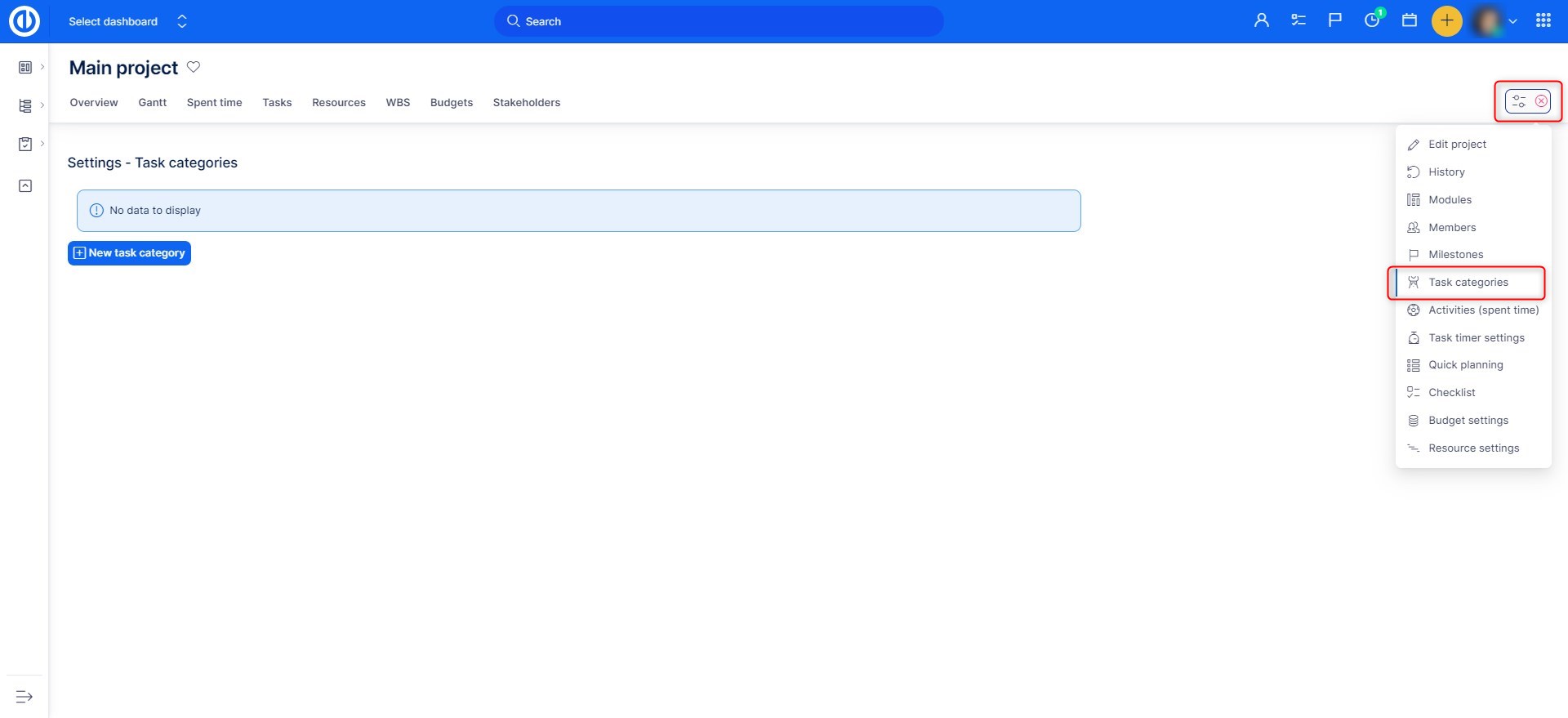
Then open any project that includes some tasks of that tracker. Navigate to the project settings, where you should see an item called Task categories. Here you find a button to create a new category.
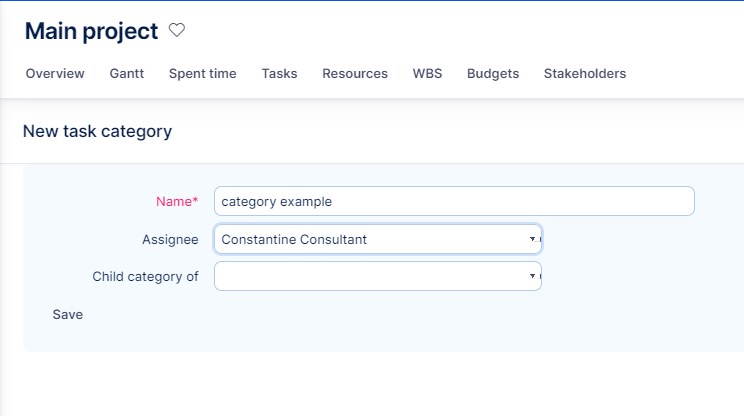
This how a new task category form looks like. Enter a name, and you can optionally add an assignee of this category and also select parent category if you want to create their hierarchy.
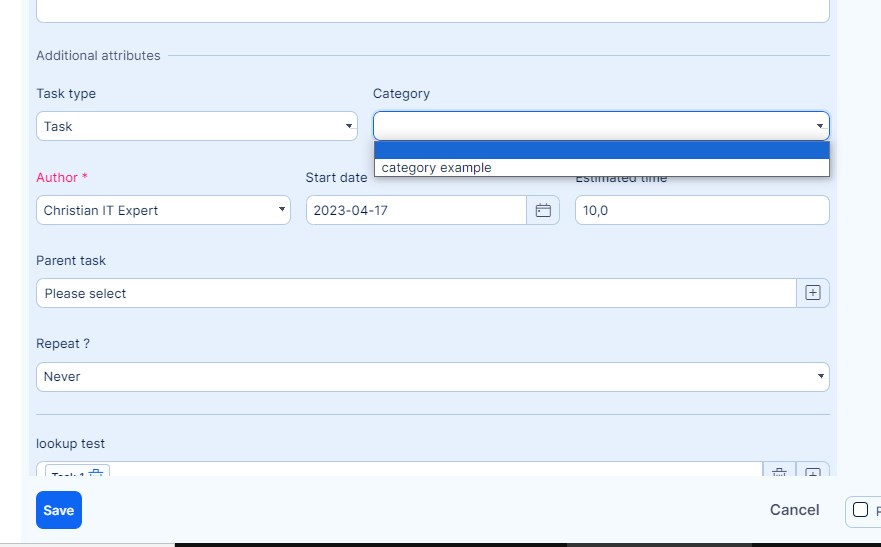
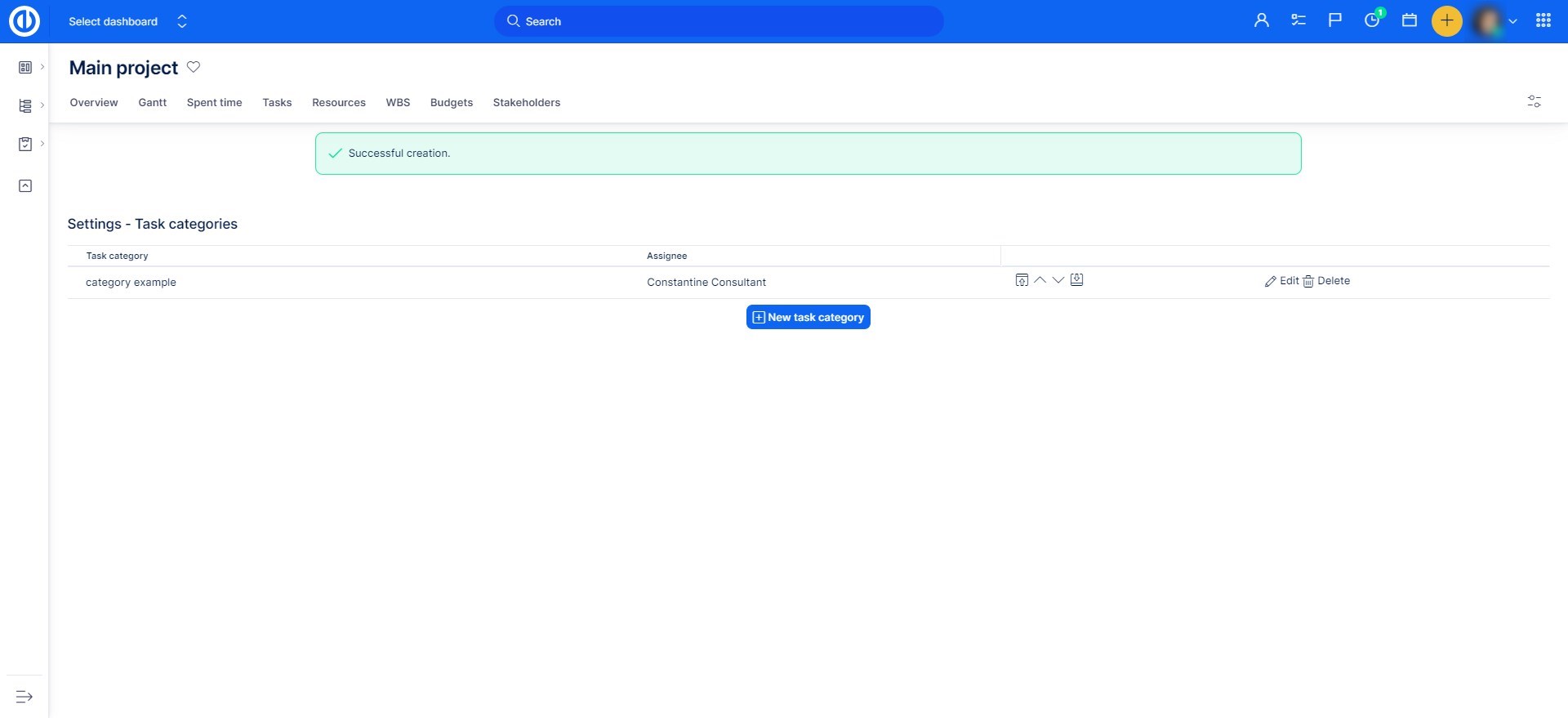
When the task category is created, you can find it in the list, edit it, or delete it. When more categories are created, use the arrow icons to adjust their order on the list. This order will be remembered in the drop-down menu Category on a task.
Finally, open any task of the project and under a tracker with enabled categories, you will find categories under additional attributes. Select one category when editing the task and save. From now on, you can filter your tasks based on their categories.