Release notes for version: 16.2.0
Contents
Lists - Smart Filters
CRM - redesigned Sales activities
Two-factor authentication - security keys and passkeys
Budgets - project copy keeps budget settings
Agile Resource Management - daily allocation total
Custom fields - continue to the new field after saving
Tasks - assignee shortcuts follow role settings
⚠️ Easy Query Language -> Smart Filters
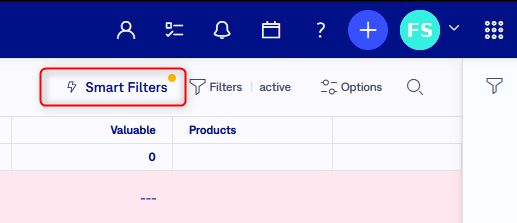
You can now filter lists by typing conditions in one line, in a syntax similar to Jira. Click Smart Filters in the heading of a list, next to the quick search and Filters. It is available on the main lists, for example Tasks, Projects, Spent time, Users, Attendance, Documents and CRM accounts.
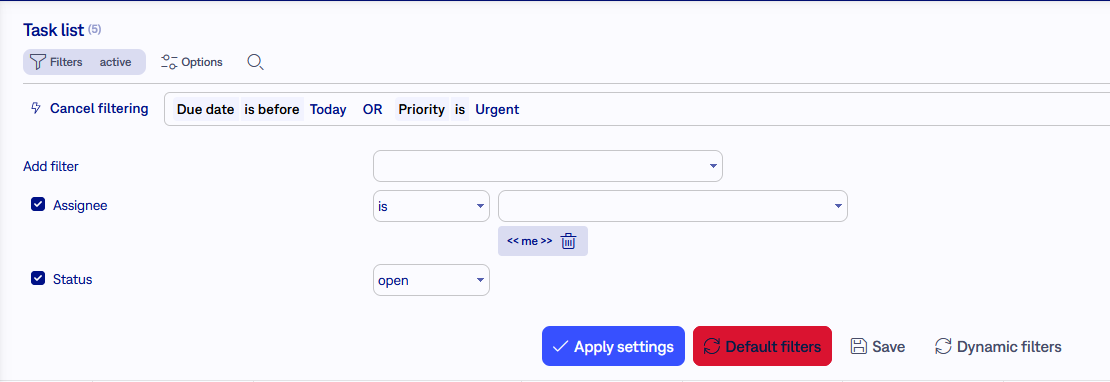
- Suggestions while you type - fields, comparisons, values, functions and AND/OR are offered as you write. Tab accepts a suggestion, Enter applies the filter and Esc hides the suggestions. Click a word in your query to swap it for another one.
- Readable names - fields are written as the list shows them, in any language of your instance, and values as names instead of internal IDs, for example
status = New AND assignee = currentUser(). - Comparisons and functions - =, !=, <, >, IN and NOT IN, IS EMPTY, ~ (contains), IS OPEN and IS CLOSED, and functions such as
currentUser(),me,membersOf("Group")orstartOfWeek(). Dates can be relative (-7d,+2w) or written as words such as today or last month, and they follow your time zone. - Errors and help - mistakes are highlighted with a hint how to fix them, and the help shows examples built from your own data.
- Works with filters - a query applies together with the classic filters.
Lists embedded in dashboard modules and in selection dialogues have no Smart Filters button. There the query is available as the Easy Query Language filter in the Most used group of the filter panel.
Every user can use Smart Filters on the lists they can already see, and suggestions offer only records the user has access to. A one-time tip introduces the feature. Users who keep working with the classic filters can switch off tips about new features in My account with Show tips about new features.
After updating:
- Always on - the administration setting Enable Easy Query Language was removed. The query language is now available on every list and cannot be switched off.
- Saved query texts apply - query texts stored in saved queries are now applied even if the query language was switched off on your instance. This can change the results of such saved queries, so review them after the update.
- Old syntax - queries written in the previous syntax keep working. Saved texts that use the old bracket notation, such as
field = [a, b], are rewritten automatically to the new notation without changing their meaning.
CRM - redesigned Sales activities
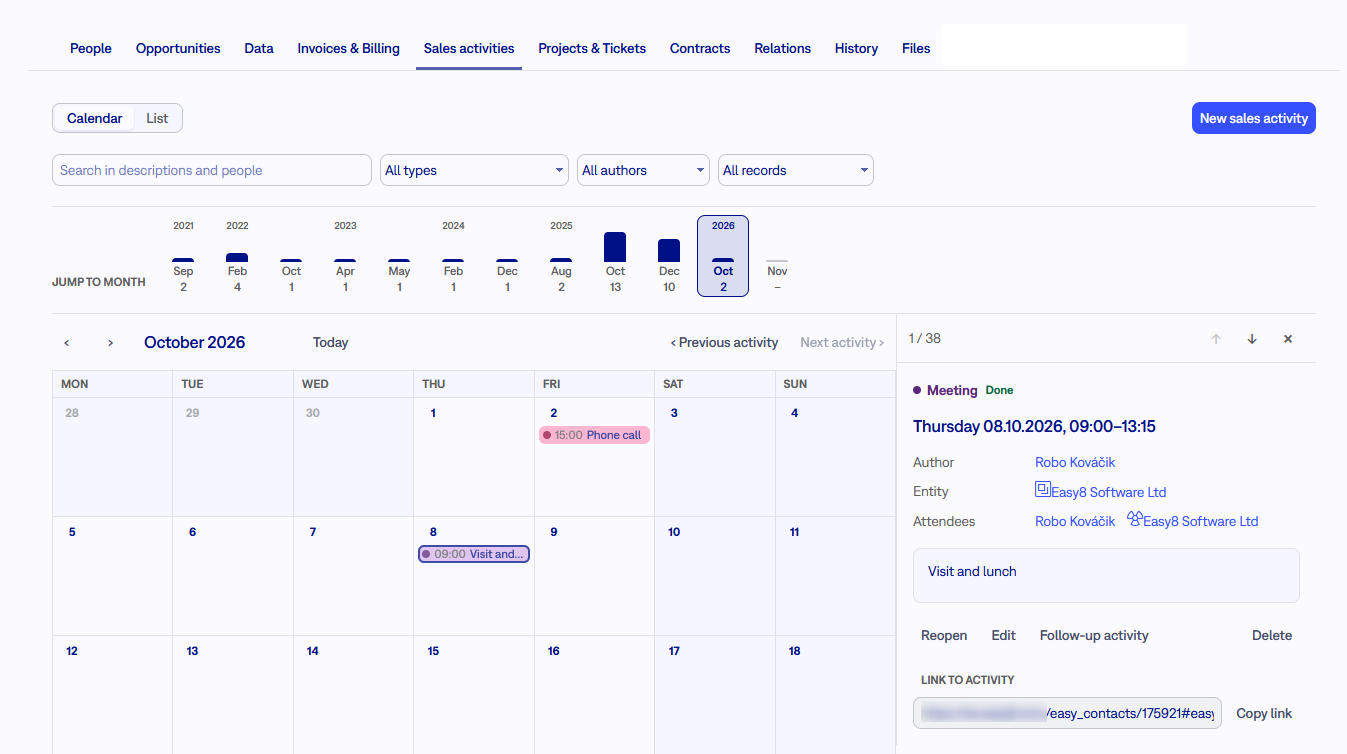
The Sales activities tab was redesigned and now looks and works the same on Accounts, Opportunities, Partners, Leads, Personal contacts and Tasks. Instead of a table with an inline row for a new activity, you get a calendar, a readable history and a full-size form, so you no longer have to page month by month to find the last contact.
- Calendar and List - switch between a month calendar and a list. The list starts with To do (open activities marked as overdue, today or planned, with a quick mark-as-done) followed by History grouped by month. Longer periods without any activity are marked, and a short notice tells you when something is overdue.
- Finding activities - Jump to month shows the months with activity, and one filter row lets you search in descriptions and people and filter by type, author and record. The filters drive the list and the calendar together.
- Activity detail - a side panel shows the whole activity with Mark as done or Reopen, Edit, Follow-up activity and Delete, and lets you move to newer or older activities. Every activity has its own address; use Link to activity to copy it.
- Larger form - a full-size form with a formatted description and attendee search. Personal contacts related to the record are offered as attendees, and the field works without the Easy Scheduler plugin.
- Faster times and dates - type a time such as 14:30, 1430 or 2:30pm, or pick it in two clicks, set the length with the Duration buttons (15 min to 2 h) and move an activity with Move to: Today, Tomorrow or In a week. Save and Cancel stay visible while you write a long description.
On opportunities, Add sales activity now opens the tab with a new activity form, and so does Add activity on a lead. The layout also works in mobile view.
No action is needed after updating. On opportunities and tasks, the tab is shown as before only when the existing settings Show sales activity on opportunity and Show sales activities on tasks are switched on.
Two-factor authentication - security keys and passkeys
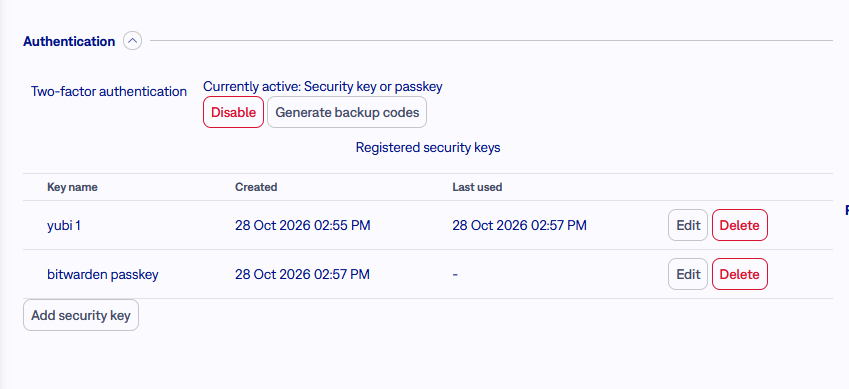
Besides an authenticator app, users can now confirm their sign-in with a security key or a passkey, such as a YubiKey, Touch ID or Face ID. Passwords are still required; the key replaces typing the code from the app.
- Setting it up - in My account, the new Authentication section offers Enable authenticator app and Enable security key. When two-factor authentication is set up, you choose between Authenticator app (preselected) and Security key or passkey.
- Several keys - register more keys under your own names. Registered security keys shows when each key was last used and lets you rename or remove them. Adding or removing a key asks for your second factor again, and you get an e-mail about the change. The last key cannot be removed; disable two-factor authentication instead.
- Backup codes - Generate backup codes works as before. At sign-in, Use a backup code instead helps when the key is not at hand or the browser does not support security keys.
Each user uses one method at a time. To switch from the app to a key or back, disable two-factor authentication and enable it again.
Security keys are available wherever two-factor authentication is enabled in the administration. Easy8 must run on HTTPS, with the correct Host name and path in the settings.
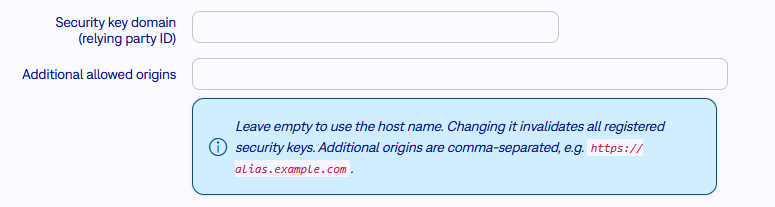
For administrators: Administration > Settings > Authentication has two new settings, Security key domain (relying party ID) and Additional allowed origins. Both are empty by default, which uses the host name, and most installations do not need to change them. Fill them in only when users reach Easy8 on several host names under one domain, or when a reverse proxy publishes a different public host name. Changing the domain invalidates all registered security keys: users then sign in with a backup code and register their keys again, or an administrator disables two-factor authentication for them in Administration > Users.
⚠️ Budgets - project copy keeps budget settings
Copying a project, or creating one from a template, now carries over the budget rates of the source project. The parent-project option was renamed, and its default changed.
Previously
- When you copied a project with Budgets, the copy did not keep the source project's Planned hourly rate, Travel cost and Travel expense. The planned hourly rate could even come from an older template.
- Budget settings were taken over only from the parent project, with the Inherit budget settings option.
- When you created a project from a template under a parent project, that option was ticked by default, so the new project used the parent's budget settings.
Now
- A copy with Budgets keeps the source project's planned hourly rate, travel cost and travel expense, including their currencies. This also applies to copies of copies and to Project mass copy. Changing a price in the copy changes only that project.
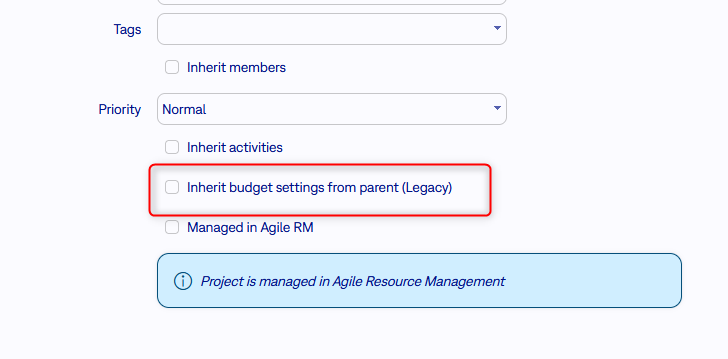
- The option is called Inherit budget settings from parent (Legacy). It appears once a parent is chosen in Subproject of, and it is unticked by default, also when creating from a template. Unticked, the new project uses the settings of the project or template it was created from. Ticked, it uses the parent's settings as before.
Why (Legacy): the budget settings now travel with the project you copy. Taking them from the parent project is the previous way of setting up budgets. It remains available for processes that depend on it, and the label marks it as an option that may be removed in a future version.
What to do: if you create projects from templates and rely on the parent project's budget settings, tick Inherit budget settings from parent (Legacy) when creating them. Existing projects are not changed. You can check the values in the project's budget settings under Other settings.
Agile Resource Management - daily allocation total
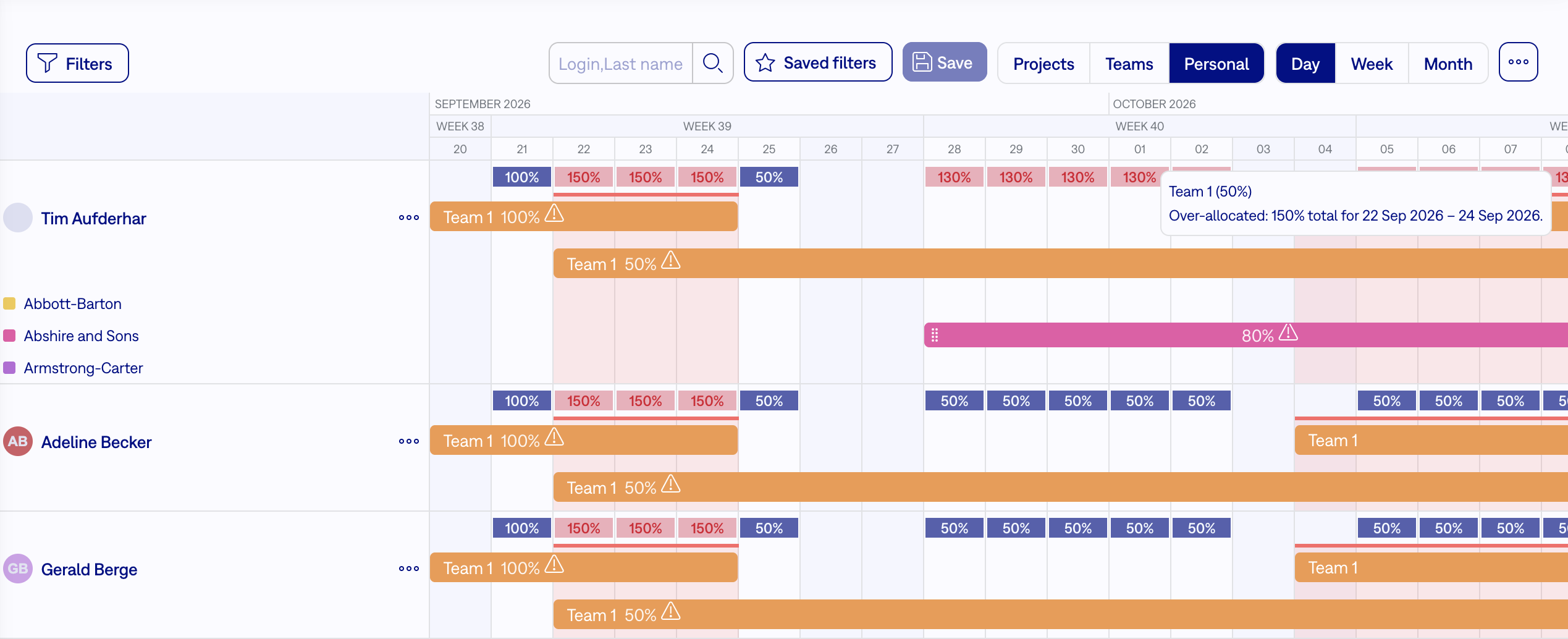
Resource managers can now see at a glance who has free capacity, who is fully booked and who is overbooked. In the Personal view at Day zoom, a row above each person shows one percentage per working day: all of that day's project and team allocations added together. Values above 100 % are highlighted in red.
The total uses a capacity of 8 hours per day and 5 days per week for everyone. Allocations entered in hours or days are converted to this capacity. The total is not shown in Week and Month zoom, at weekends, or in the project and team views.
Custom fields - continue to the new field after saving
When you create a custom field, Save now opens the new field's settings, so you can continue configuring it straight away. This helps especially with key/value lists, whose values are entered after the field is first saved. Previously, saving a new field took you back to the list of custom fields.
If you only want to create the field, Save & Go back returns you to where you came from, for example the list of custom fields or the custom table settings.
Tasks - assignee shortcuts follow role settings
The << Author >> and << Last assignee >> options in the task assignee now respect the role setting Tasks can be assigned to this role.
Previously
<< Author >> was offered and accepted for any active author, whatever their project role. A task could therefore be assigned to its author even when the author only had roles that should not receive tasks, and << Last assignee >> was offered even when that person could no longer be assigned.
Now
- << Author >> - offered and accepted only when the author is active and has at least one project role with Tasks can be assigned to this role.
- << Last assignee >> - offered only when that user or group can still be assigned.
- Role settings - in Roles and permissions, Tasks can be reassigned only to author can be ticked only together with Tasks can be assigned to this role.
Existing assignments are not changed.
Technological stack
Release notes are no longer listing the technological stack required to run the Easy8 application. This information is provided to on-premises users directly in the Client zone - Docker info package, and it is always up-to-date. The stack is built in the provided Docker images. What you need is just a Linux OS (amd64), Docker engine, Docker compose.
For Easy8 developers
If you developed into Easy8 codebase, always refer to documentation developers.easy8.com.
Changelog
Smaller changes and fixes are listed in the changelog.