Release notes for version: 16.1.0
Contents
Single sign-on - sign-in and connected applications
WBS - step-by-step loading of large projects
Calendar - list of meetings
Resource Management - project allocation from the personal view
Test cases - task linking with filters
Tasks - mentions, faster history and priorities on move
Automations
Help Desk - tokens in e-mail templates
Easy Money - filter by Original Currency
Custom fields - computed Link field as a button
Knowledge base - automatic permission synchronisation
API - price books and opportunities
Performance optimisation
Single sign-on - sign-in and connected applications
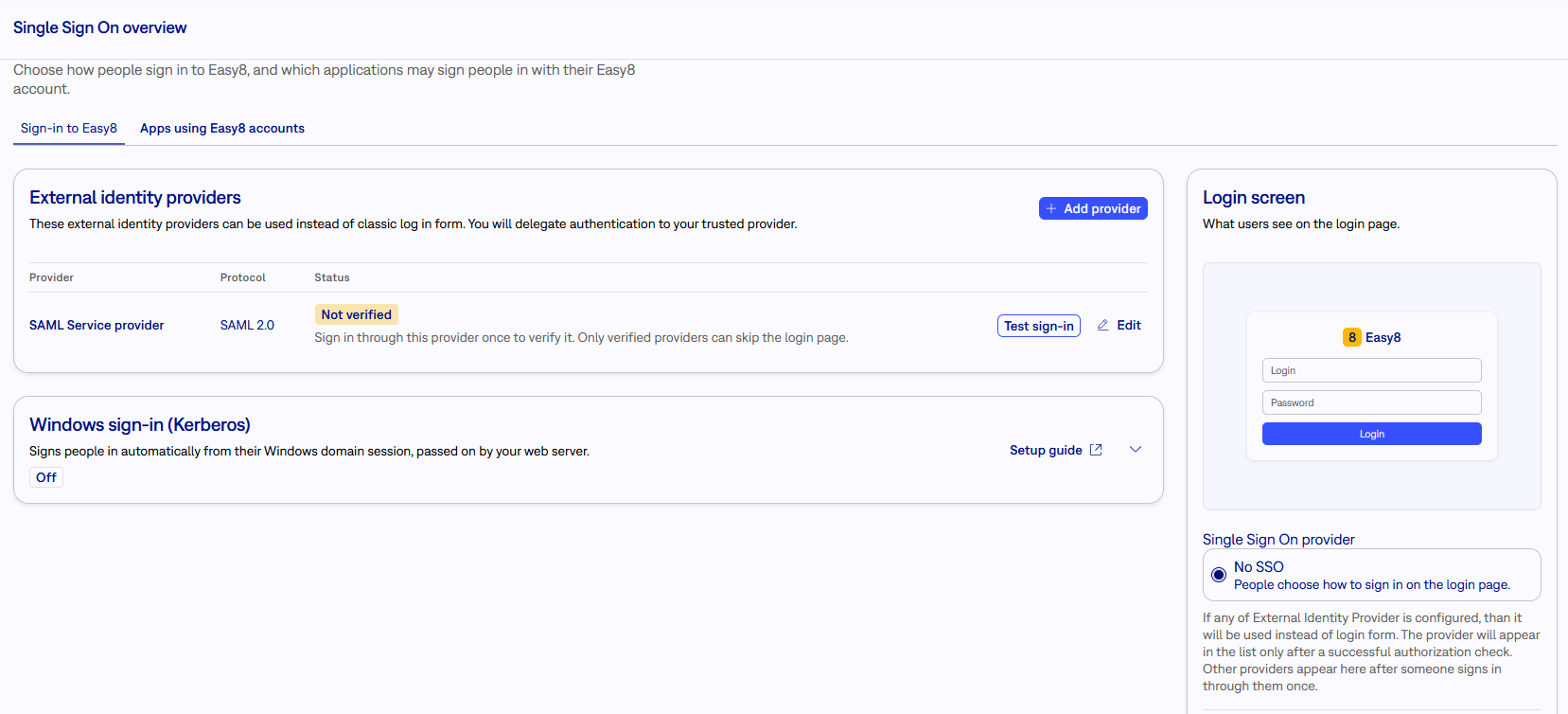
The Single sign-on page in Administration was redesigned and split into two tabs, because it covers two different things: how people sign in to Easy8, and which applications sign people in with their Easy8 account (AI assistants and other tools connected through OAuth 2.0).
- Sign-in to Easy8 - a table of identity providers with protocol and status, a Login page card that previews what people really see (password form, provider buttons, or a straight redirect to a verified provider), and Windows sign-in (Kerberos) in its own card with a setup guide. Adding a provider starts with the protocol: SAML 2.0, OpenID Connect or Windows sign-in. SAML settings are split into sections, and the values you need at your provider can be copied with one click.
- Apps using Easy8 accounts - a switch for Self-registration of applications with three modes: Off (every application is added manually), Approval required (new applications wait for an administrator) and Automatic. A Waiting for approval list with Approve and Reject appears only when something is pending. The application list has search and filters (self-registered, added manually, no longer work, off), the number of people connected and the last activity. Repeated registrations of one application are grouped into one row.
- Old registrations - registrations created before grouping no longer work. The page recognises them, groups them by application and offers to remove them one application at a time or all at once; the application registers again when someone connects it.
- Application detail - shows status, origin, the access policy with an explanation of what the application may do, a masked client secret with reveal and copy, and the list of connected people.
Existing providers, SAML and Kerberos settings, the self-registration mode and access policies are kept. No action is needed after updating; administrators may want to review the Waiting for approval list and remove old registrations.
WBS - step-by-step loading of large projects
WBS no longer loads every task of a project at once. It loads the tree only as far as you open it, so large projects open in seconds, and there is no longer a project size at which WBS refuses to show the tree.
- Opening WBS shows the project, its subprojects and the top-level tasks. Tasks with subtasks are collapsed.
- Clicking a collapsed task loads and shows its subtasks. WBS remembers which tasks you opened, so they are open again after refresh.
- Expand all opens as much of the tree as fits in one load; click it again, or click the tasks that are still closed, to load more.
- 2 000 tasks per load - when a load reaches the limit, a message says that only the first 2 000 tasks were loaded, and a task with only part of its subtasks shown gets a Load more button.
Opening tasks or loading more does not save anything; unsaved edits stay unsaved. Colouring by legend, export, print and searching in the tree work with the tasks that are currently loaded => open the branches to view first before using colour coding. The first time you open WBS after the update, only the top level is open.
In addition, the WBS of a large subtree of projects (hundreds of subprojects with many members) now renders in seconds instead of minutes.
Calendar - list of meetings
Meetings can now be browsed in a list, not only in the calendar. The list works like other Easy8 lists: filters (for example meeting room, author, invited user, time), sorting, saved queries and pagination. It shows the meetings you have access to, including meetings you declined, which would not be shown in your calendar any more. This helps you solve corner cases like booked meeting room with no attendees - you can now remove the meeting via the list.
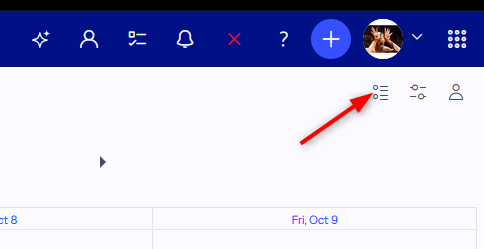
Open the list with the list icon in the calendar controls, next to the calendar settings.
For integrations: the list is available as GET /easy_meetings.json (or .xml) with the same filters, and a single meeting as GET /easy_meetings/:id.json.
Agile Resource Management - project allocation from the personal view
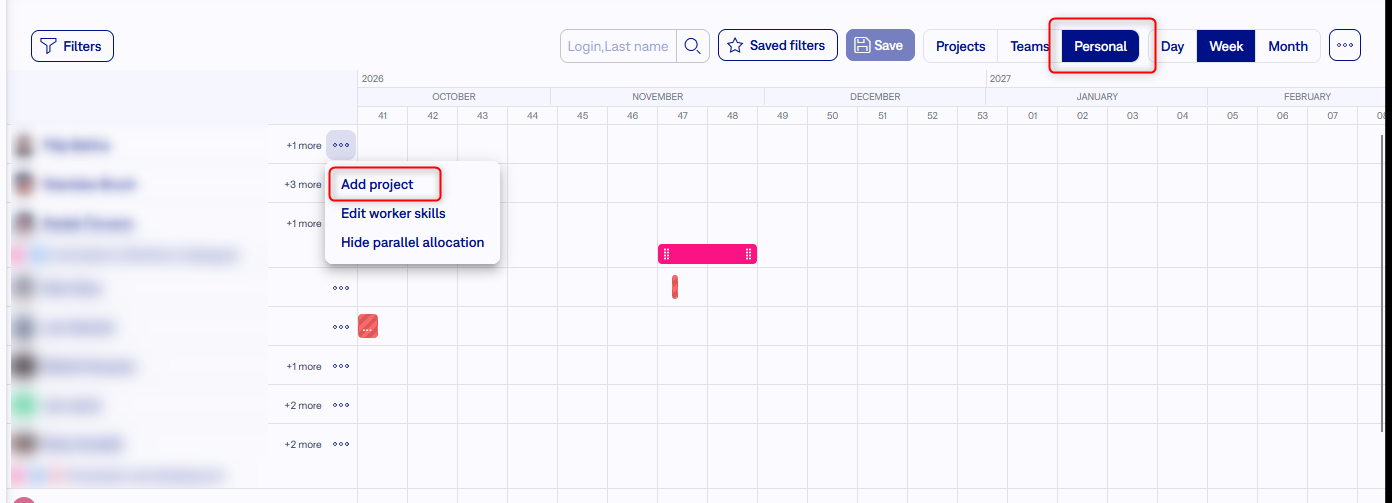
Resource managers can now allocate a person to a project without leaving the personal view in the Agile Resource management.
- Open the menu of a person's row and choose Add project. Pick the project (optionally with Search in all projects); it appears as a new project row under that person.
- On that row, create an allocation directly on the timeline, then move it, resize it, manage its capacity or delete it, as you would in the project view.
The allocation is the same entity you see in the project view. The existing permission to manage Agile Resources applies.
Test cases - task linking with filters
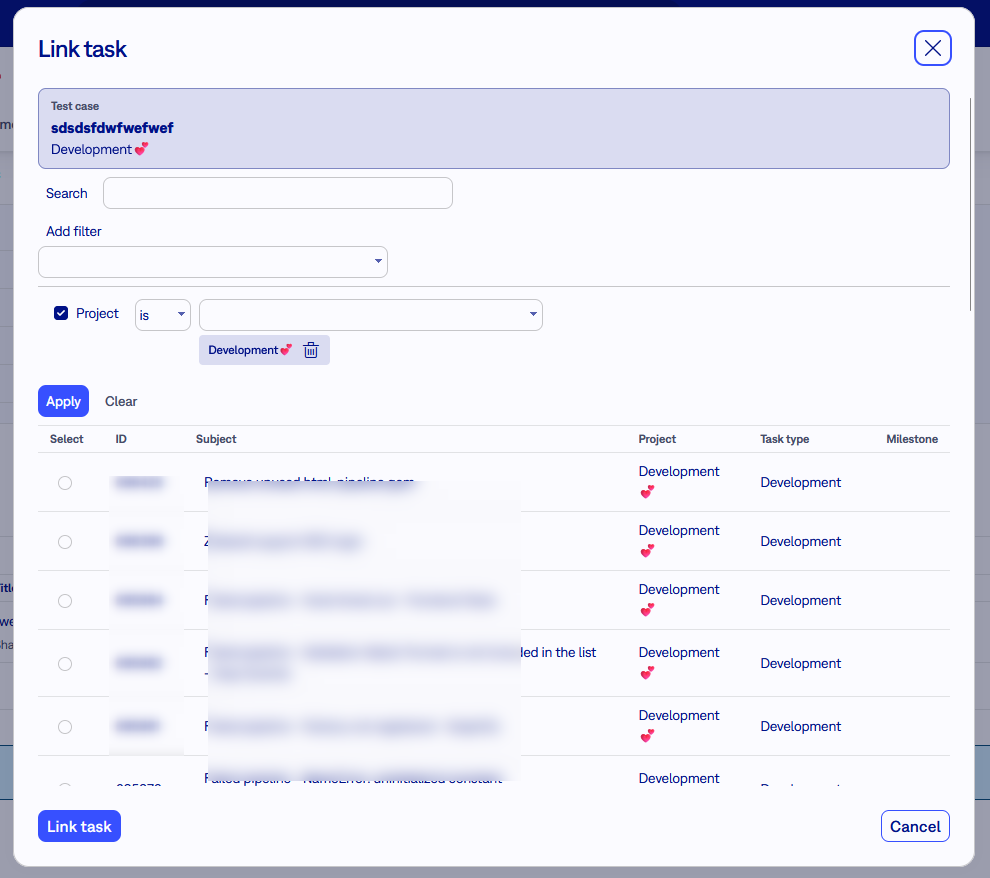
Linking a task to a test case (Add task) or to a test plan (Link task) now uses one task picker for both. Until now the dialog could only be searched by task name or ID, which made it slow to find the right task in large projects.
- Search by subject or by part of the task ID.
- Filter by Project, Task type and Milestone.
- Page through long results or use Show all.
Closed tasks and tasks from other projects are offered when you are allowed to see them. Existing links and permissions are not affected.
Tasks - mentions, faster history and priorities on move
- Mentions in the task description - when you newly @mention an internal user in a task description, they receive an e-mail with the link to the task and its description. Until now mention e-mails were sent only from comments. Only newly added mentions trigger an e-mail; mentions that were already there, and mentions inside quoted text, do not.
- Comments and History load on demand - the task page no longer renders the whole history when it opens. The Comments and History tabs load their entries when you open them, which makes tasks with a long history open faster. Show all, reply and quote links work as before.
- Priorities when moving tasks - when you move a task to a project that limits the available priorities, and the task's priority is not allowed there, the move offers an allowed priority (the default one if it is allowed) instead of silently keeping a priority the project does not permit. In a bulk move with No change selected, tasks whose priority is already allowed keep it, and only the incompatible ones are corrected. Explicitly chosen priorities that the target project does not allow are rejected.
For integrations: the API now rejects a requested status_id or tracker_id (task type) that the workflow does not allow, with a validation error (HTTP 422) and without saving the other changes in the request. Until now such a value was silently replaced by the default while the rest of the request was saved. Requests that omit these fields behave as before. Bulk updates stay per task, so a bulk request can still partly succeed.
Automations
- Automation in the task history - history entries created by an automation now show which rule made the change, with a link to the rule. This helps when checking or debugging automations. Entries created before the update are not attributed, and the attribution disappears if the rule is deleted.
- Trigger workflow - in Advanced workflows, the Select workflow list shows only the workflow name and the detail icon; the description is available in the detail dialogue.
- Schedule times - the description of a scheduled automation now states (GMT+00:00), so it is clear that the schedule is in UTC. Previously times written beneath each other showed UTC vs user zone, and it was not clear why they are different.
Help Desk - tokens in e-mail templates
Help Desk e-mail templates accept the {{task_note}}, {{task_history}} and {{task_last_journal}} tokens, the same syntax as in Automations. The existing %task_note%, %task_history% and %task_last_journal% tokens keep working, so no template needs to change.
Budgets - filter by Original Currency
Original Currency was already available as a column and for grouping in Planned and Real Incomes and Expenses. Now it is also a filter, so you can show only the records stored in a given currency (via the create/edit form). The filter offers the active currencies. When no currency is active, the filter and the column are hidden.
Custom fields - computed Link field as a button
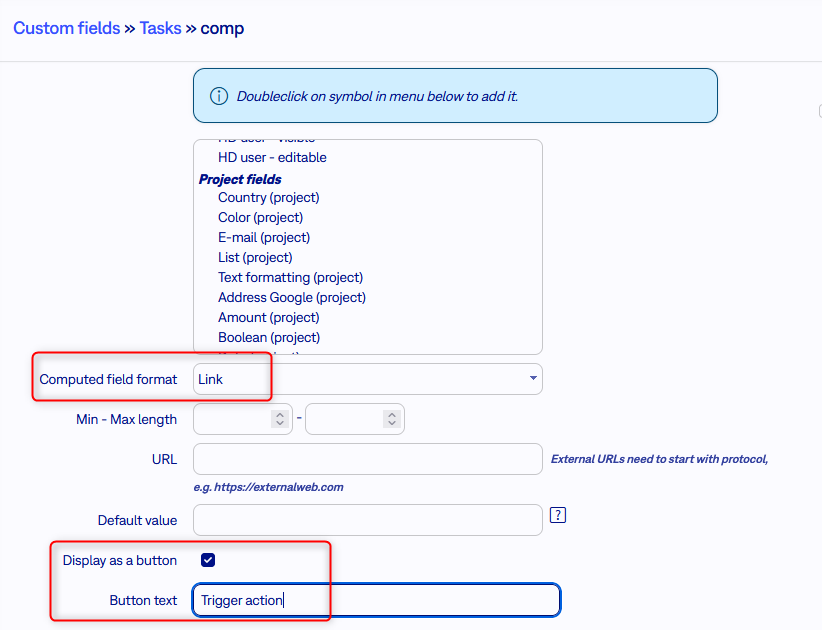
A computed custom field with the Link format can be shown as a button instead of a plain link. This gives a clean "action" element on the entity, for example to open an n8n form or trigger a webhook with the entity's values in the URL.
In the custom field settings, with the Link format selected, tick Display as a button and optionally fill in Button text; without a text, the button shows the first 40 characters of the computed value. Existing fields are not changed: the option is off by default, and the field stays a link until you enable it. A link without a scheme opens over HTTPS; write http:// explicitly when you need it. The button is shown on the entity detail page.
Knowledge base - automatic permission synchronisation
Access to the Knowledge base now follows Easy8 automatically. Changes of roles, project memberships, groups, user types and administrator rights are synchronised to Knowledge base in the background. Locked and deleted users lose their KB access, and their sessions are ended. Large changes, such as editing a role used by many people, are processed in batches, and a failed synchronisation is retried.
Knowledge base partial administrators can now see Related articles on a task without a separate global view permission, and the article search when linking an article to a task looks through the content pages the person can read.
API - price books and opportunities
For integrations: price books can now be read through the standard API with an API key: GET /easy_price_books.json (or .xml) lists the books with pagination, and GET /easy_price_books/:id.json returns one book. Both include the visible custom fields and, when assigned, the native Solution (easy_product_solution with id, name and internal_name). Products, bundles and prices are not included by default; request them with include=products,bundles,prices (any subset). A price entry links to its price book through easy_price_book_price_id. The usual permission to view price books applies.
Opportunity list and detail responses (GET /easy_crm_cases.json) now include sale_type with the values acquisition or upsale, so integrations can tell new business from upsells. Records without a sale type omit the property.
Performance optimisation
- Grouped lists - lists grouped by an attribute (for example tasks by status, spent time by user, the Spent time dashboard widget) compute the group counts and sums in one pass instead of one scan per aggregate. On large data this saves seconds per page.
- Searching through custom fields - entity pickers and list searches that cover searchable custom fields respond about 20 % faster, with the same results.
- My account and user administration - the project list for selected projects e-mail notifications is loaded only when that option is chosen, so these forms open much faster in installations with many projects.
- Tagged saved-query badges - the counts on tagged query tabs stop at 1000+ instead of counting everything, and Easy Resource and Easy Scheduler views skip the count altogether. The project list tree and the project form also load faster.
- Project paths - pages and exports that show the full project path, including the Projects tab of a user profile, load faster on large project trees.
Technological stack
Release notes are no longer going to list the technological stack required to run the Easy8 application. This information is provided to on-premises users directly in the Client zone - Docker info package, and it is always up-to-date. The stack is built in the provided Docker images. What you need is just a Linux OS (amd64), Docker engine, Docker compose.
For Easy8 developers
If you developed into Easy8 codebase, always refer to documentation developers.easy8.com.
Changelog
Smaller changes and fixes are listed in the changelog.