Meeting rooms
How to create and reserve meeting rooms
Go to Administration >> Meeting rooms
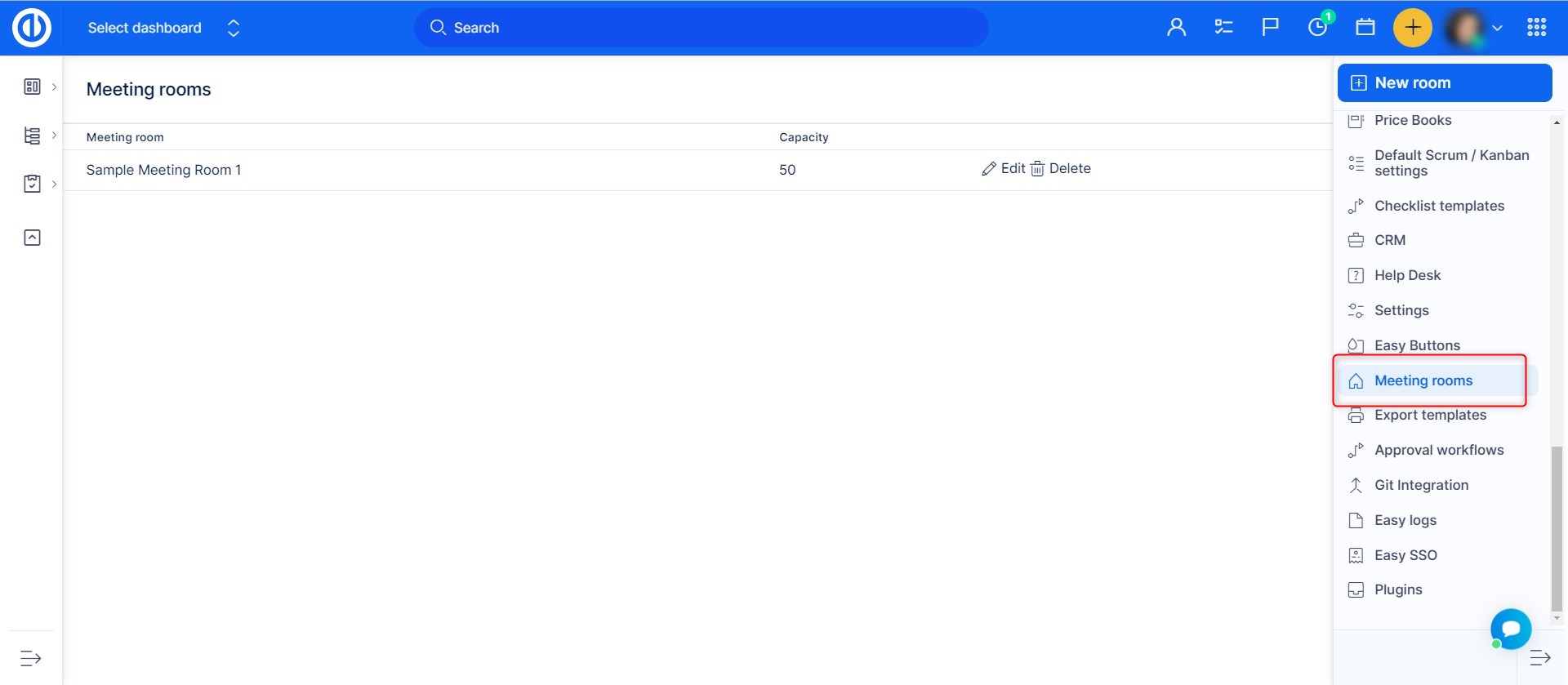
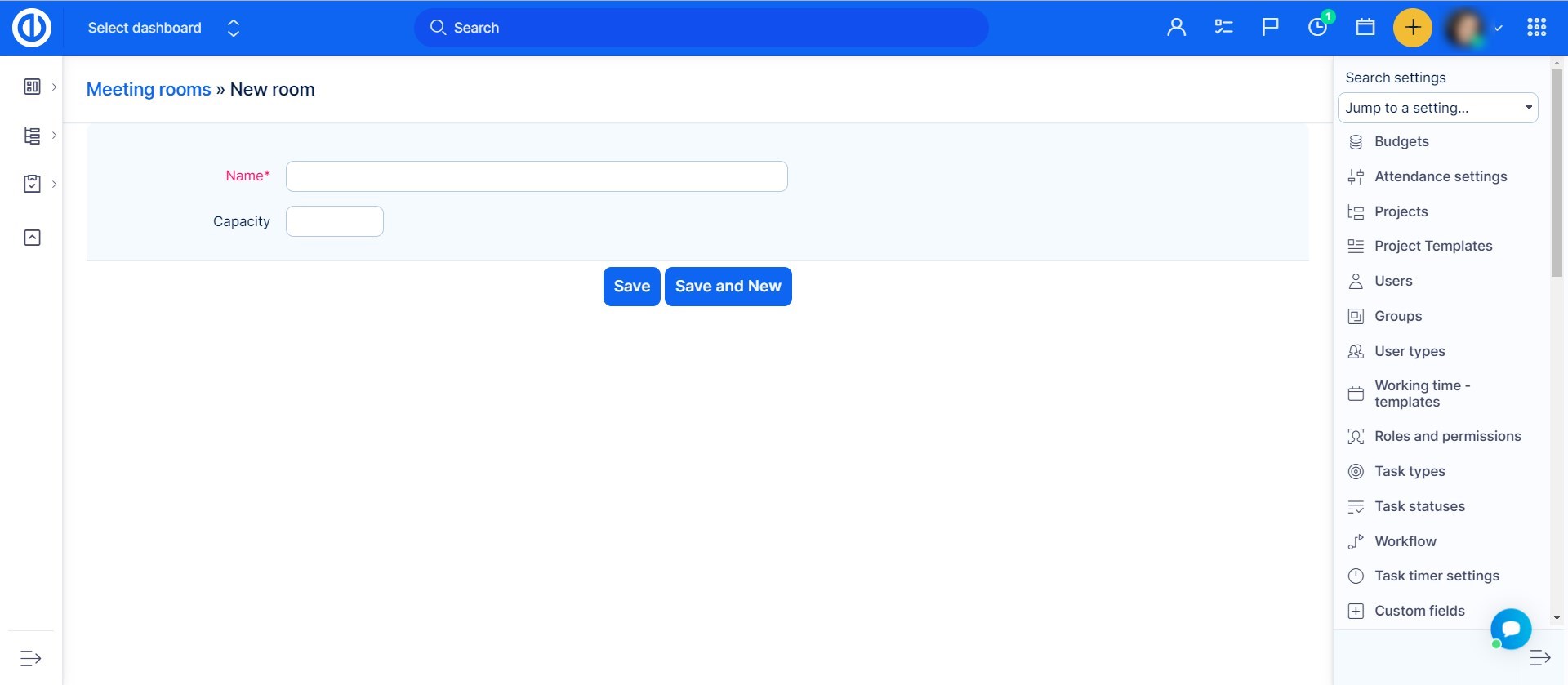
After clicking the "New room" button, you just need to add a room name and how many people it can contain.
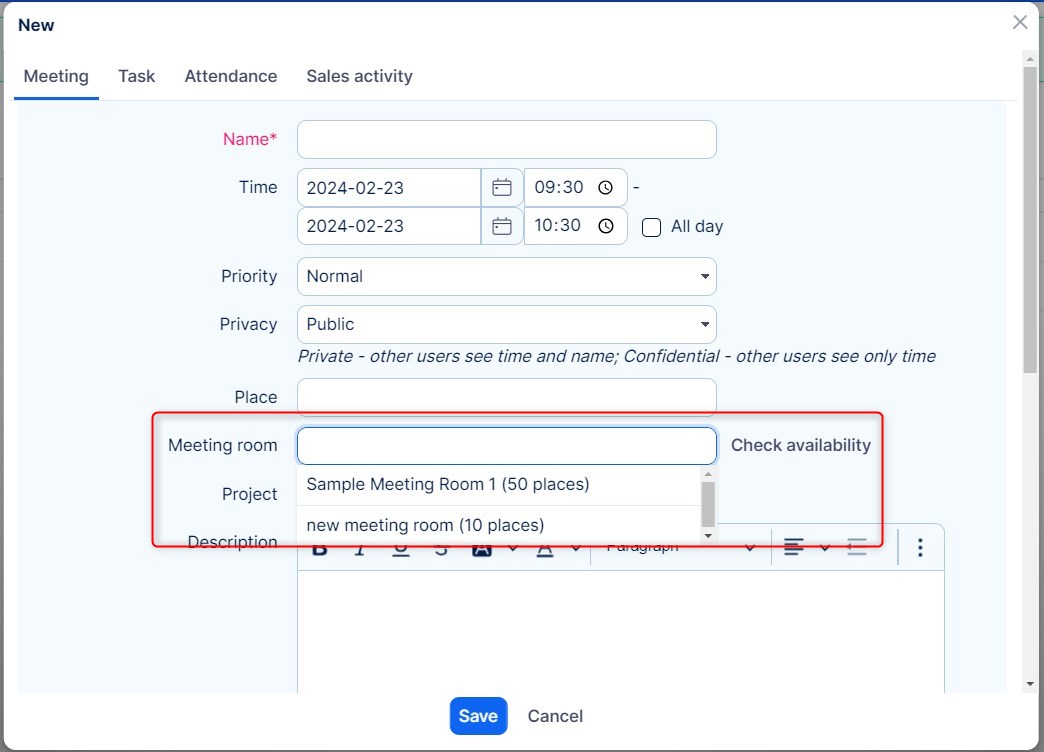
After you successfully created your meeting rooms, you can see them in the new meeting creation in Calendar. You can check them to make sure, it will be free for you when you need it.
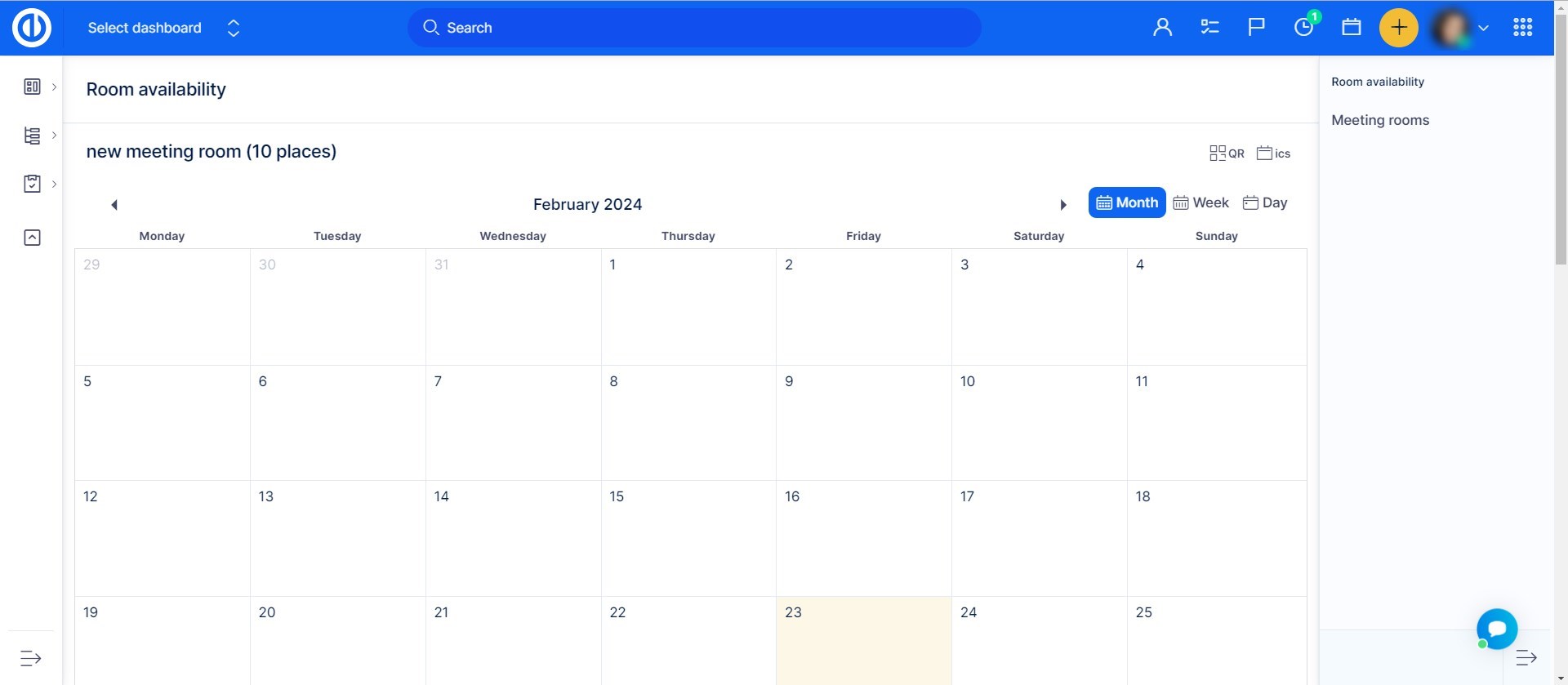
In Room Availability view (/easy_rooms/availability), it is possible to create new meetings, but not possible to edit or delete them. To edit or delete a meeting, use Calendar. By deleting a meeting room, all existing reservations of this room are cancelled.
Finding and removing reservations
To see all meetings and room reservations in a table, open the meetings list by clicking the list icon in Calendar. You can filter the list by Meeting room, start and end time, author, invited user and other fields, and save a filter for later use.
A reservation that was declined is not shown in Calendar, but it still occupies the room. The meetings list shows these reservations as well, so you can find the one that blocks a room. Filter by Meeting room and the time period, then look through the rows.
If you are allowed to edit a meeting, the edit and delete icons appear at the end of its row. Click the delete icon to remove the reservation and free the room. The organizer does not have to accept the reservation again first. You can edit and delete a meeting if you are its author, an administrator, or have the permission to edit meetings and can see the meeting's details.