


Introduction
This guide will show you how to manage project members and assign roles in Easy8. Adding the right people to your project and assigning correct roles is essential for collaboration, task ownership, and security. By following these steps, you can control who has access to what in each project.
Target Audience
- Project Managers
- Administrators
Prerequisites
Before starting, ensure you have:
- Permission to manage project settings.
- A list of users you want to add to the project.
- Understanding of available roles and their permissions.
How to Manage Project Members and Roles
Step 1: Access Project Settings
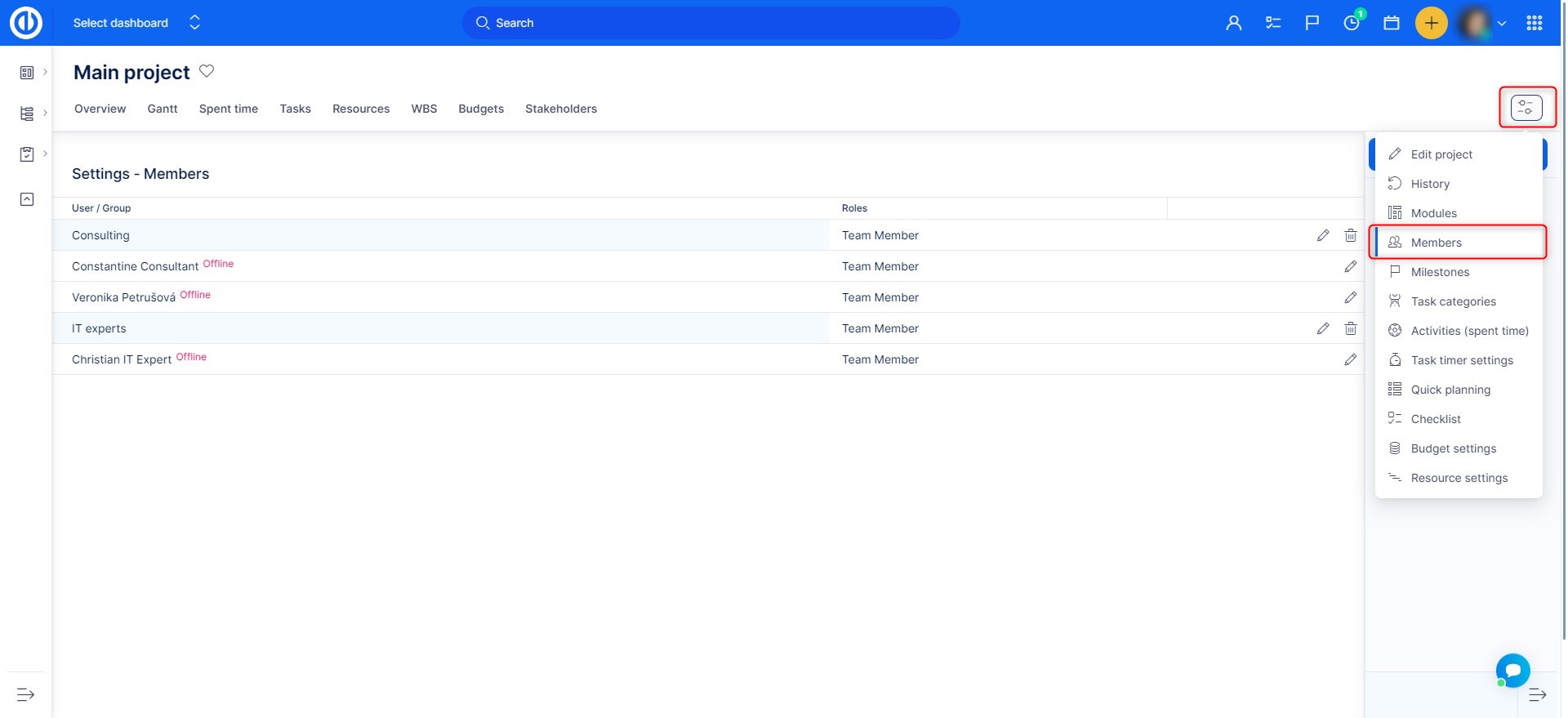
- Open the specific project where you want to manage members.
- Click on the Settings icon top right.
- Select the Members option.
- You will see a list of current project members and their assigned roles.
Step 2: Add a New Member
- Click Add member button top right.
- Select one or more users, or groups, from the list.
- Choose a role for each user or group (e.g., Manager, Developer, Reporter). You can assign multiple roles to one user if needed.
- Click Add to confirm.
Step 3: Edit or Remove Members
- To change a member’s role, click Edit at the end of the row, update the role, and save.
- To remove a user from the project, click Delete at the end of the row.
Step 4: Understand Role Permissions
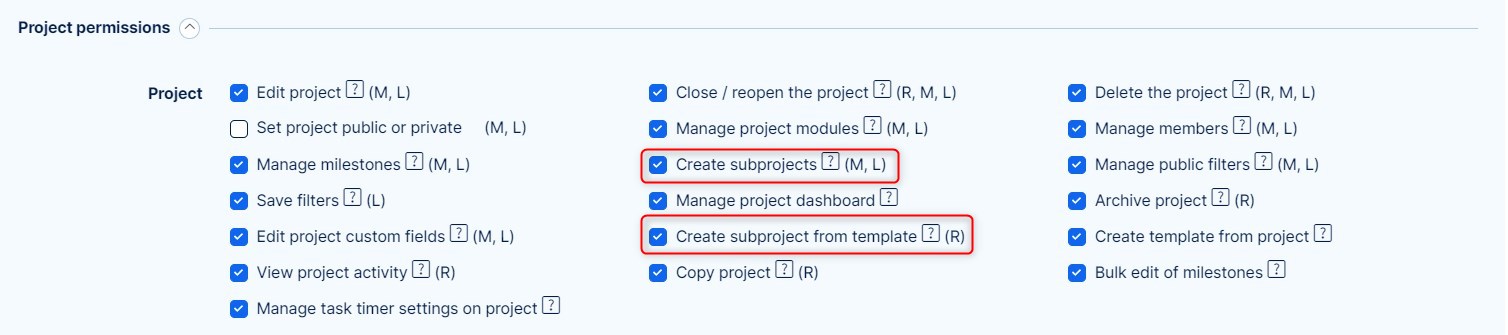
- Roles determine what actions users can take in the project, such as:
- Viewing or editing tasks
- Logging time
- Managing project settings
- Role permissions are defined globally in the Administration > Roles and Permissions section.
Troubleshooting
- If a user does not appear in the selection list, check that they are active in the system.
- If role options are missing, verify that roles have been created in the global administration settings.
Conclusion
You have successfully managed project members and assigned roles in Easy8. This ensures secure access, clear responsibilities, and effective teamwork within each project.
