


Magic button aka task templates
How to create task templates using the Magic button
We have received many requests for functionality for issue templates from our clients, so we decided to find a quick and handy solution for it. Generate tasks with prefilled attributes by a single click.
How to use the magic button for system admins and project managers:
- Save this link as a bookmark on your browser:
javascript:try{$('textarea[id=issue_description]').val(CKEDITOR.instances["issue_description"].getData());}catch(e){}s=$.param($('#issue-form*[name!=authenticity_token]').serializeArray());alert(location.href+"?"+s);
- or (for browser with non-editable alerts)
javascript:try{$('textarea[id=issue_description]').val(CKEDITOR.instances["issue_description"].getData());}catch(e){}s=$.param($('#issue-form*[name!=authenticity_token]').serializeArray());(location.href+"?"+s);
- Go to a new task form and fill in the desired attributes. Like in the image below, tracker, assignee, priority and coworkers are set
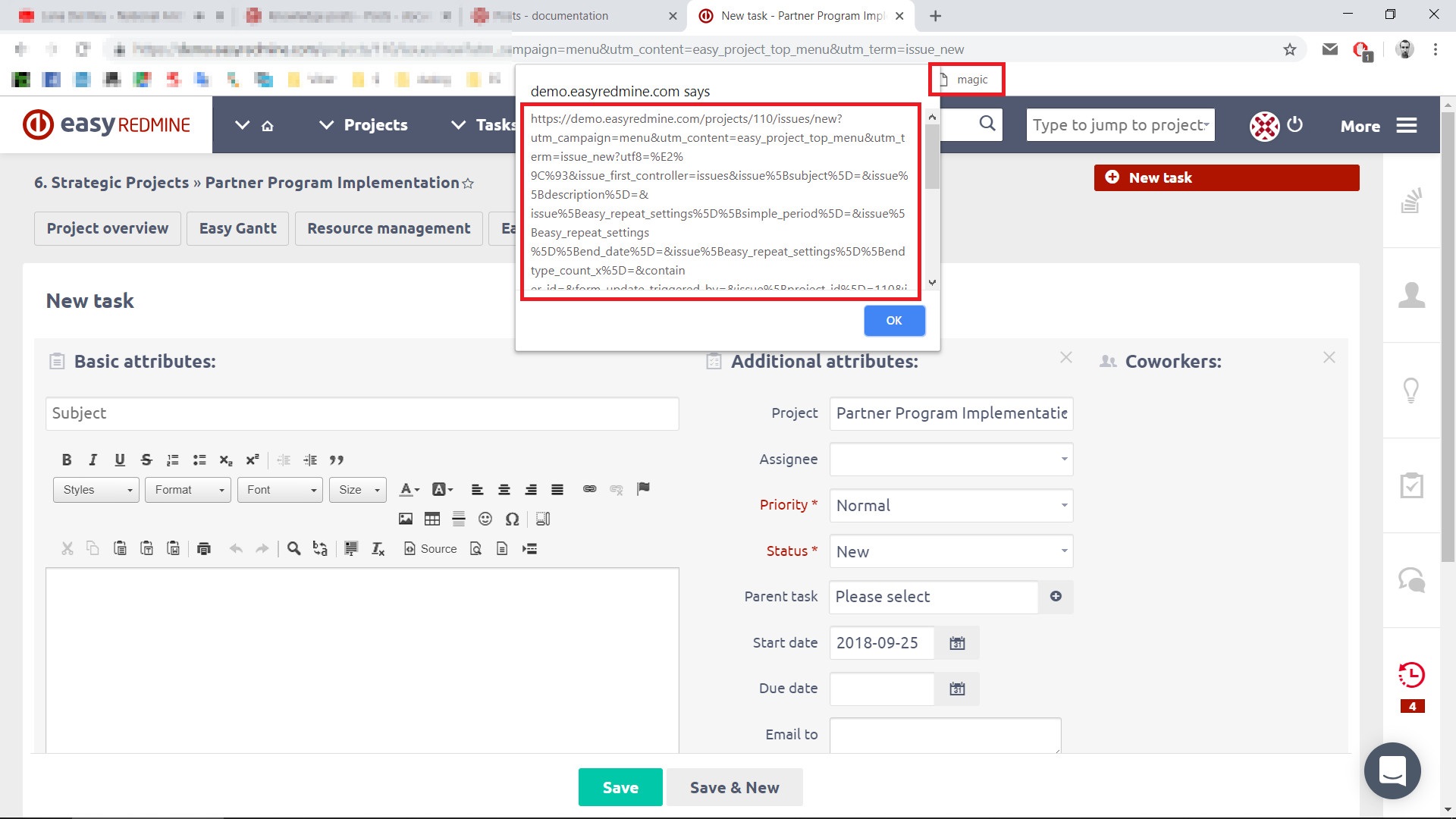
- Click on the bookmark you saved - magic button and you will get a link to the new task form with the prefilled attributes
- You can save this link to a noticeboard on a project overview page or user personal page.
How to use magic button for worker or external user:
- Click on the prepared link and enter name and description of the task :)
