


Introduction
Easy8 offers a modern interface with a clear structure. Understanding how navigation and menus work helps users to move through the system efficiently. This article explains the main navigation elements and how they improve the user experience.
Target Audience
- User
- Administrator
Understanding Navigation in Easy8
Definition
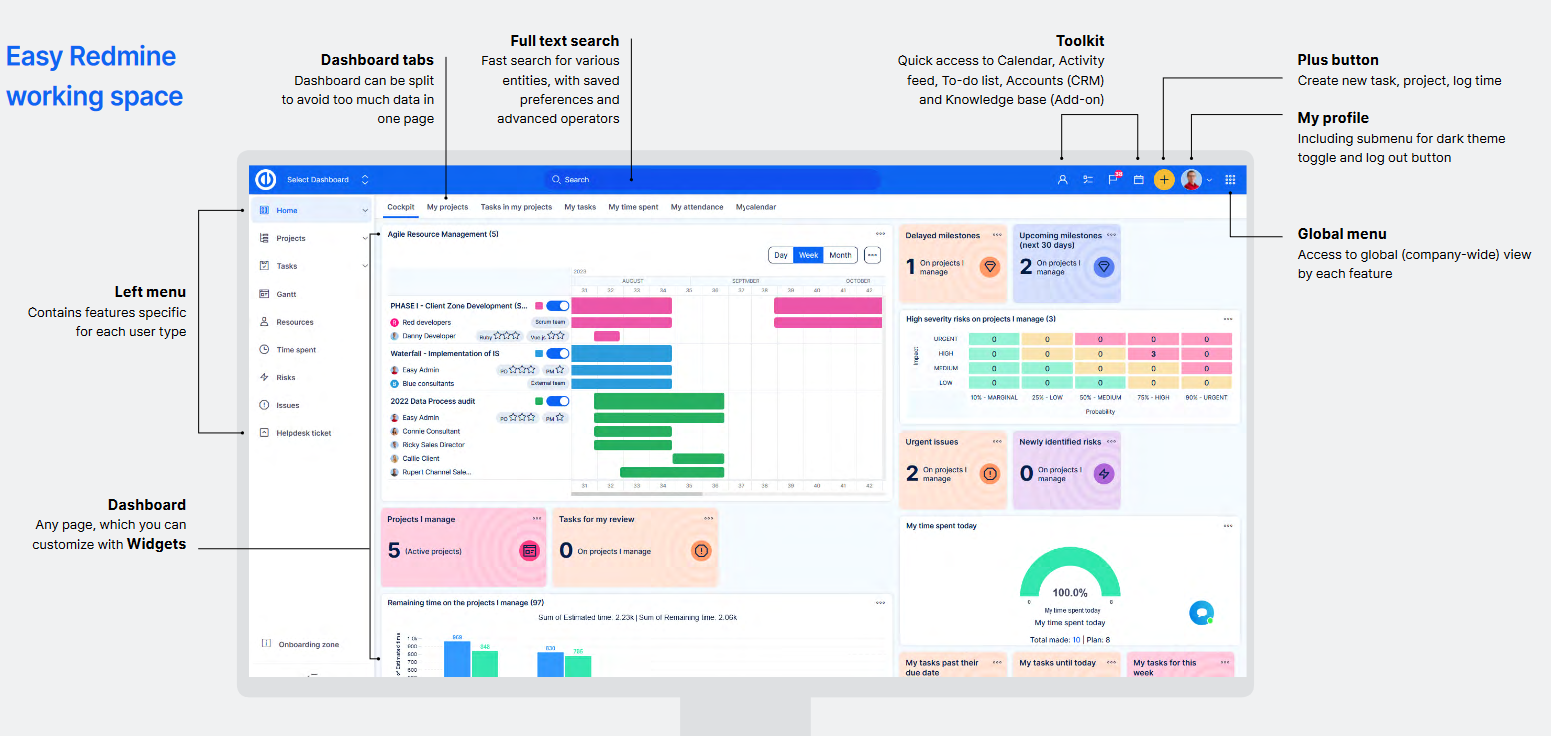
Navigation in Easy8 includes several main elements:
- Top Menu – available on all pages, provides access to global functions.
- Left Menu – customizable menu for access to main features like Projects, Tasks, Time Reports.
- My Dashboard – entry screen after login, contains widgets for quick access to features.
- Jump to Dashboards – right next to the logo it allows users to quickly navigate to any dashboard in the system.
- Global Search – helps users find items across the system.
- Global Menu - located on the far right of the top bar it gives access to all the application modules and features.
- Right Side Panel - visible on project, task and other views providing additional options.
How It Works
The navigation system is designed for clarity and speed:
-
Top Menu – visible at all times, includes:
- Jump to dashboards
- Global search
- User profile access
- Calendar
- Plus button to create new projects, tasks, ...
- Global menu
-
Left Menu – is customizable and adapts based on User Type. It gives direct links to:
- Projects
- Dashboards
- Time Reports
- Agile Boards
- CRM
- and more
-
My Dashboard – after login, users land on the My Dashboard page. It displays customizable widgets like:
- Calendar
- Project overview
- Task lists
- Charts and graphs
- and more
- Jump to Dashboards – located right next to the application logo it allows users to quickly search and navigate to any dashboard in the system they have rights for access. It also allows the users to bookmark their favorite dashboards.
- Global Search – always accessible in the top menu. Allows users to type in a task number or keyword and jump directly to the result.
- Global Menu – accessible from the top menu it gives access to essential functionality, business modules, plugins, features and administration.
Examples
- A user working mainly with CRM and Projects can have the the left menu adjusted to show only those modules.
- Pinning the Time Report page helps project managers access it every day without navigating through menus.
Conclusion
Navigation in Easy8 is built for clarity and customization. With menus, dashboards, bookmarks, and quick search, users can access tools quickly and work more efficiently.
