


Introduction
Dynamic filters in Easy8 provide a flexible way to display data that adapts to the user, context, and content. Unlike standard filters, dynamic filters are interactive and can be accessed in various modules and views. They are useful for personalized dashboards, shared reports, and live views that change based on who is viewing them. This article explains the concept and purpose of dynamic filters and outlines where and how they appear across the system.
Target Audience
- User
- Administrator
Understanding Dynamic Filters
Definition
A dynamic filter is a flexible, interactive filtering tool that adapts to the current user and allows quick filtering directly within lists or widgets. These filters support placeholder values such as me, enabling personalized views for each user without requiring separate configurations.
Dynamic filters also support advanced interface options such as column customization, grouping, sorting, and layout changes, making them suitable for dashboards and reports that require frequent, hands-on exploration.
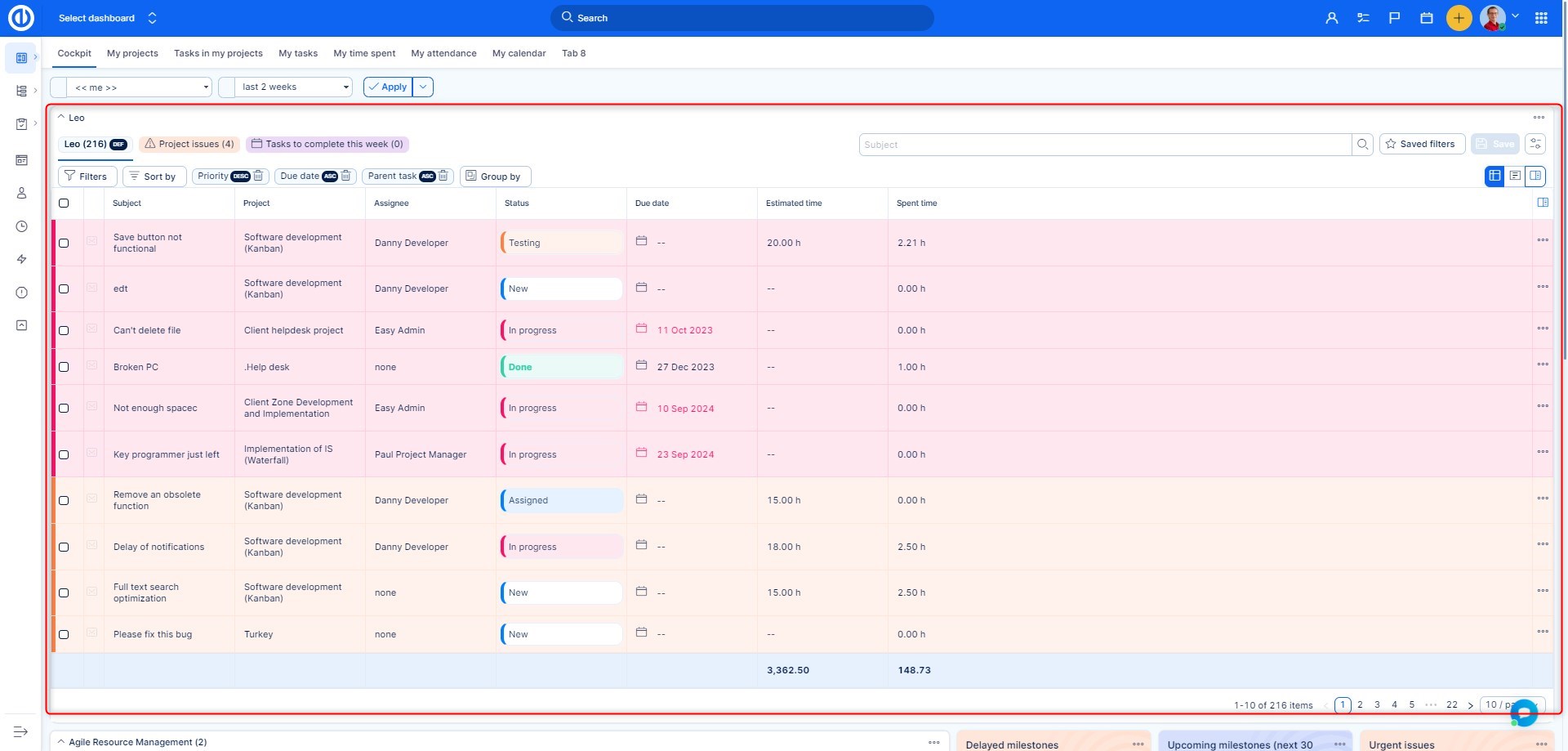
Where Dynamic Filters Are Available
Dynamic filters are not limited to one specific module. They are accessible in several core areas of Easy8:
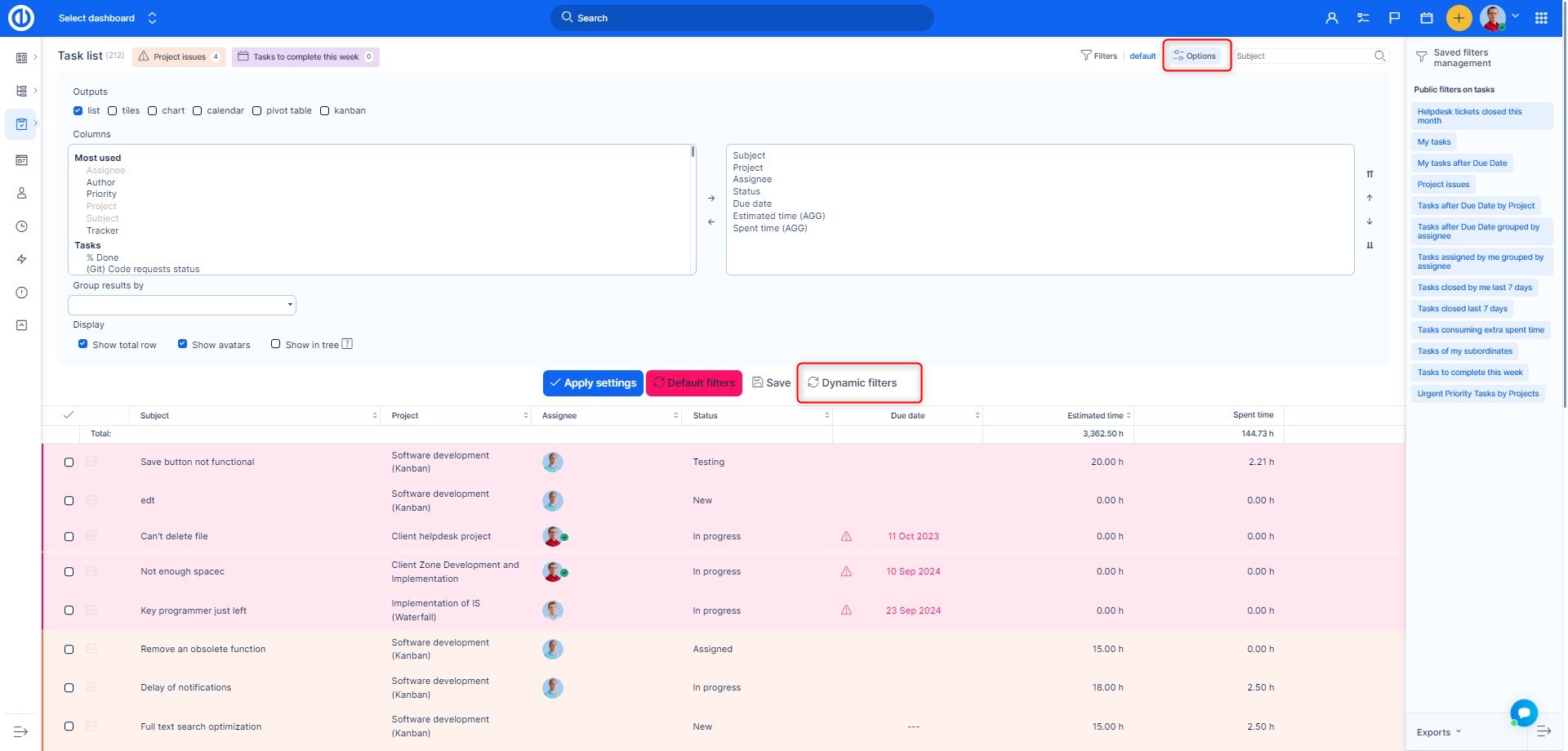
- Task List: Open the task list, then go to Filters or Options > Dynamic filters.
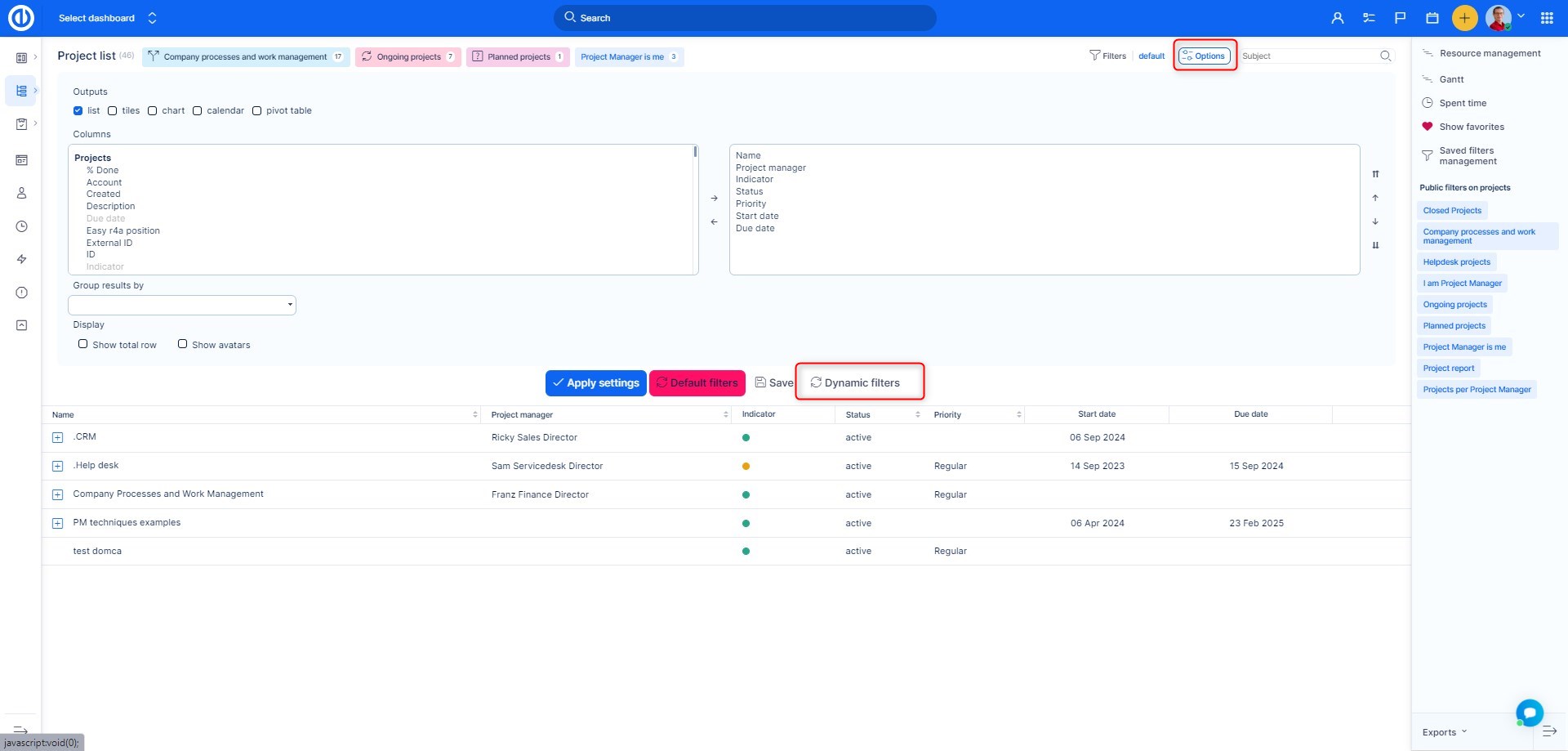
- Project List: Open the project list, then go to Filters or Options > Dynamic filters.
- Spent Time Entries: Go to Global menu > Time reports > Spent time or Personal statement, then choose Filters or Options > Dynamic filters.
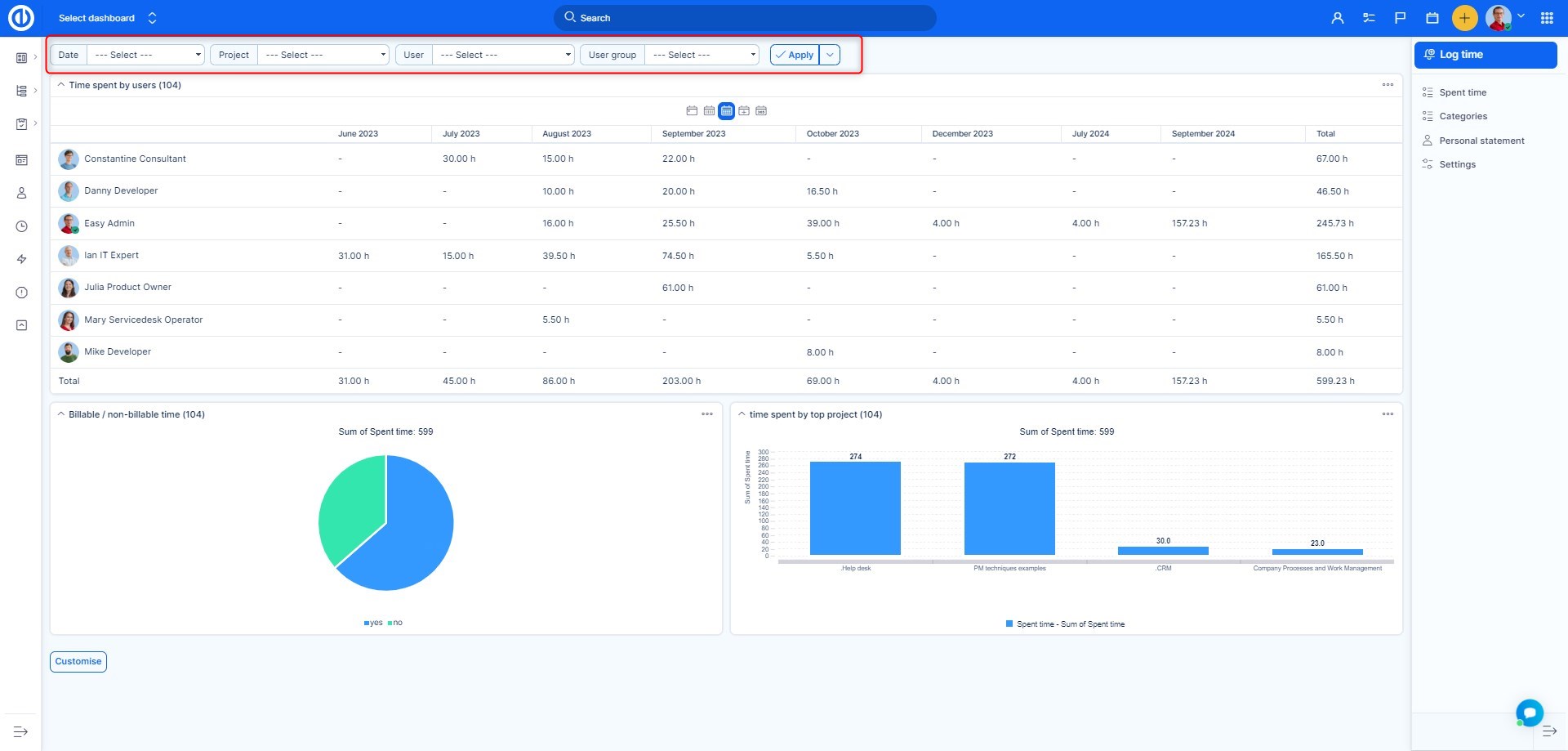
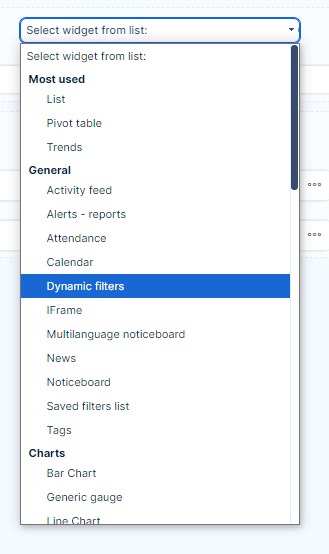
- Configurable Module: Add Dynamic filters as a module on any personalized page using Customise option.
How Dynamic Filters Behave
Dynamic filters adapt based on who is viewing the data. For example, when a filter condition is set to Assigned to = me, it automatically resolves to the currently logged-in user. This makes them ideal for shared dashboards or reports where each viewer needs a personalized dataset.
Dynamic filters also include a powerful UI that supports:
- Interactive column controls (add, remove, pin, sort)
- Grouping and sorting by multiple fields
- Layout options (list, cards, bordered view)
- Saving, importing, and exporting filter configurations
- Bulk actions via row selection
Additional Settings and Behavior
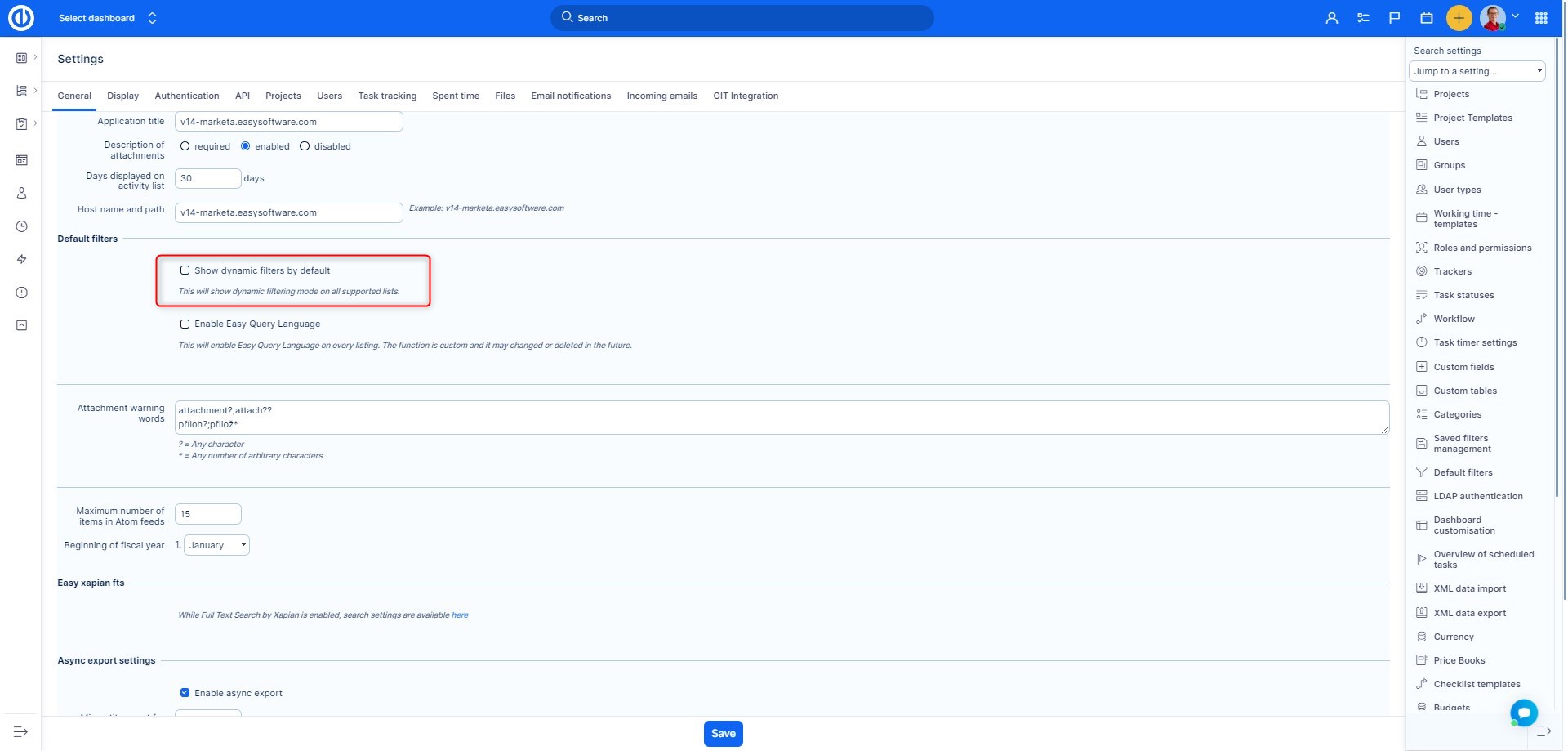
Administrators can configure whether dynamic filters should be shown by default across the system by navigating to:
Global menu > Administration > Settings > General > Dynamic filters' settings > Show dynamic filters by default
Users can also switch back to Filters 1.0 for temporary use via Table settings > Switch to filters 1.0. This change is session-based and affects only the current user.
Examples
- A user opens the task list and instantly sees their tasks using Assigned to = me in dynamic filter mode.
- A dashboard uses a dynamic filter module to let each team member review their own time entries.
- An administrator sets up a configurable module to show filtered project data that team leads can sort, group, and analyze directly.
Conclusion
Dynamic filters in Easy8 bring powerful, flexible filtering directly into the interface, making it easy to personalize, explore, and manage data. They are highly adaptable, context-aware, and perfect for users who need live control over how information is displayed. Whether through task lists, project views, or embedded dashboard modules, dynamic filters are a central feature for efficient and user-friendly reporting.
