


How to Work with Attendance Records
Introduction
This article explains how user absence data, such as vacations or sick days, appears in Resource Management. These records help planners avoid assigning tasks on days when users are unavailable.
Target Audience
User
Prerequisites
- Access to Global Resource Management
- Attendance Management active in your system
- Users with recorded time off (e.g. vacation, sickness, unpaid leave)
How Absence Records Appear in Resource Management
Step 1: Open Global Resource Management
- Go to Global menu >> Resource Management
- Make sure users are visible in the timeline
- Use Week or Month view to see daily planning clearly
Step 2: Understand the “N” Absence Marker
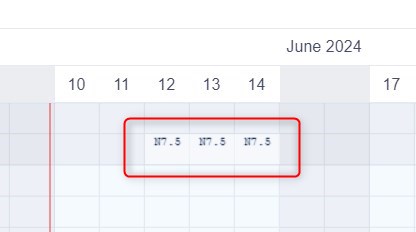
- If a user has time off recorded (vacation, sickness, etc.), an "N" symbol appears on the timeline for the affected day
- This symbol means the user is not available for any task allocation
- You can still view these days, but cannot assign tasks to them unless the absence is removed
Step 3: Where the Data Comes From
- These absences are managed through the Attendance module or Vacation planning
- The Resource Management tool reads this data automatically – no activation is needed
- If a user’s time off changes, the planning grid updates accordingly
Step 4: How This Affects Planning
- Resource Management will automatically block task allocation for these days
- The user’s availability is recalculated based on recorded absences
- Planners can better estimate capacity across the week or month
Conclusion
Resource Management uses attendance records to prevent task allocation during user absences. These are clearly shown as "N" symbols on the timeline and improve overall planning accuracy.
📌 Note: Most actions described in this article can also be performed in the project-level Resource Management. To access it, go to a specific project and click the "Resource Management" tab. The functionality is almost identical, but it will only display and apply to tasks and users related to that specific project.
Further Reading
- What is Attendance Management?
- How to Use Reservations
- How to Configure Global Resource Settings
- What is Global Resource Management?
| How would you rate this article? | |||
|


