


How to Use the “Start Working” Timer in Easy8
Introduction
This guide will show you how to use the Start Working timer in Easy8. This is useful for logging time directly from a task without filling in a manual form. By using the timer, you can automatically track time, change task status, and assign tasks with a few clicks.
Target Audience
User + Administrator
Prerequisites
Before starting, ensure you have:
- Access to Easy8
- A task assigned to you (or permission to assign it to yourself)
- Timer settings configured in administration (if needed)
How to Use the Start Working Timer
Step 1: Open the Task
- Go to your task list or project view.
- Click on a task to open the task detail.
Step 2: Click “Start Working”
- In the right sidebar, click the Start working button.
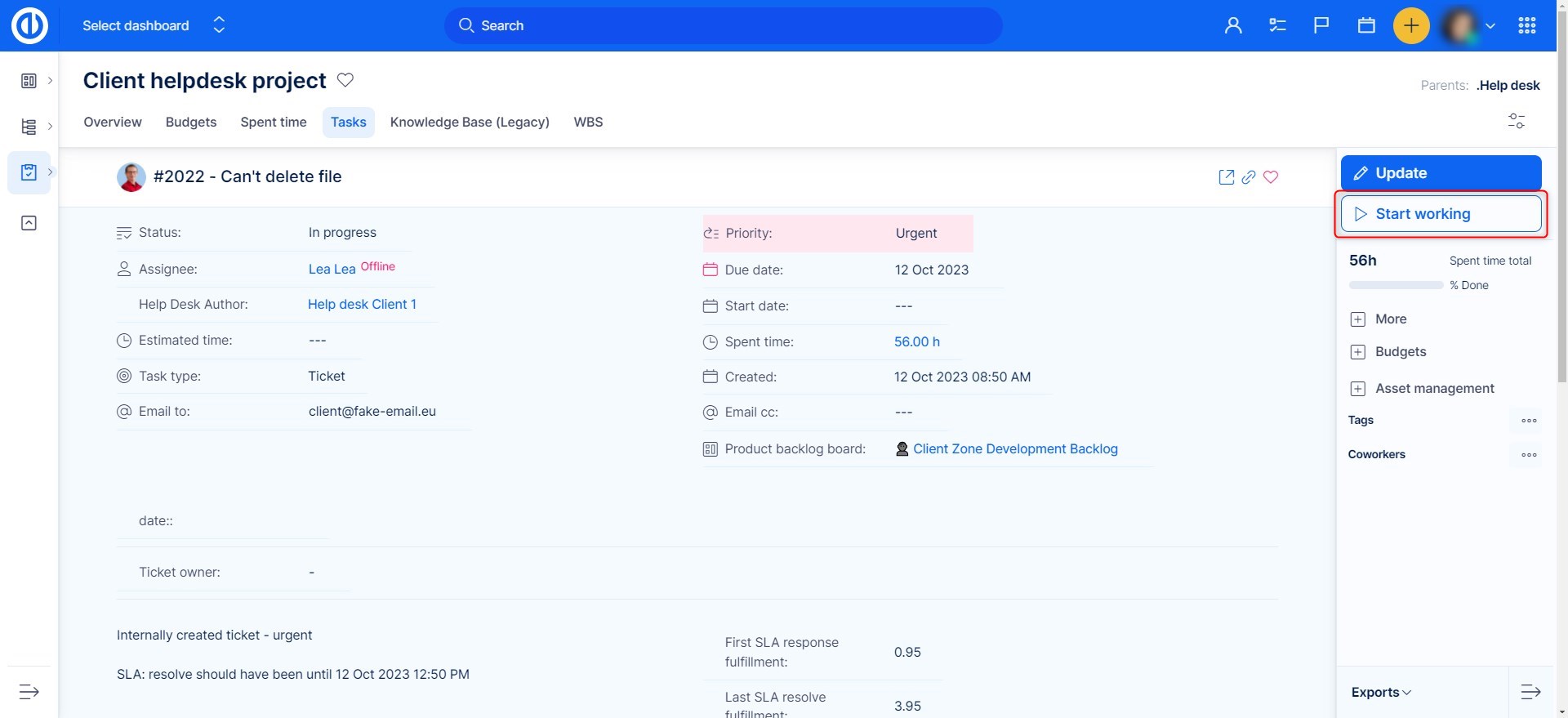
Note: When you click “Start working”:
- The task status changes automatically (according to timer settings).
- The task is assigned to you.
Step 3: Use Pause or Finish
- You can pause the timer anytime by clicking the Pause button.
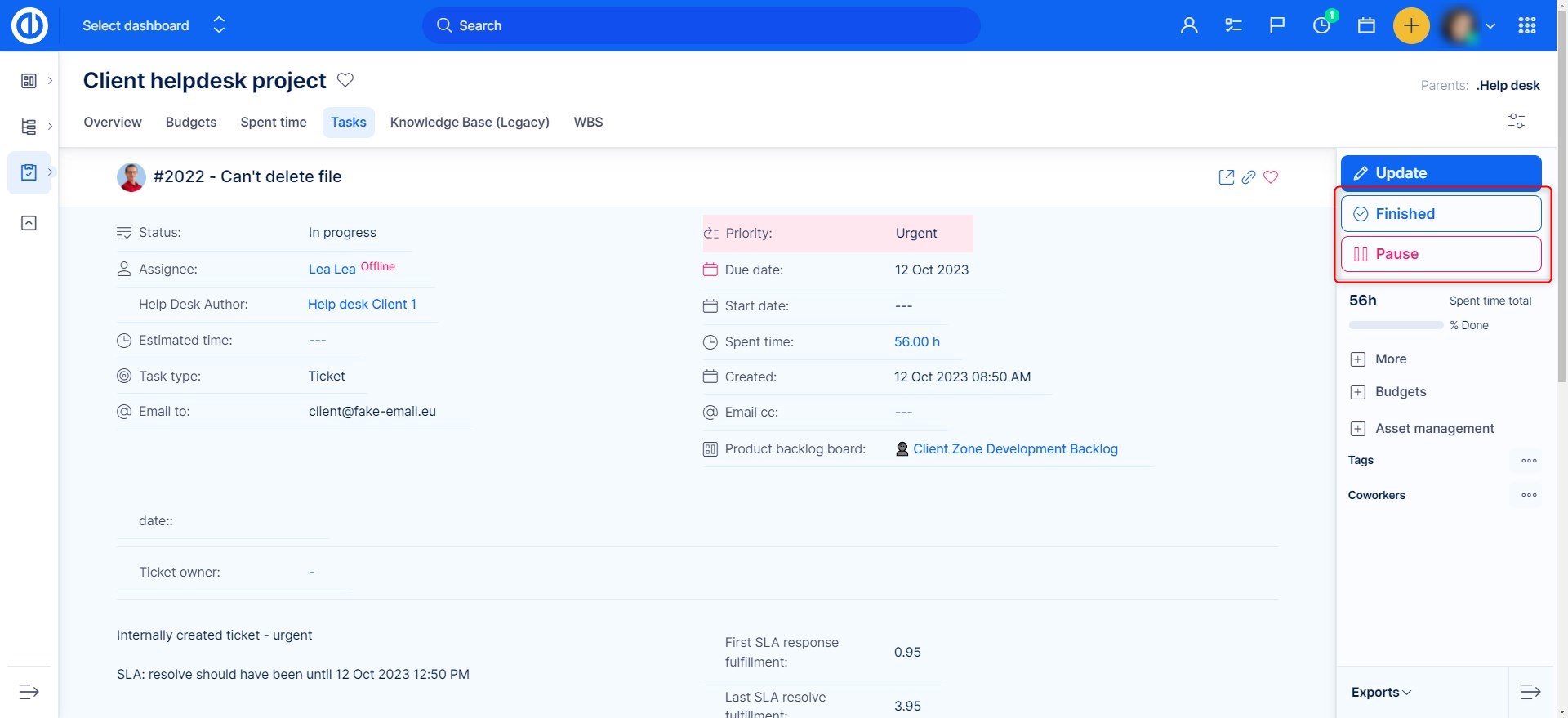
- When returning to the task, click Continue to restart the timer.
- When finished, click Finish to stop the timer.
Step 4: Review and Save Time Entry
- After you click Finish, the log time page will open.
- Time is pre-filled based on how long the timer was active.
- Fill in the desired fields and click Save.
Step 5: Optional – Configure Timer Settings
- Go to Administration >> Task timer settings.
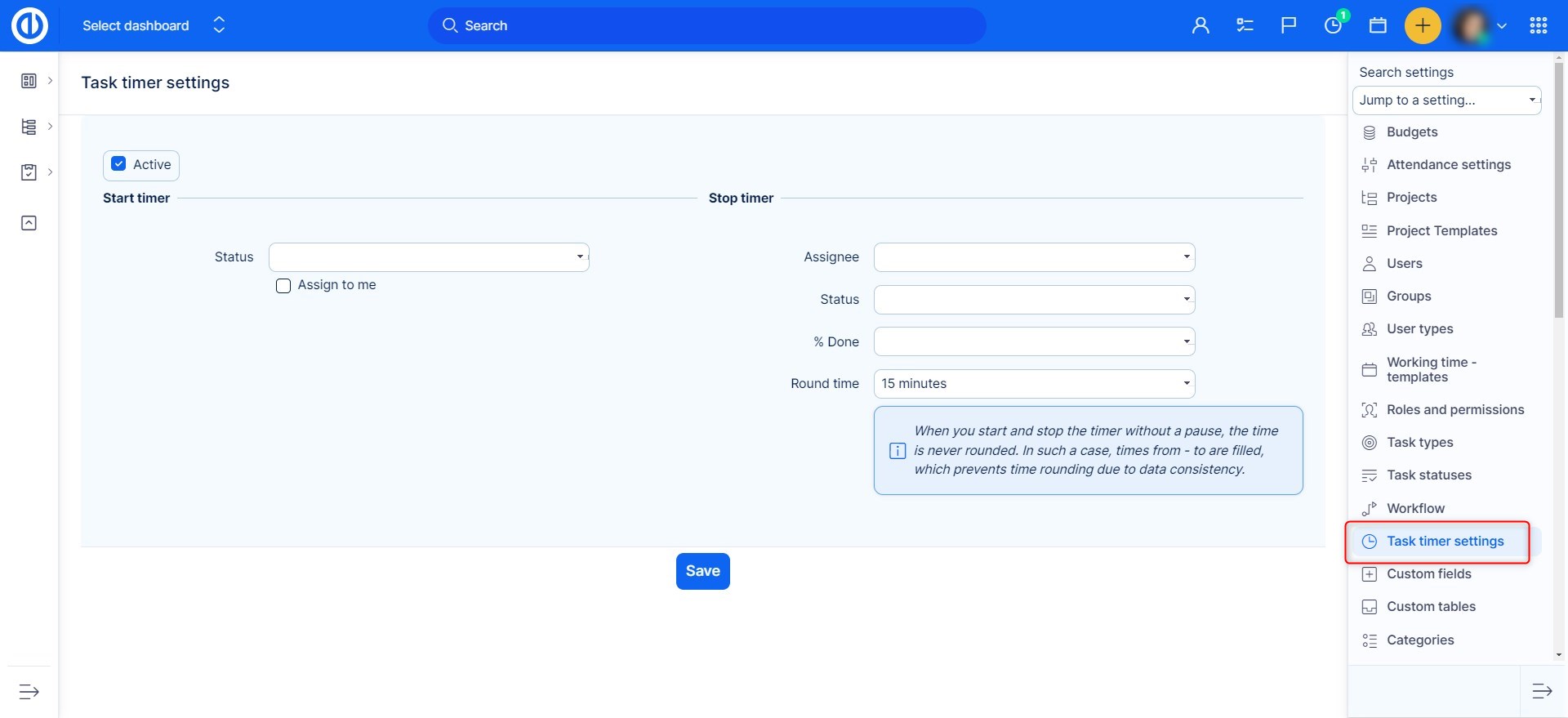
Here you can configure:
| Setting | Description |
|---|---|
| Start timer – Status | What status should be set when timer starts |
| Start timer – Assign | If the task should be automatically assigned to you |
| Stop timer – Status | What status should be set when timer stops |
| Stop timer – Assign | Who to assign the task to when the timer ends |
| Round time | Choose time rounding (e.g. 15 minutes) |
Tip: If you start and stop the timer without pause, no rounding is applied. “From – To” times are filled in to maintain data consistency.
Troubleshooting
- Timer button is missing
→ Make sure the task is assigned or you have rights to assign it. - Task not updating after starting timer
→ Check the timer configuration in the admin settings.
Conclusion
You have successfully used the Start Working timer in Easy8. This helps you log time quickly and consistently. You can now manage task time tracking more efficiently.
Related Topics and Further Reading
| How would you rate this article? | |||
|


