


Introduction
This guide will show you how to save and reuse filters in Easy8. Saved filters allow you to quickly apply complex filter settings without having to recreate them each time. You can also define visibility, output format, and layout for personalized or shared views.
Target Audience
- User
- Administrator
Prerequisites
- Access to any module with filtering capabilities (e.g. Tasks, CRM, Time Entries)
- Active filters already configured using standard options
How to Save and Reuse Filters
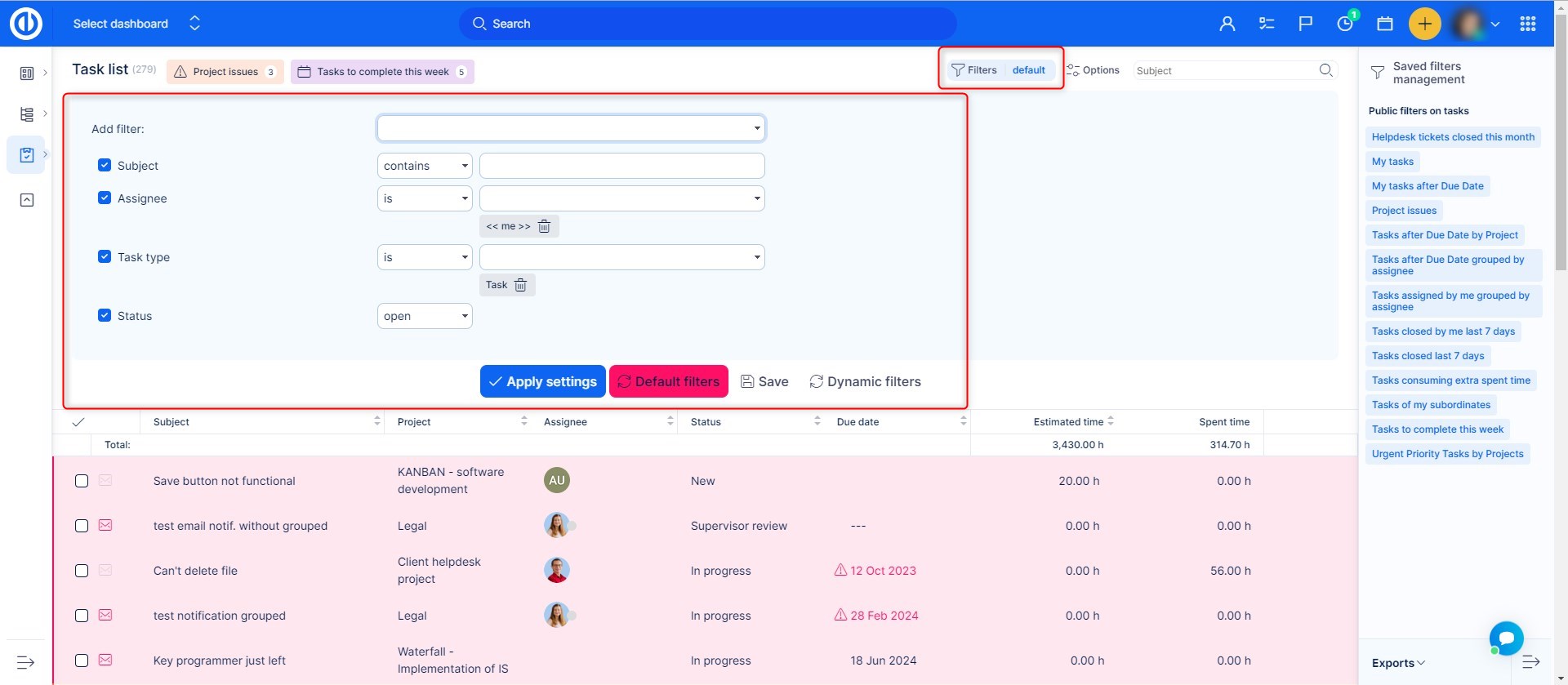
Step 1: Apply Your Filter Settings
- Go to a module such as Tasks or CRM.
- Use the filter panel to define your conditions (e.g. Status, Assigned to, Start date, etc.).
- You can also configure sorting, columns, grouping, and outputs (e.g. list, tiles, calendar) under the Options.
Step 2: Save the Filter
- Once your filters are configured, click the Save option.
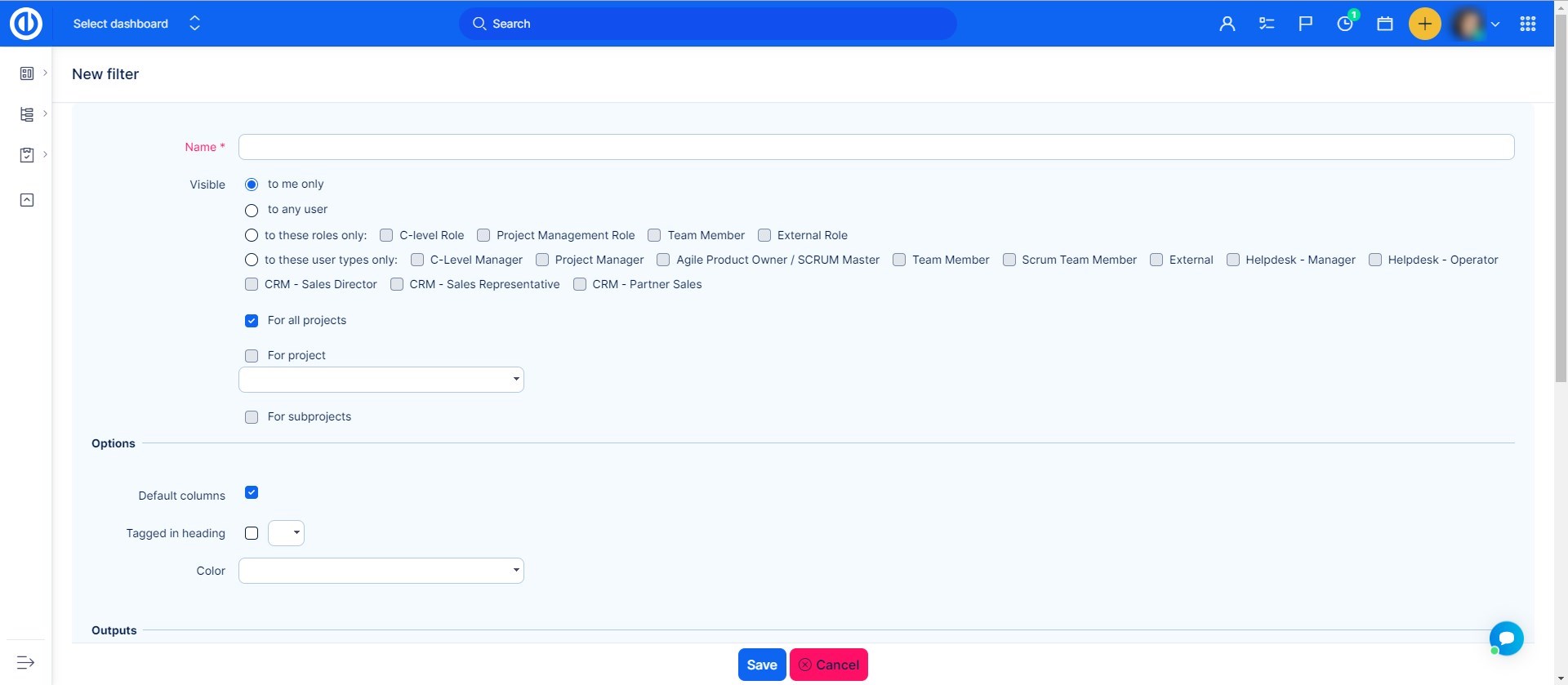
- In the form that opens, fill out the following fields:
- Name – Enter a name for the saved filter (required).
- Visible – Choose who can use this filter:
- To me only (private)
- To any user (public)
- To selected roles (e.g. C-level, Project Management Role)
- To selected user types (e.g. Project Manager, Team Member)
- Scope – Define where the filter applies:
- For all projects
- For project (specific project)
- For subprojects
- Options – Customize layout:
- Default columns
- Tagged in heading
- Color
- Outputs – Choose how the data is displayed:
- List, Tiles, Chart, Calendar, Pivot Table
Step 3: Reuse the Filter
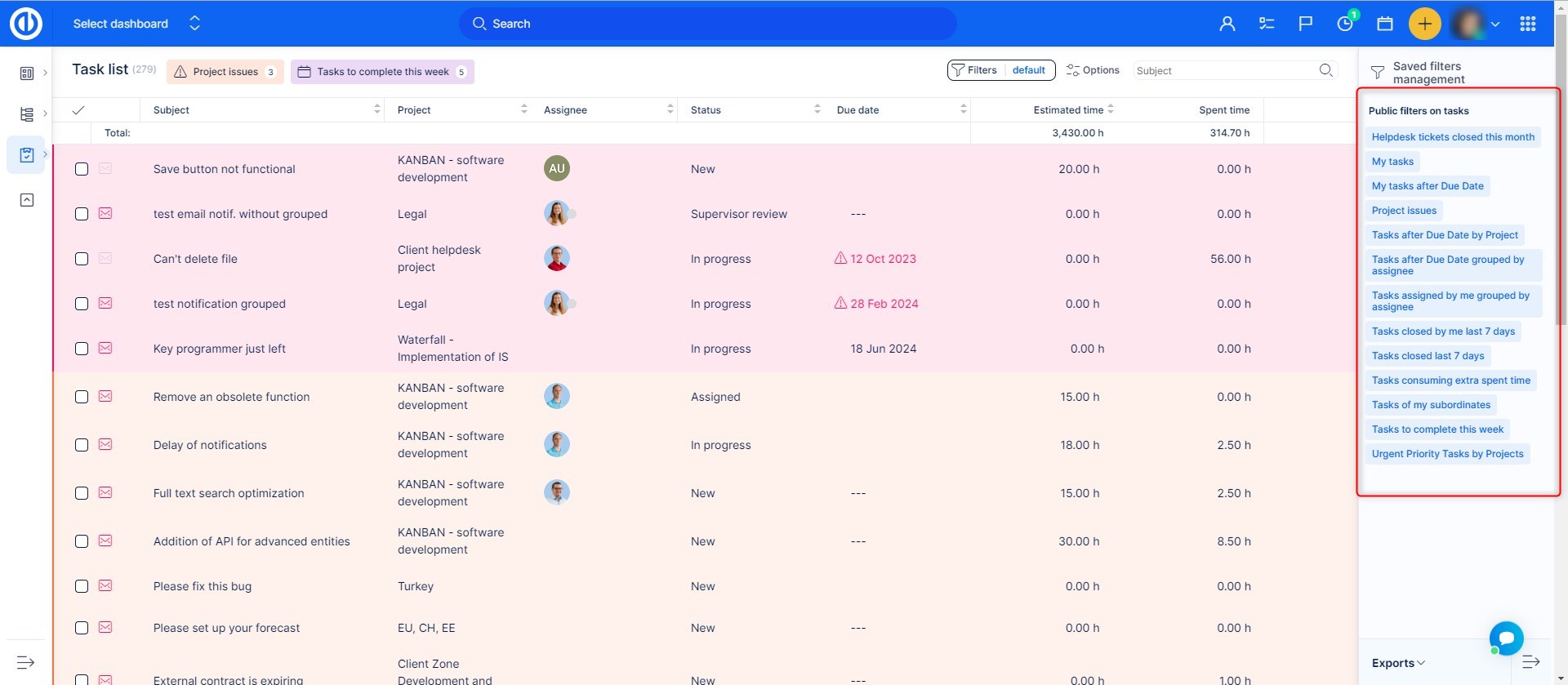
- Go back to the module and click the filter at the top, or find it in Saved filters management in the right side panel.
- The module view will automatically update based on the saved settings.
Saved filters include not only filter conditions but also visual and display preferences.
Conclusion
You have successfully saved and reused a filter in Easy8. Saved filters make it easy to return to frequently used views, save time, and ensure consistency across users or teams.
