How to Create a Ticket on Behalf of a Helpdesk User
Introduction
This guide shows how to create a helpdesk ticket on behalf of a helpdesk user, for example when a customer reports an issue by phone and you record it in Easy8. The customer is set as the Help Desk Author of the ticket, not the agent who created it.
Target Audience
User + Administrator
Prerequisites
Before you start, make sure you have:
- An internal user account with permission to create tasks in the helpdesk project.
- A helpdesk user record with the customer's registered email address. See How to Set Up and Manage HelpDesk Users.
- A helpdesk project configured as described in Step 1.
How to Create a Ticket on Behalf of a Helpdesk User
Step 1: Check the project configuration
An administrator must confirm these settings before the feature works:
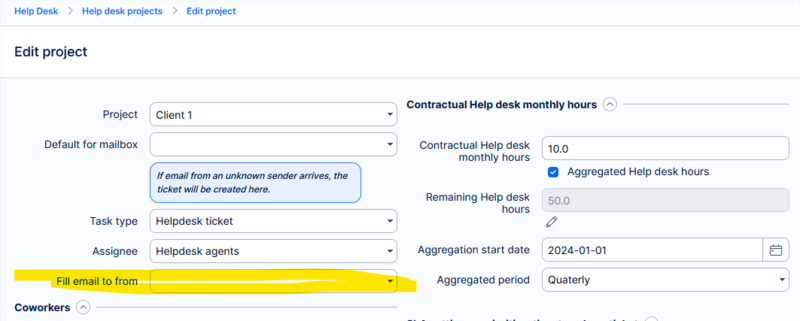
- In the helpdesk project settings, leave Fill email to from empty.
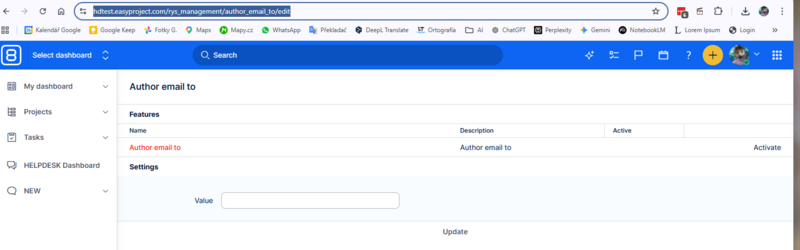
- Make sure Author Email To is inactive.<your_application>/rys_management/author_email_to/edit
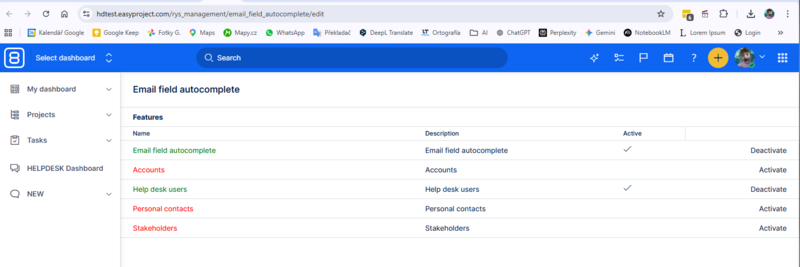
- Make sure Email Field Autocomplete is active. It suggests registered helpdesk user email addresses while you type. Also make sure that Help desk users is active.
<your_application>/rys_management/email_field_autocomplete/edit
Note: Keeping Author Email To inactive avoids conflicts with Email Field Autocomplete, which can stop the correct Help Desk Author from being set.
Step 2: Create the ticket
- Open the helpdesk project, click + at the top of the page and choose Create a new task.
- Set Task type to your helpdesk ticket type, for example Helpdesk ticket.
- In the Email to field, start typing the customer's email address and select it from the suggestions.
- Enter the subject and description and fill in any other required fields.
- Click Create to save the ticket.
Step 3: Check the Help Desk Author
- Open the saved ticket.
- Check that the Help Desk Author is the helpdesk user whose email you entered in Email to.
The ticket detail does not show an Author field. Use the Help Desk Author to see who the ticket belongs to.
Troubleshooting
| Problem | Solution |
|---|---|
| The Help Desk Author is your own name | Check that the email matches a registered helpdesk user and that the configuration in Step 1 is correct. |
| The customer is not suggested in Email to | Create the helpdesk user first, then check that Email Field Autocomplete is active. |
| No suggestions appear after you type the email address | Ask an administrator to check the configuration in Step 1. |
Conclusion
You can now create tickets on behalf of helpdesk users by entering their email address in the Email to field. Check the Help Desk Author on each ticket you create this way.