


Introduction
This guide will show you how to create or edit a dashboard in Easy8. This is useful for users and administrators who want to control how project data is displayed. By following these steps, you’ll be able to build dashboards that are tailored to specific users or teams.
Target Audience
- User
- Administrator
Prerequisites
- Access to Administration > Dashboard Customization in the global menu
- Permission to create or edit dashboards
How to Create or Edit a Dashboard
Step 1: Go to Dashboard Customization
From the global menu, navigate to:
- Administration > Dashboard Customization
Step 2: Create a New Dashboard
Click the “New Dashboard” button at the top right of the page.
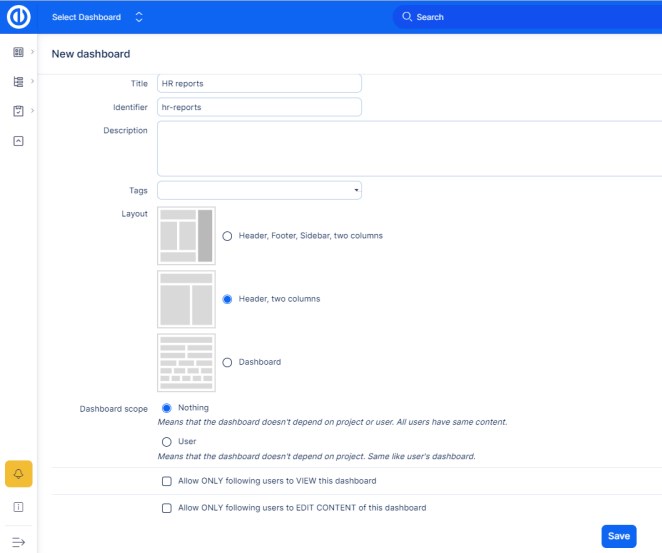
Step 3: Fill In Dashboard Details
You will see a form with these fields:
- Title — The name of the dashboard
- Identifier — A short system name
- Description — Optional notes or purpose
- Tags — Keywords to help find or group dashboards
- Layout — Choose how the dashboard will be structured:
- Header, Footer, Sidebar, Two Columns
- Header, Two Columns
- Dashboard
- Dashboard Scope — Choose how the dashboard will behave:
- Nothing — Shared with all users, content is the same
- User — Personalized for each user
- Allow ONLY following users to VIEW this dashboard — (optional restriction)
- Allow ONLY following users to EDIT CONTENT of this dashboard — (optional restriction)
Step 4: Save the Dashboard
Click Save to finish creating the dashboard.
Step 5: Add Widgets to Your Dashboard
- Find your new dashboard in the list and click to view it.
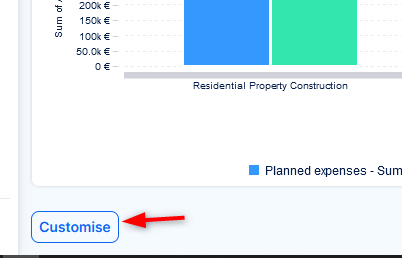
- Click the Customise button.
- Start adding widgets using the interface.
Tip: You can select from different widget types like charts, gauges, calendars, and more.
Step 6: Editing a Dashboard
Any user who has edit permissions for a dashboard can click the Customise button to modify it—without needing access to the Administration section.
These users can change widgets, layout, and content directly.
For project dashboards or feature dashboards, usually only selected users (such as project managers or team leads) have these permissions.
Conclusion
You have successfully created or edited a dashboard in Easy8. Now, you can organize and display the most useful information in one place, customized for your role or team.
