


Introduction
This guide will show you how to create and apply global filters in Easy8. Global filters let you control multiple dashboard widgets at once. By following these steps, you'll be able to switch views across several reports and widgets quickly.
Target Audience
- User
- Administrator
Prerequisites
- Access to an Easy8 dashboard
- Permission to edit dashboards
- At least two widgets that support global filtering (e.g. task list, chart, or report)
How to Create and Apply Global Filters
Step 1: Open the Dashboard
- Navigate to your personal or project dashboard.
- Click Customise to enter edit mode.
Step 2: Add the Global Filter Widget
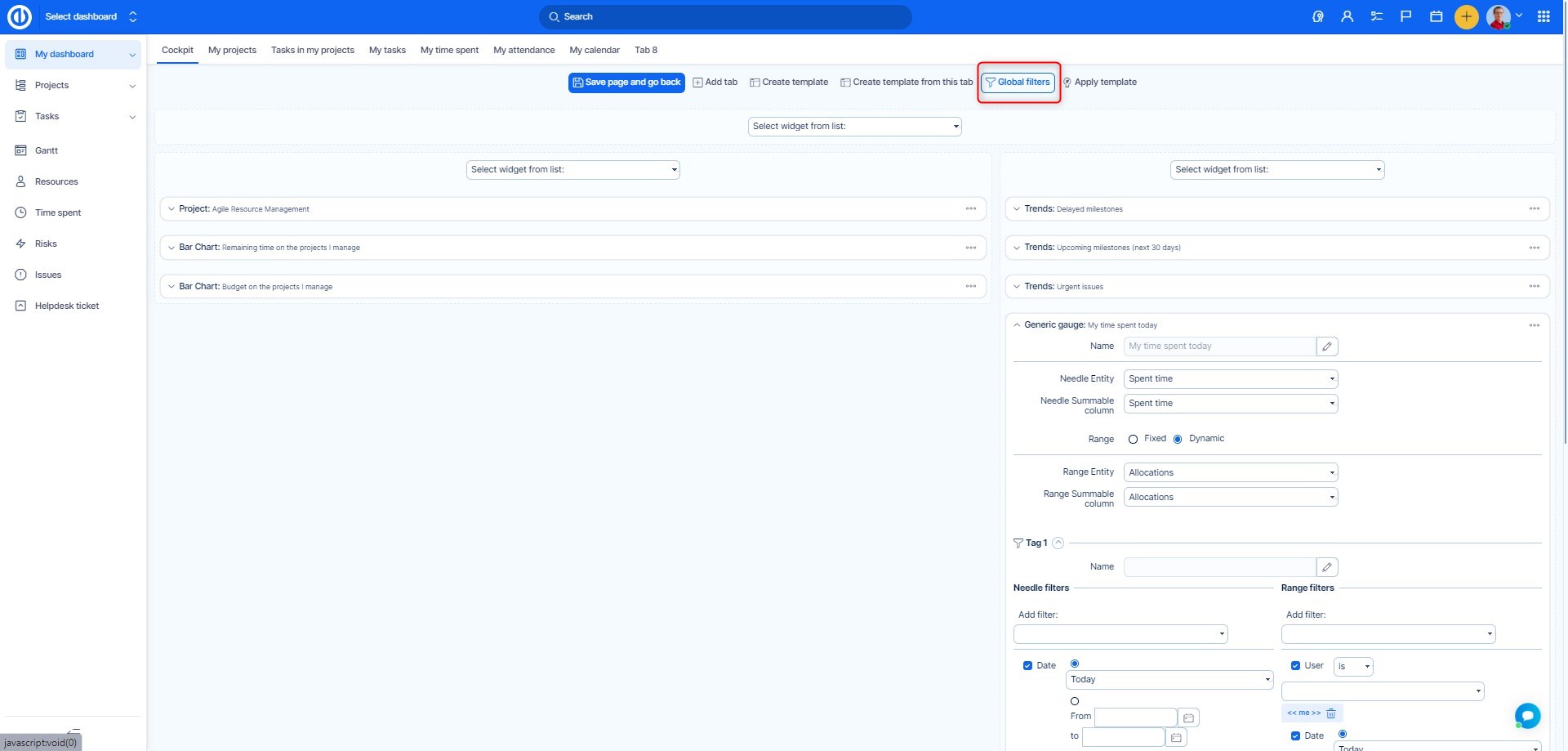
- In the top options row, find and select Global filters.
- In the Add Filter dropdown select the desired entity such as Project, User, Status, or Date range.
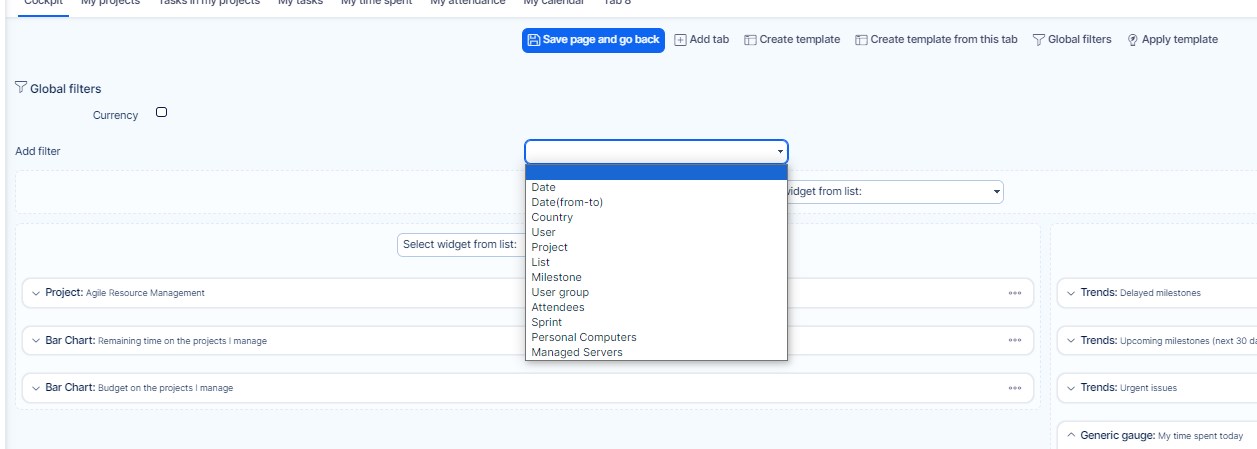
- Add multiple filters if you want.
- Save your configuration.
Only widgets that support global filters will respond to these selections.
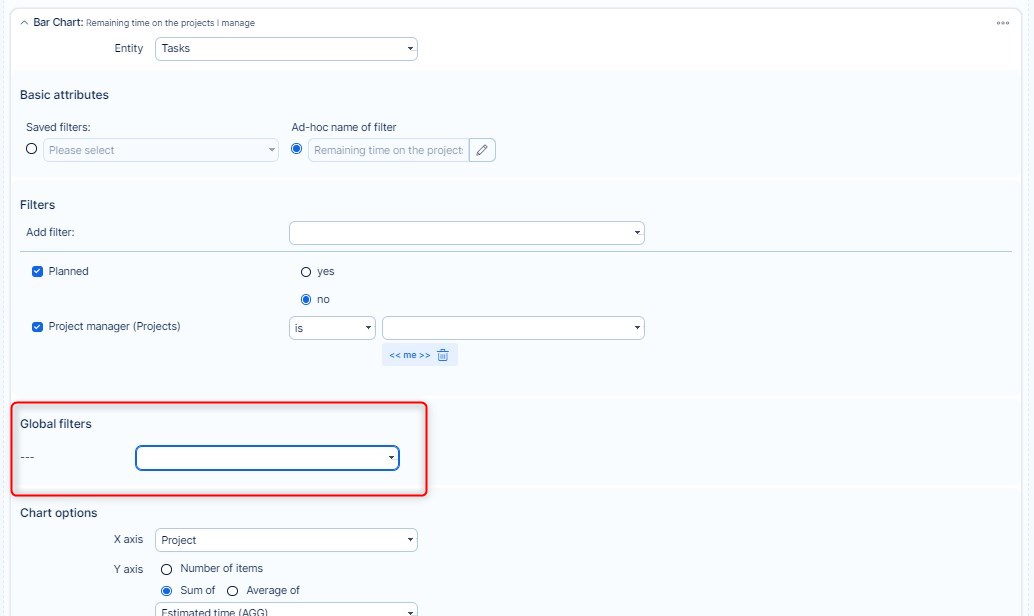
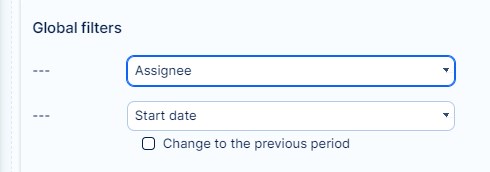
In order to select which of the dashboard modules are dependent on global filters and which are not, you need to pair global filters with those modules where you want to use them. To do so, go to module settings and navigate to Global filters section. Here you just need to check the filters you want to use with that module. Please note that only those global filters that can be used with the particular module are available to select.
Step 3: Apply the Filter
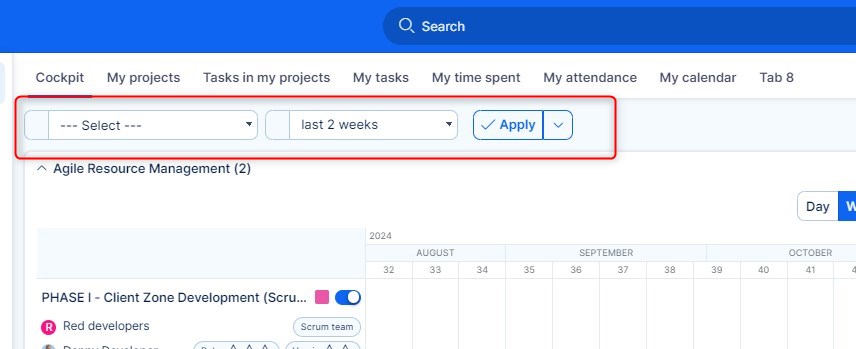
- When at the dashbard use the drop-downs in the global filter to set values (e.g. Project A, Assigned to: John, Status: In Progress).
- All compatible widgets will automatically update based on your selection.
- Adjust filters anytime to view different data sets instantly.
Conclusion
You have successfully created and applied a global filter in Easy8. This allows you to filter multiple dashboard widgets at once, saving time and improving how you view and analyze data.
