


Introduction
This guide will show you how to copy a project template into an existing project in Easy8. This feature helps you reuse complex project structures, including tasks, documents, and widgets, without deleting any existing project data. It's useful for enriching current projects with standardized content from templates.
Target Audience
- Project Managers
- Administrators
Prerequisites
Before starting, ensure you have:
- Access to the Administration section.
- At least one saved project template.
- An existing project you want to apply the template to.
How to Copy a Template to an Existing Project
Step 1: Open Project Templates
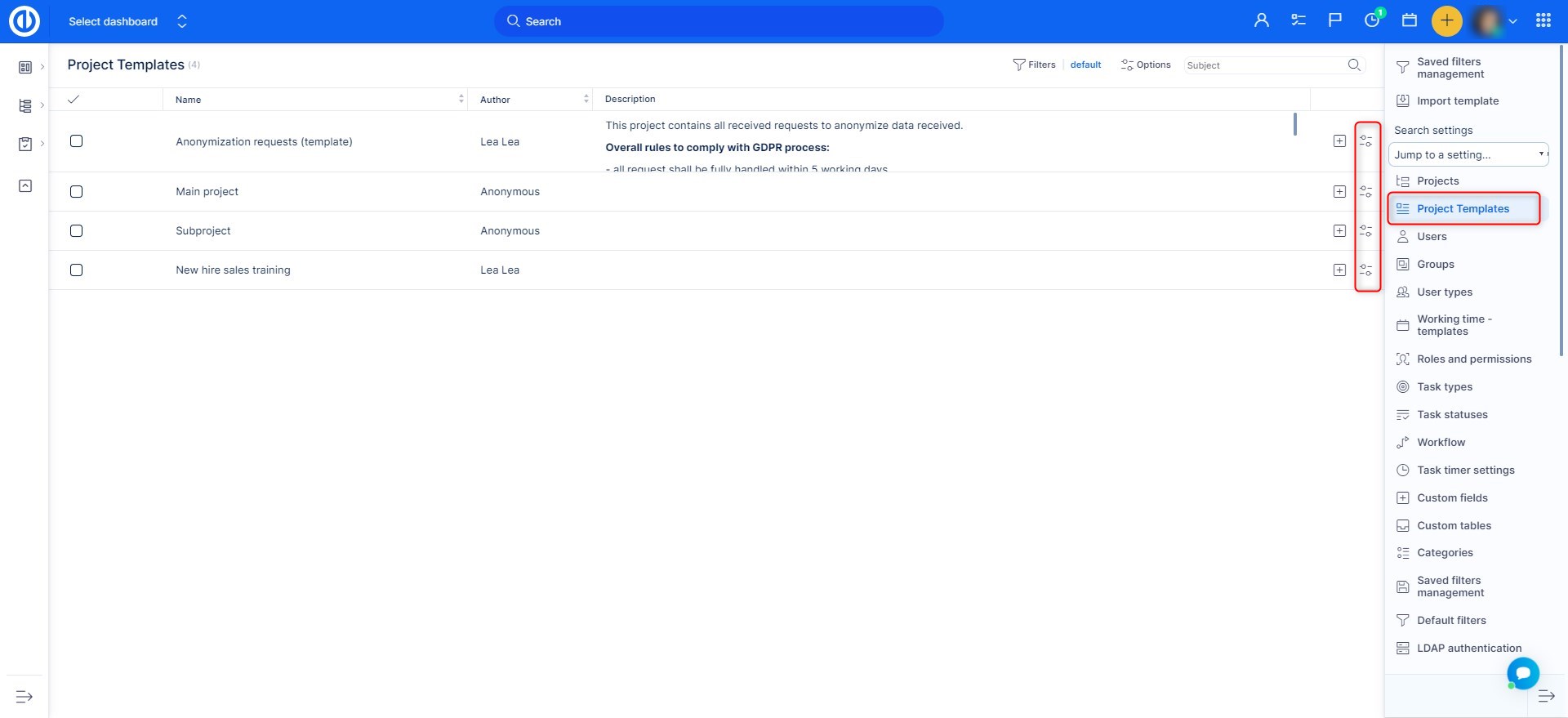
- Go to the Global Menu.
- Navigate to Administration > Project templates.
Step 2: Start Copy Process
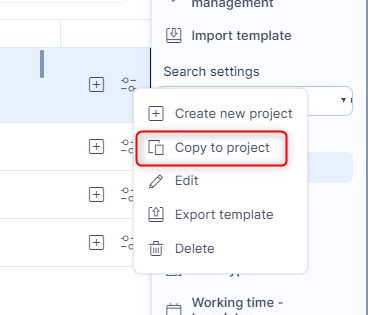
- Locate the template you want to use.
- Right-click on the selected template.
- Choose Copy to project from the context menu.
Step 3: Fill Out the Copy Form
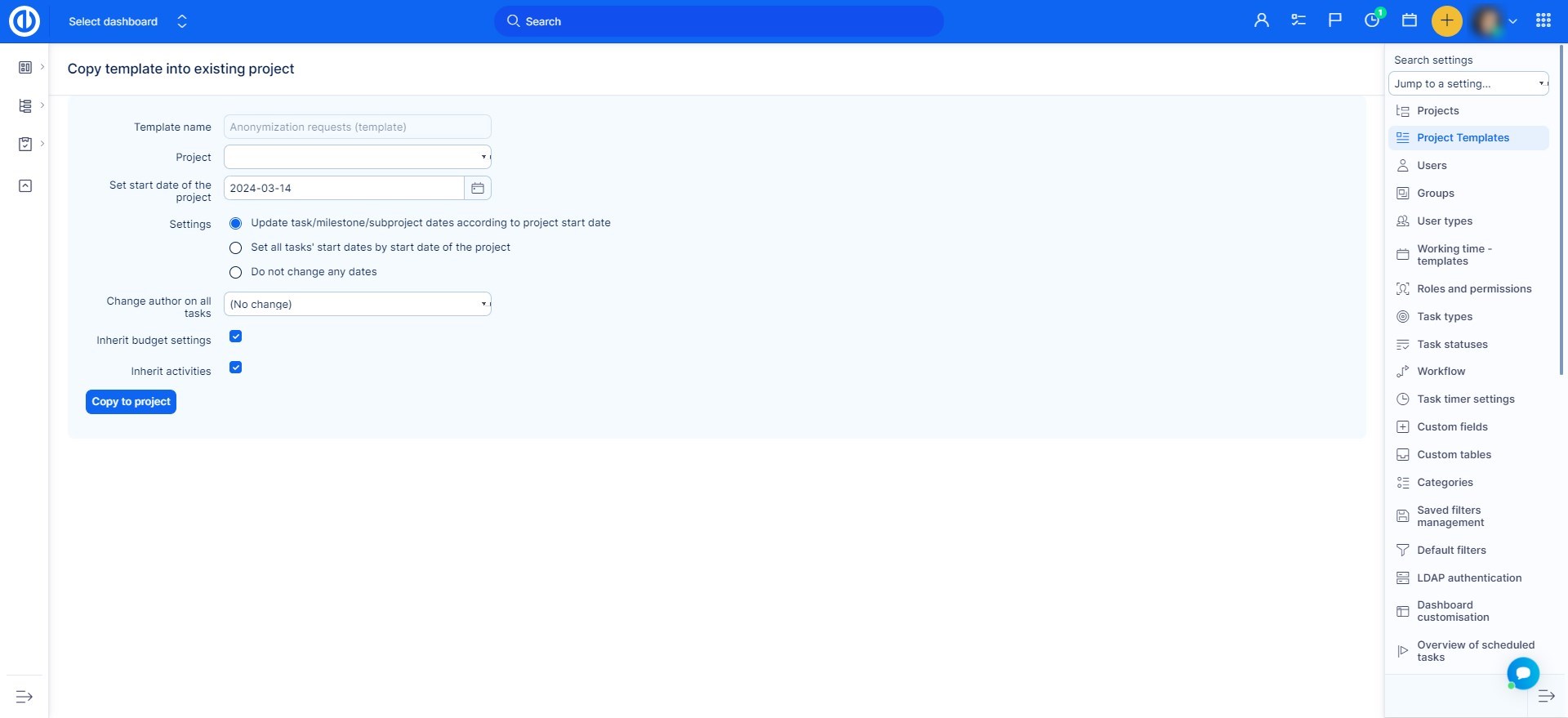
- Select Target Project: Use the dropdown menu to choose the existing project where the template should be applied.
- Set Start Date: The start date is pre-filled with today’s date but can be adjusted.
- Optional Settings:
- Update task/milestone/subproject dates according to project start date – Adjusts their dates based on the new start date.
- Change task author – Select a user to be set as the author for all tasks in the template.
- Inherit activities, invoicing settings and money settings – Inherits these from the parent project, if applicable.
Step 4: Copy the Template
- Once everything is set, click the Copy to project button.
- The system will apply the template and add all new data to the existing project.
What Gets Copied and Changed
- Rewritten: Project Dashboard (custom widgets)
- Changed Settings:
- Comments on tasks become private by default
- Copying task comments to parent task is enabled
- Newly Created Data (added to project):
- Tasks, milestones, task categories, checklists
- Members, documents, spent time, saved filters
- Wiki, news, knowledge base, contacts
- Budgets, budget rates, priorities, test cases
- Project status, custom menu, calculations
Important: Existing data of these types in the target project is not deleted — new items from the template are added alongside them.
Conclusion
You have successfully copied a project template into an existing project in Easy8. This feature helps you enrich projects with standardized content and structure, while preserving all existing data.
