


Introduction
This guide explains how to apply filters using the OR operator in Easy8. This feature allows users to filter records that match one or more conditions, such as tasks assigned to different users. The OR operator is available through the Easy Query Language input and is best suited for simple use cases. It is currently an experimental feature with a flexible but less restricted interface.
Target Audience
- User
- Administrator
Prerequisites
- Administrator rights to enable Easy Query Language
- Access to a list view (e.g. Tasks, Projects, Spent Time)
- Knowledge of attribute IDs (e.g. user ID, status ID), or access to a reference list
How to Apply Filters with the OR Operator
Step 1: Enable Easy Query Language
- Go to the Global menu
- Navigate to Administration > Settings > General
- Find and enable the option Enable Easy Query Language
This adds a new input field in the filter section of supported list views.
Step 2: Access the Custom Filter Input
- Go to any module that supports filters (e.g. Task list)
- Click Filters
- Scroll to the bottom of the filter panel
- You will see a new custom input box labeled as part of Easy Query Language
- Click Show help to view syntax support and attribute suggestions
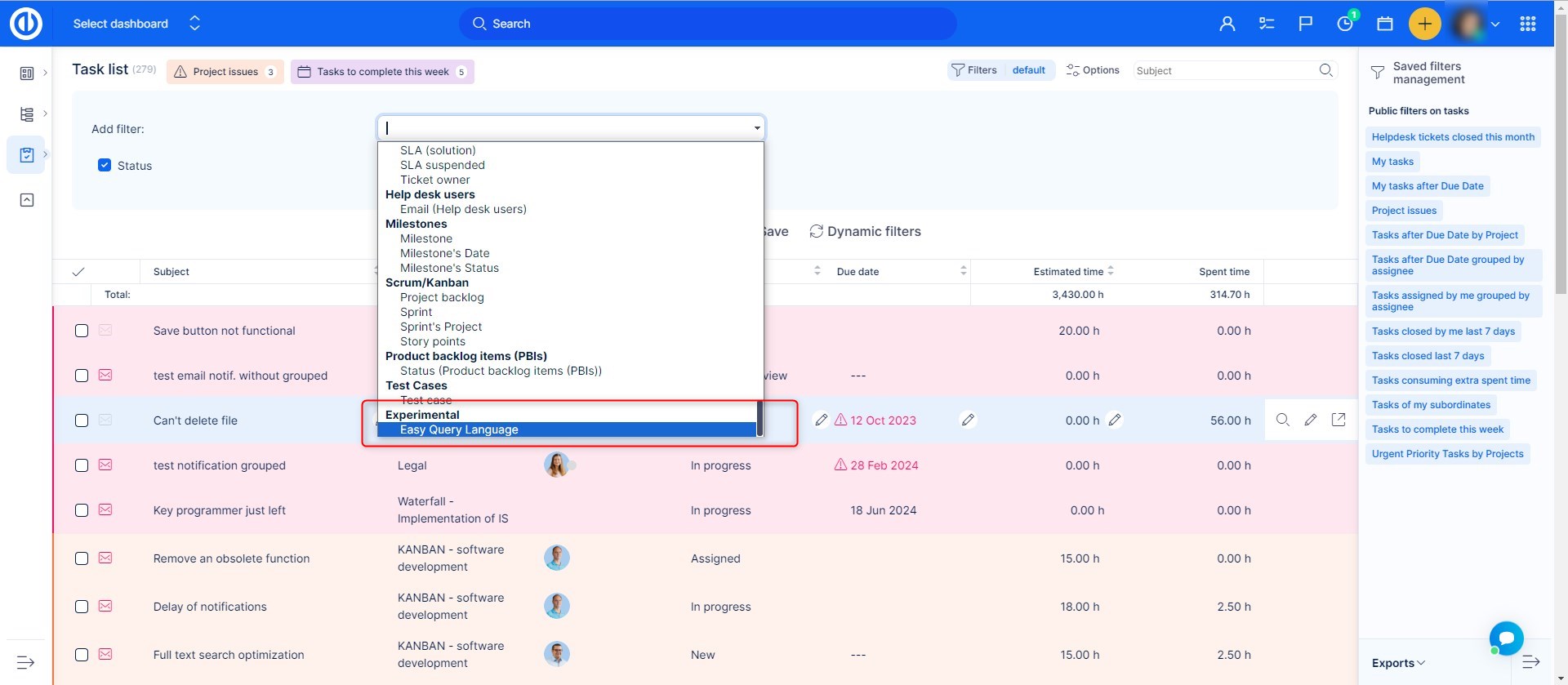
Step 3: Enter a Filter Expression Using OR
- Type your conditions directly into the input box
- Use the OR operator (in lowercase) to separate alternatives
Example:
(status_id = 1) or (status_id = 3)
This will return tasks with either status ID 1 or 3.
Advanced example:
(assigned_to_id = 5) or (coworker_id = 5) and (status_id = 1)
This shows open tasks (status ID 1) that are either assigned to user ID 5 or where they are listed as a coworker.
Attribute suggestions appear as you type. Use them to build your query accurately.
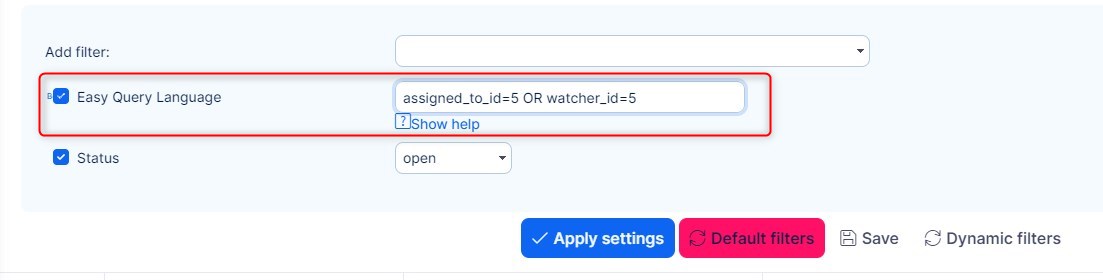
Step 4: Combine with Regular Filters (Optional)
- You can apply standard filters alongside the OR query
- These filters are combined using the AND operator
- Be careful not to create contradictory conditions
Custom filter does not support all regular filter features, such as <<me>> or keyword-based shortcuts. Use numeric IDs instead.
Step 5: Validate and Test
- After entering the expression, check your results
- If the results are empty, revisit your conditions and confirm that IDs are correct
- Keep your input simple to avoid unintended conflicts
Conclusion
You have successfully applied filters using the OR operator in Easy8 with Easy Query Language. While still experimental, this feature expands filtering capabilities for users who need more flexible logic in their data views. For best results, use clear conditions and refer to ID values when setting attributes.
