Email notifications of a user
This article explains what each notification setting does and which email notifications you receive. You can set the default events you want to be notified about in Administration » Settings » Email notifications.
- For any event on all my projects = You get notifications about every event in all your projects.
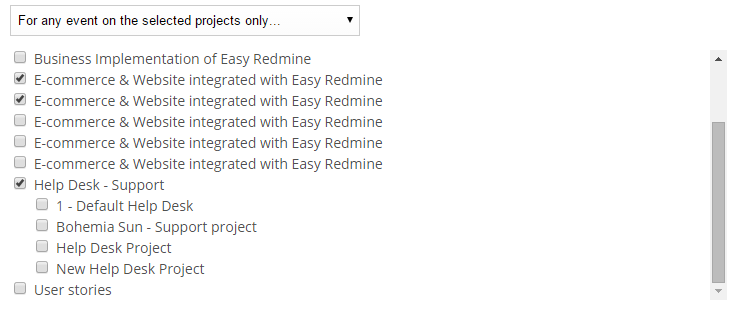
- For any event on selected projects only = The same as the first option, but only for the projects you select. For other projects, you only get notifications about things you watch or are involved in (for example, tasks where you are the author, assignee or co-worker).
- Things where I am the assignee, co-worker or author = You get notifications only about tasks where you are the assignee, co-worker or author.
- Only for things, I am assigned to = You get notifications only about tasks assigned to you.
- Only for things, I am the author of = You get notifications only about tasks you created.
- No events = You don't get any notifications.
When notifications are sent
To help reduce email clutter, notifications for task changes are grouped into a single email sent every 15 minutes. This means you receive a summary of changes rather than a separate email for each individual edit.
Notification grouping is enabled by default and can't be disabled. For details about changes and improvements introduced in each version, see the release notes.
Need real-time notifications?
Email delivery times depend on the email system and can't be guaranteed. For time-sensitive alerts, use a webhook or the API to trigger notifications in real time. For example, you can connect a webhook to n8n to forward events to your phone or a chat application.
Settings on a user profile
Settings on a user's profile override the default settings. To change them, edit the user profile.
- I don't want to be notified of changes that I make myself = You don't get notifications about your own changes.
- I don't want to be notified from closed tasks = You don't get notifications when a closed task is updated.
- Do not notify anyone about updates made by me = Nobody is notified about your updates.
Mentions and notifications
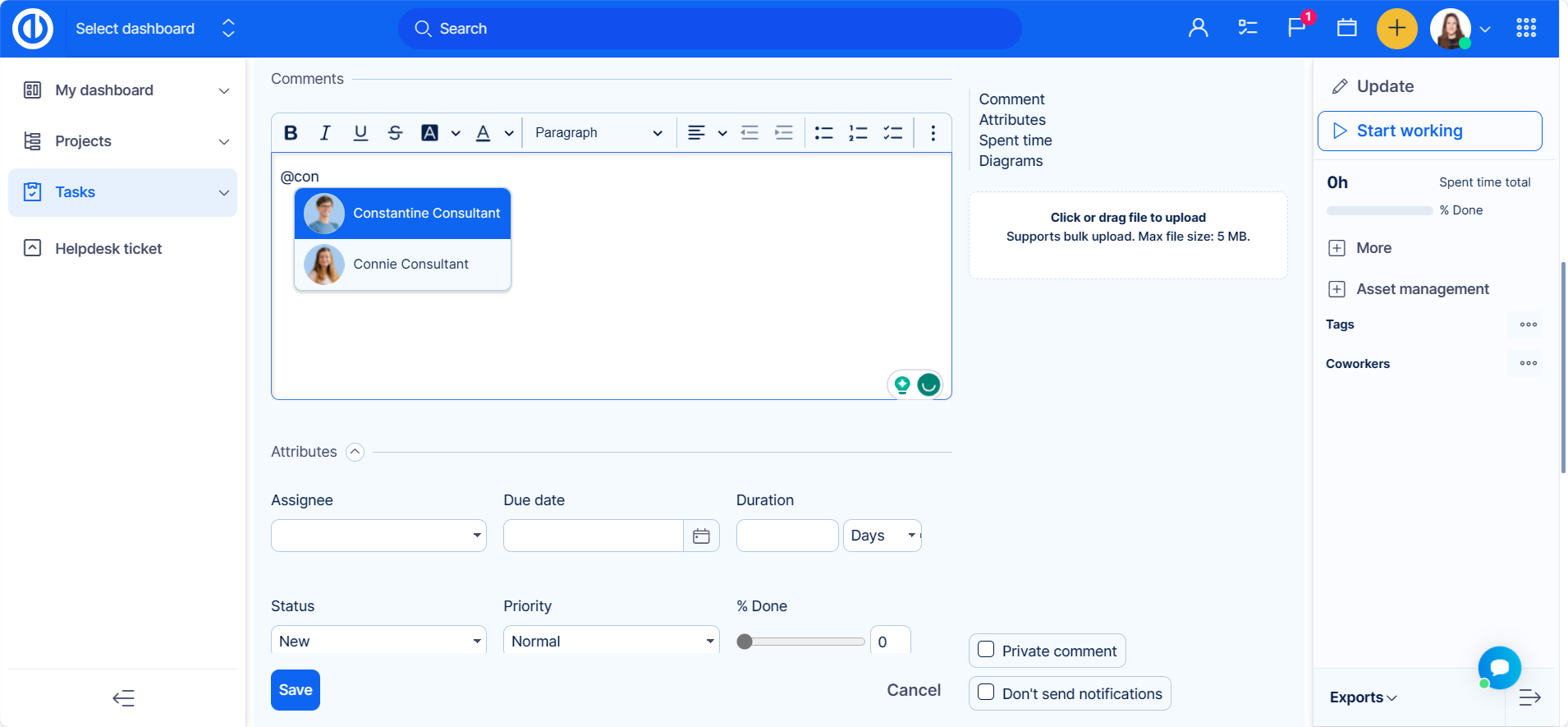
You can mention a user in a task comment or in the task description by typing @ followed by their username.
Notifications
- A mention in a task comment sends a notification.
- A mention in the task description doesn't send a notification. To make sure the user is notified, mention them in a comment or add them as a co-worker.
Corner case
External user types can't be mentioned.