


Introduction
This guide will show you how to create a new project in Easy8. Proper project setup ensures effective task management, team collaboration, and smooth project execution. By following these steps, you’ll be able to configure a new project according to your needs.
Target Audience
- Project Managers
- Administrators
Prerequisites
Before starting, ensure you have:
- Administrator or project creation permissions.
- A clear structure for the project, including name and purpose.
- Knowledge of required project settings such as modules and roles.
How to Create a New Project
Step 1: Navigate to the Project Creation Page
- Open Easy8 and log in.
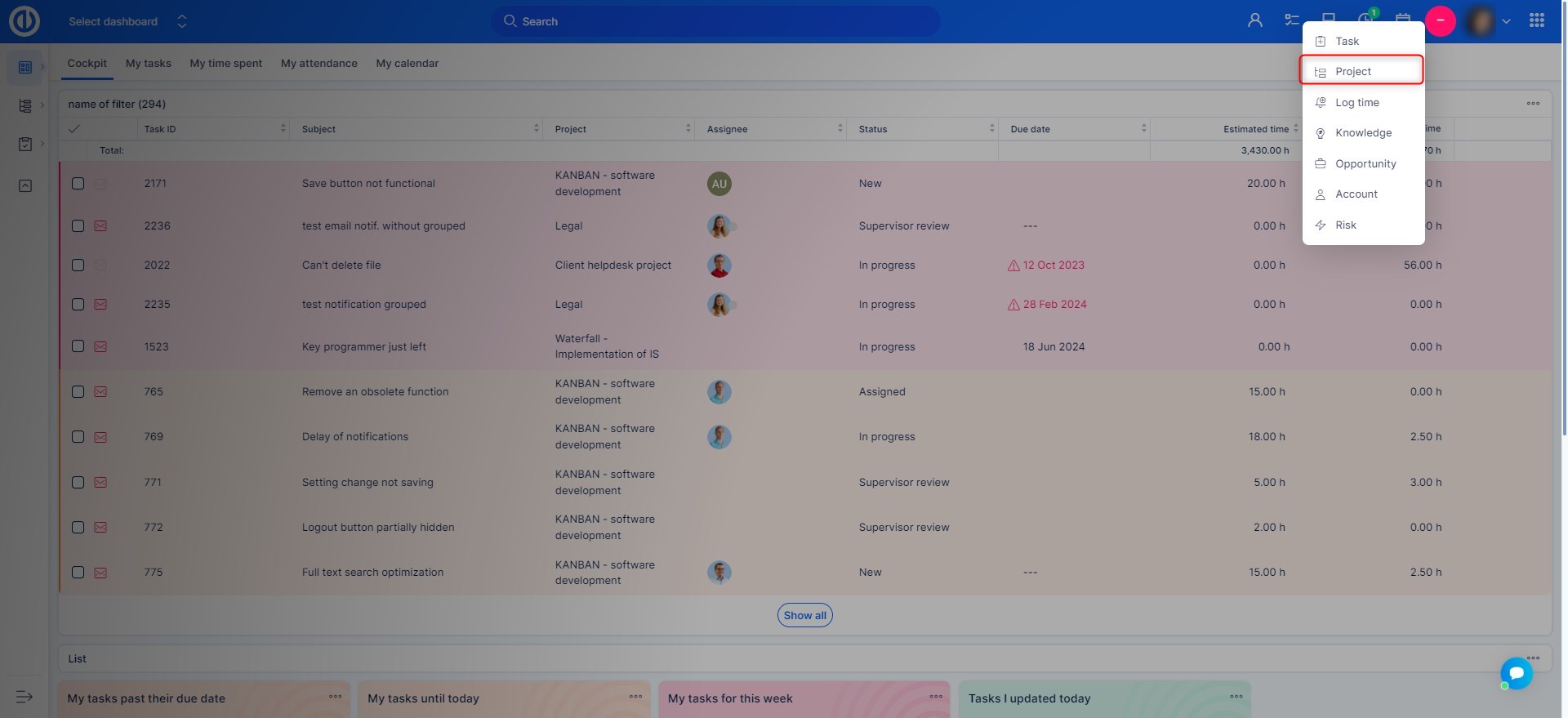
- In the top navigation menu click the yeallow plus button.
- Click Project to start the creation process.
Step 2: Define Basic Project Details
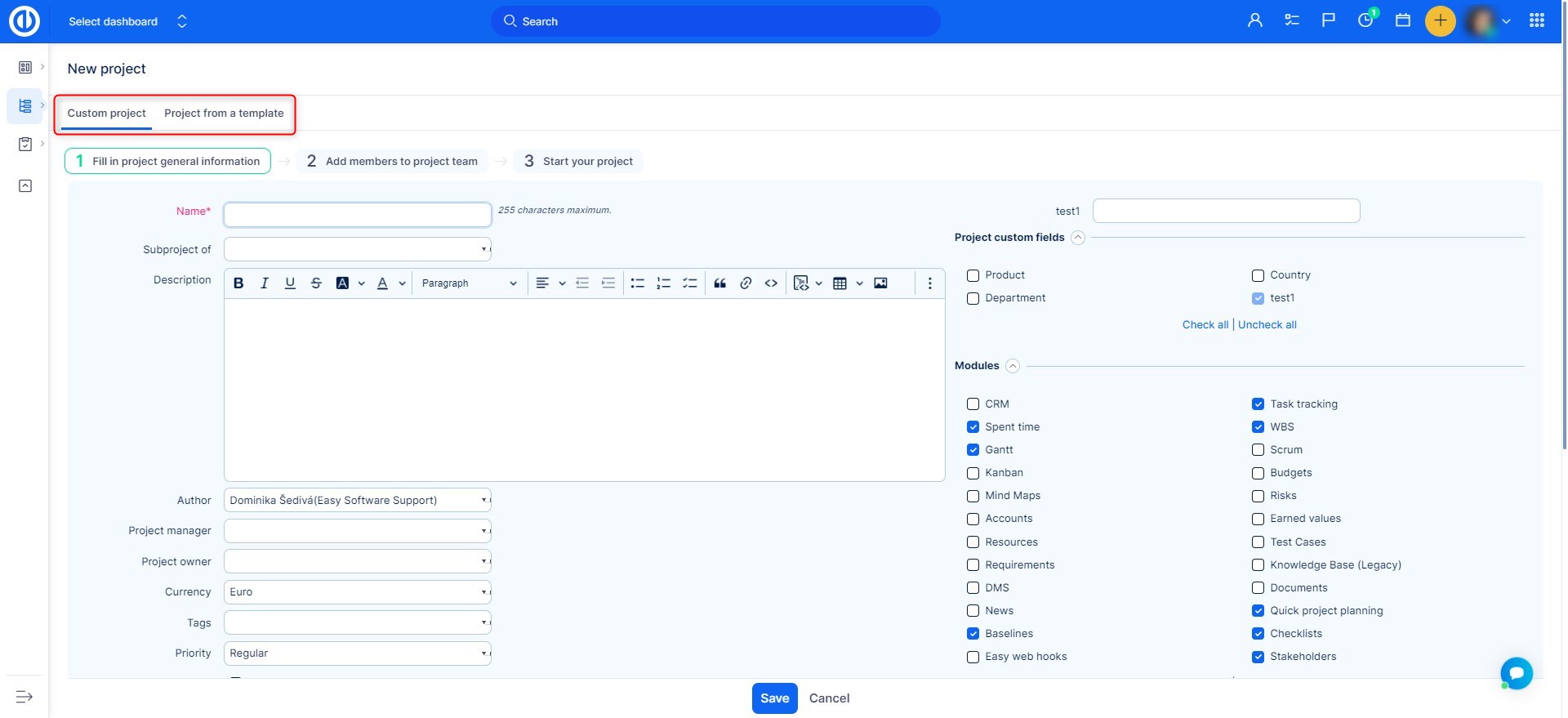
- Enter Project Name – Provide a clear and descriptive project title.
- Set Project Description – Make it clear and informative.
- Select Parent Project (if applicable) – Choose a parent project if your new project is a subproject.
- Specify Project Owner and Manager - Project owner is the main stakeholder, project manager is the reponsible one.
Step 3: Configure Project Settings
- Activate Relevant Modules – Choose which features (e.g., Task Management, Time Tracking, Gantt Chart) should be enabled for the project.
- Select Trackers - Select wich types of tasks will be available.
- Add custom fields - Customize your project fields, specify some other minor settings.
Step 4: Save and Finalize the Project
- Review all project settings to ensure accuracy.
- Click Save to finalize the project setup.
- Assign Members – Define which users will have access and assign roles (e.g., Manager, Developer, Viewer).
- The newly created project will now appear in the Projects list, and assigned users will be able to access it.
Troubleshooting
- If you don’t see the New Project option, check your permissions with an administrator.
Conclusion
You have successfully created a new project in Easy8. Proper configuration at the start ensures smooth management and collaboration.
