


Copying tasks
How to copy tasks
You can copy either a single task and more tasks in bulk. Here's how to do it.
How to copy a single task
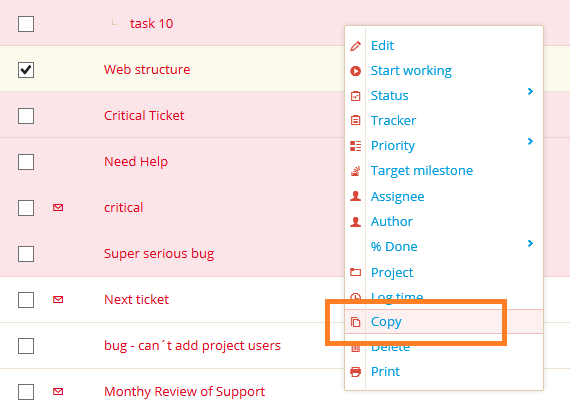
Before you copy a task, you must select one from the task list. When you are on the task list and you need to copy a task, click on it with the right mouse button and select Copy from the context menu as illustrated below.
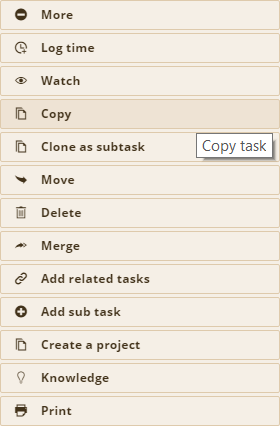
Another way is going directly to the detail view of the particular task and select option Copy from the right menu list as illustrated below.
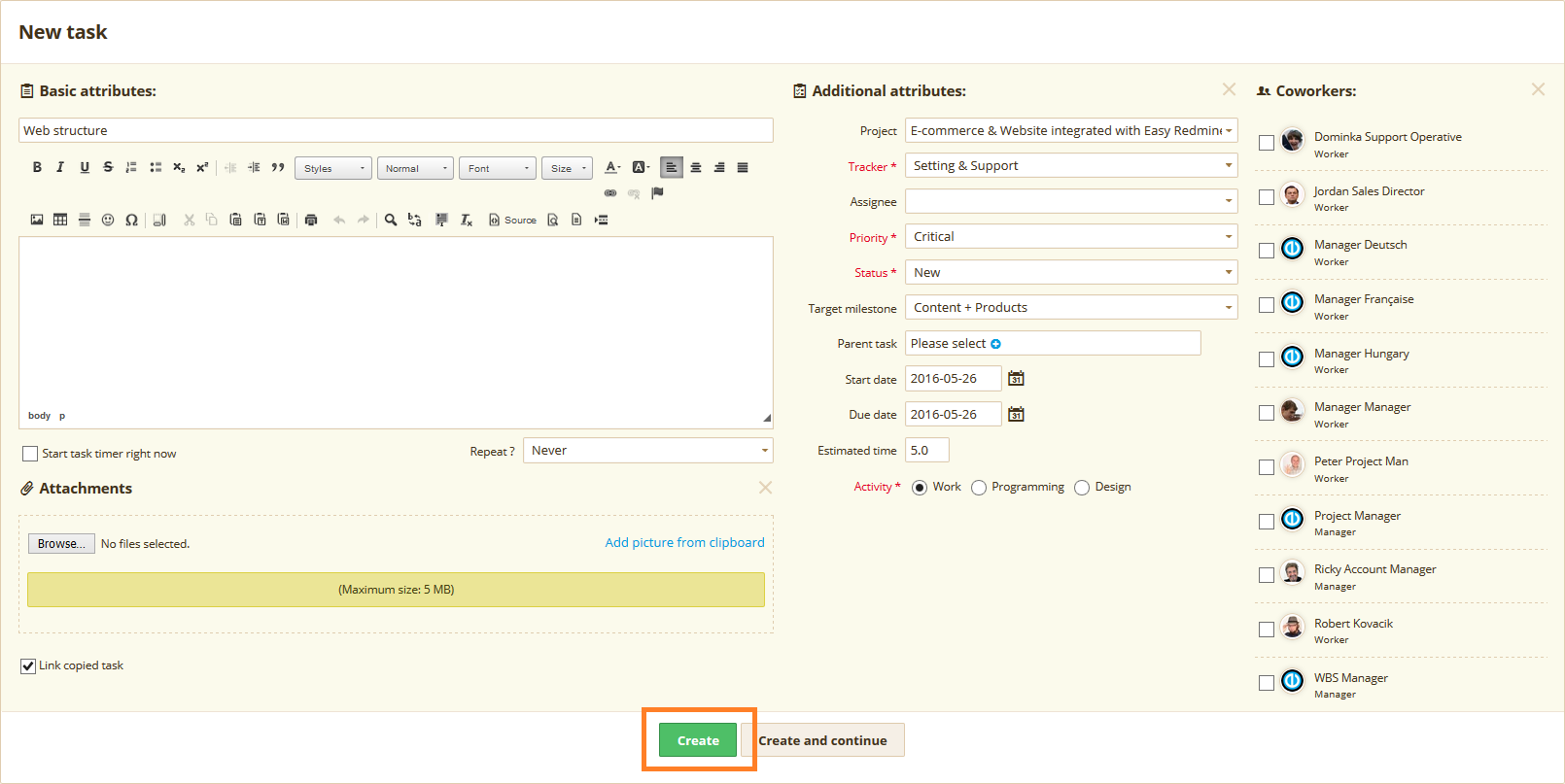
After clicking on Copy, a New task window opens. As illustrated below, most of the attributes are already pre-filled and pre-selected from the original task. This way, you can easily change some attributes you don't need to have in the new one.
In the lower left corner, you find the checkbox  which can be used to quickly add the new task as a related task of the original one. If you want a perfect unchanged copy, just click on the Create button down the page and the task will copy into the same project as the original one.
Copy more tasks at once
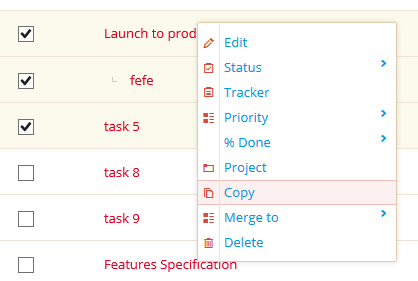
The procedure is pretty similar. On the task list, tick the checkboxes of all the tasks you need to copy, then click with right mouse button somewhere in the task area and select Copy from the context menu as illustrated below.
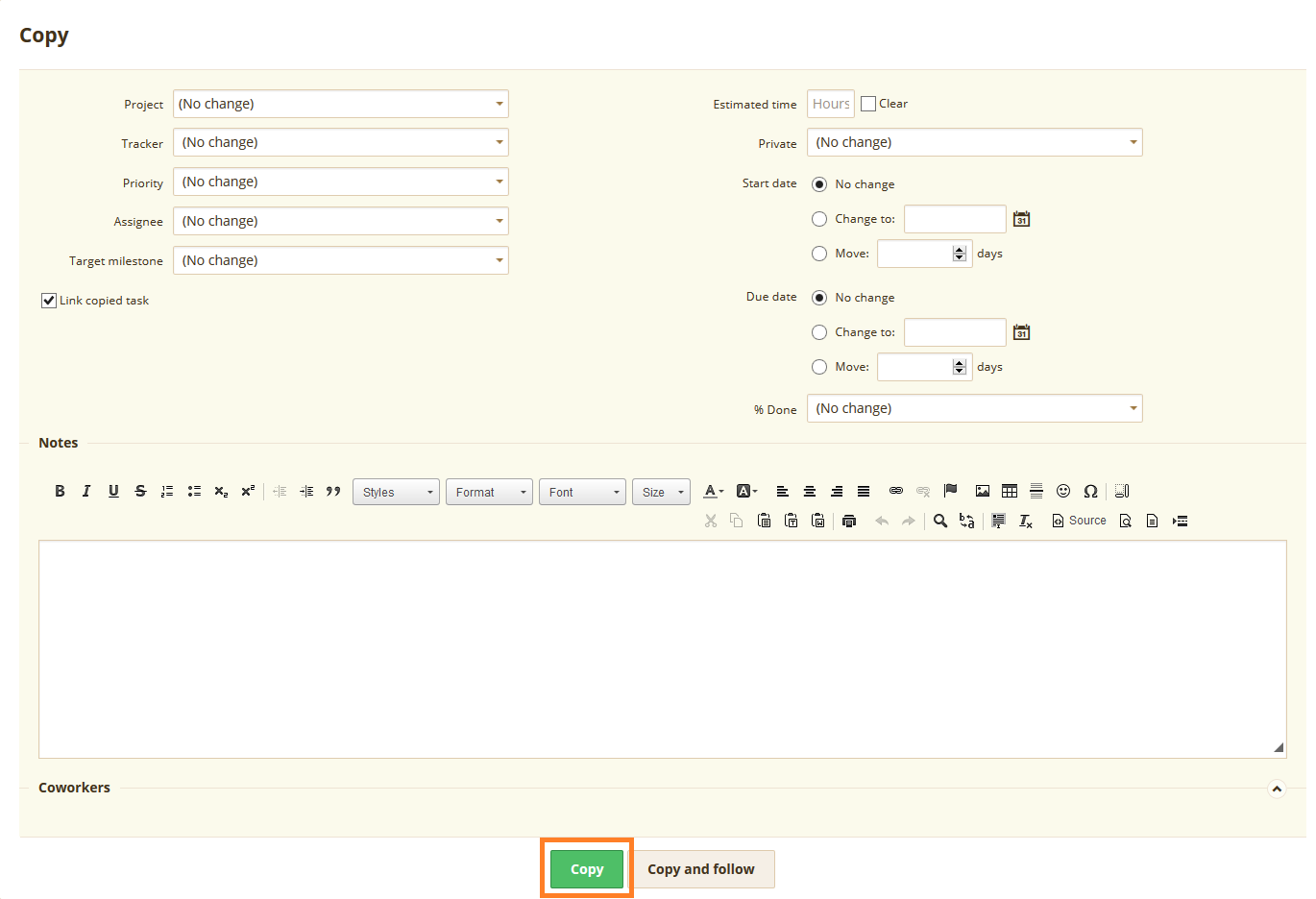
On the following screen, you can change some attributes for all the tasks in bulk (such as project, tracker, priority, assignee etc.) or you can leave everything unchanged. You create the copies by clicking on the respective button down the page as illustrated below.
IMPORTANT NOTE: Each task contains the dates of creation and closure (if closed or re-opened) in the upper right corner of the detail view as illustrated below. All these information are also copied unchanged.
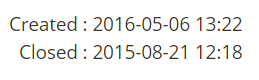
By nature copying operation uses all the attributes from the database for the copy. Some can be changed (via task edit), but some are not editable via user interface.
