Automations
Introduction
Automation modes
Updating related tasks
Permissions and visibility
How to set up
Logging
Replacing Easy buttons
Introduction
This feature is available from version 15.
What are Automations
In context of Easy8 it is a set of functionality that significantly decreases manual user actions required to control our application. Use cases range from editing multiple task attributes by just one click; creating a customized data extraction from a list of time spent; automatically reassign tasks from person on vacation to their substitute, and many others.
Automation modes (types)
There are various ways how automations are performed and triggered:
- Entity button
- List button
- Workflow button
- Time based rule
- Event based automations
What automations may trigger (depends on specific automation mode):
- Edit attributes - set, change, or remove value of a field
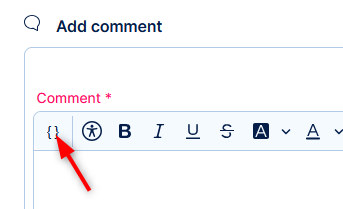
- Add comment - may contain dynamic values from the task (click the curly brackets in the text editor)
- Create new task from template
- Update related tasks
- Send webhook
- Send email
Entity button
How it works
Video tutorial available here.
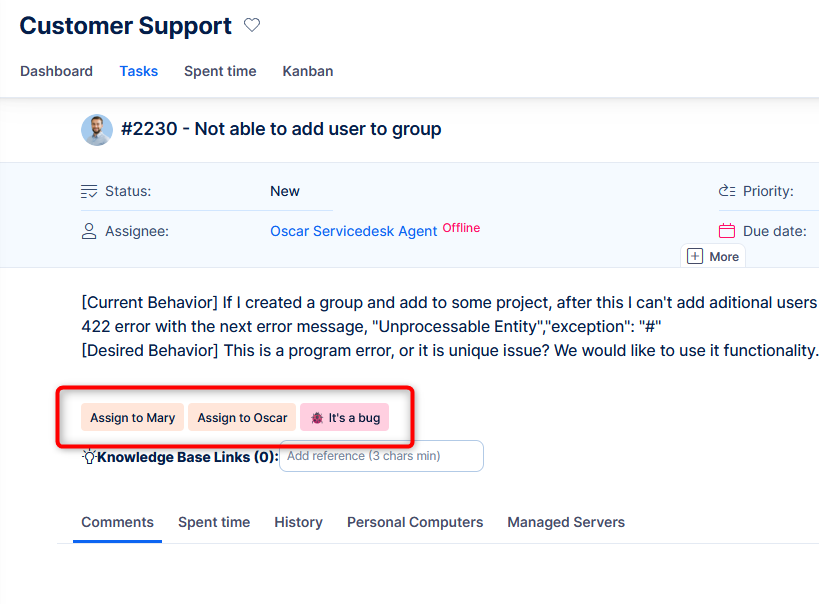
A button is shown on the detail of an entity, e.g. a task. User clicks on it, and it performs pre-defined actions, such as:
- Edit attributes - e.g. raise priority, reassign task back to the submitter, extend due date by 3 days, set % done, remove value of a custom field
- Add a comment
- Create new task from template - related to the existing task, a subtask, or completely independent task
- Send webhook - trigger an external application to perform certain actions related to this task and return back useful information. For example, generate an excel sheet from data contained within the task.
- Send email - a custom notification.
⚠️ Be careful to fill in valid addresses, which will not be blocked by the receiving mail server - Update related task - performs an attribute change on related, e.g. following, tasks.
Use case examples
Work approvals, standardized escalation, conditional follow ups, transfer task to a formal document, enrich task by information from external resources, one-click assorting of ticket pool.
List button
How it works
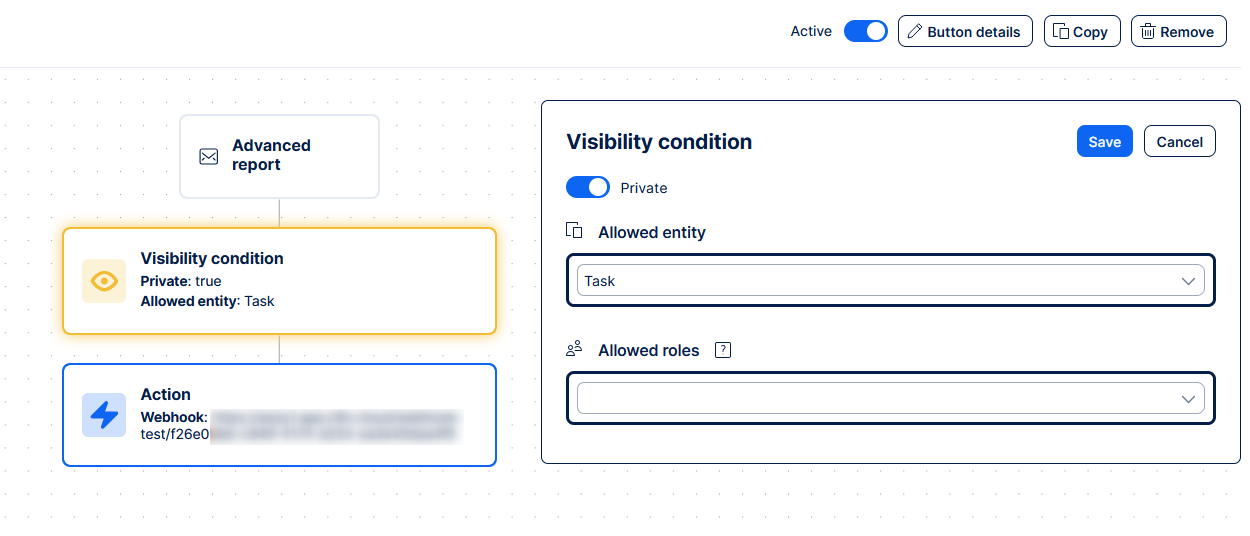
Shown on a list of the selected entity. By clicking, a POST webhook is called and sends a payload containing IDs of all listed entities + basic information about the user who clicked it.
Use case examples
Fully customized exports, running AI data analysis, expanded reports with data from external systems.
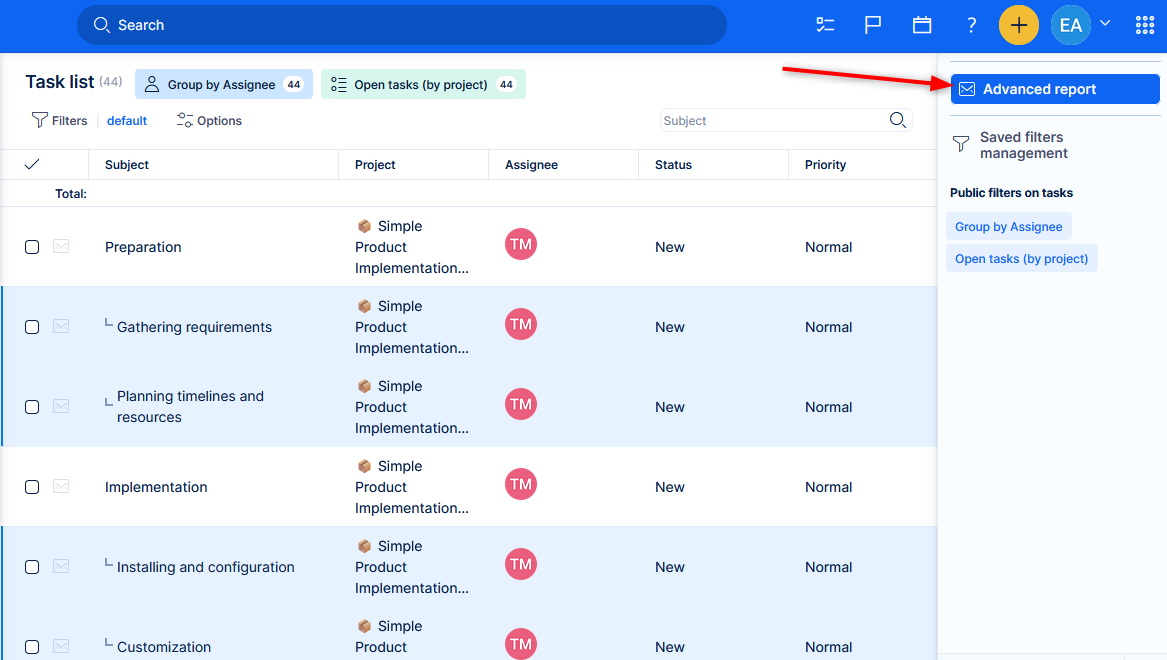
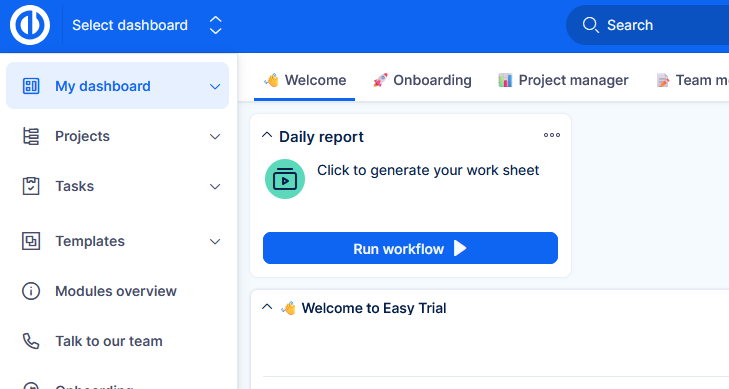
Workflow button on dashboard
How it works
Available on any dashboard. Clicking it will trigger a POST webhook, or open an n8n input form.
Optionally, form submissions can be secured with an auto-generated encrypted token (Secure payload).
Use case examples
Ad-hoc information request from Easy8 or any external system, or their combination.
Time based rule
How it works
Action on tasks with defined attributes, triggered automatically in configured time period.
Use case examples
Automatic data discrepancy repair, automatic escalations, advanced customer notifications, reassigning tasks from absent colleague to a deputy.
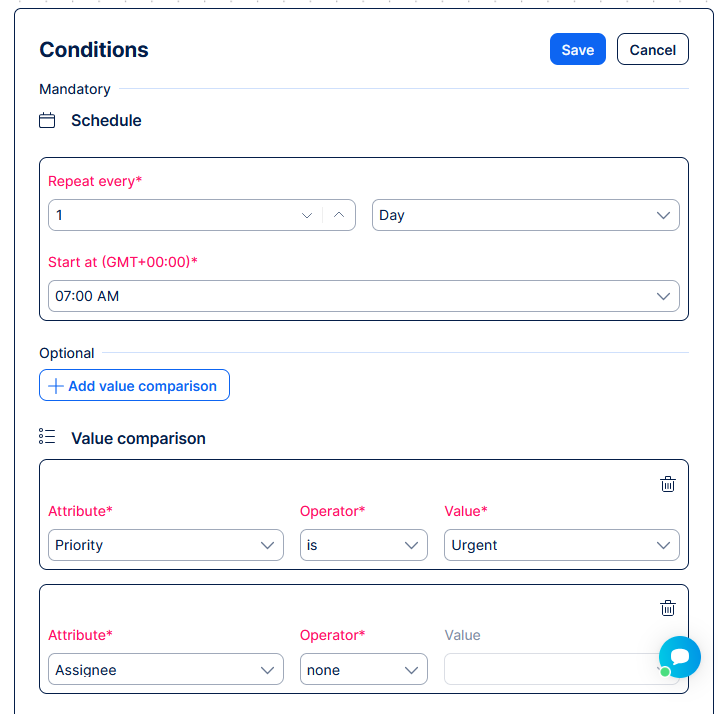
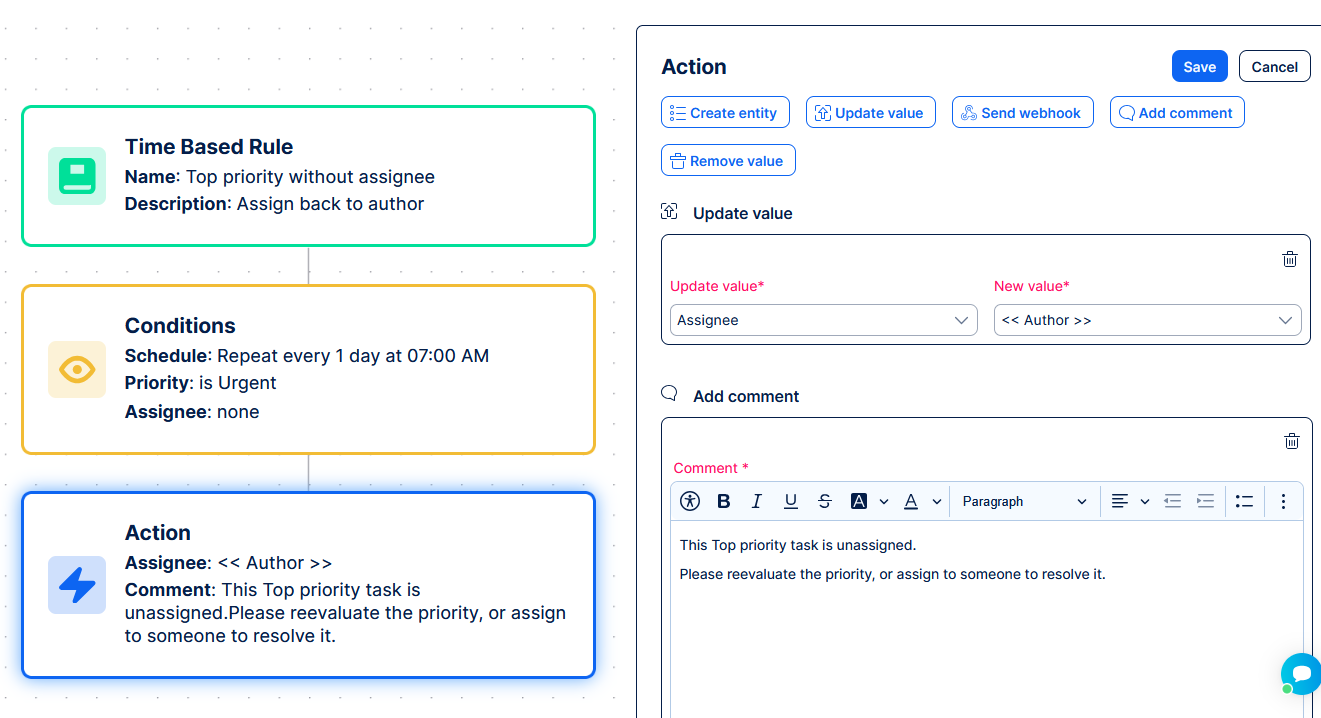
Let's take a more detailed example to better explain the behaviour.
- Every morning at 7 am.
- Check all tasks with certain attributes
- Top priority
- Assigned to nobody
- Assign each of these tasks back to the Author
- Write to comment: This Top priority task is unassigned, please reevaluate the priority, or assign to someone to resolve it.
Allowed actions:
- Edit attributes
- Add comment
- Create new task from template
- Send webhook
- Send email
- Update related tasks
⚠️ Be careful with time based rules, not to set infinite loops, or triggering mass uncontrolled email sending.
Event based automations
How it works
Video tutorial available here.
After task creation or editing of an attribute, an action is automatically performed.
Use case examples
Auto assignment, compliance follow-up, task sequencing ("activate" following task after previous is finished).
Update related tasks
This game changing feature can be used with several automation modes.
How it works
This action lets an automation change attributes on tasks connected to the trigger task — instead of on the trigger task itself. It reuses the same task relations and parent/subtask hierarchy you already work with in task management and see drawn out in the Gantt chart; you're simply automating what happens when a related task changes. This makes it the building block for automated task sequences.
You'll find it listed alongside the other actions.
This action is generally available for: Entity button, Event based rule and Time based rule.
When you add the action, first choose the Target tasks:
- Update parent — the parent task in the task hierarchy (subtask/WBS structure)
- Update sub-tasks — all child tasks in the hierarchy
- Update next tasks — tasks linked via the sequence/precedes relation
- Update previous tasks — tasks linked via the sequence/follows relation
Then, same as with Update value, add one or more Field / Value pairs to define what changes on the target task(s). Add further fields with the + Update value button.
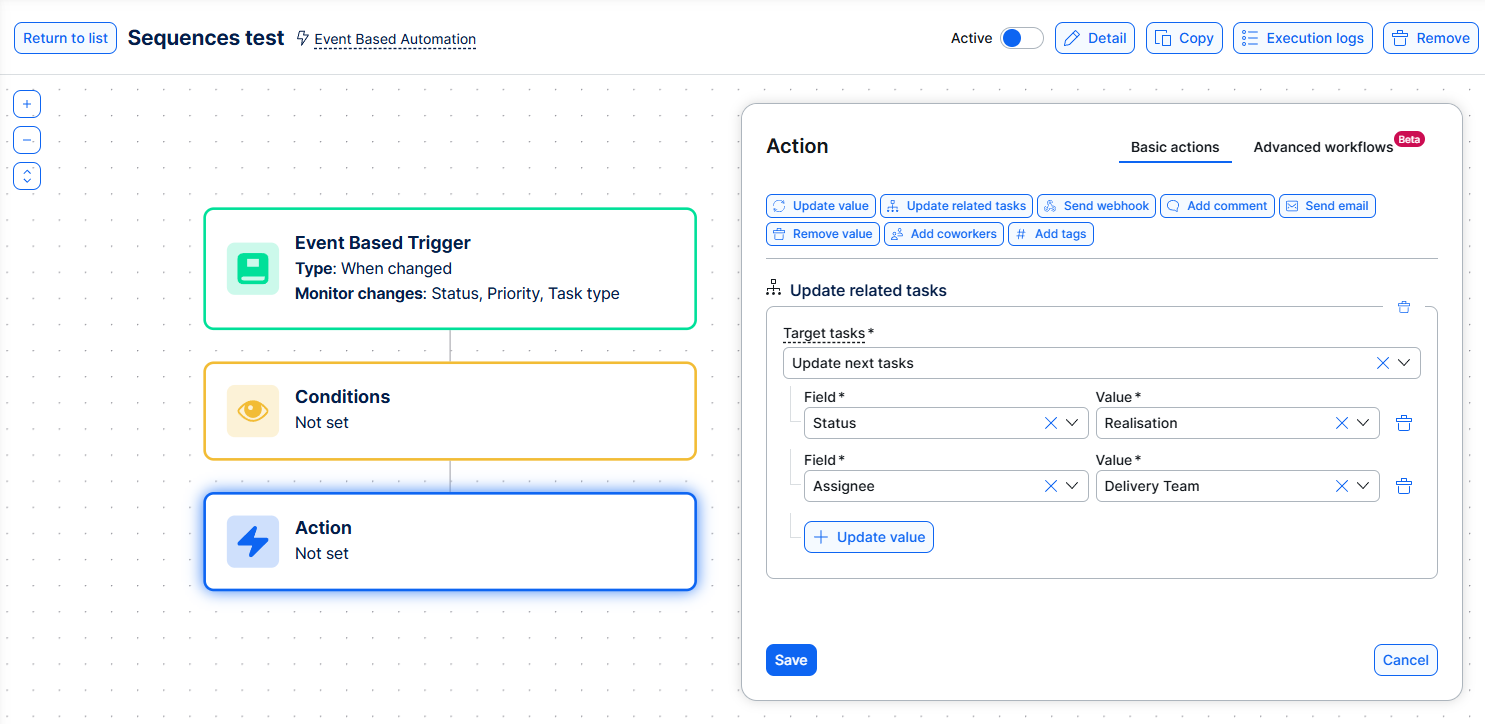
Because next/previous and parent/subtask relations already draw the connecting lines on the Gantt chart, any sequence built with Update related tasks is visible there automatically — no separate visualization setup is needed. The same sequence is also reflected in the WBS view.
Use case examples
- Simple task sequence — when a task's status changes to Done, automatically set the next task in the sequence to In progress and assign it to the responsible team member. This is the most requested use case: moving a linear sequence of tasks forward without anyone opening and starting the next task by hand.
- Reflecting subtask progress on the parent task — when a subtask's status changes to In progress, automatically set the parent task's status to In progress too, so the parent always reflects that work underneath it has started.
- Closing a whole sequence at once — when a task is marked as invoiced, automatically close all of its sub-tasks using Update sub-tasks with Status set to Closed.
Current limitations
Update related tasks can only set fixed field values on the target task(s) — it cannot yet copy a value from one task to another (e.g. copying a custom field from a parent to all its sub-tasks), and it cannot perform calculations across a task hierarchy. Workflows that need this level of logic currently require the (Beta) Advanced workflows tab, which connects to external tools such as n8n — see the note below.
Related topics and further reading
- Task Relations Explained: Linking Tasks for Better Project Management
- How Task Relations Work in Easy Gantt
Permissions and visibility
Only administrators and users with necessary permissions can view and work with automations.

In addition, particular automations may be restricted to only selected roles. Automations marked as private are only available for their creator.
How to set up automations
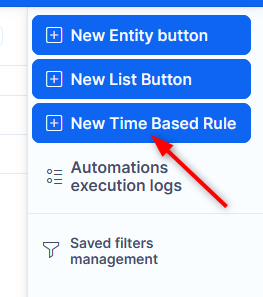
In the global menu (top right), find Automations.
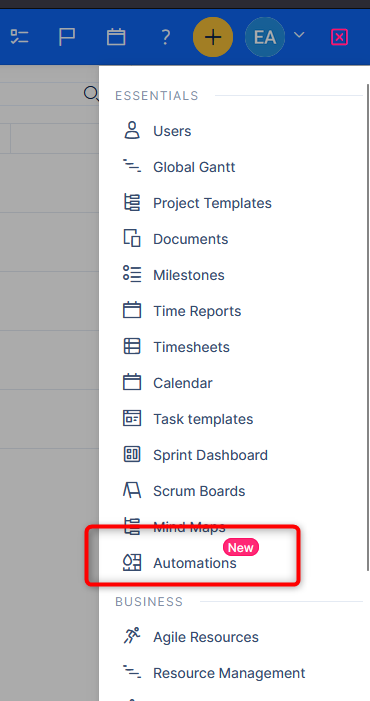
You will find a list of existing automations. More importantly, there are buttons to create new automations.
Each of the automation modes have some specifics, but generally their configuration consists of
- Appearance - general identification by name, color, and possibly icon
- Conditions to show or run - who can see it, where it is visible, or when is it triggered
- Action - what it actually executes
Example configuration of time based rule
Example of list button configuration
When you have the automation configured, don't forget to activate it. Deactivation is useful to hide existing automations, for which you don't want to lose their setup. Or simply if you haven't finished configuring a new automation.
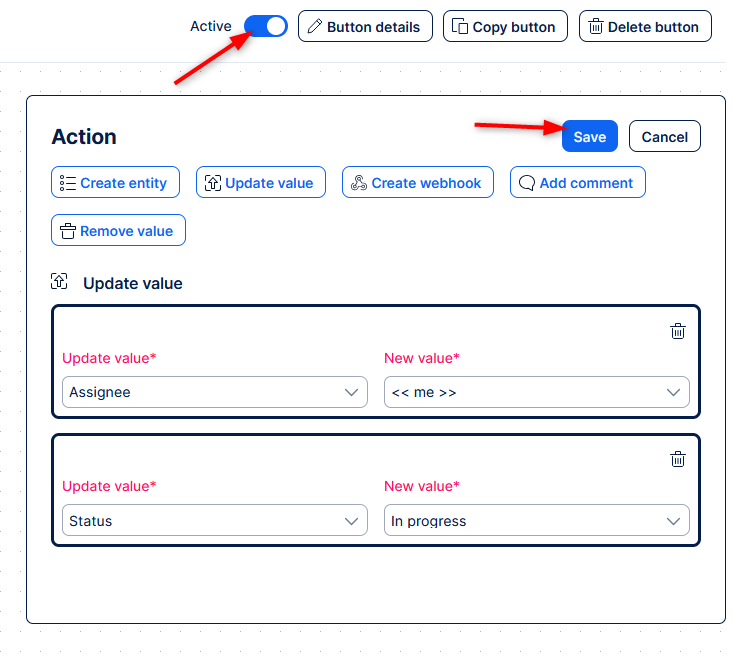
⚠️ Double-check the configuration before activating ⚠️
Before activating an automation, verify once more that you fully realize the reach and scale of your automation. Here are some situations you should consider:
- Time based rules - make sure the conditions to run are properly specified and as narrow as possible. We recommend checking how many items satisfy the filters defined in the conditions. A safe threshold is for each time based rule to affect a maximum of 100 items.
- Time based rules - spread the time of execution of each rule to different times. This will prevent potential performance issues. Not everything needs to happen at midnight. In fact, no separate automations need to happen at the same time.
- Workflow or permission restrictions - check that the action is allowed to the users who can trigger it (field visibility and editability, status transitions, project memberships)
- Beware of infinite loops - most relevant for time based rules, but not limited to them. Do not let your automations battle between changing the same task from New to Done and from Done to New (as a very simple example).
Generally we recommend a quality control of new automations in context of other before activating them. Allow management of automations only to properly trained persons, who fully understand the potential issues stemming from incorrect setup.
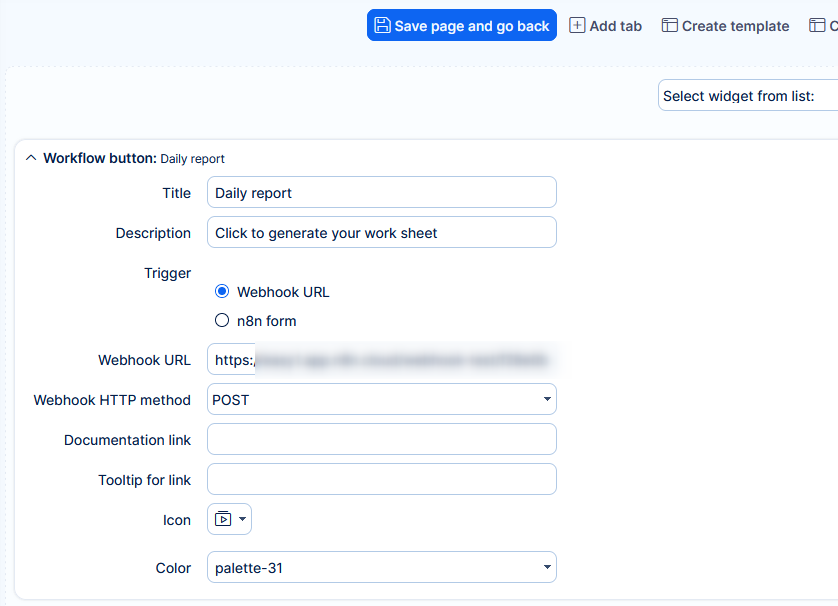
Setting up Workflow button on dashboard
This specific automation is configured ad-hoc on the dashboard where you want to use it.
Actions log
Actions performed on entities with history (e.g. tasks) will save the journal as the user who triggered it, the same as any other manual action on that entity. There is a tag next to the user informing that the action was performed via automation.
Execution log
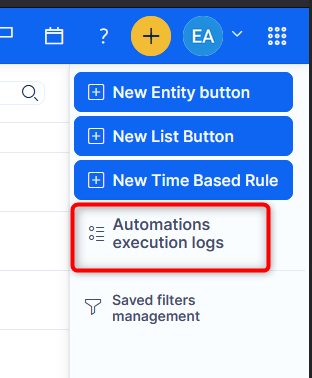
Automation execution logs is a dedicated list accessible from the automations list. It serves as a reliable record of automation activity — what ran, when it ran, and what happened during the run.
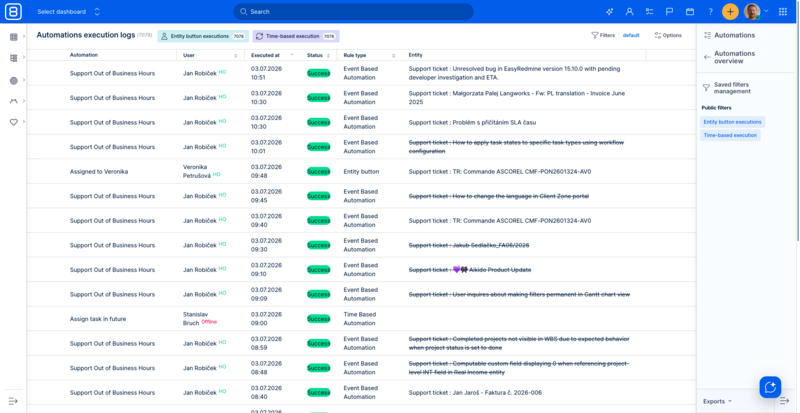
The log covers all automation types: entity buttons, list buttons, time-based rules, and event-based rules. Each entry shows:
- Automation - which automation was triggered
- User - the user the run is recorded under
- Executed at - when it ran
- Status - Success or Failed
- Rule type - the automation mode, shown as a readable name
- Entity - the task or other record the run applied to
You can filter the list by status, rule type, automation, user, and time period, and sort or group entries by these values - for example to list all failed runs of one automation.
A time-based rule that runs but finds no matching tasks still creates a Success entry stating that there was nothing to process. This means you can confirm that a scheduled rule really ran, instead of having to guess from a missing record.
Click any log entry to open the detail view. Next to the same attributes, it displays the full Success messages and Error messages for that specific execution. This is the primary tool for troubleshooting unexpected automation behaviour, including runtime errors that would previously not have been visible. From the detail you can open the automation itself (View automation), or copy a link to that exact log entry - useful when handing a case over to a colleague or to support.
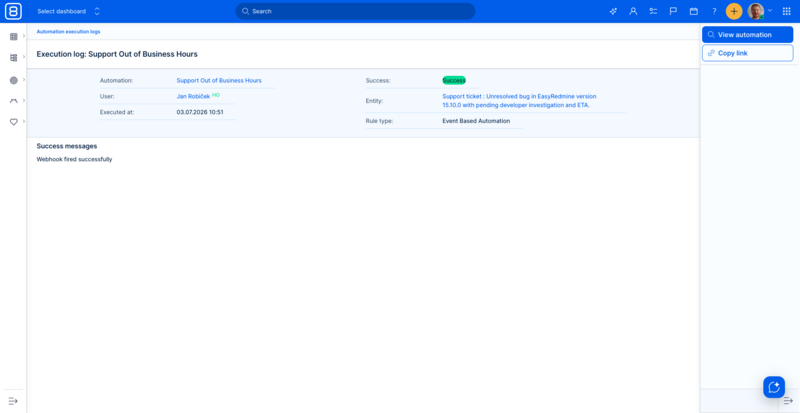
The messages are specific about what actually happened during the run:
- Update related tasks - each affected task is reported together with the relation that was used and the task ID. If one of the target tasks cannot be updated (permissions, workflow, validation), the error names that relation and task, instead of the run failing without explanation.
- List buttons - the success message lists the entities the run affected.
- Send email - if the message cannot be delivered, the run is marked as Failed, instead of reporting the email as sent.
Scheduling overview (time-based rules)
The automations list offers a Next run column, which you can add through the column settings of the list. It is filled in for time-based rules only, and shows the next planned execution in the date and time format configured for your Easy8. This gives you a central view of when each scheduled automation will run next, making it easier to spot overlaps and spread execution times to avoid performance bottlenecks.
Replacement of Easy buttons and migration
Automations, Entity buttons in particular, will ultimately replace Easy buttons (Action buttons). This change will bring more powerful automation capabilities to Easy users.
Migrating from Easy buttons to Automations is quite simple.
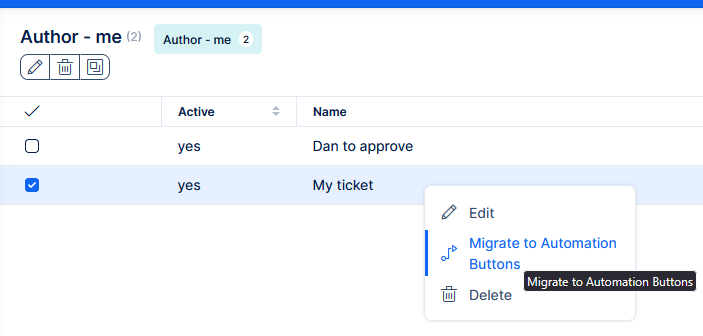
- Go the list of Easy buttons (Global menu >> Easy buttons)
- Right click on a specific Easy button
- Click Migrate
- This will create an automation (entity button) with the same visibility conditions and actions as the Easy button.
In case of issues with migrating, please check your permissions and button settings.