Aura - context-driven AI assistant in Easy8
Table of contents
What is Aura
How to open and control Aura
How to set up Aura for yourself
What Aura Chat enables
How Aura handles your request
What you can ask Aura to do
How to phrase your requests
How permissions and change confirmation work
Where Aura support ends
Examples worth trying
Summary
Related articles
What is Aura
Aura is a context-driven AI assistant for working in Easy8, with limited autonomy and controlled access to company data and actions. It helps you find information, work with tasks and projects, prepare overviews, and perform selected operations directly in Easy8. This learn-to and how-to article explains to everyone working in Easy8 what Aura can do, how to phrase requests, and where its current limits are.
Aura understands ordinary requests in natural language. You do not need to know filter names, internal IDs, or the structure of Easy8. Describe what you need:
- Find my open tasks.
- What is new on the Aura project?
- Log vacation from 2 to 6 September.
- Create a task for reviewing the documentation.
- How much time did I log last week?
Aura interprets the request, looks up the data it needs, and then either returns an answer or performs the operation in Easy8.
How to open and control Aura
Open Aura using the blue chat icon in the bottom-right corner of the application. Do not confuse it with the yellow icon in the same area, which belongs to Mr. Eight, another AI assistant available in some applications.

Picture shows the Aura launch icon: a dark blue rounded square with a white speech bubble and a four-pointed star inside it.
The Aura window offers these control elements:
- Chat History: drop-down for returning to earlier conversations.
- Dictation: drop-down for selecting the language used for speech-to-text input, for example cs-CZ.
- + New chat: button for starting a new conversation.
- Three control icons in the top-right corner: open the Aura settings, change the window size, and close the Aura window.
- Try a quick start labels: three ready-made requests you can click instead of typing. In this example they are Find my overdue tasks, What did I work on recently? and What can you help me with?
- Message input: the field at the bottom shows an example hint. On its left is a plus button for adding an attachment, on its right a microphone button for dictation and a blue send button.
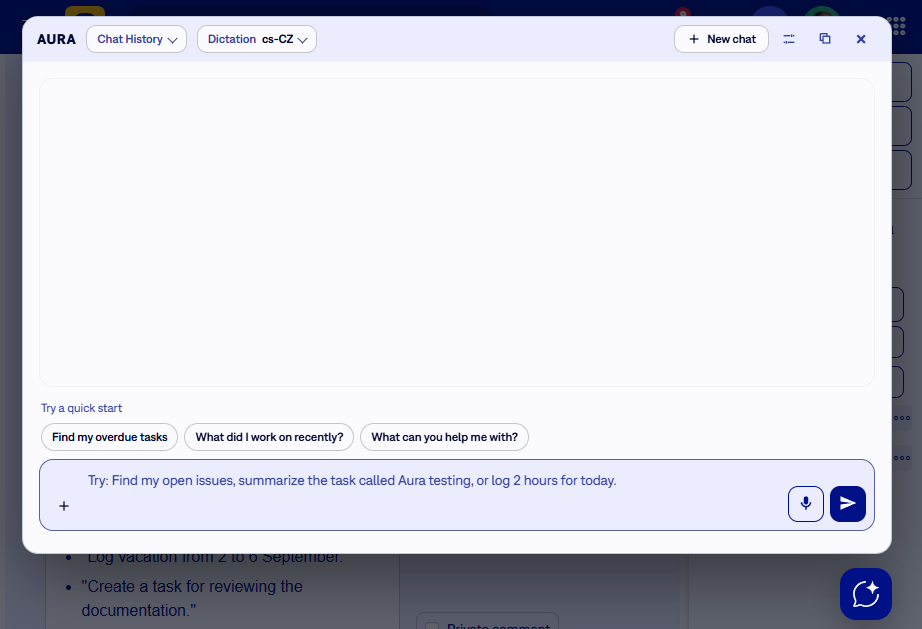
Picture shows the open Aura chat window. The header contains the AURA label with the Chat History and Dictation drop-downs on the left, and the + New chat button and three control icons on the right. Below the empty conversation area are the three quick start buttons, and at the bottom the message input field with the plus button on the left and the microphone and blue send buttons on the right.
How to set up Aura for yourself
Set up Aura once and every following conversation starts with the context you have given it. These settings are personal, so they apply to your account only, not to your colleagues.
Open the settings using the first of the three control icons in the top-right corner of the Aura window.
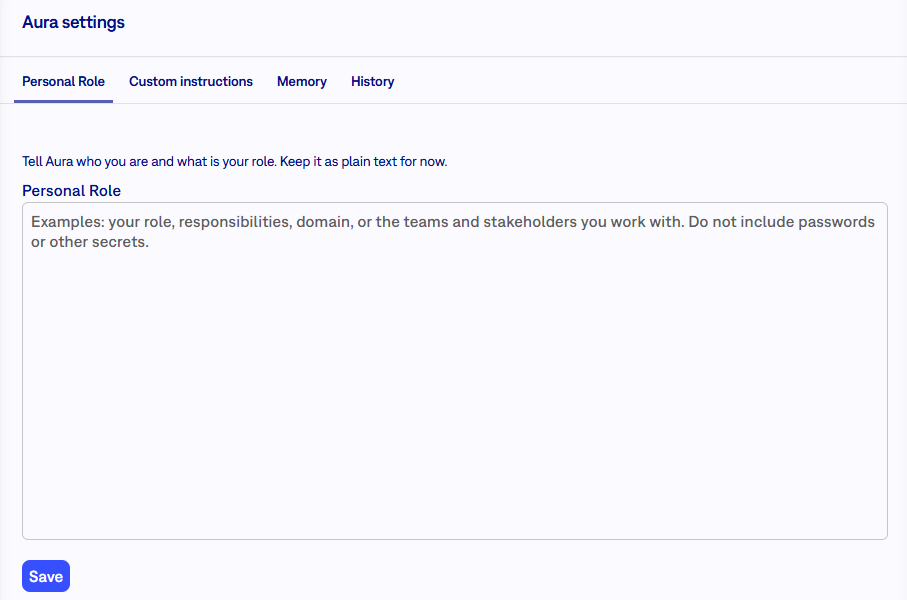
Picture shows the Aura settings page with four tabs: Personal Role, Custom instructions, Memory and History. The Personal Role tab is open and contains a text field with a hint describing what to enter, and a blue Save button below it.
The page offers four tabs:
- Personal Role: who you are and what your role is, so Aura interprets your requests in the right context. Enter plain text, for example your role, responsibilities, domain, or the teams and stakeholders you work with.
- Custom instructions: tell Aura how it should work with you.
- Memory: Aura keeps the most useful working context here. It can update this text itself, and you can also edit it manually.
- History: history of internal Aura changes.
Never enter passwords, tokens, or other secrets into these fields.
Click Save to store the settings.
What Aura Chat enables
Read this section to understand why Aura usually already knows what this task means. Aura Chat is the conversational interface where you communicate with Aura the same way you would with a colleague. You can ask follow-up questions, build on previous answers, and refine the request step by step.
Aura works with context from:
- the Easy8 page you currently have open,
- the task, project, or sprint board that is open,
- the previous conversation,
- data available in Easy8,
- knowledge sources available in your environment, if there are any.
Open a specific task and ask What is its current status? and Aura uses that task.
How Aura handles your request
This section explains what happens between your message and the result, so you can tell an unclear request apart from an unsupported one.
1. Aura recognises the request
Aura first evaluates what you want to find out or do. It recognises, for example, searching for a task, a question about a project, work with a PBI, a sprint overview, logged time, attendance, and creating or updating a task.
2. Aura looks up the data
When current information from Easy8 is needed, Aura reads it directly from Easy8. For the current state, a fresh result from Easy8 takes precedence over older information from the conversation.
When searching, Aura works tolerantly with:
- typos,
- missing diacritics,
- different wording of the same request,
- shortened names,
- single keywords.
3. Aura answers or performs the action
Aura can display or explain information, draft text, create a new record, update an existing record, add a comment or a relation, and save the change to Easy8. For completed changes, Aura returns a link to the affected record.
What you can ask Aura to do
Use this section as a map of the areas Aura covers. Each part lists what you can ask for and gives example requests you can copy.
Search and manage tasks
Aura searches, displays, and manages Easy8 tasks.
Search by name, part of the name, project, assignee, author, priority, task type, status, due date, milestone or release, creation or change date, and customer relation.
- Which tasks are assigned to me?
- Find tasks from Lucie about meetings.
- Find tasks due this week.
- Which tasks are overdue?
Display task detail, including name and task ID, project, status, assignee, priority, type, due date, description, milestone, subtasks, related information, comments, and change history.
- Show the detail of this task.
- What was discussed in the comments?
- Who changed the status of the task and when?
- What are the subtasks of this task?
Create a task. Aura needs the project, the task name, and the task type. Optionally add description, assignee, priority, due date, milestone, and an attachment.
In the AURA project, create a task named Prepare onboarding documentation, type Task, priority Normal, due 30 August 2026.
Update a task. Aura can change the name, edit the description, change the status, assignee, priority, type, and due date, move the task to another project, change the milestone, move the task under another task as a subtask, add a comment or note, and edit supported custom fields.
Assign this task to Petra and set the status to Testing.
Look up projects
Aura searches and displays information about Easy8 projects. Ask it to find a project by name, show project detail, show project members, or add a note to the project history.
- Find the AURA project.
- Who is a member of the AURA project?
- Add a note to the project history that the documentation was updated.
Report on sprints and sprint boards
Aura works with team sprint boards and sprint overview boards, so you get a sprint picture without opening the board.
Current sprint overview covers the sprint name, sprint period, sprint goals, capacity, number of PBIs per status, the list of PBIs, and the distribution of work across statuses.
Give me a report on the current sprint.
Sprint history lets you find the last closed sprint, sprints in a given period, all closed sprints, PBI status counts in individual sprints, and goals and dates of past sprints.
- Show the last closed sprint of A-Team.
- Compare the sprints of the last three months.
- How many PBIs were completed in the previous sprint?
Work with Product Backlog Items
Product Backlog Items (PBIs) and regular Easy8 tasks are different entities in Easy8. Aura works with both.
Search and list PBIs by name, status, product backlog board, sprint board, sprint, author, creation date, and last change date.
- Find all PBIs in the To refine status.
- Which PBIs are on the A-Team sprint board?
- Find the oldest PBI that has not been updated.
Display PBI detail, including name, ID, status, estimate, description, colour, source task, and other linked tasks.
Change PBIs: create a PBI from an existing Easy8 task, add an existing task to a product backlog board, edit the PBI description, change the PBI colour, and attach an existing task as the source task of a PBI.
When creating a PBI, Aura writes a new, reader-friendly description and acceptance criteria. It does not automatically copy the whole original task description, so compare the result with the source task before you refine the PBI with the team.
Log and review spent time
Aura works with time entries in Easy8.
Review time: how much time you logged, time for a specific period, time on a project, time on a task, time logged by a specific user, and the most recent time entries.
- How much time did I log last week?
- Show my time on the Aura project for August.
- Find the last time entry on this task.
Create and change time entries: create a new entry, attach it to a task or project, set the number of hours, set the date, add a comment, set the activity, and change an existing entry.
Log 2 hours on this task today with the comment Requirements analysis.
Record attendance, home office, and vacation
Aura displays and creates selected attendance records, including full-day records and whole periods. Supported types are office, home office, vacation, and sick leave.
- What is my attendance this month?
- Log home office for tomorrow.
- Log vacation from 2 to 6 September.
- Who is on vacation today?
Find users and project members
Aura finds users by name, login, e-mail, or ID, and shows the information available in Easy8, such as name, login, contact details, project membership, and available user fields.
Find the user John Doe.
If several similar users exist, Aura lists them for you to choose from. It does not guess which user you meant.
Look up customers and contacts
Aura supports basic reading of EasyContact accounts and contacts. Ask it to find a customer or company, show account detail, show related contact persons, show available contracts, and show basic commercial information.
- Find the customer ABC.
- Show the detail of this client.
- Who are the contact persons at this company?
Work with comments, history, and relations
Aura works with task history and comments, which helps when you return to a task after a longer break.
Aura can show the comments on a task, summarise the history, find out what changed on the task, add a new comment, create a relation between two tasks, and set a relation of the type relates, blocks, or precedes.
- Summarise the latest comments on the task.
- Add a comment that the analysis is finished.
- Link these two tasks as related.
- Set task A to block task B.
Manage watchers and coworkers
Ask Aura to add or remove a user as a watcher or coworker of a task.
- Add me as a coworker of this task.
- Remove me from the coworkers of this task.
For any user other than yourself, give a unique identification or the user ID.
Search connected knowledge sources
In some configurations, Aura can also search connected knowledge sources, such as documentation, internal pages, Confluence, indexed attachments, the knowledge base, and indexed tasks.
Find information about the Azure AI connection in the documentation.
Results can contain a link to the source document or another origin of the information. This search serves to find relevant information; it is not the same mechanism as current task filtering in Easy8.
How to phrase your requests
Follow these four habits and you will get a usable answer on the first attempt in most cases.
Write naturally
You do not need exact syntax. Instead of a filter expression such as assigned_to_id=4433 status_id=o1, write: Find my open tasks.
Name the parameters that matter
The more precise the request, the more precise the result. It helps to name the project, the user, the period, the status, the record type, and the action you want.
Find open tasks in the AURA project that are due this week.
Build on previous messages
Refer back with expressions such as this task, that project, add a comment to it, show its subtasks, or find the related PBI. When the context is not clear, Aura asks rather than guesses.
Pick from a numbered list
When several similar results exist, Aura can number them:
- Aura - basic documentation
- Aura - UI check
- Aura - Azure AI
Then answer, for example:
Take the second one.
How permissions and change confirmation work
Read this section before you let Aura change anything important. Aura works only with functions that are available and enabled in your Easy8 environment, and access to data follows your Easy8 permissions.
When making changes, Aura:
- works with current data from Easy8,
- does not guess technical IDs when it can look them up,
- asks when something is unclear,
- returns a link to the changed record after a successful change,
- never reports a change as done if it was not carried out.
Recommended practice:
- before an important change, check that Aura is working with the right project or task,
- with ambiguous names, pick the correct result,
- for bulk or significant changes, ask for a draft first.
Where Aura support ends
Check this list before you plan a workflow around Aura. Some parts of Easy8 are not directly supported in the current configuration. Aura cannot directly:
- create or edit accounts and contacts,
- merge customer accounts,
- manage invoicing data,
- manage campaigns,
- manage leads and opportunities,
- edit contracts,
- work with meetings and the calendar,
- manage test cases and test plans,
- manage checklists,
- work with budgets and financial records,
- create custom tables or custom entities,
- perform some advanced operations with PBIs, for example moving a PBI between sprint boards.
When a requested function is not available, Aura says so and offers a supported alternative where one exists.
Examples worth trying
Use these requests as your starting set.
Tasks
- Find my overdue tasks.
- Create a task for reviewing the onboarding documentation.
- Change the status of this task to Testing.
- Add a comment to the task that we are waiting for client feedback.
- Show all subtasks of this task.
Projects
- Find the Knowledge Base project.
- Show the project members.
- Add a note to the project history that the analysis is finished.
Sprints and PBIs
- Give me a report on the current A-Team sprint.
- How many PBIs are in the To refine status?
- Find the oldest PBI in the backlog.
- Create a PBI from this task.
- Change the description of this PBI.
Time and attendance
- How much time did I log this month?
- Log 1.5 hours on this task today.
- Log home office for tomorrow.
- Show my attendance for the last week.
Overviews and analysis
- Summarise the latest changes on this task.
- Identify blockers in the current sprint.
- Compare completed PBIs in the last two sprints.
- Find information about the Aura onboarding process in the available documentation.
Summary
Aura is the interactive AI assistant for Easy8 that you operate with plain sentences instead of filters and forms. Key points to remember:
- Aura helps mainly with finding information, tasks and projects, sprints and PBIs, time entries, attendance, comments and history, relations between tasks, basic information about users and customers, and searching available documentation.
- Aura uses the context of the page, task, project, or board you have open, so this task is usually enough.
- For the current state, fresh data from Easy8 takes precedence over older information from the conversation.
- Aura follows your Easy8 permissions and returns a link to every record it changes, so you can verify the result.
- When something is unclear or unsupported, Aura asks or says so instead of guessing.
Aura is extended continuously in line with new Easy8 functions and user feedback, so check the release notes for the current state of supported operations.
Related articles
- Easy AI - the other AI assistants in Easy8 and their data sources