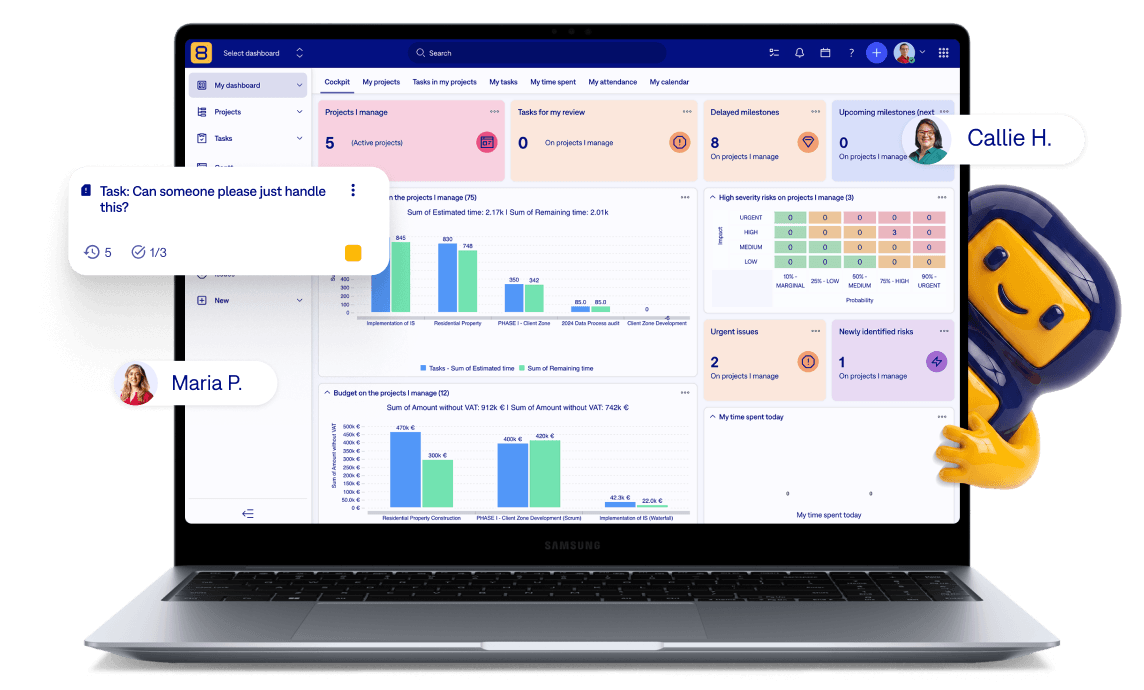
One automation engine. Endless possibilities.
Every automation in Easy8 follows the same simple logic:
- Choose a trigger – decide what starts the automation: manually with a button, on a schedule, or when a specific event occurs.
- Set conditions – define when the automation should run by filtering tasks, projects, users, or other criteria.
- Configure actions – specify what happens next, from updating fields and assigning users to sending notifications or triggering webhooks.
This flexible approach lets you automate anything from simple repetitive tasks to complex multi-step workflows while keeping full control over when and how they run.
What's new in Automations
If you are an active user of our Automations, you would appreciate some of the latest improvements that simplify onboarding, configuration, and troubleshooting.
- New Automation dashboard: provides a central starting point for working with automations. It introduces available trigger types, supported actions and includes links to documentation and video tutorials, making it easier to learn how automations work and get started quickly.
- Unified Automation setup: all automation types can now be created from a single entry point. Simply select the automation type, review its description and recommended use cases, then continue with the same configuration process regardless of the selected trigger.
- Improved execution logs: execution logs have been enhanced for all automation types. You can now filter successful and failed executions and quickly navigate to the execution details for further investigation.
- New execution details: each automation execution now includes a detailed result view showing its status together with success or error messages. This makes it easier to understand why an automation succeeded or failed and simplifies troubleshooting.
- New action - Update Related Tasks: A new Update Related Tasks action allows you to automatically update related tasks when changes occur on another task. This makes it easy to build task sequences and automate dependent workflows across your projects.
Unlock one‑click power with Automation Buttons in Easy8
Automation Buttons in Easy8 let you trigger a custom sequence of actions with a single click. Whether you need to update task fields, post internal comments, create subtasks from templates, or send webhooks to external systems, all can be done instantly, without manual steps.
They’re fully configurable, role-based, and context-sensitive, appearing only where they’re relevant.
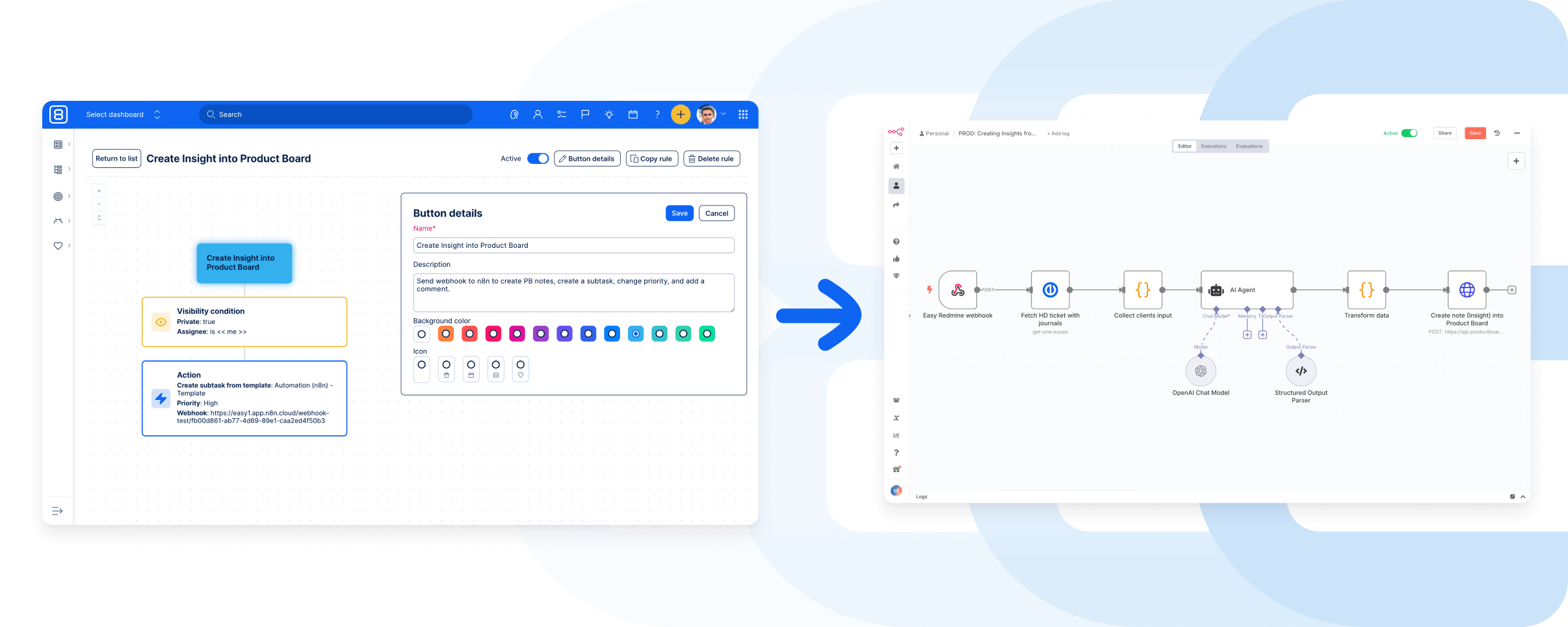
Why are they useful?
- Save time: Run multiple actions at once. No need to repeat manual steps for common workflows.
- Ensure consistency: Define exactly what happens (and in what order), using safe “all-or-nothing” logic, no partial updates.
- Stay in control: Choose who sees each button and under what conditions, thanks to detailed visibility settings and permissions.
Automation Buttons are ideal for any team that relies on repeatable processes, especially in project management, manufacturing, or customer support.
For example:
- Development: Launch a new feature with pre-defined subtasks, comments, and assignments.
- Production: Signal a completed production run with a comment, task update, and status change, all at once.
- Support: Take ownership, escalate, or send updates, all in one click.
Triggers are the heart of every automation. They define when and why a workflow starts, and choosing the right one makes the difference between a useful shortcut and real impact. Besides the manual button trigger, we also offer a fully automated trigger.
- Time-based triggers run actions at a scheduled moment or at recurring intervals. Perfect for daily reports, weekly summaries, or regular syncs without manual work.
- Event-based triggers react instantly to specific changes, like a new task created, a ticket overdue, or a deployment completed, so your processes respond in real time to what matters.
In Easy8, we’re now bringing this power to our Automation. You are now able to launch workflows not just manually, but also automatically based on time or events.
How to get started?
You’ll find the Automation buttons section in the right-hand menu once you have at least view permissions. There, you can create your own button, choose visibility rules, define what actions it performs, and set it live. It only appears on tasks that match your setup. Then it’s just click and done.
Time-based automations in Easy8
Time-based automations are the first step toward fully automated workflows that run in the background, without manual interaction. They are allowing you to trigger automated workflows based on time-based triggers.
What’s new
A new time-based rule option is now available in the Automation section.
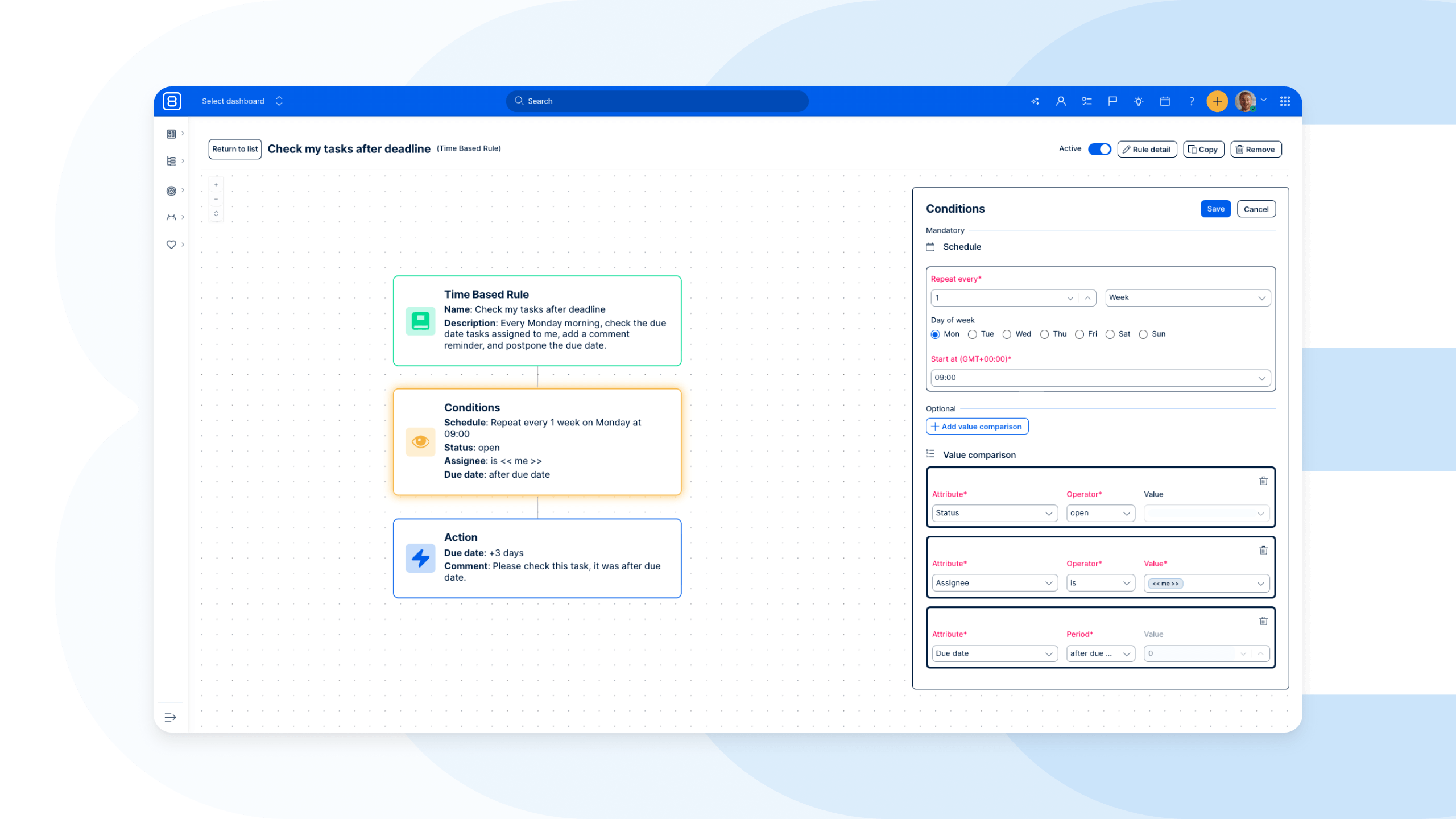
When creating a rule, you can define when the automation should run, for example:
- every hour,
- on a specific date,
- daily or weekly (e.g., every Monday morning at 9:00).
You can then combine the trigger with conditions (filters) and actions, just like with existing automation buttons.
How it works
1. Define the automation name and description.
2. Set a time-based trigger (hour, day, week, exact date).
3. Add conditions to filter the data (e.g., task status, assignee, due date).
4. Choose actions, the same actions you already know from Automation Buttons
- update task fields,
- add comments,
- change dates.
Availability
Time-based automations are already available to customers.
You can start creating your first time-based automated workflow right away. Watch the demo video to learn more.
Event-based automations in Easy8
Keep work moving, even when your focus is elsewhere. Until now, automations in Easy8 were primarily time-based, running at scheduled intervals. With the introduction of event-based automations, your system can now react immediately to changes as they happen. Instead of waiting, automations are triggered in real time by specific events in your projects.
What’s new
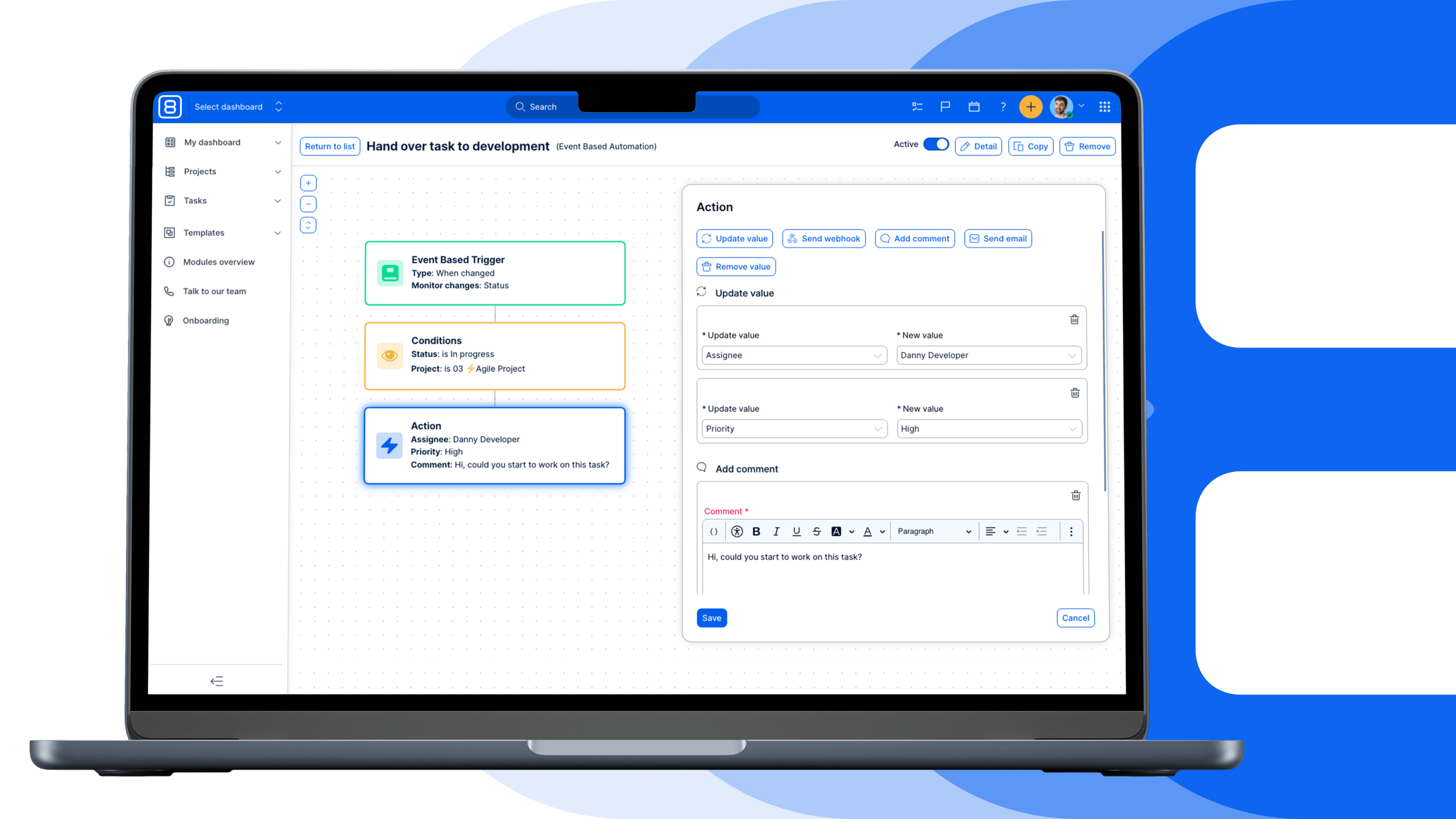
Event-based automations introduce a new type of trigger that monitors activity on tasks.
You can now start an automation when:
- a task is created
- a specific attribute on a task changes (e.g., status, type, priority)
This means your workflows can respond instantly to real actions, without delays or manual intervention.
Event-based automations help eliminate manual handovers and delays in your processes.
Instead of relying on users to remember the next step, the system reacts automatically when something changes.
This leads to:
- faster task transitions,
- consistent workflows across teams,
- fewer missed steps or errors,
- more predictable execution.
Example use cases
Here are a few practical scenarios:
When a task status changes to “Consultation”, automatically:
- assign it to a specific user or team,
- add a comment with instructions.
When a task type changes to “Bug”, automatically:
- increase priority,
- add relevant coworkers.
These automations ensure that every change triggers the right next step, without manual coordination.
A natural extension of existing automations
This is not a completely new system, but an extension of what you already use.
The only change is the trigger:
- time-based → event-based
Conditions and actions remain the same, so you can start using event-based automations immediately without a learning curve. You can now build workflows that don’t just run on schedule, but actively respond to your work as it happens.
The result is a more dynamic, connected system where tasks move forward automatically, and teams spend less time coordinating and more time delivering.
Easy8 Workflow Catalogue: Ready-to-use automations for Easy8
Most organisations know there are many opportunities to automate repetitive work, connect systems, and introduce AI into daily operations. The challenge is rarely the idea itself. The challenge is knowing where to start and how to implement it efficiently.
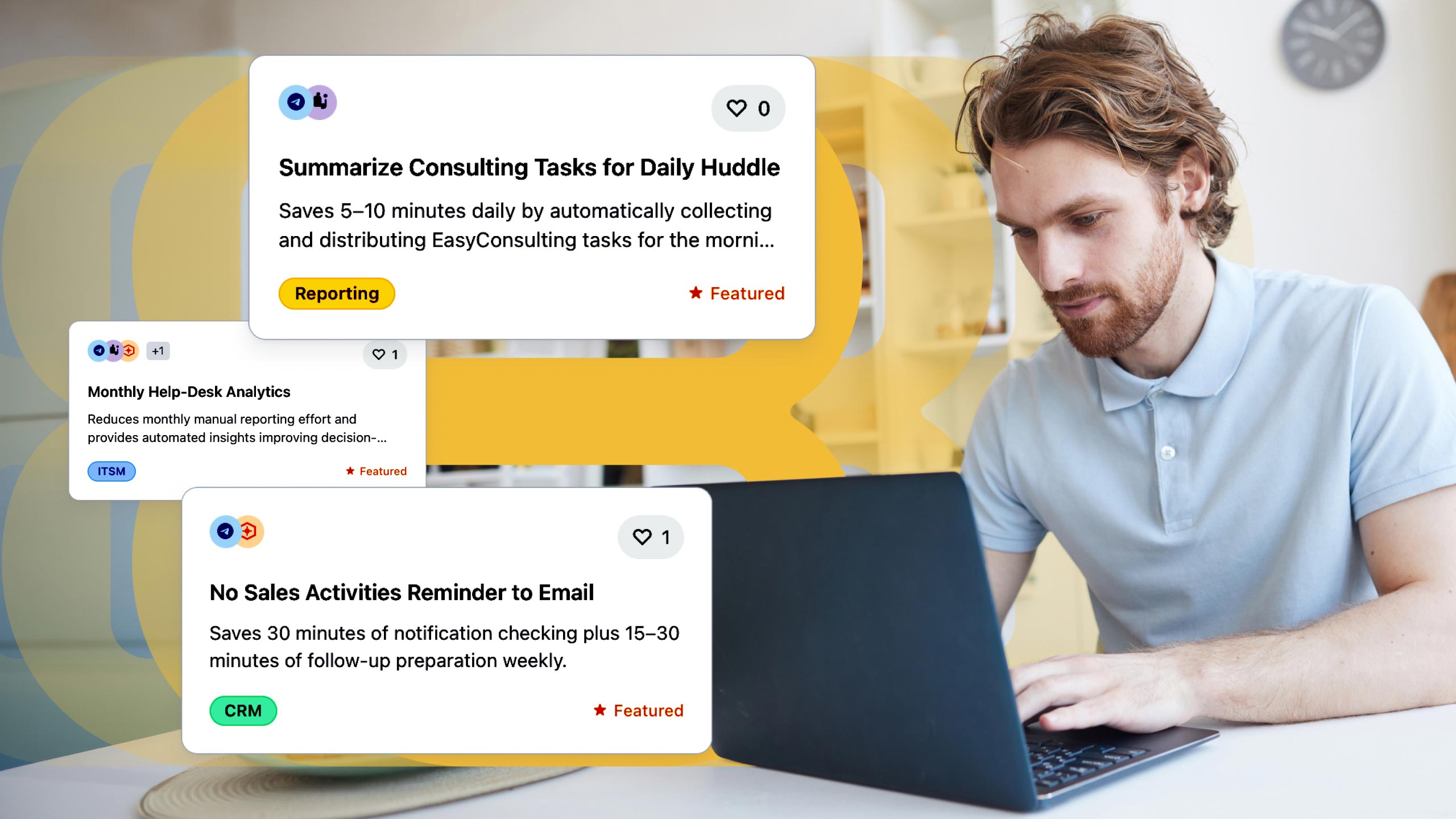
The Easy8 Workflow Catalogue was created to solve exactly this problem. Instead of designing every automation from scratch, companies can browse a growing library of proven workflows, integrations, and AI-powered automations based on real customer scenarios and operational challenges.
The catalogue currently contains dozens of workflows covering areas such as project management, customer onboarding, support processes, notifications, reporting, approval workflows, CRM integrations, AI-powered assistants, and cross-system automation.
Each workflow explains what problem it solves, which systems it connects, and the expected business value or ROI.
How it works
The Easy8 Workflow Catalogue works similarly to an app marketplace. Users can browse available workflows, explore practical use cases, and identify automations that match their business processes.
Some workflows can be deployed with minimal customisation, while others can serve as a starting point for more advanced solutions tailored to specific requirements.
Examples include:
- Automatic project creation from sales opportunities
- AI-generated meeting summaries and action items
- Incident and ticket escalation workflows
- Approval and document review processes
- CRM-to-delivery handover automations
- Customer onboarding communication workflows
- AI-powered reporting and status updates
- Notifications across Teams, Slack, email, and other platforms
How to get started with the Easy8 Workflow Catalogue
The Workflow Catalogue is designed to be as simple as possible to deploy and use. The workflows available at the moment are ready-to-use, plug-and-play solutions, allowing you to start automating processes without building everything from scratch.
Basic setup:
- Log in to your Easy8 application.
- Install and configure your n8n environment.
- As an Administrator, open the Workflow Catalogue in the right menu.
- Connect your n8n instance: Establish a connection between Easy8 and your n8n environment. This enables Easy8 to deploy and manage workflows directly within your automation platform.
- Choose and install workflows: Browse the catalogue and select the workflows that match your business needs. The selected workflows are automatically installed into your n8n instance.
- Configure triggers and business Data: The final step is to define when the workflow should run and which data should be passed to it. Easy8 automatically provides the relevant project, task, CRM, HelpDesk, or other business data based on the selected trigger, allowing workflows to immediately work with real operational information.
- Using automated workflows in Easy8: Once installed, workflows become available inside the Easy8 Automation environment. Users can then connect them to specific business events and processes without additional development work.
Workflows can be triggered through multiple automation mechanisms, including:
- Entity buttons
- List actions
- Time-based automations
- Event-based automation
For organisations looking for a faster start, our team can also help with the initial setup, workflow selection, and deployment to ensure everything is configured according to your business processes.
Beyond individual automations
Many companies initially look for a single automation. In practice, the biggest improvements often come from understanding the entire process behind it. That is why the Workflow Catalogue is closely connected to the Operational Flow Review approach, which focuses on identifying bottlenecks, manual work, disconnected systems, and opportunities for improvement across teams and processes.
Rather than asking "What would you like to automate?", the focus shifts to understanding how work flows through the organisation and where automation, integration, or AI can create the greatest impact.
Not sure where to start? Start with your process.
Many organisations know they have repetitive work, disconnected systems, or manual steps slowing teams down. What they often don't know is where the biggest improvement opportunities actually are.
That is why Easy8 offers the Operational Flow Review. Rather than focusing on individual automations, the review looks at how work flows across teams, systems, and processes.
Together, we identify bottlenecks, friction points, unnecessary manual work, and opportunities for automation, integration, or AI support.
The output is a practical improvement roadmap that typically includes:
- Identified bottlenecks and inefficiencies
- Recommended automation and integration opportunities
- Suggested Easy8 improvements and best practices
- A prioritised list of next steps and implementation options
In many cases, organizations discover opportunities they would not have identified by looking at individual workflows alone.
Book the Operational Flow Review
If you are exploring how to connect systems, automate repetitive work, or introduce AI into your operations, the Operational Flow Review is often the fastest way to identify where to start and which workflows from the catalogue can deliver the greatest value.