HelpDesk
Terminology
Decide on the structure of HelpDesk projects
Connecting mailbox to Easy8
How to set up project configuration
How to set up project configuration – details
How to work with ticket processing
How to configure mail templates
How to configure global settings
Filter "Need reaction"
HelpDesk-users
Troubleshooting: Email Delivery Failure with Large Attachments
Corner situations
These instructions will go through all the steps to configure HelpDesk from the UI. From connecting mailboxes to Easy8, through project settings, to finetuning the dashboards. This is not a technical manual to configure cron (or scheduled tasks on the server side). Cron must already be configured in order for HelpDesk to function. Instructions to set cron are here.
0 Terminology
Let's first start with a glossary of used terms in the following manual.
Mailbox - an email address connected to Easy8, from which received emails are processed into tickets in respective HelpDesk projects
Ticket - task created from a received email in a mailbox, or a task internally created by clients in a HelpDesk project
HelpDesk project – a project connected to HelpDesk, where tickets can be created
Domain – the second part of an email address. For example, from email worker.Joe@client.com domain is just client.com
Keyword – word or a string of words contained in the mail subject
SLA - service level aggreement. In simplified meaning used in Easy8, contracted time to react by company to tickets submitted by client. Calculated in hours
Original email – Email sent to a HelpDesk mailbox from which the ticket was created
Operator - this terms is going to be used for the support worker, who works with the tickets
1 Decide on the structure of HelpDesk projects
Depending on whether you want to have a single project for all tickets or differentiate HelpDesk mailboxes, or even have special projects for different clients, you need to decide about the structure of the projects before any configuration starts. This decision will affect some further steps listed in this manual.
Here are the possibilities:
1.1 Single project for all tickets
If you are only going to have one project, which gathers emails from a single mailbox, there is no decision to make >> all emails sent to the mailbox create tickets in the same project.
Example: All your clients send support requests to support@mycompany.com
It doesn't matter which level this project is, basically it lives its own life within any part of your project structure. However, if you are planning to start with a single project and later continue expanding HelpDesk, you should see the options below.
1.2 One mailbox, more HelpDesk projects
Example: You use the mailbox support@mycompany.com. All emails received go into a general project. But you have one client, who has a special project and special conditions > emails FROM domain client.com are processed in the special project.
Of course, you can have a more customers separated this way. In this case, the project structure may look like this:
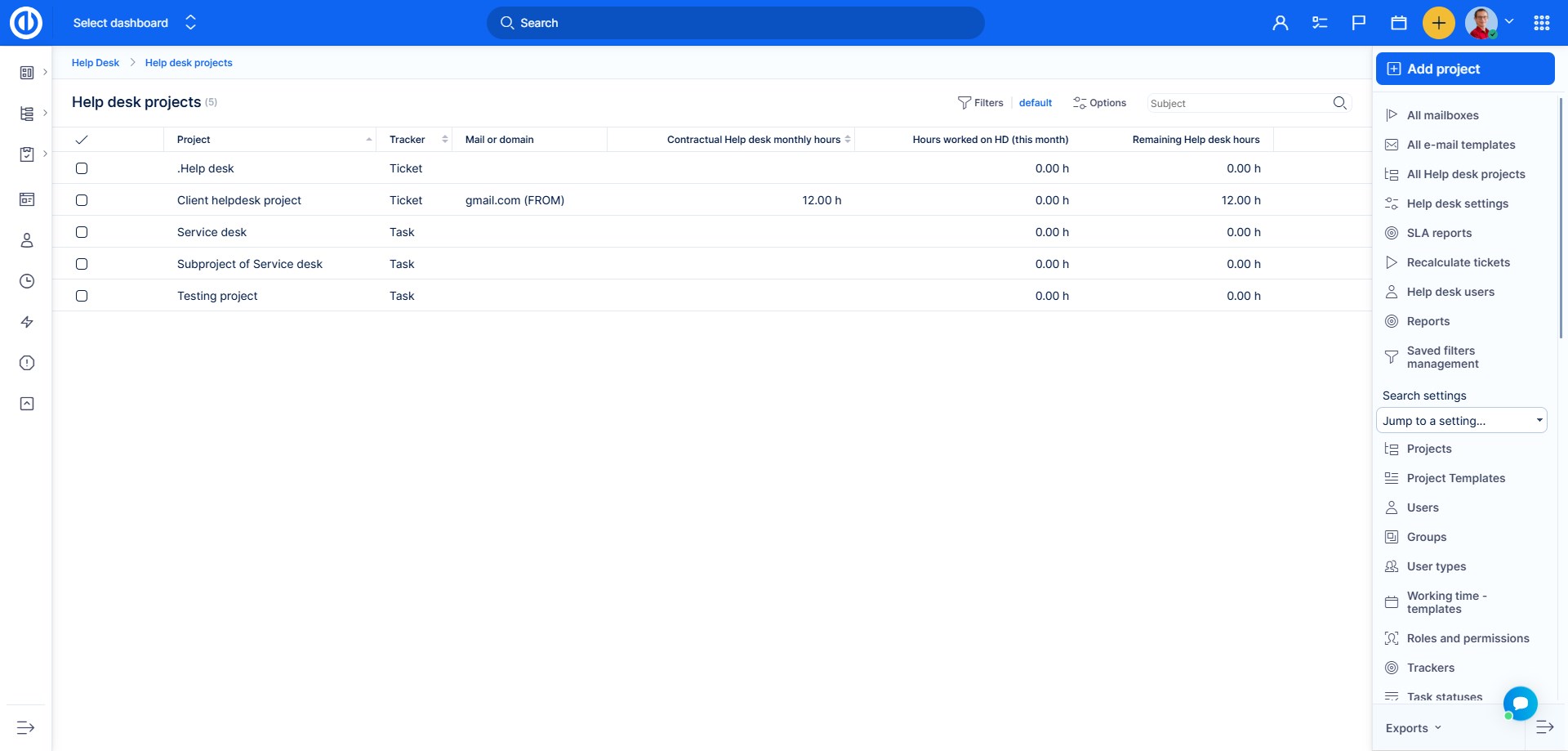
Another option is to have the Default HelpDesk project on the first level and the special projects beneath it.
A different way, which sometimes may be used is a structure:
>Client1
>>Project for commerce
>>Project for implementation
>>Project for HelpDesk
>Client2
>>Project for commerce
>>Project for implementation
>>Project for HelpDesk
However, this is not recommended if you are planning to gather tickets from various problems to some aggregate lists, statistics or summaries.
1.3 More mailboxes, no special client projects
Example: You are using mailboxes support@mycompany.com, info@mycompany.com, it@mycompany.com and emails are only sorted according to the mailbox, not according to the sender.
In such case, you can have the 3 projects on the same level and possibly beneath a main project covering them all.
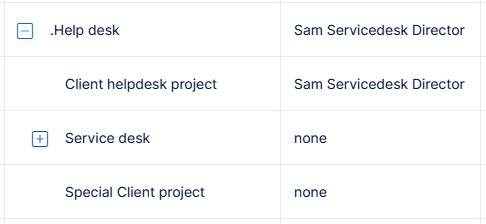
These projects can be completely unrelated and falling to separate sections of your organization, they can be in different project trees (under different top projects).
1.4 More mailboxes, with special client projects
Current Easy8 HelpDesk functionality allows to separate clients solely by the sender and not by a combination of sender and receiving mailbox.
Example: You are using mailboxes support@mycompany.com, info@mycompany.com, it@mycompany.com. You have a special client sending support requests from domain client.com
The recommended structure is:
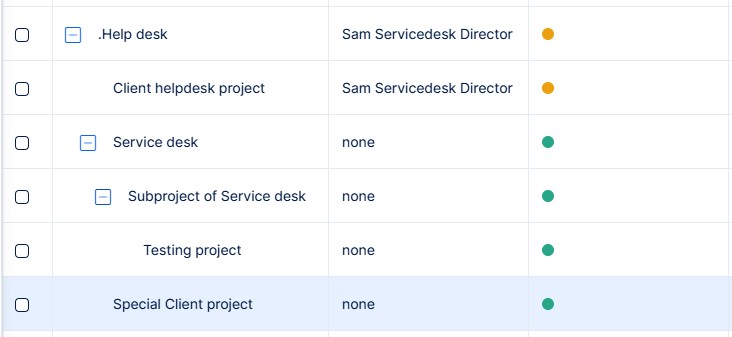
When we return to the project structure in general, there is some further consideration to be done. If you are aiming to integrate HelpDesk processing with a different department of your organization (for example development), you may want to consider putting HelpDesk projects a little bit deeper in the project structure.
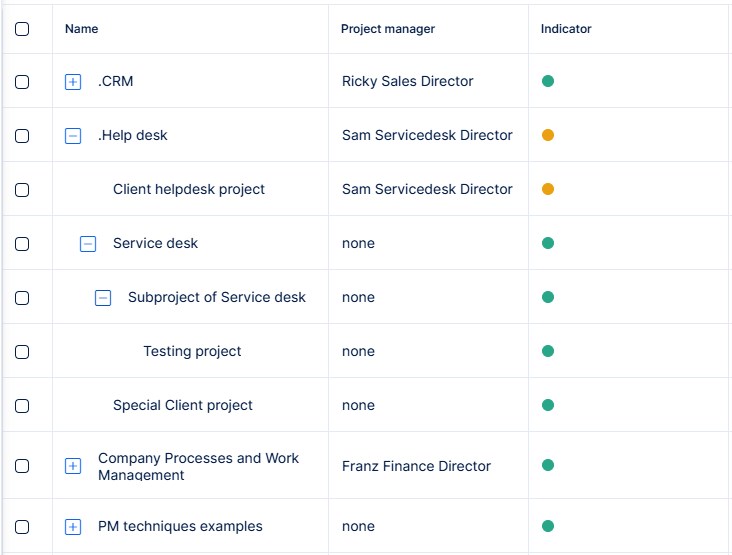
Correct project structure will enable you to generate various reports, listings, statistics across more phases of your business.
2 Connecting mailbox to Easy8
Now we can start with the actual setup of HelpDesk components. To have Easy8 process mailboxes, they need to be connected in the following way.
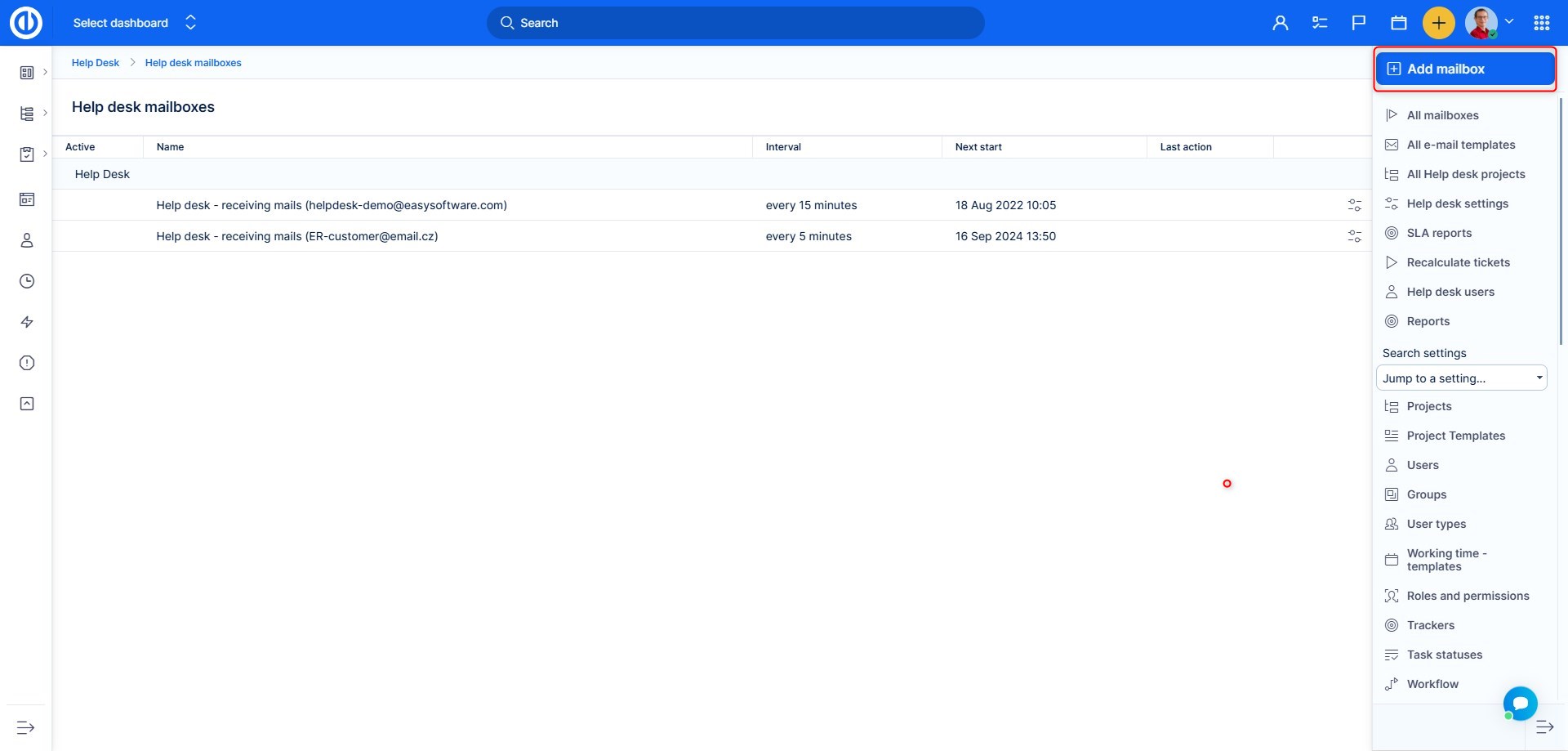
2.1 Administration >> HelpDesk >> All Mailboxes >> Add Mailbox
2.2 Enter valid credentials of your mailbox – click Test to make sure Easy8 can reach the mailbox
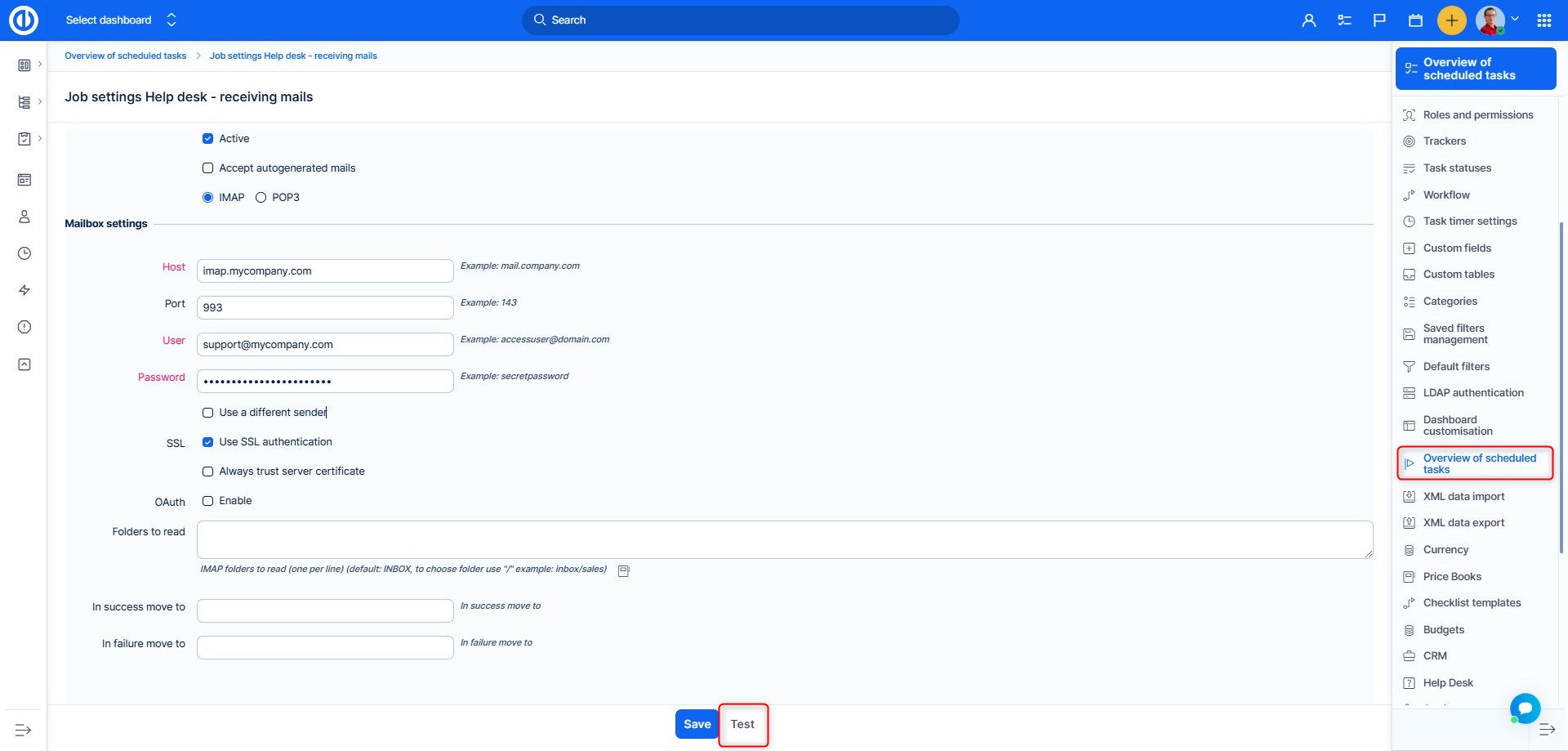
Setting notes:
- Active - mailbox is scanned regularly by Easy8 for new unread messages. If disabled, Easy8 doesn't check the mailbox. But you can keep the mailbox in Easy8 for possible future use.
- Use different sender - when user on the mail server is not the same as mailbox (for example, HelpDesk-mail-user). Enter here the valid malibox, which is represented by the user.
- SSL - if you use an SSL certificate on your mailserver
-
Enable OAuth – OAuth 2.0 protocol is used by hundreds of well-known services as an alternative authentication method. As for the HelpDesk's mailbox, it can be used to verify the sender's credentials using an external application, currently supported are Google Workspace (formerly G Suite) and Microsoft Exchange accounts. You need to read OAuth 2.0 documentation of the other application to know what exactly to enter in each field. Of course, you need to have admin access to the other application to find the required information, such as site URL, client ID, client secret, authorize URL, token URL, scope, etc.
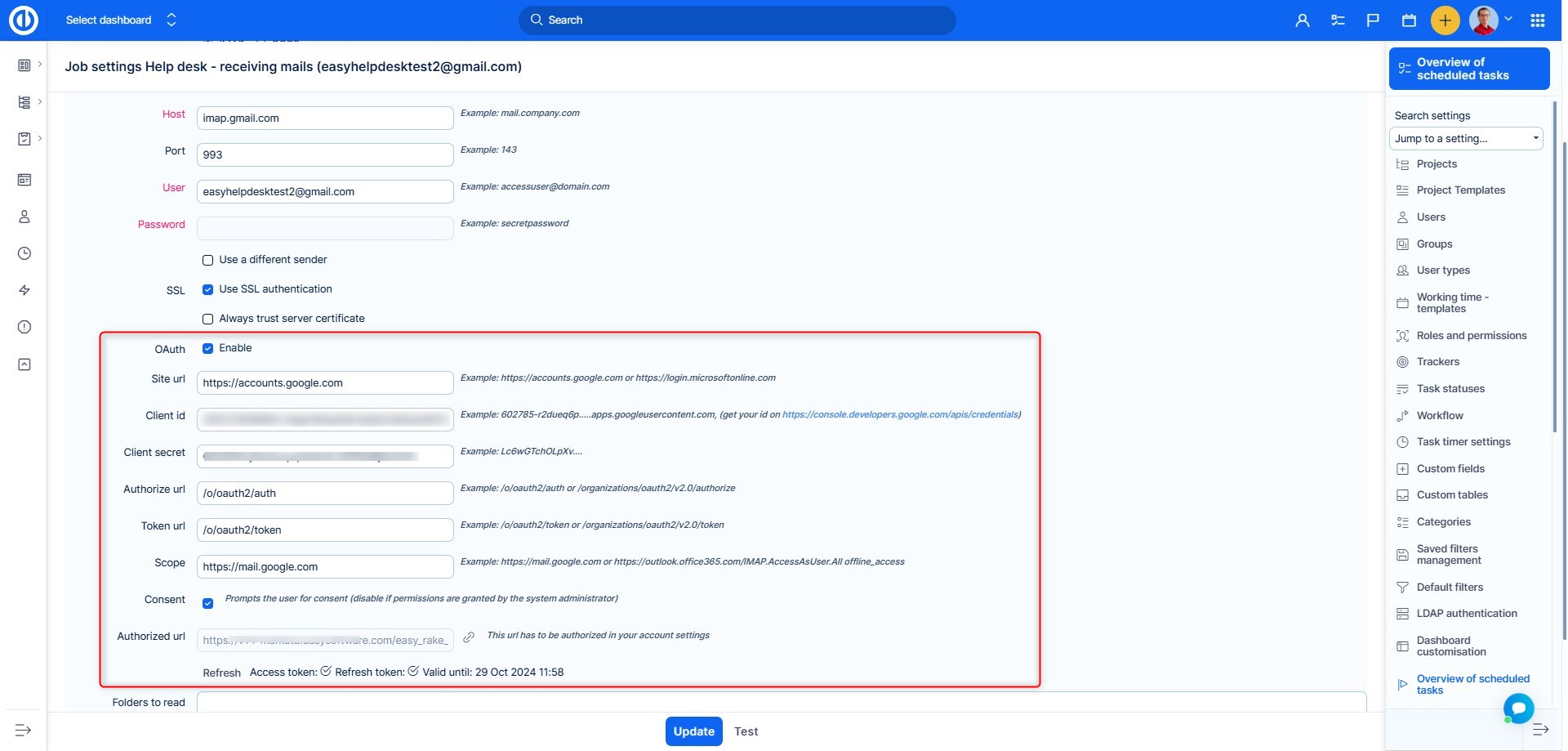
- Folder - if you want Easy8 to only check certain folders for unread emails.
- In success move to – if an email is processed correctly by Easy8 (ticket has been created), it will be moved there
- In failure move to – if an email is processed incorrectly (ticket has not been created), it will be moved there
After testing the connection, click Save.
2.2.1 Where to find OAuth 2.0 credentials for Microsoft and Google accounts
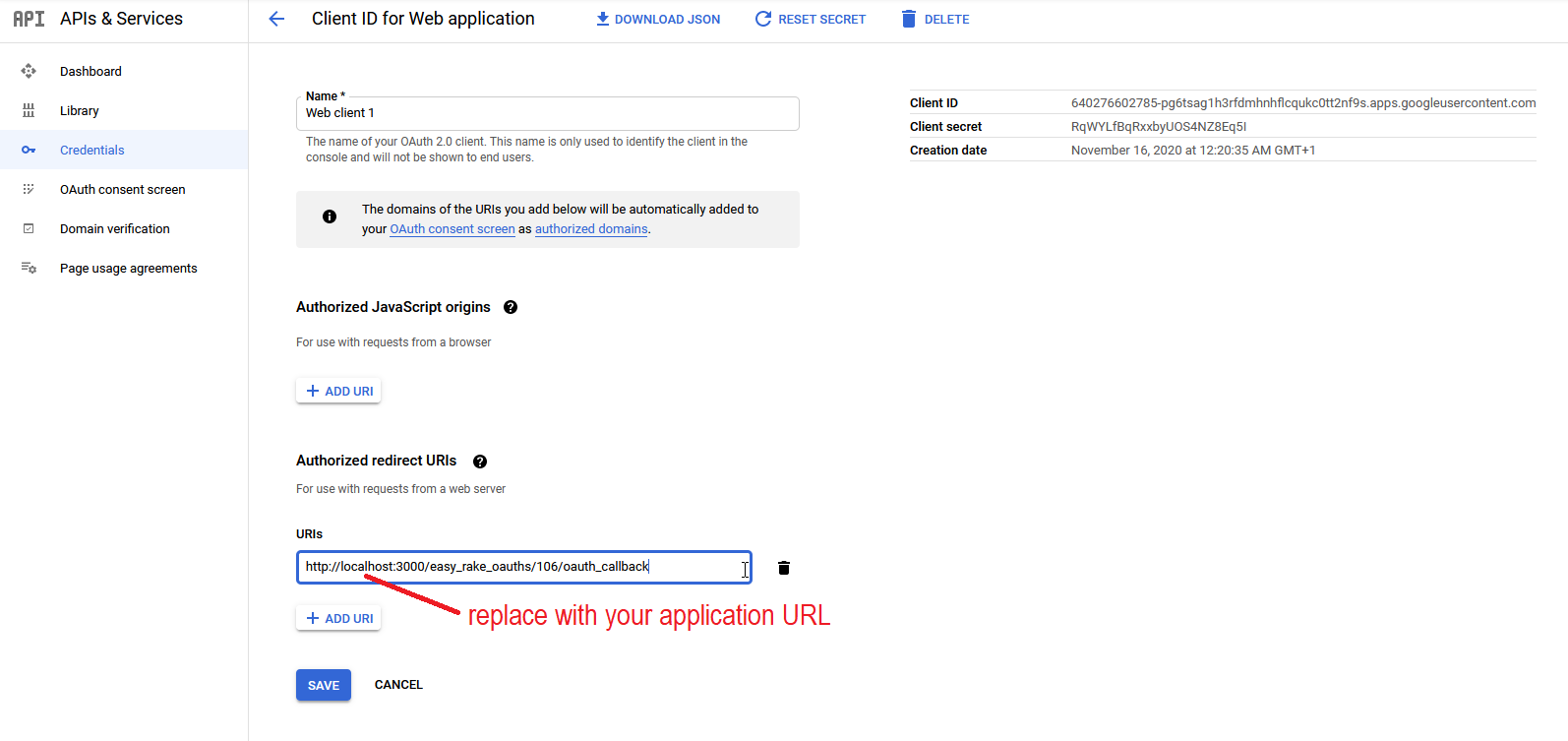
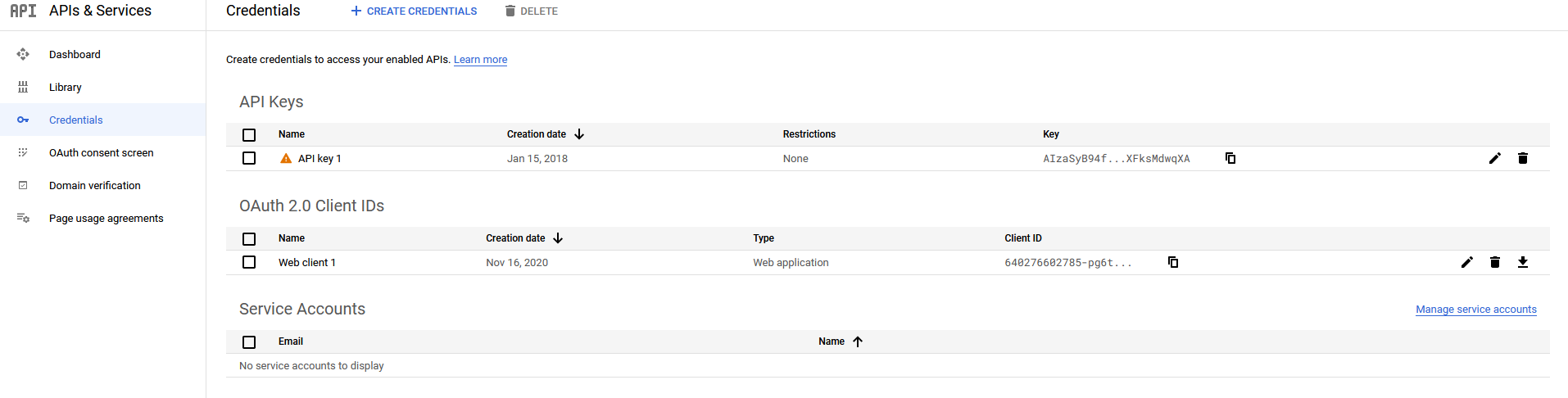
To connect Easy8 with a Google Workspace account using OAuth 2.0 protocol, you need to create an account on the Google Cloud Platform, obtain the necessary credentials provided in there, and copy them into the mailbox settings in our application. Some useful instructions can be found here.
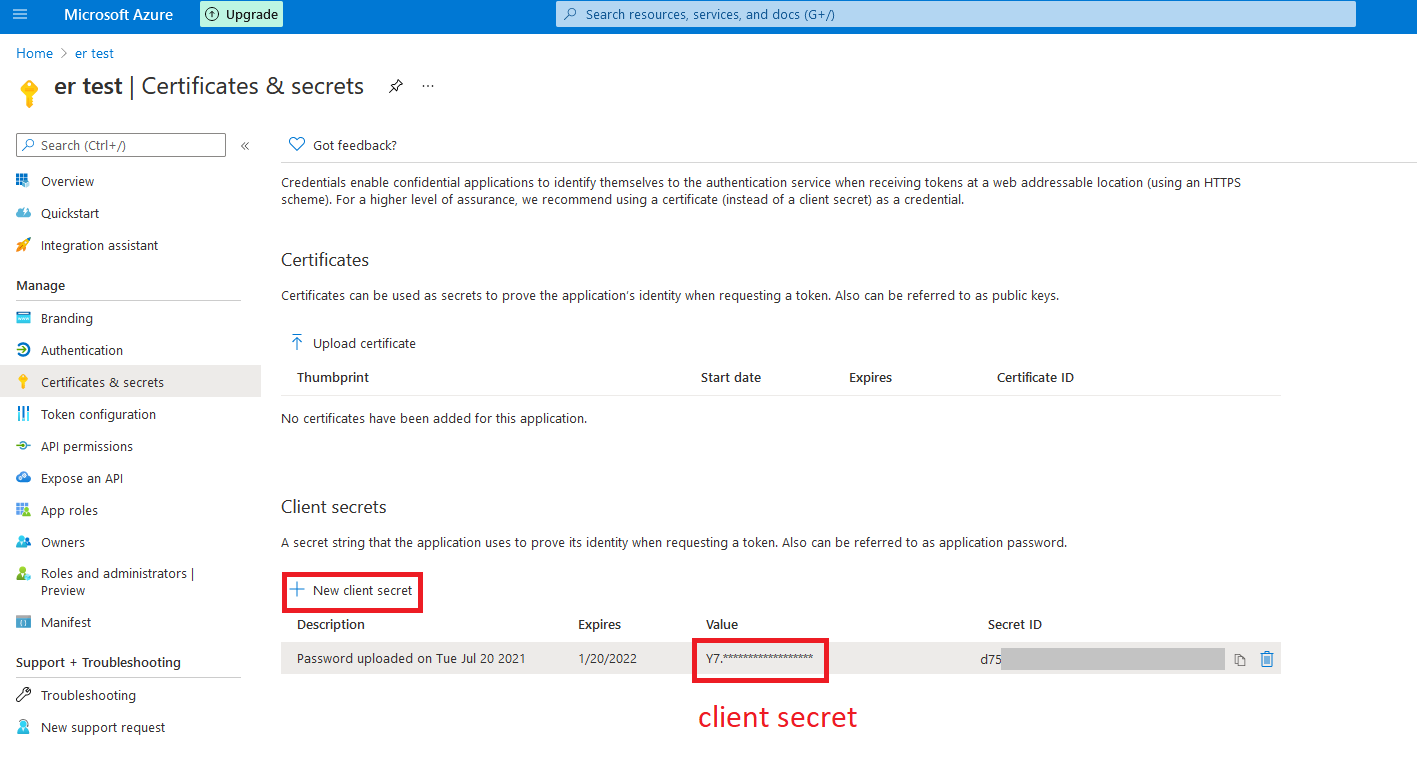
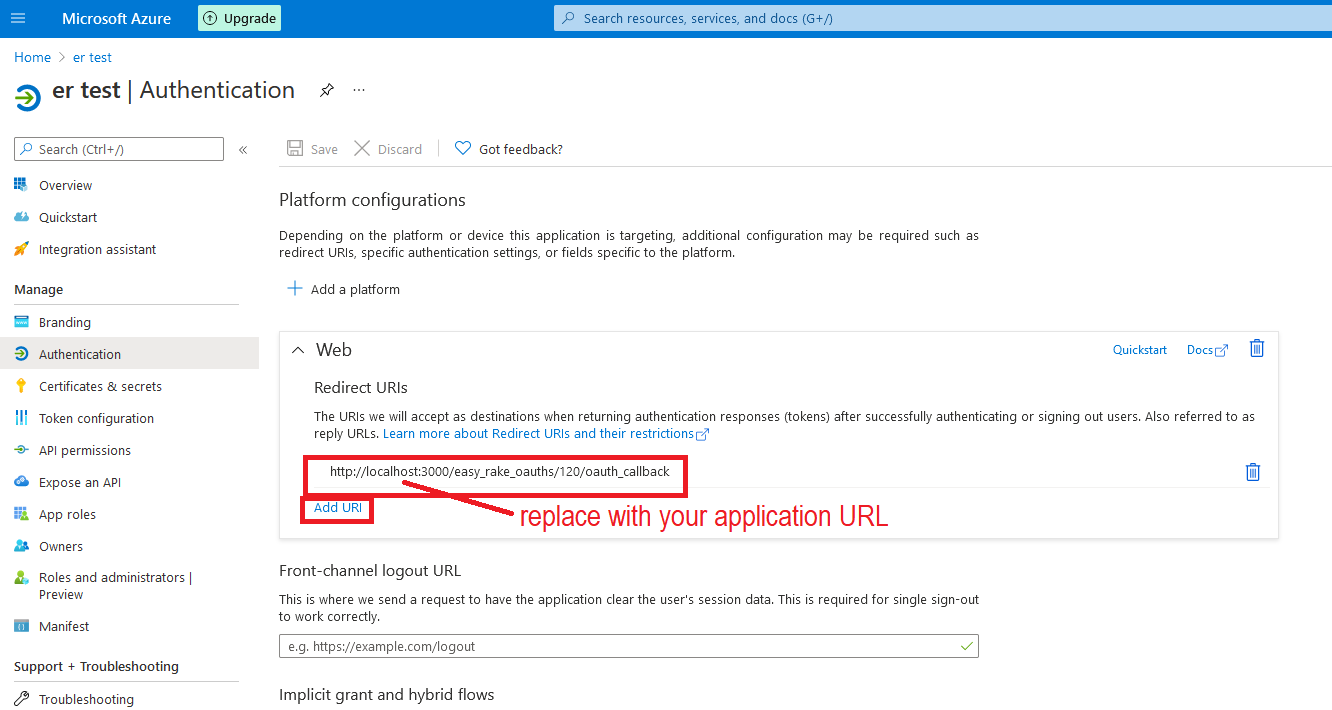
To connect Easy8 with a Microsoft Exchange account using OAuth 2.0 protocol, you need to create an account on the Microsoft Azure portal, obtain the necessary credentials provided in there, and copy them into the mailbox settings in our application. Some useful instructions can be found here.
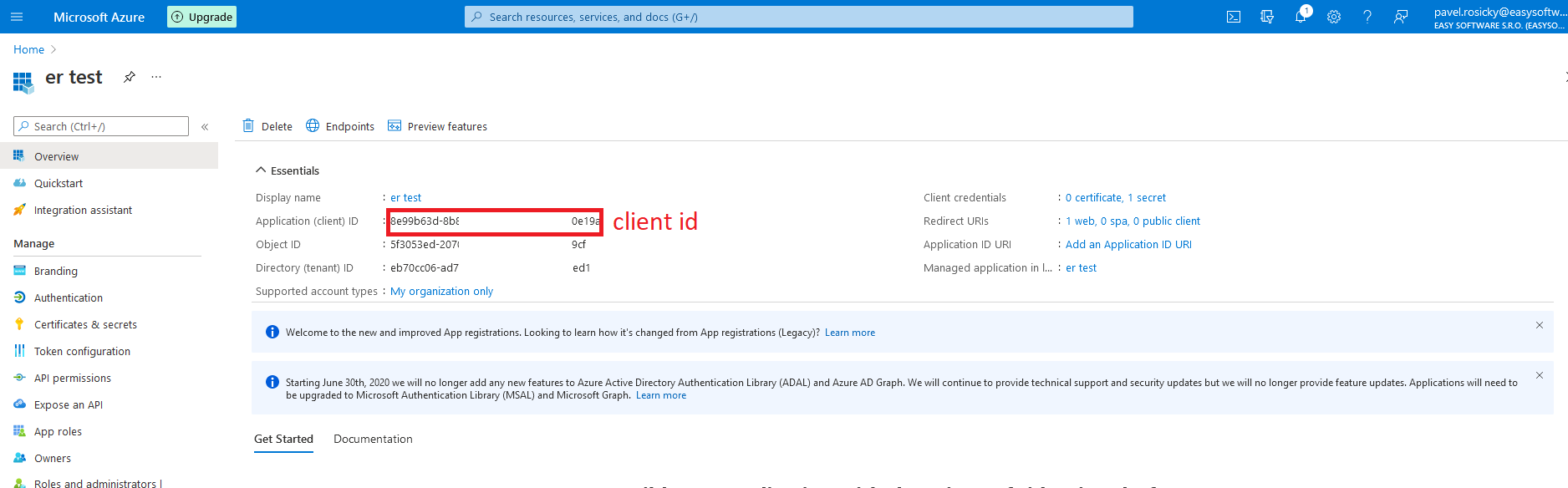
Access tokens have a limited lifespan (maximum 6 months), you cannot create unlimited ones. After this time, the mailbox will stop working and a new token will need to be generated and re-entered into the application.
An OAuth 2.0 access URL of the form "/organizations/oauth2/v2.0/authorize" is valid only if access to the application is enabled within the organization. Otherwise, the access URL must be of the form "/[TENANT_ID]/organizations/oauth2/v2.0/authorize". The correct settings can be found in the Endpoints section.
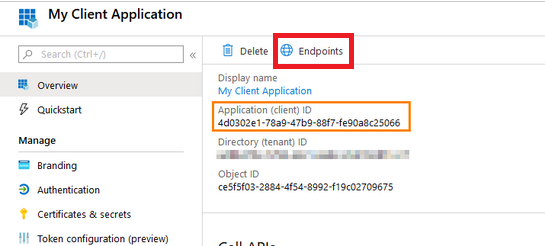
When two-factor authentication (2FA) is set up in Microsoft Azure, all connected mailboxes need to be refreshed.
2.2.1.1 Error "User is authenticated but not connected"
This is because the selected Azure user through whom the mailbox is registered does not have permission to access the mailbox. In this case, it is not enough if the user is an administrator as he needs to be licensed to use Office 365. If the user has delegated permission (he is not allowed to add access to the mailbox since it requires approval by e.g. an administrator), he needs to get the appropriate scope permission in Azure and disable this option at the same time.

Solution:
- The user must either be the direct owner of the mailbox he is accessing (thus having the necessary permissions to do so).
- Alternatively, he can be another (licensed) user who has been granted access to that mailbox.
Another possible problem is that the account is created as POP3 instead of IMAP. POP3 does not support OAUTH in the system.
Solution:
- Make sure that the account is set as IMAP in both azure and in Easy8.
2.2.1.2 Error: Microsoft Help Desk connects successfully but stops working after some time
You forgot to enable the right for offline access.

2.2.1.3 Use case: Many mailboxes, one super Help Desk user
If you have multiple Help Desk mailboxes set up within Microsoft Exchange and you want to delegate access rights to all of these mailboxes to a single user, you can do so through the Microsoft 365 admin center >> Admin centers >> Exchange.
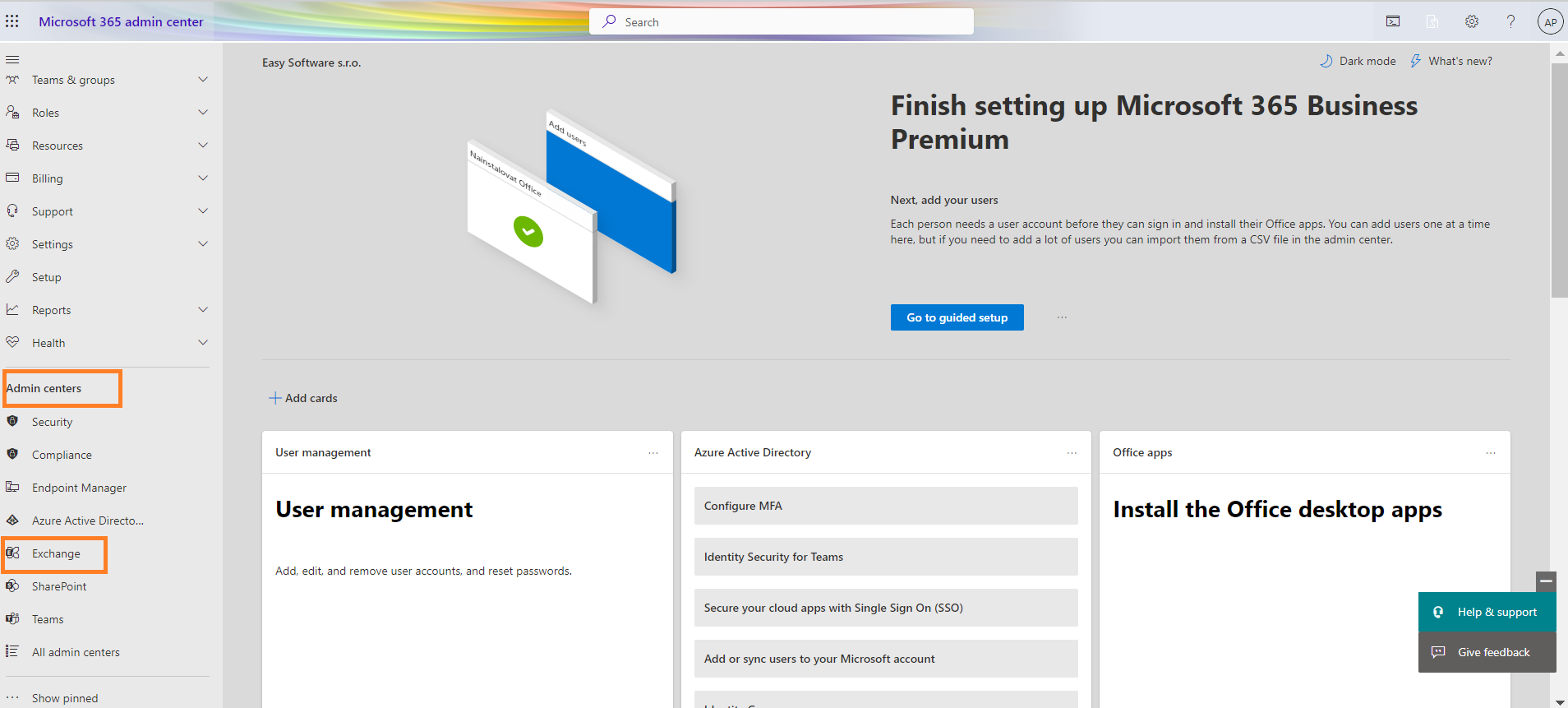
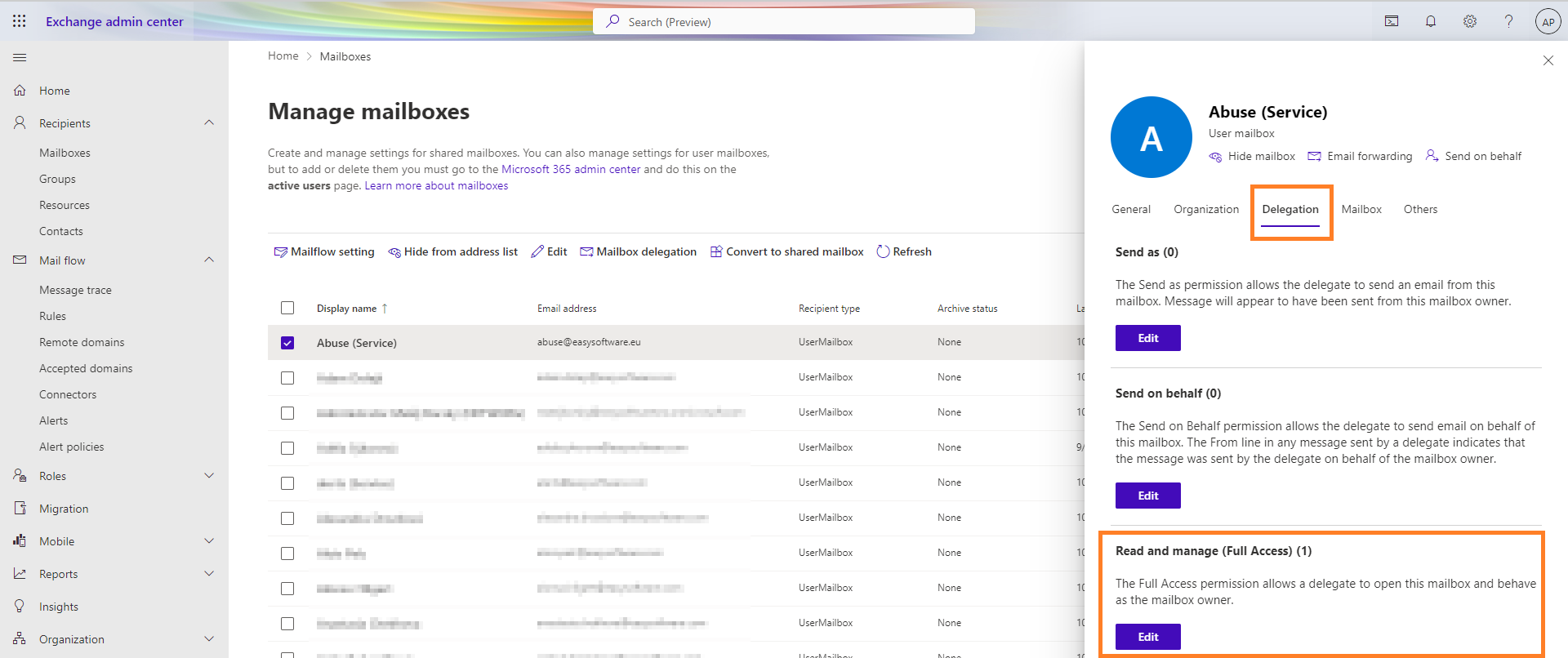
You will be redirected to the Exchange admin center section. Here, click on the Recipients >> Mailboxes tab and select the mailbox whose access right you want to delegate. A right pop-up sidebar will open and click Delegation.
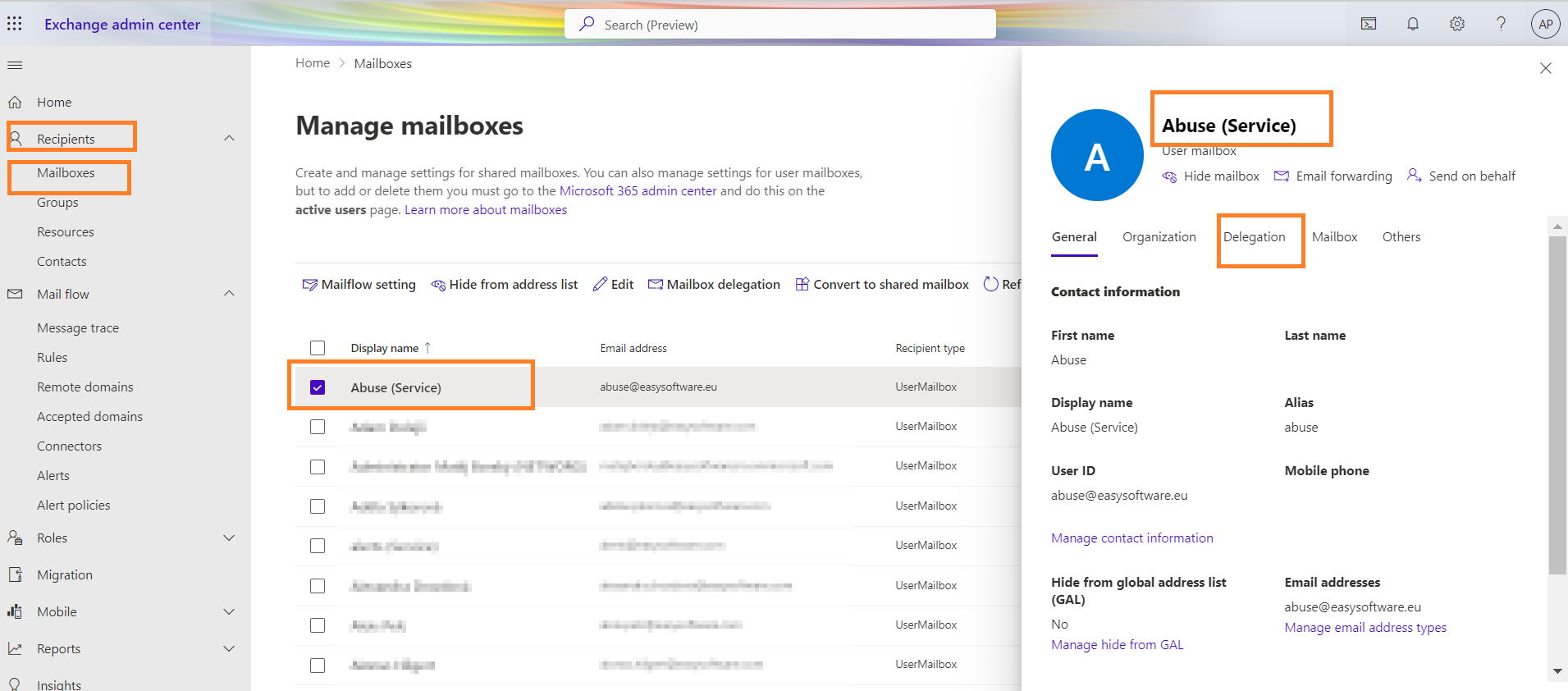
Below, notice the Read and manage (Full Access) sign with an Edit button to click on.
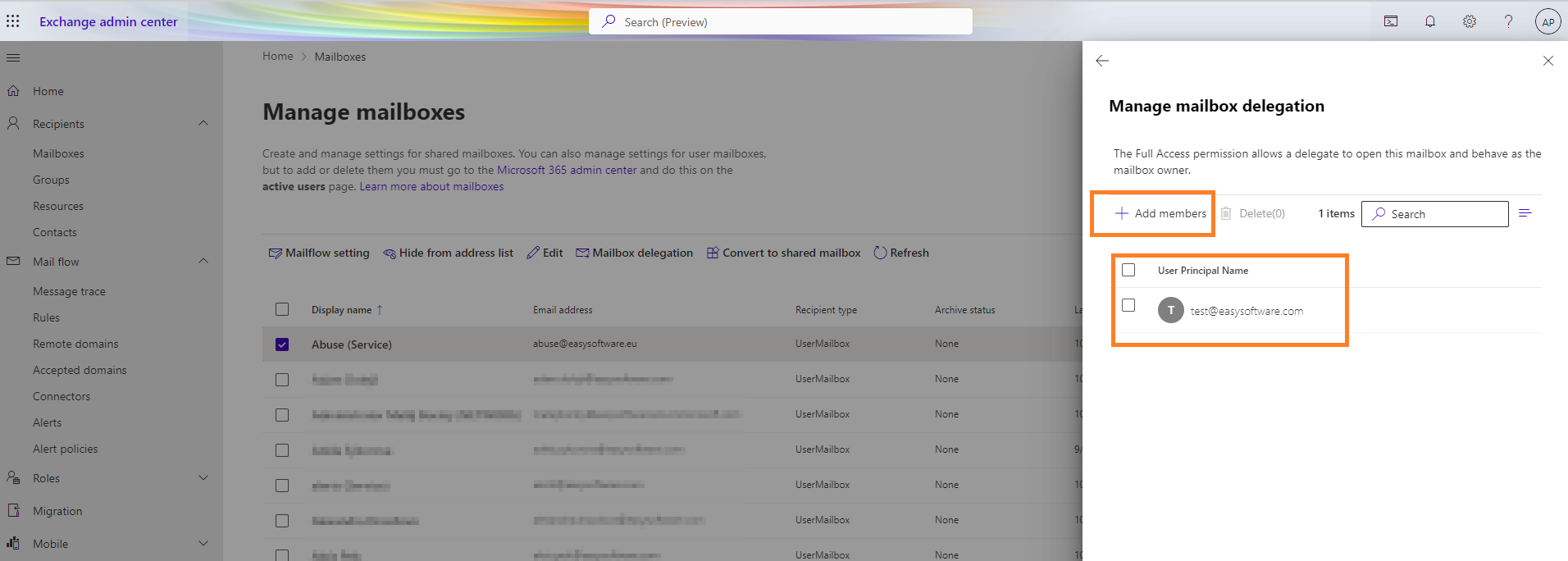
You can then search for and add users who become members of this mailbox with the same rights as the mailbox owner.
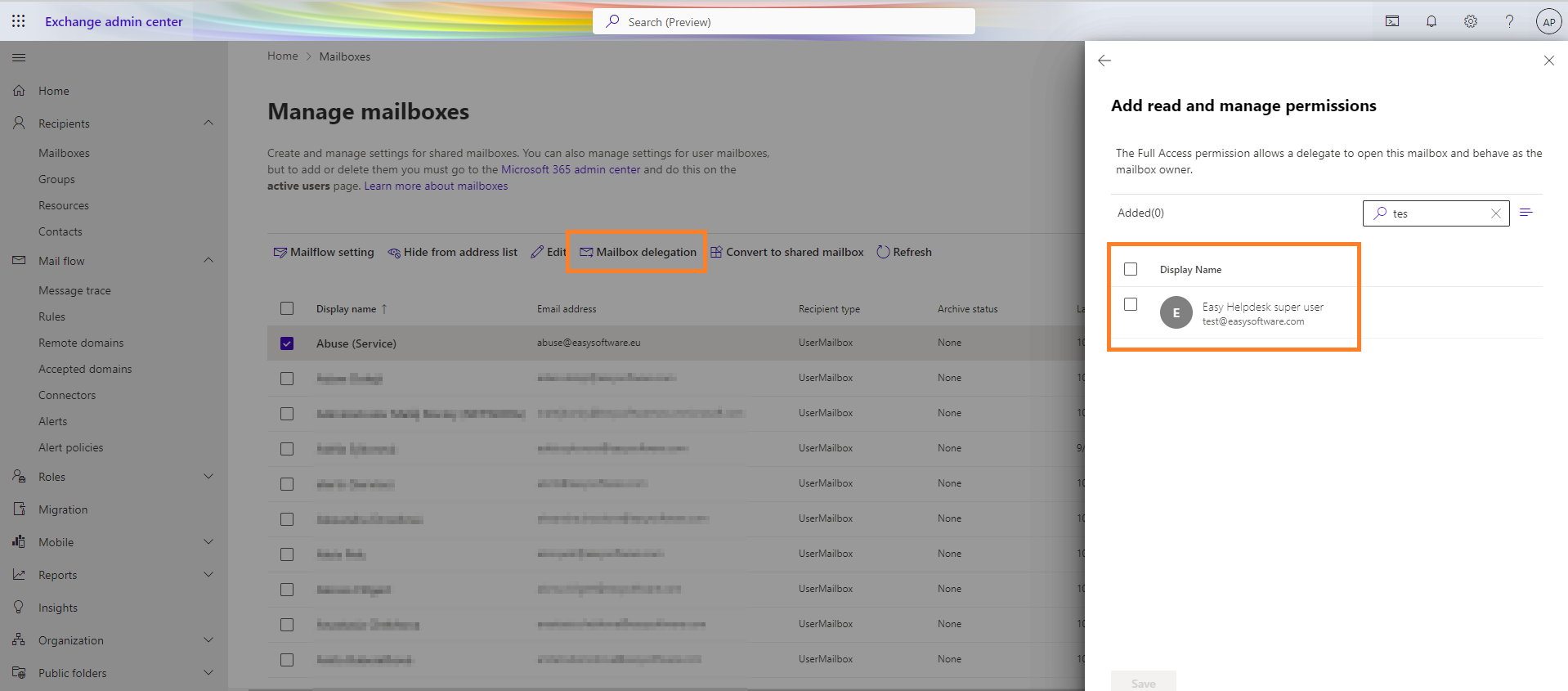
The user you select must have Help Desk administrator rights on the Easy8 side.
2.2.2 Enabling OAuth 2.0 Authentication with Azure Active Directory
When you use OAuth 2.0 authentication, you get access to a web service from a client application. The way you do this depends on the grant you use. In this tutorial, you will learn how to configure the client credentials grant type for applications in Azure Active Directory.
2.3 Configure frequency of mailbox scanning
Right click on the mailbox and choose Settings
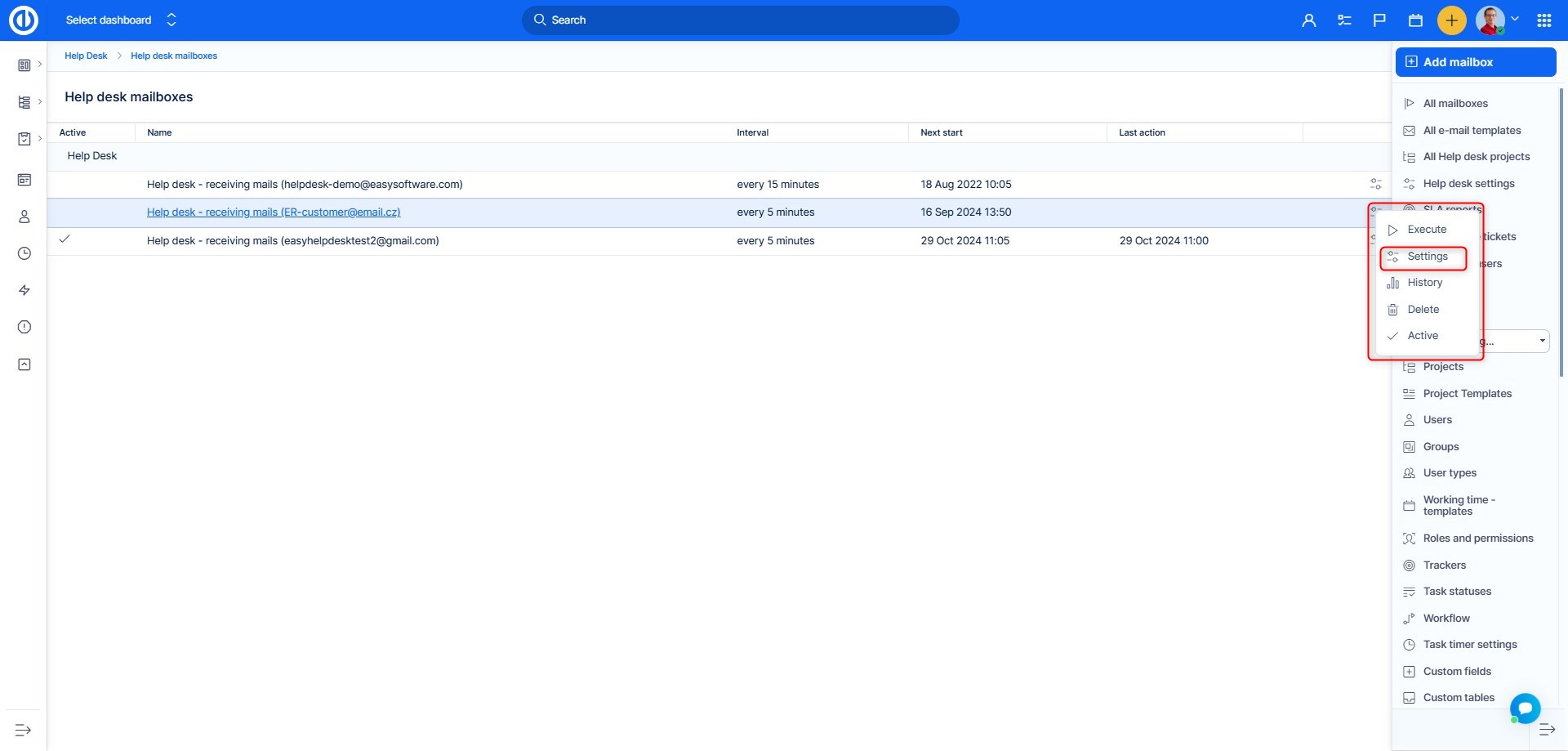
Now you are back to the mailbox settings, but with an additional setting. By default, it is set to Every 5 minutes. But it is generally recommended to have this setting around every 10 minutes. If you have many mailboxes connected to Easy8, this automatic scanning task may take a longer time and overload your server with too frequent scans, which will slow down the whole application.
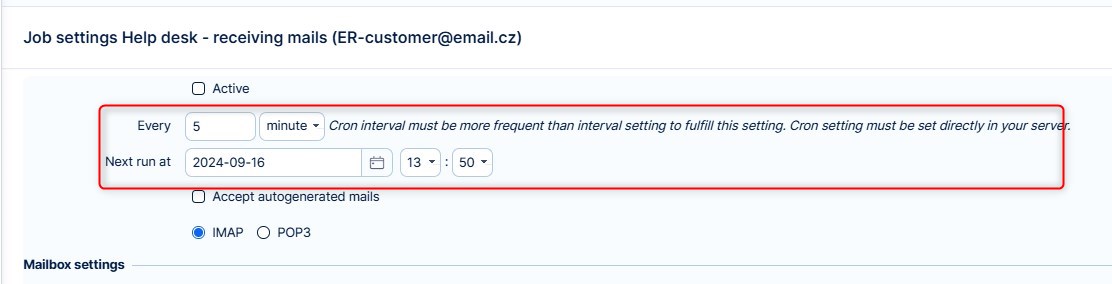
Button notes:
- Execute – manually start the mailbox scanning
- History – view past mailbox scanninngs
- Delete – remove mailbox from Easy8 scanned mailboxes
- Deactivate – deactivate automatic mailbox scanning
2.3.1 Server interval vs application interval
In settings you will find the setting for mailbox interval. This interval can be set to any number. However, the lowest interval is determined by the cron settings on the server. The cron determines the lowest possible interval.
Example:
- The setting is set to 5 minutes, the cron is set to 10, it will run every 10 minutes.
- The setting is set to 15 minutes, the cron is set to 10, it will run every 15 minutes.
- On the Cloud solution, the interval is set to 10 minutes and cannot be lowered. This is because there are multiple applications on one cloud server, and the settings are applied to all of them. A shorter interval could potentially cause performance issues.
- On a private cloud solution, where one application is on one server, there is an option to adjust this. The private cloud is a paid service, more information can be found here. The advantage is that since you are on the server yourself, there is not as much load on the cron, and the settings also only affect your application.
- The same applies to your own server solution as with a private cloud. Your app will be the only one on the server. You manage the server yourself, so you can customize the settings. The recommended interval is 10 minutes in all cases. However, it is possible to have an interval of even 1 minute.
We recommend caution; watch how the app behaves with the lower setting and adjust the interval accordingly.
2.4 Automatic disable
Processing mailbox in regular intervals takes server resources, especially if you have multiple mailboxes. For this reason, we have implemented a mechanism that automatically disables processing of mailbox after 7 times it failed to authenticate and download emails. Disable means that the field Active will be switched off. You will still be able to verify the settings, test and activate.
Why? To save your resources. Why should server keep pinging an unfunctional mailbox?
3 Project configuration
Mailbox is connected and scanned by Easy8, but so far we haven't set where should the tickets be created. Before a project is connected to HelpDesk, tickets can not be created because, in general, every task requires a project.
This part is going to be split to different scenarios, according to the aim of each project.
3.1 Default project for mailbox
In the past chapter examples, this would be the projects Default HelpDesk, INFO – general, IT – general, SUPPORT – general, i.e not restricted to a particular domain of the sender.
- Click the "Add to HelpDesk" option on the Project Dashboard of the selected project.
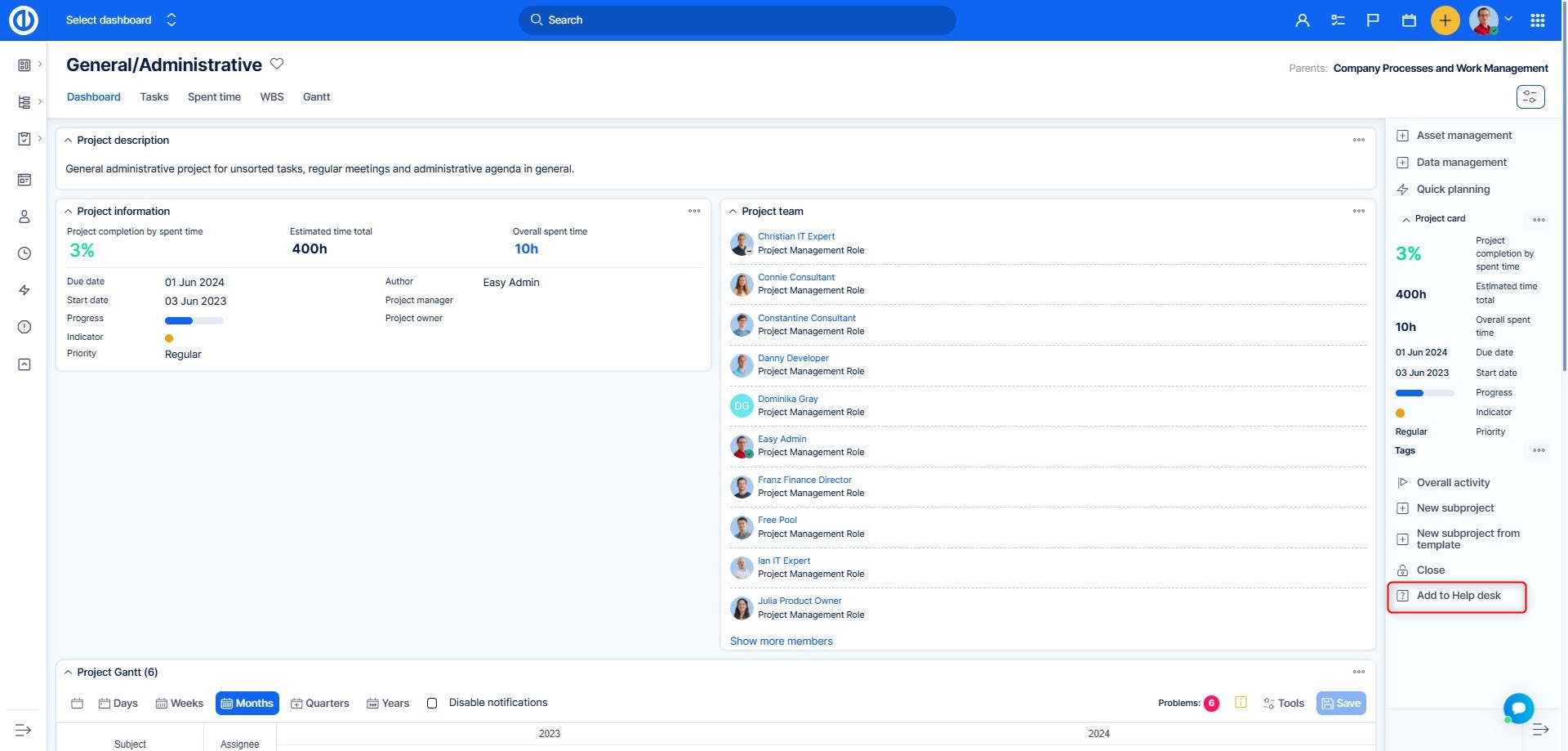
- Select the mailbox for which the project will be default
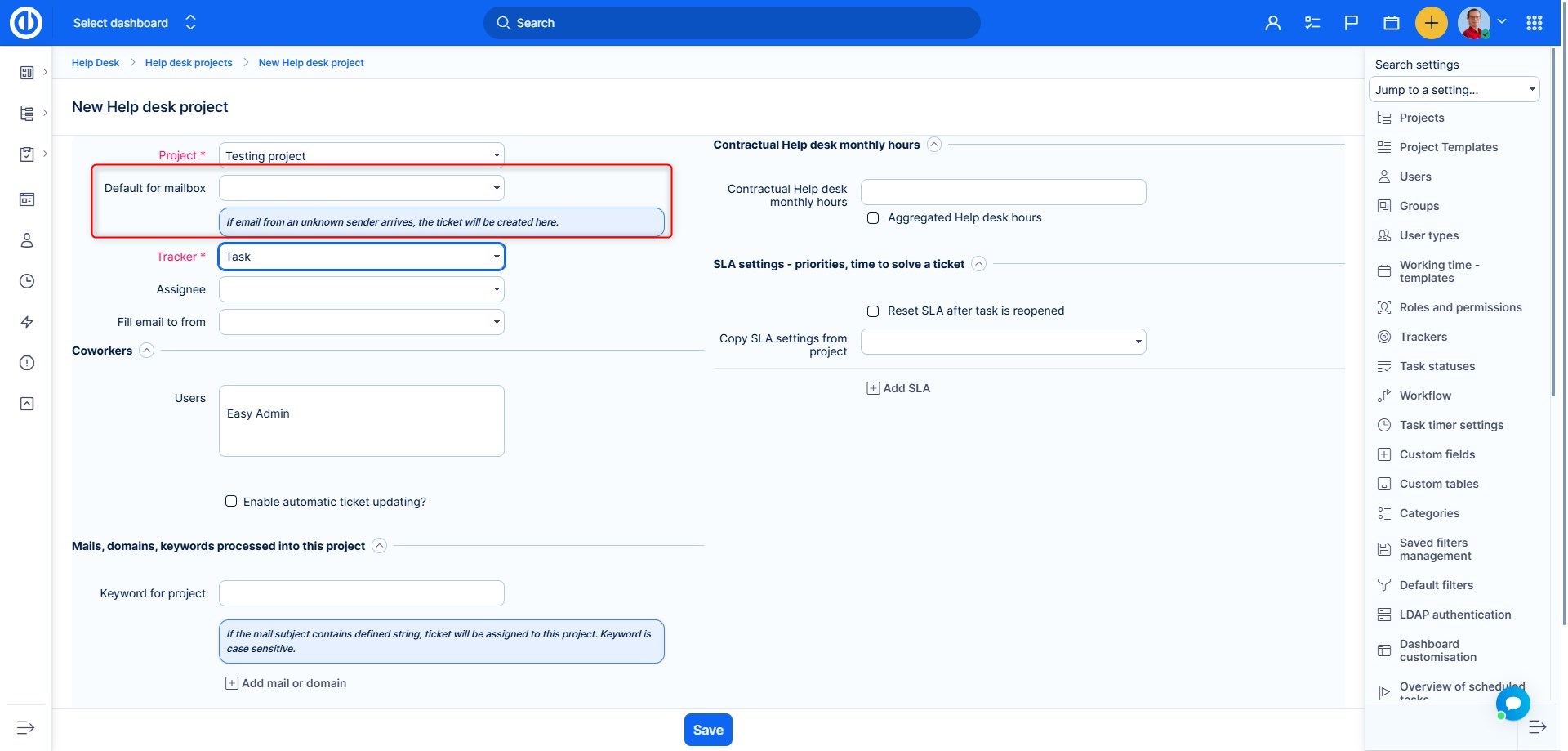
- Scroll down and Save
A complete explanation of all HelpDesk project settings will follow further in this chapter.
3.2 Special client project
From the examples in Chapter 1, these would be the projects: Bohemia Sun, Trains Francais, Client 123, Client ABC, Client XYZ, Client 1>>Project for HelpDesk, Client 2>>Project for HelpDesk
- Select project
- Fill in the fields highlighted below. Setting notes are under the screenshot
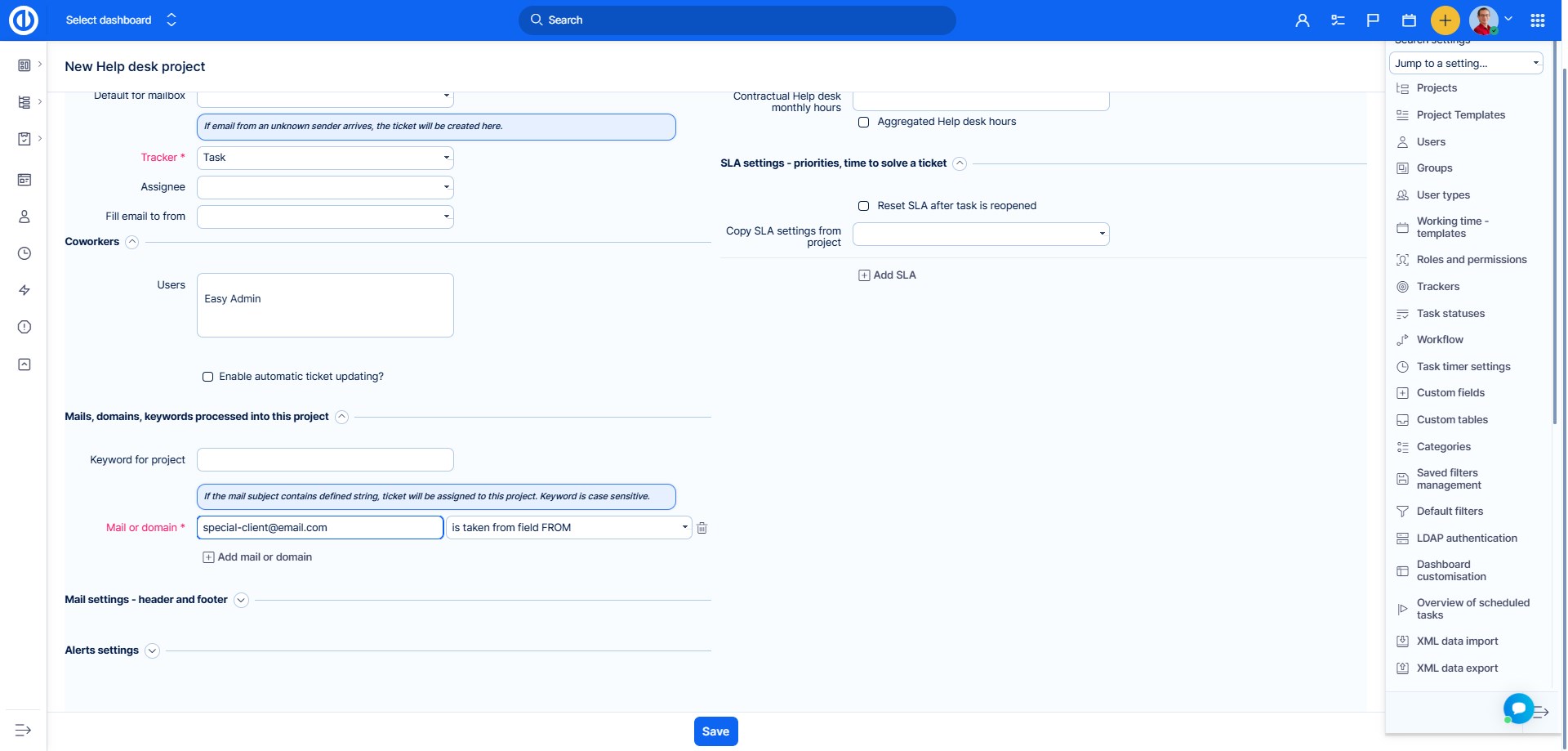
- Scroll down and Save.
Setting notes:
- Default for mailbox - DO NOT select any mailbox if you want to set this project as a special client project
- Mails, domains, keywords processed into this project – all the settings in this section are with OR operator, which means that if at least one condition is met, ticket is created in this project
- Fill email to from - When this option is selected, the author's email will be automatically filled in new ticket.This option is useful when you have projects where tickets are created by real users, instead of via processing incoming emails.
- Keyword – In this example, if an email received in ANY HelpDesk mailbox contains the whole string I am from company Client ABC, ticket will be sorted into this project. Do not use the same keyword string for more projects, only the first record in database with the string will use the designated keyword string
- Mail or domain – incoming emails are scanned for these values in FROM field of the email. In this example, the sender can be anyone with mailbox ending with clientABC.com or it can also be a specific person with a different email, but we want his tickets to be sorted in this project
Complete explanation of all HelpDesk project settings will follow further in the next chapter.
IMPORTANT: It is not the best practice to have one project set both as Default for mailbox AND specified for a certain mail or domain. Any sender will have their tickets created in this project, so you don't need to specify them. This kind of setting may cause confusion.
3.2.1 Closing and archiving special client project
When such a project is closed (in effect becoming read-only), tickets will not be possible to create within. Therefore, this project will cease to be a special client project and emails coming from domains set in the HelpDesk settings will be processed as unknown and fall in a general HelpDesk project.
The same goes to archived projects.
4 Project configuration – details
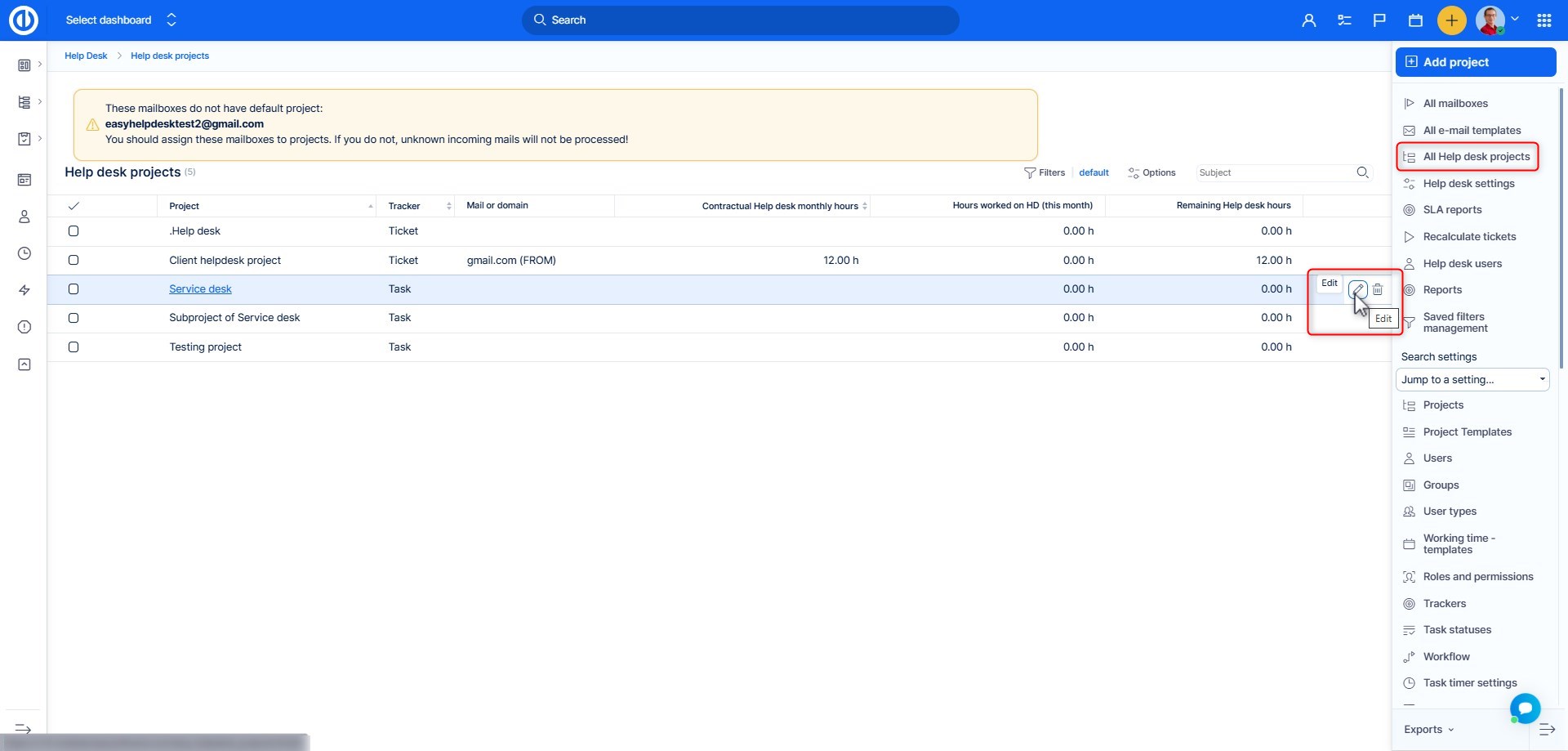
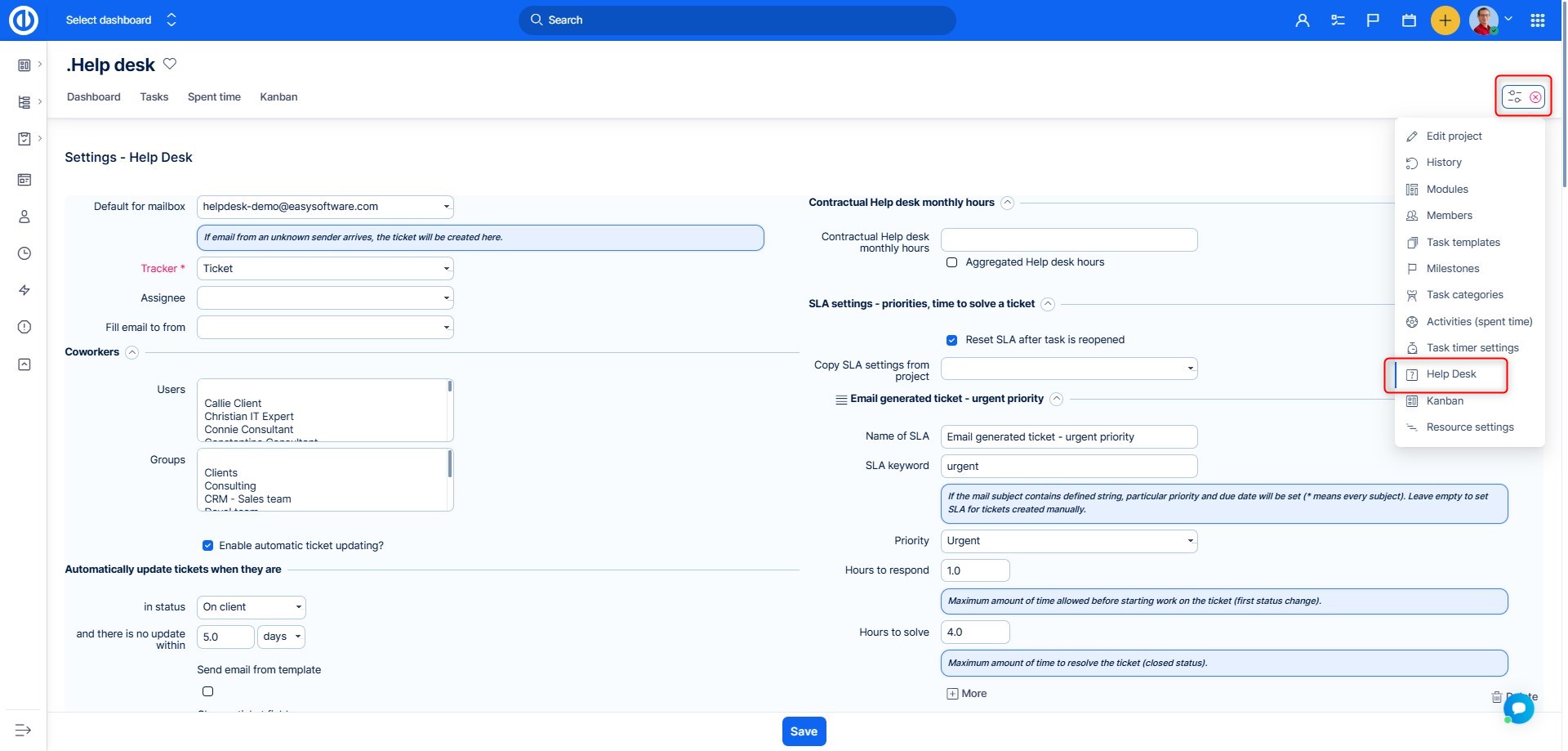
Now that we differentiated types of projects which can be used in HelpDesk, we can continue to explain the rest of the project settings. Once a project is connected to the HelpDesk, there are two ways to get into the project HelpDesk configuration page.
- Adminstration >> HelpDesk >> All HelpDesk projects >> Edit
- Project settings >> HelpDesk
4.1 Basic settings
Setting notes:
- Tracker – new tickets in this project will be created with this tracker
- Assignee – new tickets in this project will be assigned to this user
- Coworker – new tickets in this project will have these coworkers (multiple selection possible)
- Automatic ticket updating – depending on your workflow, there may exist some tickets which are factually resolved, being kept open. For such cases, you can set automatic closing according to the status and duration of non-update. In addition to closing the ticket, a follow-up e-mail from template can be sent automatically such as for the purpose of informing the sender that his ticket has been closed or asking him about his satisfaction with the ticket resolution.
- Contractual hours monthly – this is setting should be used only for special client projects, where clients have prepaid a certain number of hours of support per month
- Aggregated hours – the contract with the client may have the option of transfering unused hours from previous month to the next one. If client has 10 prepaid hours, but used only 7 of them during May, 3 hours will be transfered to June
- Remaining hours – how much is left. The pencil button allows to manually clear remaining hours – set to 0
- Aggregated start date – when the prepaid period begins; must be selected a day which is common for all calendar months, i.e. day 1-28
- Aggregated period – for what time period are the hours aggragated before they are reset to the original Contractual hours. If there are still 13 hours remaining by the end of the quarter (end of the quarter is determined by Aggregated start date), they will not be transfered to the new quarter. The hours will be reset to 10
The hours at hand are spent time entries in the project. Which exact entries will be explained further in this manual.
4.2 SLA
SLAs (Service Level Agreements) are key performance indicators in any HelpDesk project, especially for client contracts that impose penalties for SLA breaches. Tickets can originate from email or be created directly in the system by users with limited access. The method of creation slightly affects SLA settings.
4.2.1 SLA for Email-Generated Tickets
Setting notes:
- Name – Internal name of the SLA (for easier administration).
- Keyword – Still required for email-generated tickets. If an incoming email subject contains this keyword, the corresponding SLA (with specific hours, priority, tracker) is applied.
- Hours to response – Defines the deadline for the first ticket status change to take place.
- Hours to solve – Deadline to set the ticket to a closed status.
- Priority – Applied automatically to tickets generated by keyword-triggered emails.
- Tracker – Helps auto-classify incoming tickets (e.g., “Defect”).
- Count SLA based on working time – SLAs can be calculated either for business hours only or as 24/7.
Note: Days defined as "Working exception" in the linked calendar are treated as non-working days for SLA purposes. Use standard working day entries for days that should count toward SLA time. - SLA working hours & working days – Defines the operational calendar (e.g., excluding weekends and holidays).
4.2.2 Ordering of SLAs
If multiple SLA rules exist, the system checks incoming emails for keywords in the order defined in HelpDesk settings. More specific keywords must be placed higher in the list.
Example:
- “Critical bug” SLA must be listed above “Critical” SLA to ensure accurate matching.
- Use
*as a catch-all for general, unmatched subjects.
4.2.3 Reopening Tickets & SLA Reset
When tickets are reopened, SLA behavior now follows enhanced logic:
- If an SLA is already fulfilled or failed, reopening the ticket will not impact SLA status, deadline, remaining time, or fulfillment timestamp—unless settings explicitly allow exceptions.
- Suspended statuses like “Awaiting customer info” pause the SLA countdown. If the ticket is later closed directly from this status, the Resolution SLA is marked fulfilled using the timestamp of entering the suspended status.
You can still control SLA reset behavior using the setting in project HelpDesk >> SLA section:
- Enabled – SLA restarts from the time of reopening.
- Disabled – SLA continues from original creation time.
4.2.4 SLA for Internally Created Tickets
Internally created tickets (via UI) don’t use keywords. SLAs are matched by a combination of Priority and Tracker.
- Leave Keyword blank for such SLAs.
- If Tracker is omitted, only keyword-based rules apply.
By configuring workflows, you can restrict clients to use only specific trackers, e.g., “HelpDesk Ticket” or “Bug”.
4.2.5 SLA reporting
Major change since version 14.9.0
Up to version 14.8.x, SLA reporting was based on an entity called SLA events. Reports were built above SLA events, instead of the actual tickets, thus missing some important standardly used Help desk metrics. SLA events remain in the system, and the new SLA reporting is based on them. However, since version 14.9 and above, the critical attributes are mirrored onto the tickets, which allows for ticket based reports.
How it works
Each ticket has a dedicated SLA information section in the ticket header with information displayed separately for the First Response SLA and the Resolution SLA. For each of these you can see SLA status, Remaining time, Duration, Deadline and Fulfilment timestamp. SLA statuses within each ticket:
- In progress
- On hold
- Passed
- Failed
Each status has its own color for immediate recognition. Remaining time and duration are displayed in hh:mm format. Remaining time is green while still positive, and turns to red and prefixed by a minus once negative, at which point the SLA status changes to Failed. Responding or Resolving within the positive/green Remaining time will result in a successfully Passed SLA. Deadline and fulfilment timestamp are in date and time format. Remaining time, Duration and Deadline will respect your working days and hours if so chosen in the Help Desk project settings. They are stopped when the SLA is suspended such as when it is on status “Awaiting customer info”. Once the ticket resumes and in back in an active status, the Remaining time and Duration restart running and the deadline is moved forward by the amount of time it was on hold.
All of these SLA datapoints are also available in Dashboards and via API. This more granular and intuitive breakdown of data enables quick, easy, dynamic and precise SLA reporting. Previously the SLA events entity held such information but it is no longer needed to query it as everything is now on the Tasks entity.
This SLA data can be shown on task list for reporting purposes. Duration and Remaining time for both Response SLA and Resolution SLA will show in dashboards (filters 1.0) only after SLA fulfilment for Response SLA and only after task closure for Resolution SLA.
SLA events remain interesting for purely logging purposes, as they enable a quick and easy glance at who and when made what SLA-relevant change to the ticket. SLA events are located in the lower part of the ticket in a separate tab.
Summary of changes from 14.9.0:
- SLA events are no longer the primary tracking mechanism. They still function as historic logs, and a supportive entity.
- SLA events are created whenever ticket status changes or SLA recalculations occur.
- The global setting “Create SLA events from all statuses” has been removed.
- SLA event fields like
Sla response,Sla resolve, etc., will be deprecated in version 15. During the transition, they still reflect updated SLA values. - A new column SLA state has been added to the SLA events tab on ticket detail.
4.2.6 Working with SLAs
This chapter is more effectively explained in this video (6 mins, and possible to speed up).
Since version 14.9, updating a ticket's status will automatically affect the SLA and create an SLA event. Working with SLAs will now be exclusively tied to the ticket's status, eliminating the previous need of sending an email (up to version 14.8).
If you do have email templates associated with certain ticket statuses and the option to “Send immediately” is enabled in the email template settings, then updating the ticket status will also automatically send the right email. This effectively reduces all SLA management to a simple status change. Of course, the functionality remains to manually send an email to the client, if your process is set up this way. See 5.1.2 for more info on manual emails.
If an SLA status is failed or successfully passed then further reopening and closing of the ticket will not change the SLA status, fulfilment timestamp, deadline, remaining time, nor duration; unless specified otherwise in the settings for reopening tickets, such as reset SLA at reopening which will reset it and run from the reopening time.
If a ticket's priority or tracker changes, the system auto-switches to the relevant SLA, recalculates it while keeping time elapsed data, keeping passed or failed status, and logs the change as an SLA event. When a support ticket is moved from one project to another, the SLA event does not recalculate. The SLA of the ticket remains from the original project, where such a ticket was created. SLA recalculation is triggered by a change of tracker and/or priority.
Since version 14.9, SLA events are newly logged at key actions like status changes or recalculations, capturing time and type of change. SLA event fields have been improved, including a new SLA state column for clearer tracking.
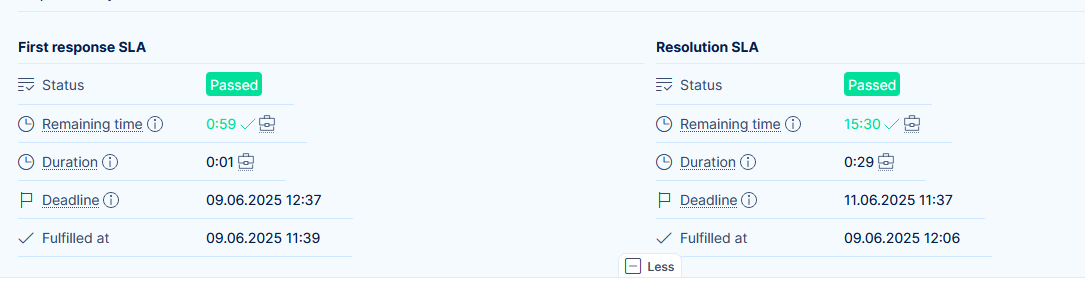
Each ticket now contains a dedicated SLA section showing:
- SLA Status – In progress, On hold, Passed, Failed.
- Remaining Time – Countdown timer until SLA is due (pauses when ticket is on hold, can become negative if overdue).
- Duration – Time elapsed since SLA started (counts up, never negative).
- Deadline – Deadline by which the SLA must be fulfilled; recalculates if ticket is unpaused.
- Fulfilment Timestamp – The exact moment the SLA condition was met (e.g., first status change for First Response).
This SLA section can be hidden from selected user types, roles or specific users or via:
- Administration >> User types >> Edit
- Administration >> Users >> Edit
- Administration >> Roles and permissions >> [Select role] - View SLA events
If either restriction is enabled, the user will not see SLA data on tickets.
4.2.7 SLA Recalculations
If a ticket’s priority or tracker changes, the system checks for a new SLA match:
- If matched, SLA is recalculated—retaining elapsed time and original status.
- If not, the current SLA remains.
- All recalculations generate a new SLA event.
4.2.8 Dashboards and Reporting
SLA data is now fully accessible via ticket-based dashboards using dynamic filters:
- SLA fields (status, remaining time, duration, deadline, fulfillment timestamp) are available for both First Response and Resolution SLA.
- Legacy fields like Hours to respond and Hours to solve are also included.
Note: Remaining time and Duration are shown only after SLA fulfillment, and only for closed tickets.
4.2.9 API and Automation
The updated Tasks API now includes all SLA fields available in dashboards, under the same conditions.
- SLA values become accessible only after fulfillment.
- Integration via n8n connector enables automated access to task SLA data. Look for Easy8 in the n8n marketplace.
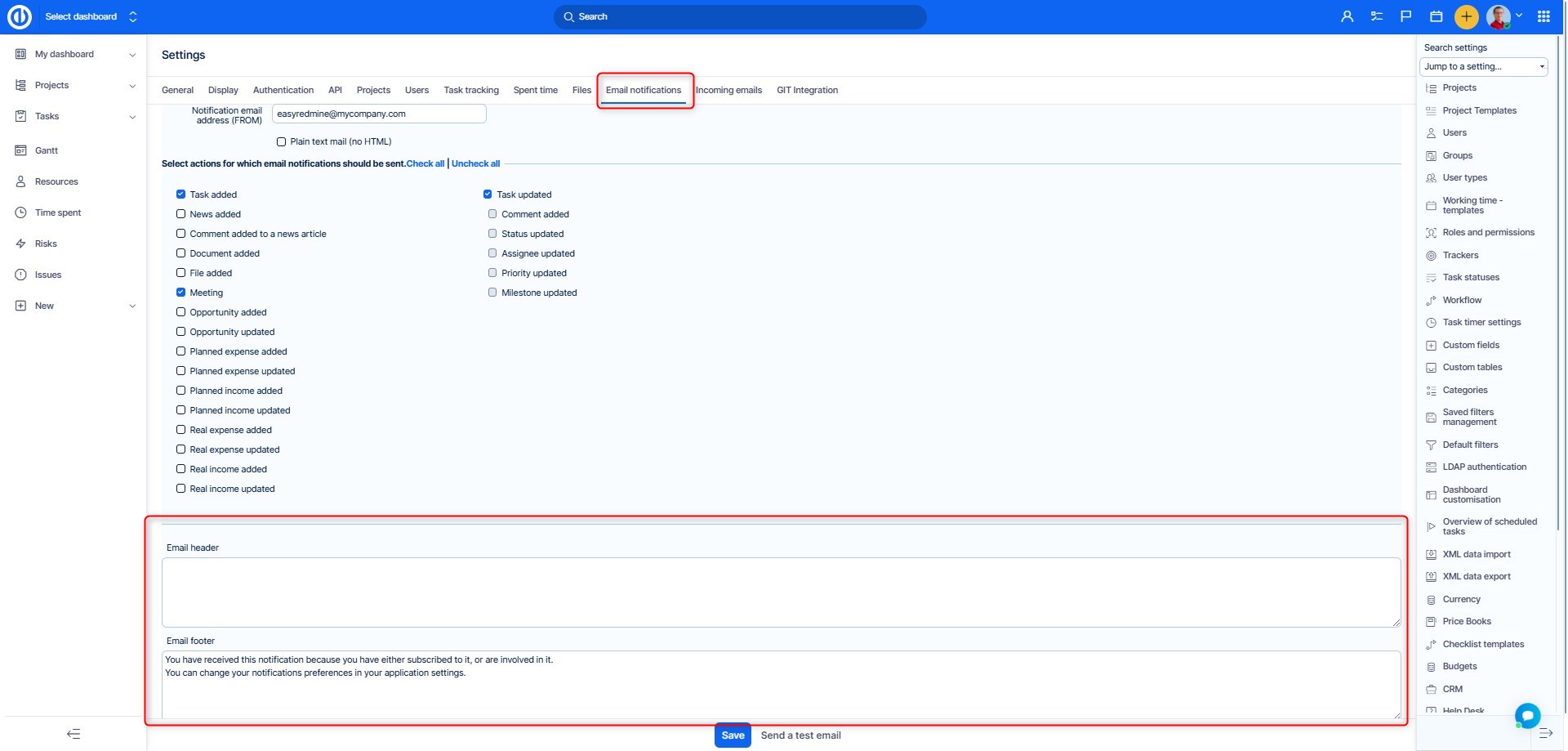
4.3 Custom header and footer
This setting concerns HelpDesk email communication, i.e. communication in email generated tickets. You may customize emails from different HelpDesk projects, whether it is for corporate identity use, for terms specifications or even confidentiality disclamers.
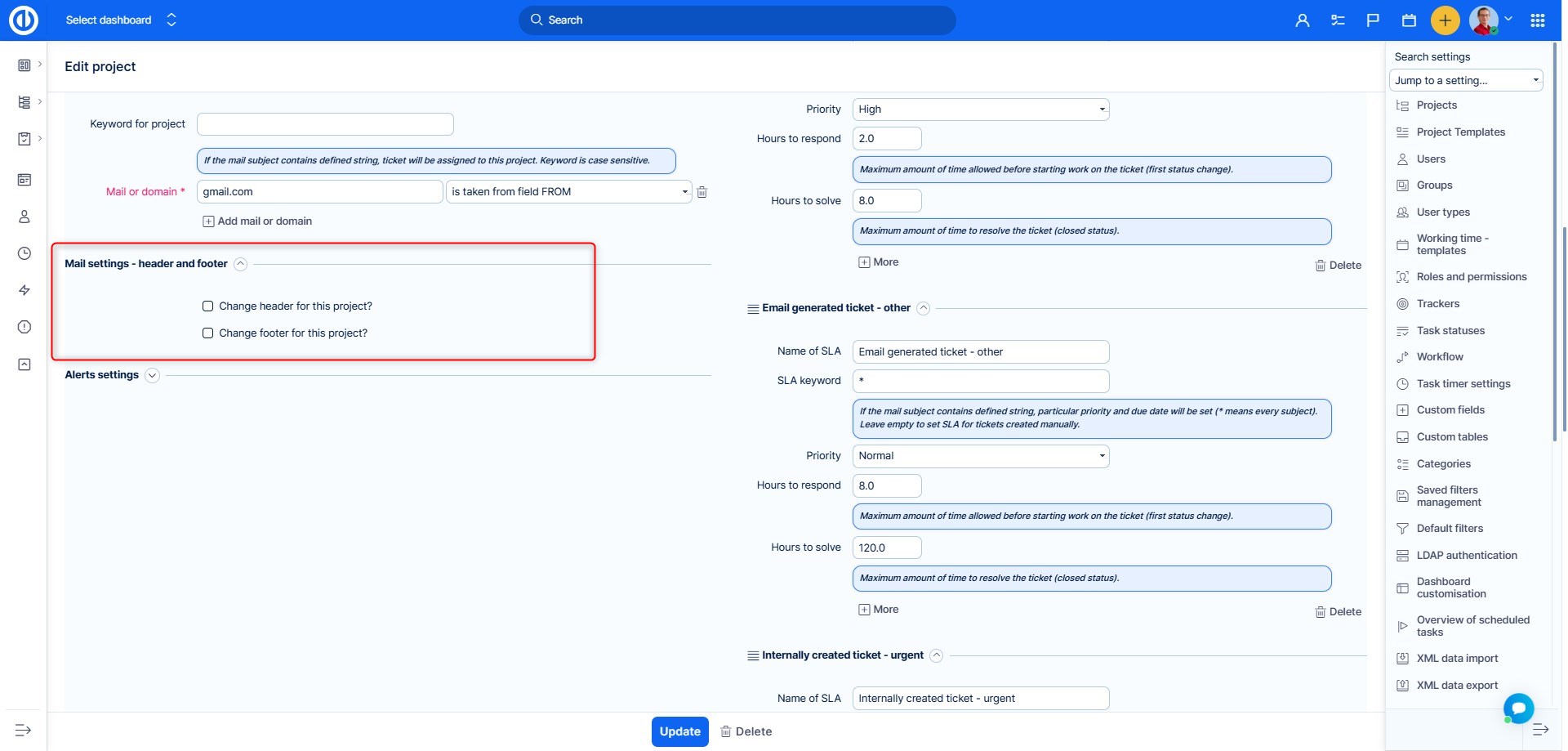
Globally set header and footer of email notifications (Administration >> Settings >> Email notifications) will no longer be a part of emails sent from the HelpDesk.
4.4 Alerts
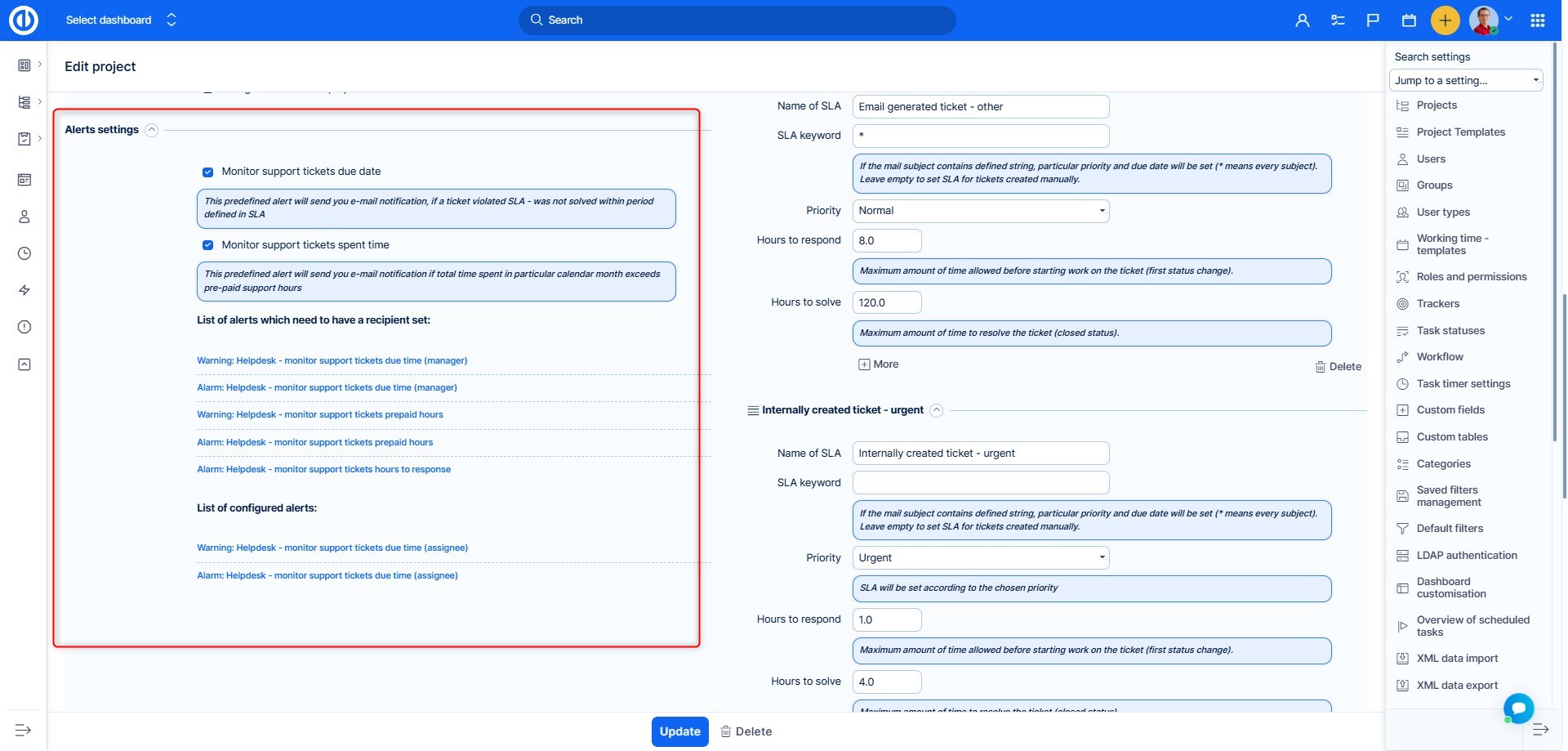
In order to prevent SLA from being violated, there is the possibility to use automated alerts, which notify concerned personnel about looming problems in the form of delayed tickets.
Another type of Alerts watches spent time in projects, where clients have prepaid a specific amount of hours of support (as explained in chapter 4.1).
Setting notes:
- Monitor support tickets due date – to be more precise Due Time according to SLA. If enabled, alerts will be generated when SLA deadline is nearing. Further settings explained below
- Monitor support tickets spent due time – watching of spent time on projects with specified prepaid monthly hours
- List of alerts which need to have a recipient set – these are preconfigured alerts, which only need to enter an email address, where the notifications should be sent
- List of configured alerts – alerts with no missing parameter
- By clicking on each alert, you will see the preconfigured parameters with possibility to edit them
- Warning/Alert: severity of the notice
- Support tickets due time – alert watches SLA resolve deadline (ticket closing)
- Support tickets hours to response – alert watches SLA response deadline (first change of status)
- Support tickets prepaid hours – alert watches spending of prepaid monthly hours on the project
Hours watched in the last alert are those which are logged on tickets, which are in trackers mentioned in the project HelpDesk settings.
Example: Default tracker for the project is HelpDesk Ticket. Some SLA is configured for the tracker Bug. The project contains other trackers (Task, Feature development), which are not used on tickets. In such case, the prepaid hours are only valid for HelpDesk Ticket and Bug. Spent time on other trackers is not taken into account for this alert.
4.5 Update/delete
Update – save changes made in the HelpDesk settings of the project
Delete – remove the project from HelpDesk. This doesn't mean deletion of the project as a whole, it will only remove connection of the project to HelpDesk.
5 Ticket processing
After the huge amount of settings explained until now, it is time to look at some practical implications, before we get back with another set of settings. We will start with a simple use case to demonstrate how the ticketing works and skip some features. They will be explained later on.
5.1 Email generated tickets
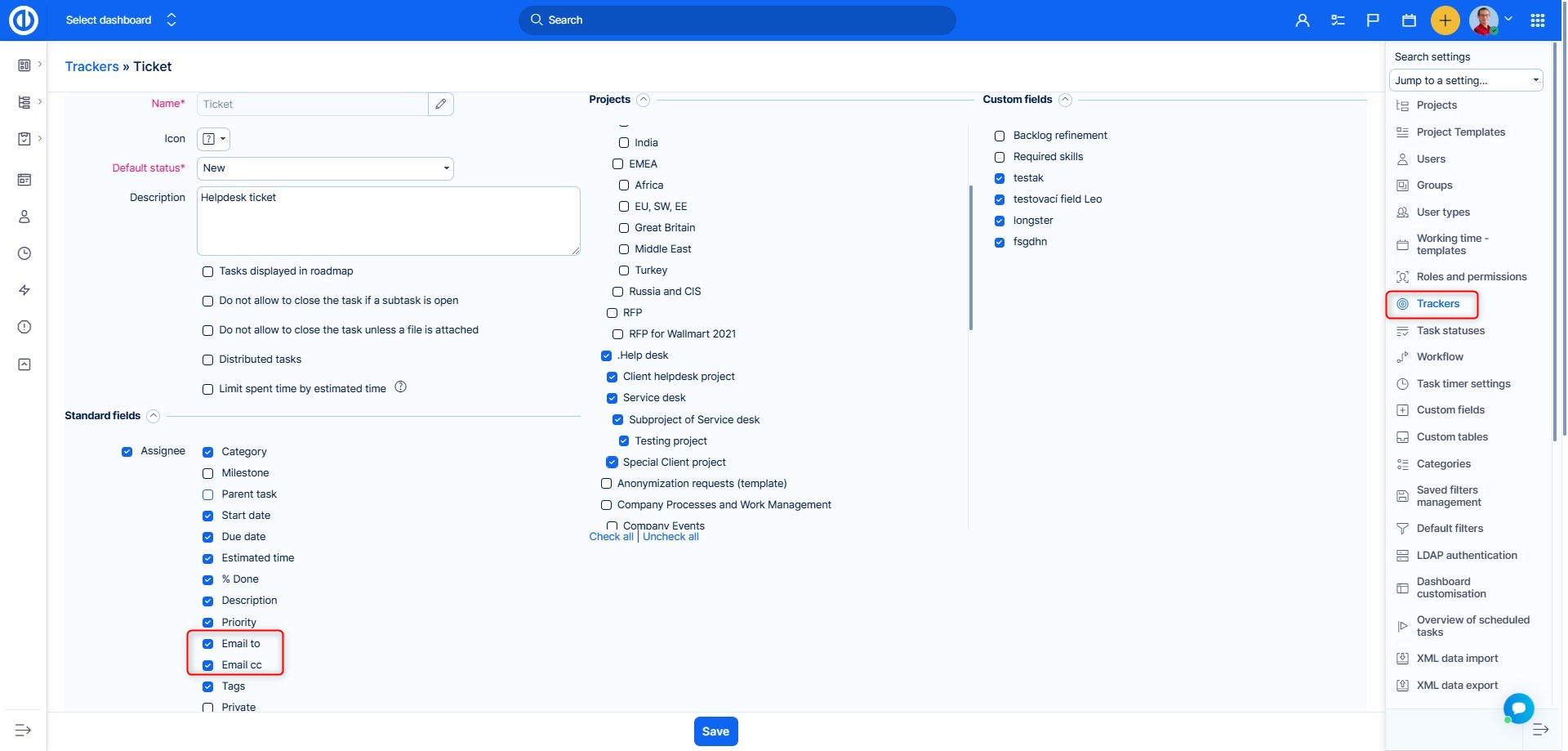
For correct handling of tickets created by email, you need to check that standard fields "email to" and "email cc" are active. You can check it in Global menu >> Administration >> Trackers >> HelpDesk ticket >> Standard fields. If these standard fields are missing, they must have been disabled by administrator.
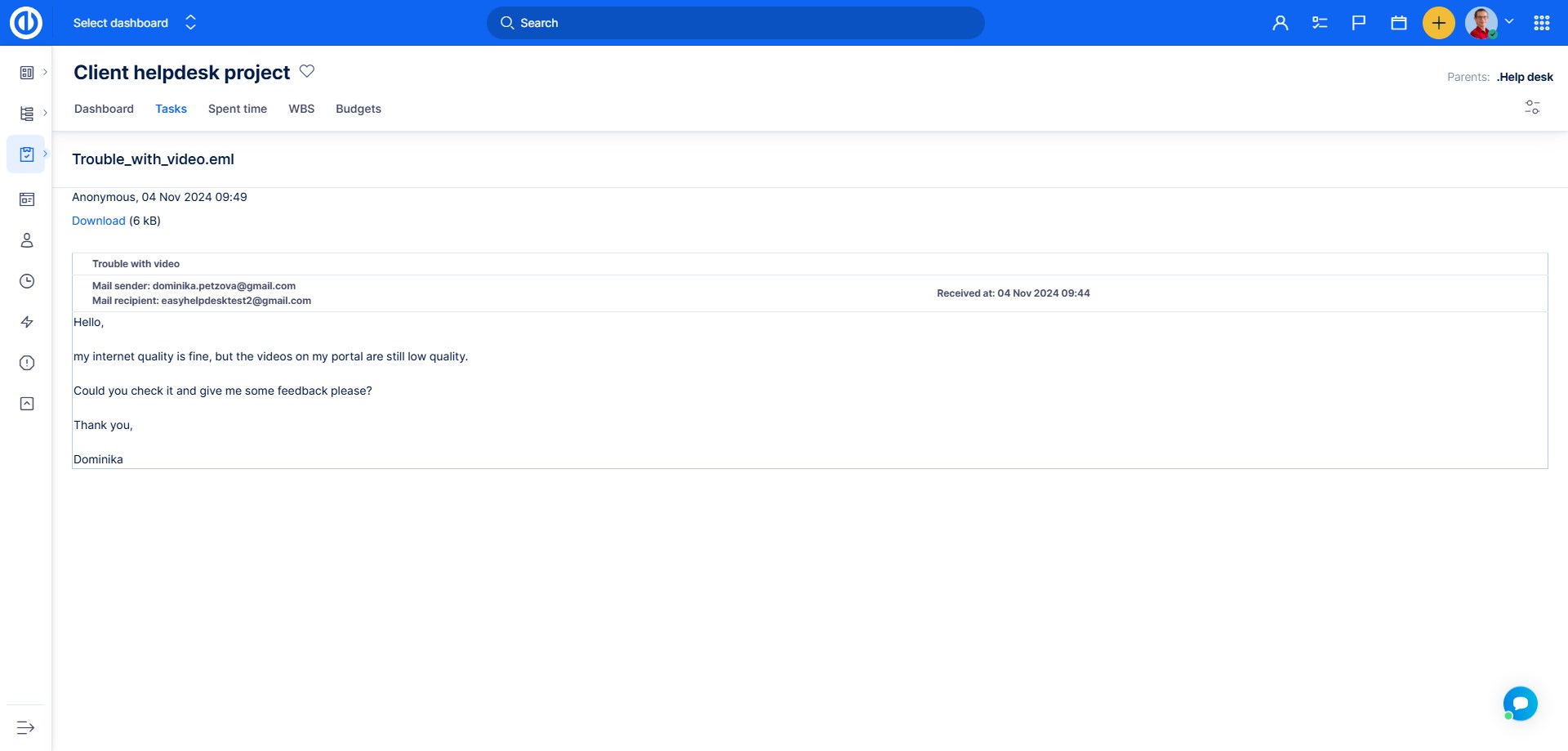
5.1.1 Email is processed by Easy8 and ticket is created in the determined project
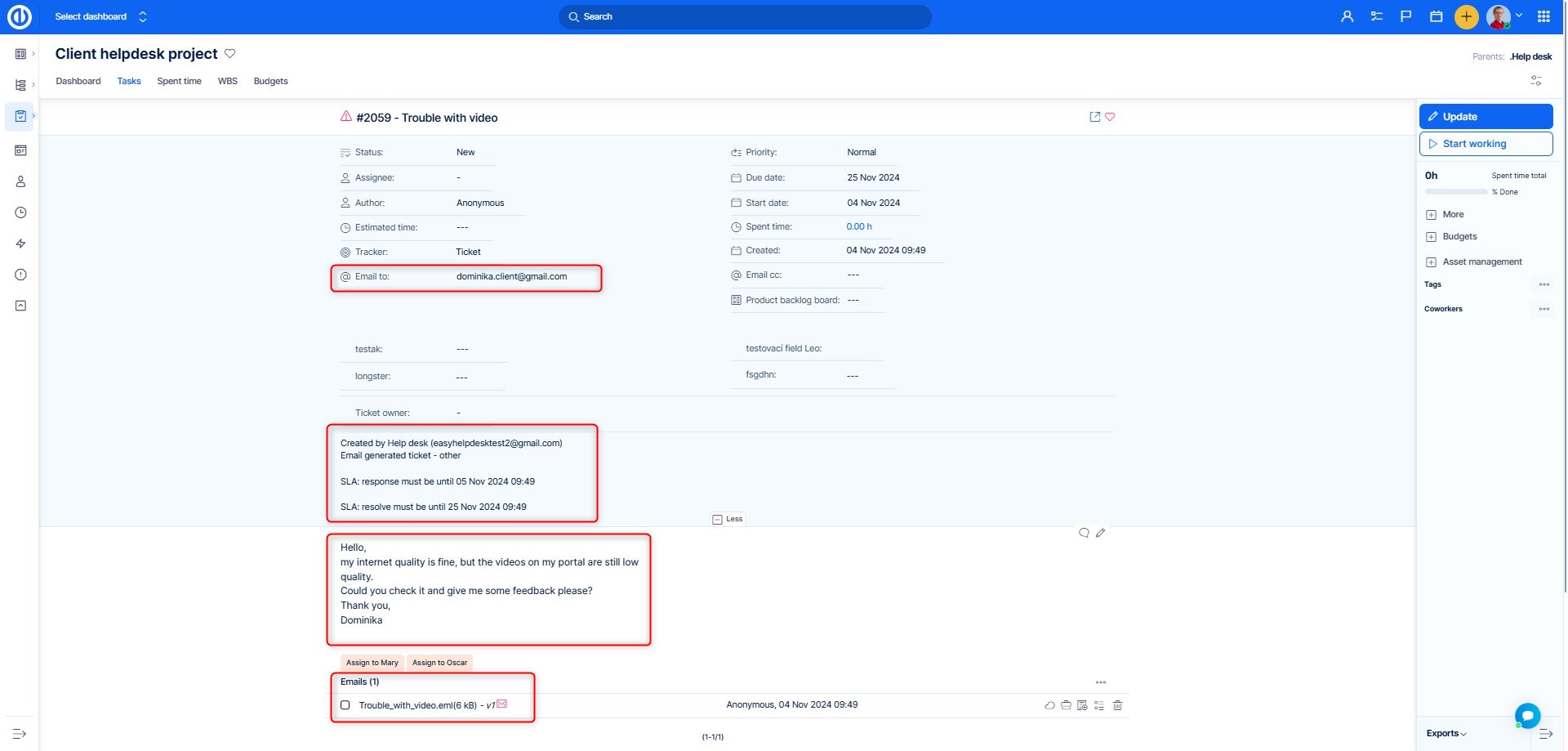
Notes:
- email to: The sender of the email from which the ticket was created
- Specification of the mailbox, from which the task was created
- SLA values – if violated, they are highlighted in red
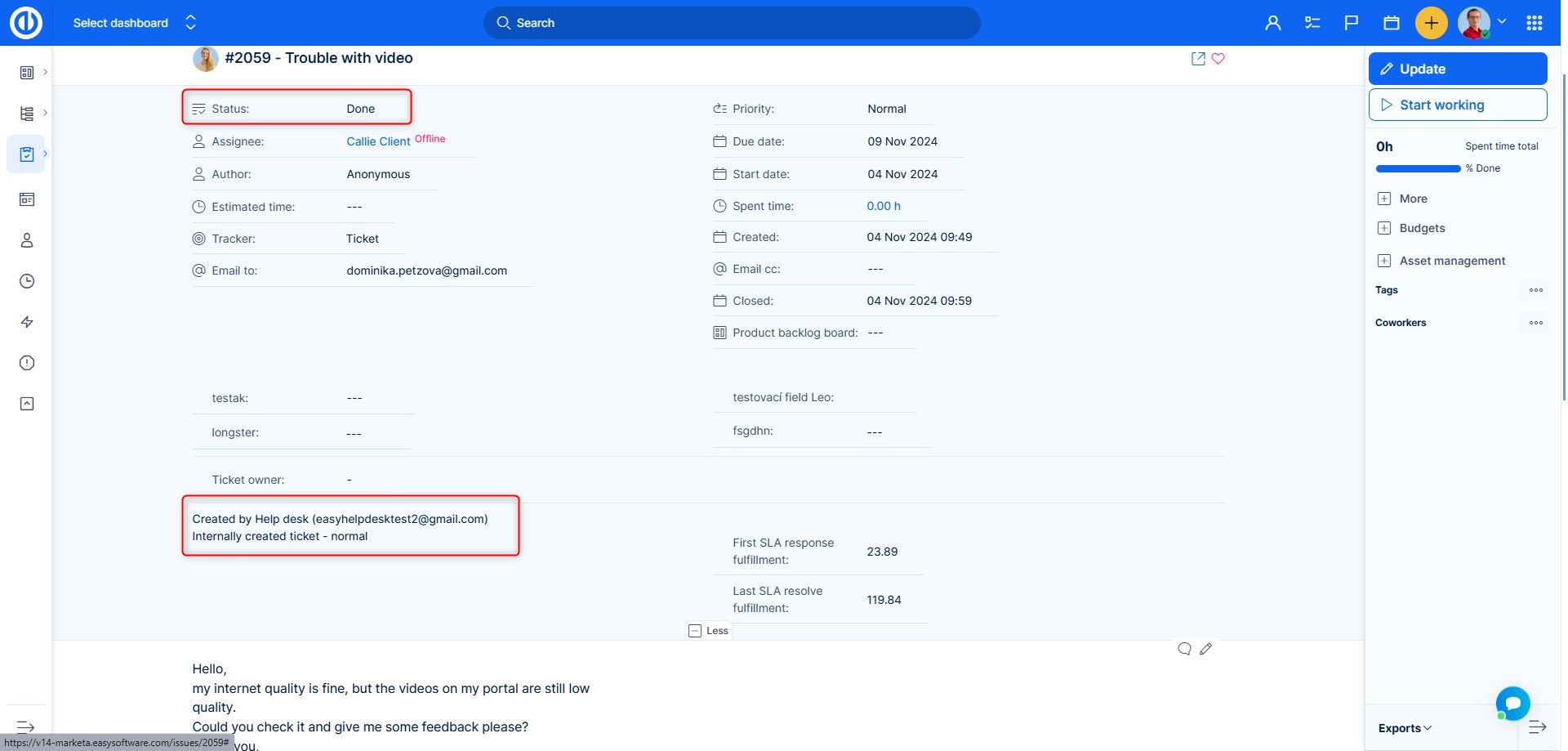
- Parsed email - This is the text content of the email, including any images that were included in the original email. Images are now displayed inline on the ticket description or comments, making it easier for agents to view the full context of the customer's request.
- The full original email is also available as an attachment if needed.
5.1.2 Write a reply and update the ticket
To meet the SLA response, you just need to change the status. We do recommend to also send the client a confirmaton reply by using an email template. For the following examples, keep an open mind about the ticket communication, it is just to demonstrate how the communication works technically.
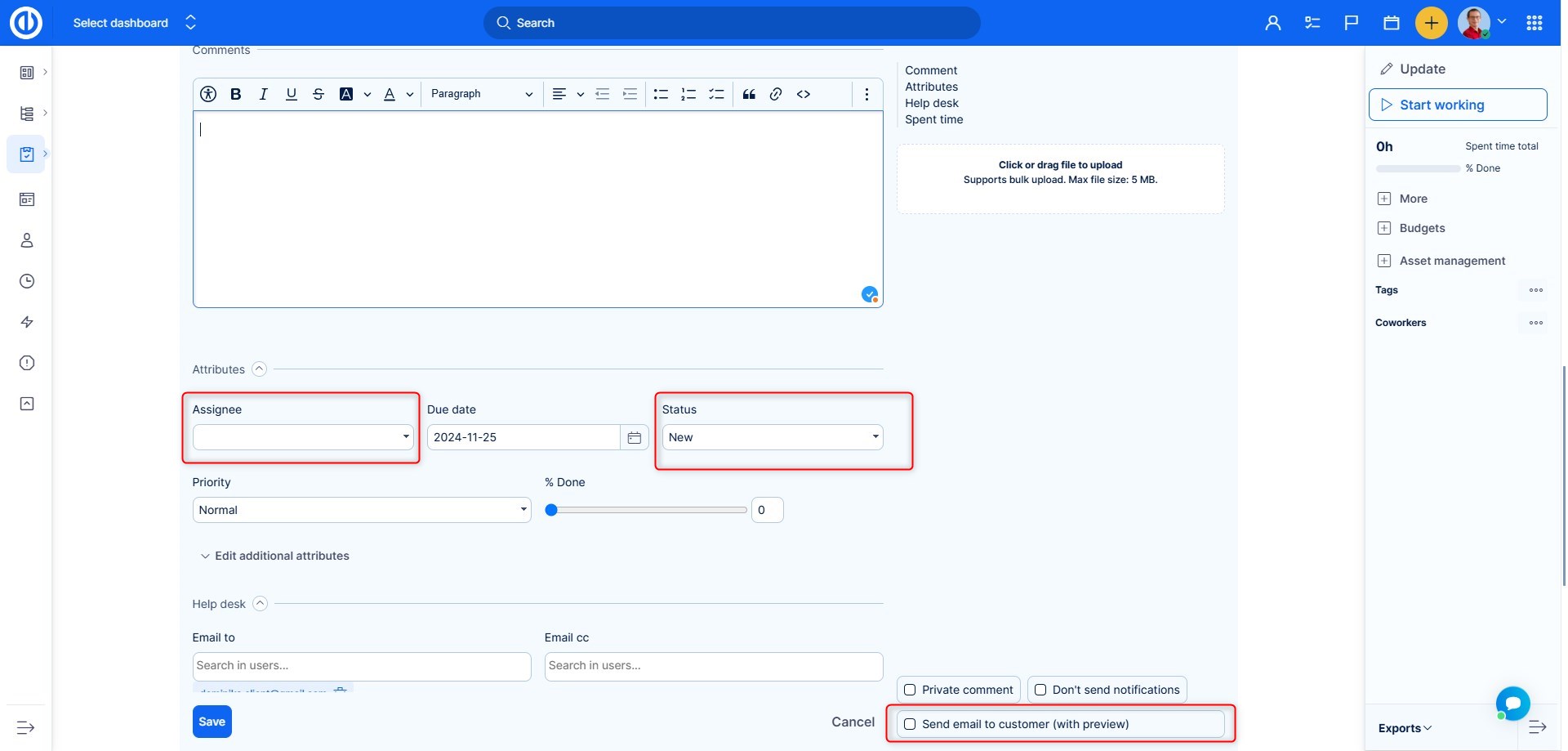
The manager wrote a reply to the customer about receiving the ticket, assigned it to an operator and changed the status. The reply will be sent to the client (email to) when you check the box.
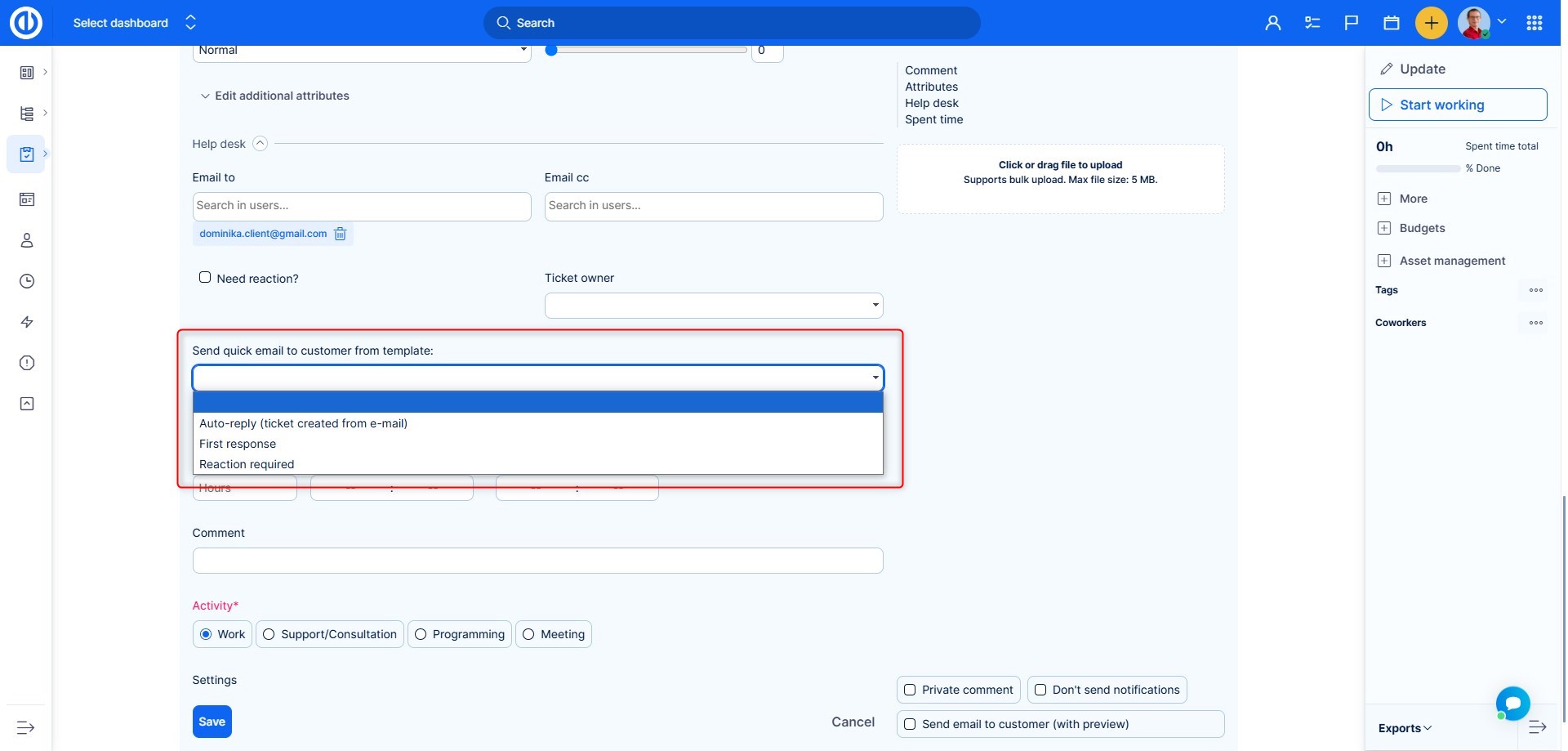
Send quick email to customer from template
You have two options to send an email to the client. When updating a HelpDesk ticket, there is an option "Send quick email to customer from template" allowing you to choose an e-mail template of your answer for the ticket sender. When a template is selected, the e-mail is sent instantly and thus no more actions are required. When no template is selected, you still have the option to choose the template and confirm sending e-mail in the next step as usually (tick "Send email to customer (with preview) checkbox in the bottom and save). The purpose of this feature is mainly to save your time when sending emails to customers.
5.1.3 Send an update to external email (email to)
By hitting Save, you will save the updates made on the ticket and you will get to the dialogue of sending the reply to the client.
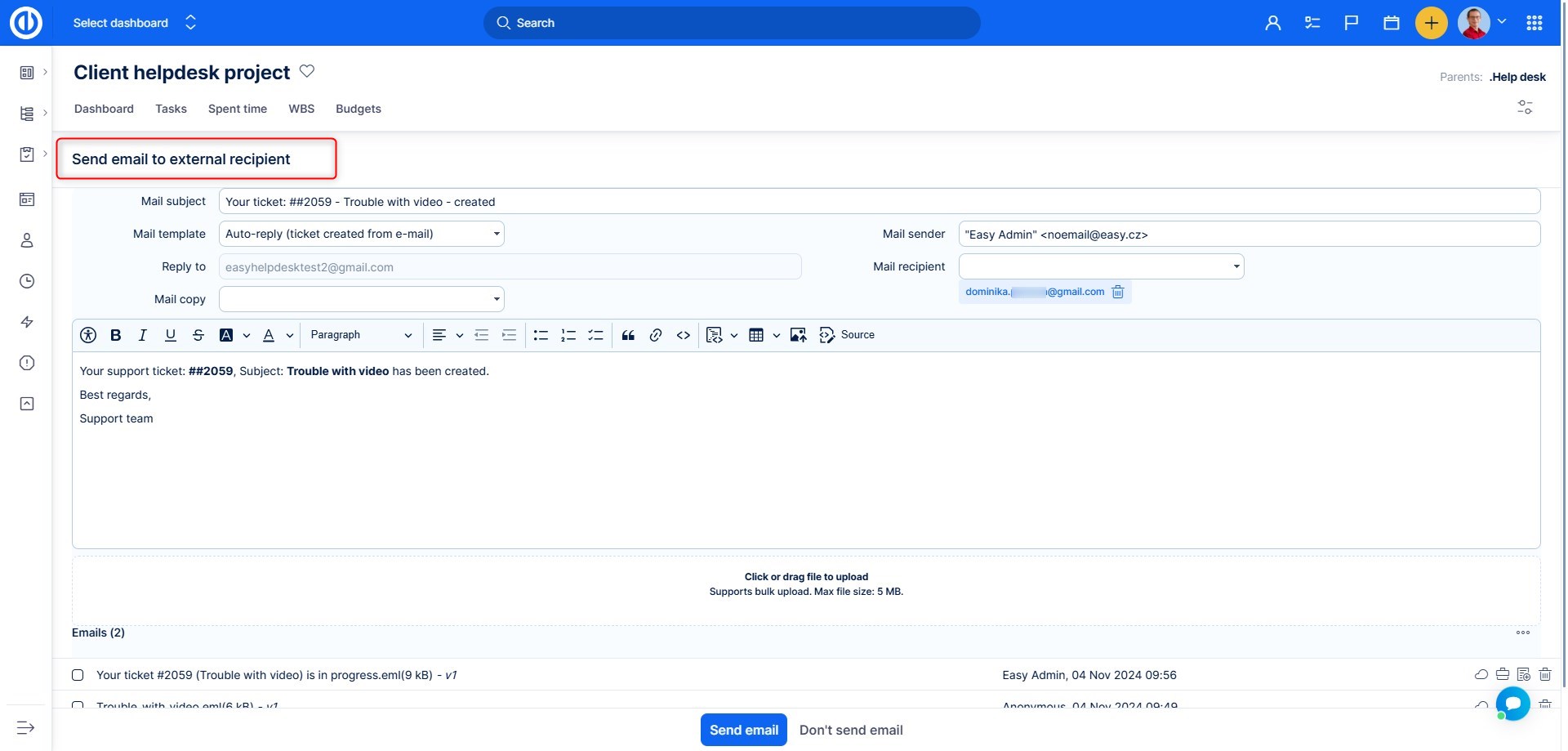
Notes:
- Mail template – if you have email templates configured, you can choose one. Or a template will be preset according to status. This feature will be explained in further chapters
- Mail sender – this will be shown to the client as FROM. The setting of the population of this field will be explained in further chapters
- Mail subject – custom or preset according to the mail template. By default, it is populated by the ticket Subject
- Mail recipient – sender of the original email. If there were other recipients of the original email in the CC or TO, they will also be added into this field.
- Mail reply to – this is always the HelpDesk mailbox to which the original email was sent
- Mail copy – you can add other recipients
- Mail body – if a template was not chosen, it will consist of the last comment on the ticket and the original email text. The content is editable.
- Attachments – you can choose attachments to send with the email. It may be some more recent emails or new files you uploaded when updating the ticket
- Send mail – email is sent to all recipients
- Don't send mail – you will return to the detail of the ticket
When we look back at the ticket detail, we see that SLA response has disappeared, because it was made.
5.1.4 The client replies back – how the emails are paired with a ticket
The client has received your reply and replies back. The reply will be added as a comment from an anonymous user ( a user who is not registered in the system).
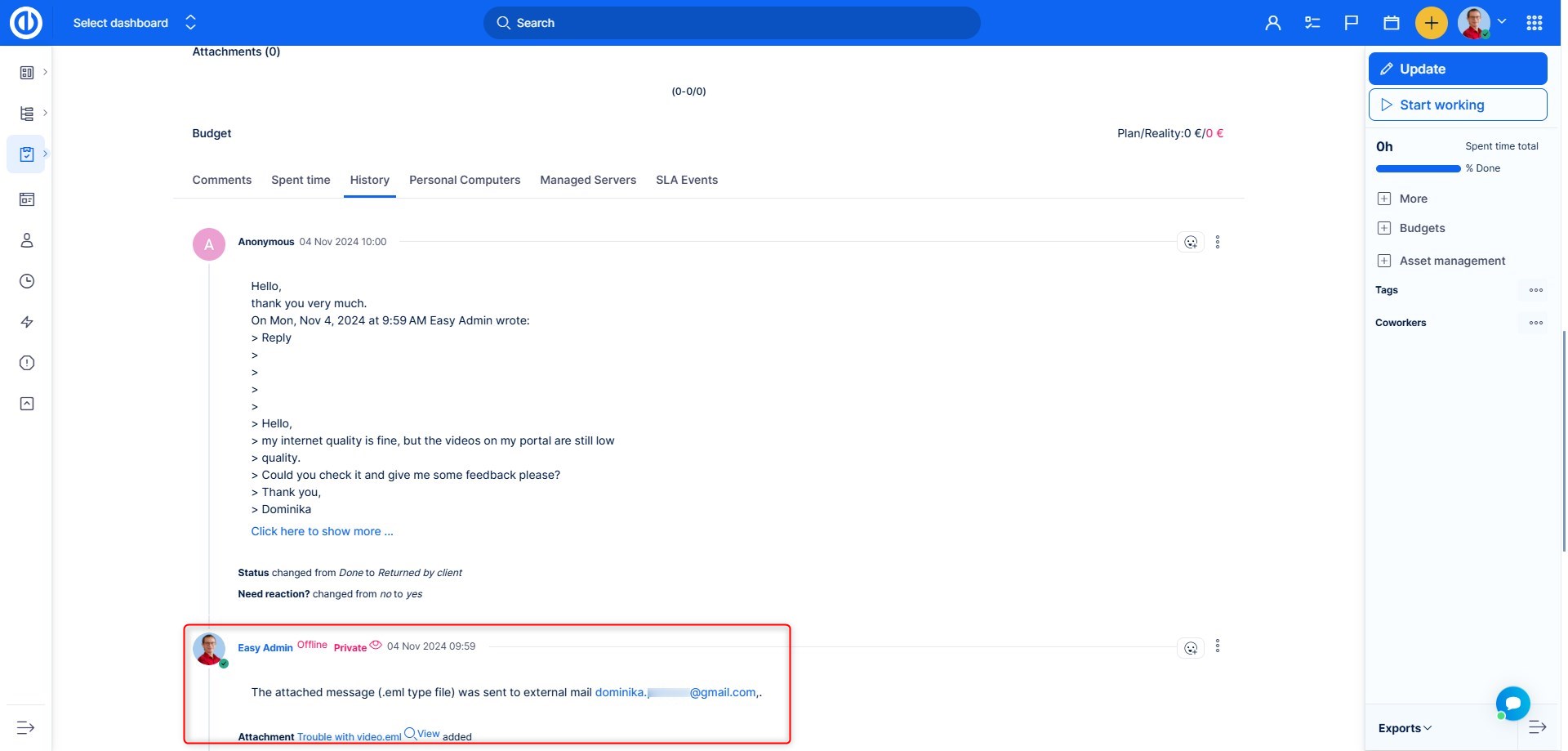
Let's explain here how did the client's reply find its way to the correct ticket.
When, in the previous step, the manager sent external mail to the client, the email contained a hidden heading (as all emails do) with the ID of the ticket. By replying to the email, this header was contained also in the client's reply and, therefore, HelpDesk identified it and added the reply to the ticket with the same ID.
Here are all the ways received emails are paired to tickets in the system.
- The hidden heading of e-mail, where the task ID is saved
- The subject of the e-mail, where a combination of "#" and task ID is sought
- If this isn't found, the subject is searched for a number alone
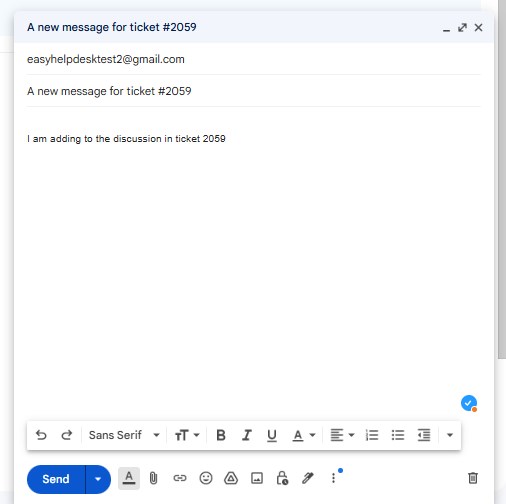
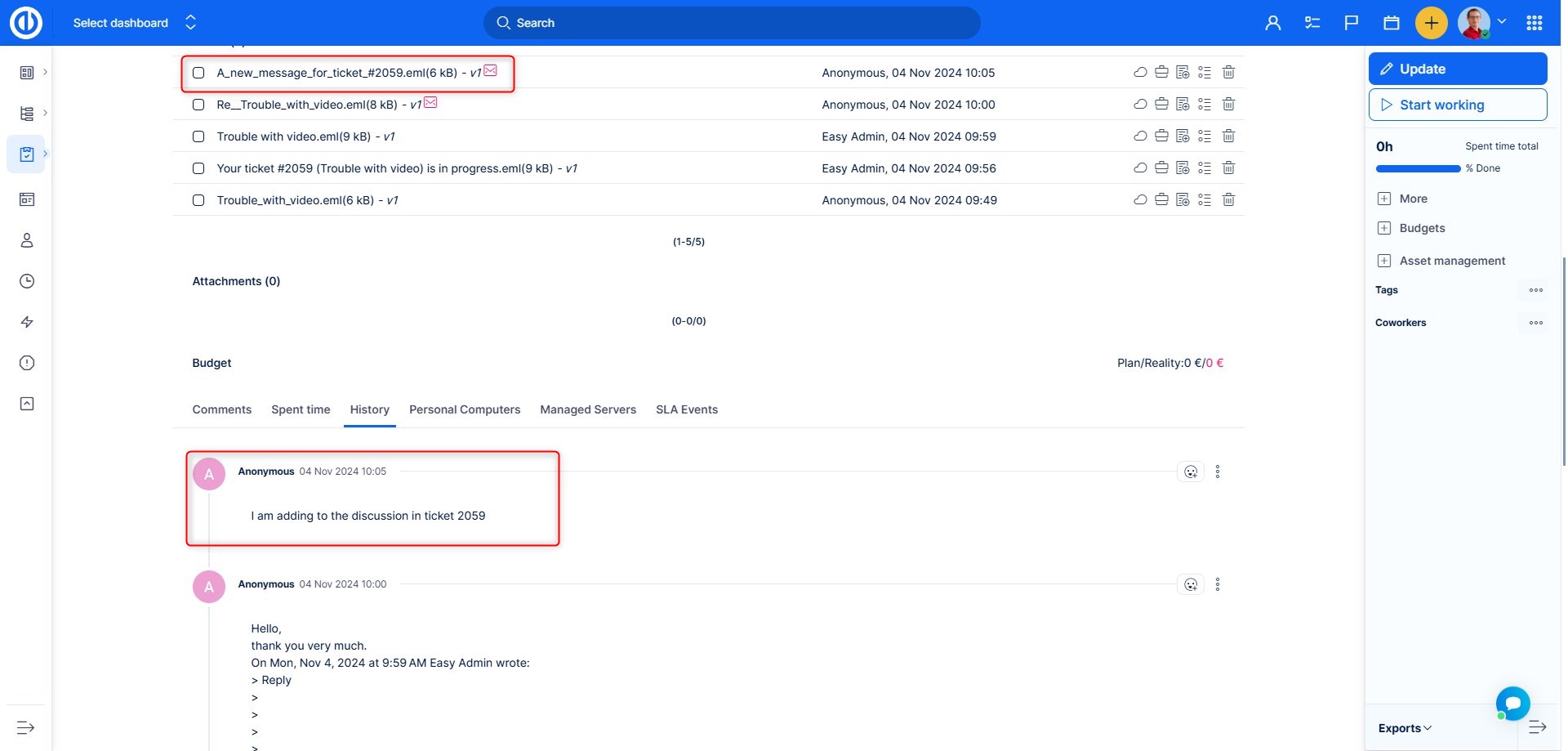
Accordingly, even if the client writes a new email to a HelpDesk mailbox and adds the ticket number (task ID) in the subject it will still be paired. Like in the following example.
New email to a HelpDesk mailbox:
Subsequent note in the ticket:
5.1.5 The last reply – ticket gets closed
One last reply from the operator, with which the ticket is closed. If the client replies again, the ticket will be reopened to a defined status (this setting will be explained further).
5.1.6 Ticket owner field
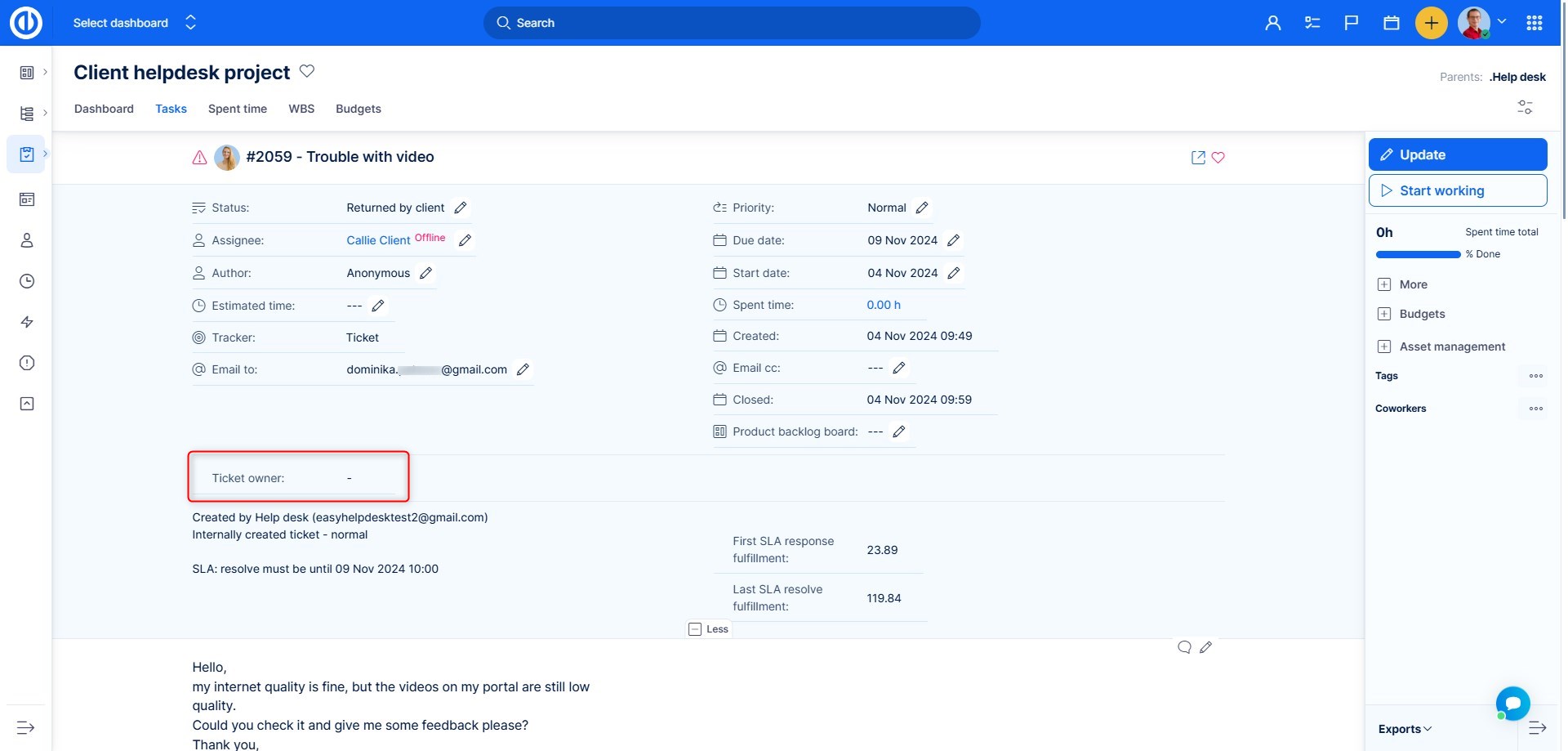
The ticket owner field is an optional standard field intended for use with HelpDesk tickets. With its drop-down list, it allows you to select one user out of all internal users already created, and this one user is considered the owner of the ticket. The field can be enabled or disabled for any tracker where you may need to have it (go to Administration >> Trackers >> HelpDesk ticket >> tick the field and save). By default, Ticket owner field is disabled so HelpDesk managers must go to Administration to enable it for a specific tracker. Based on this field on HelpDesk tickets, HelpDesk managers can easily see how many tickets were received, closed/solved or updated according to their ticket owner. So this may significantly improve/simplify HelpDesk insights (dashboards, statistics) and reports for a defined time period. Workflow settings, as well as Action buttons, may be applied to Ticket owner field just like any other standard or custom field.
5.1.7 Email to, cc select from various data sources
In fields Email to and Email cc added ability to search for emails from data sources:
- Personal contacts (CRM)
- Stakeholders
- Accounts (CRM)
- HelpDesk users (Help desk)
This feature is disabled by default. To enable it, go to Administration >> Plugins >> Email field autocomplete - Edit and activate feature Email field autocomplete and needed data resources.
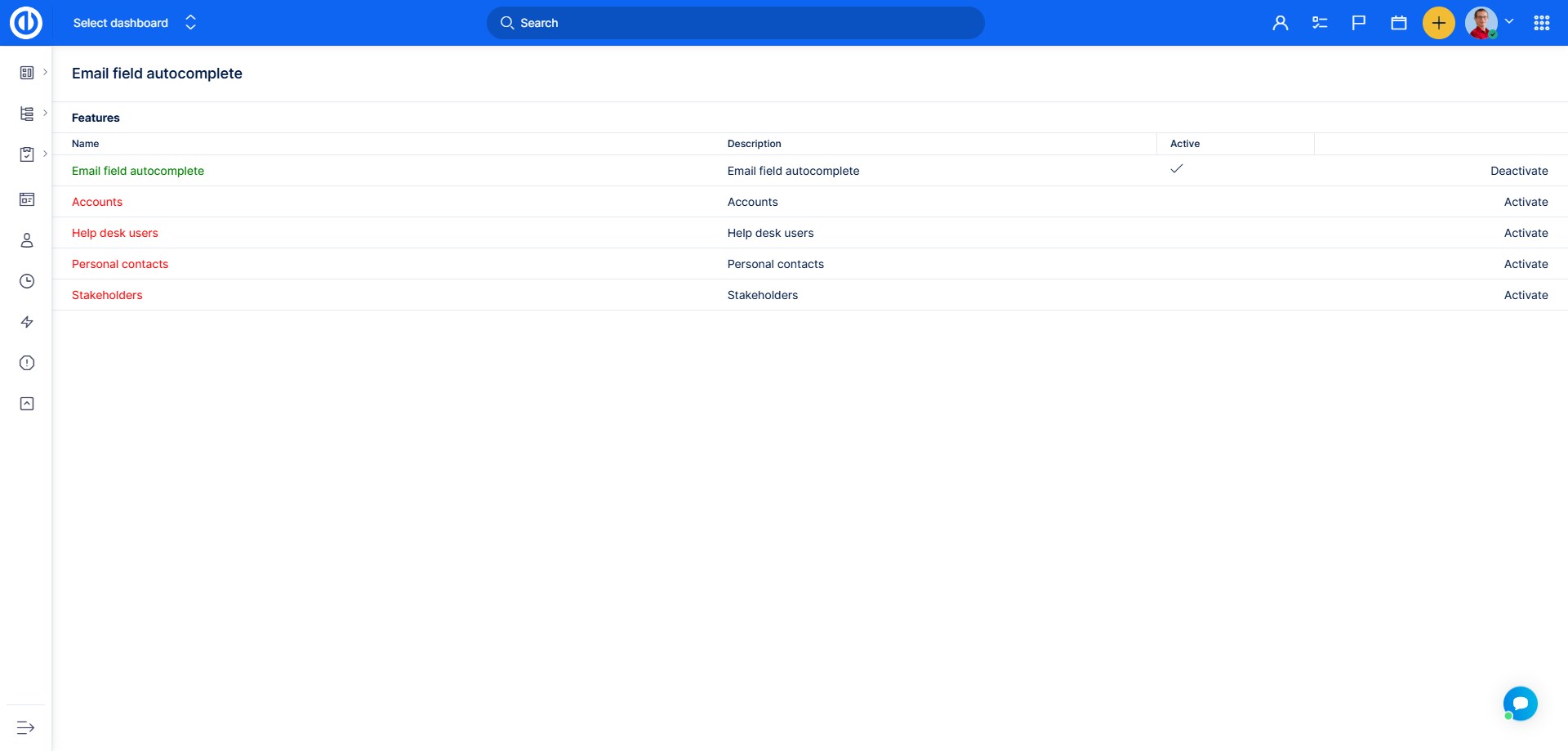
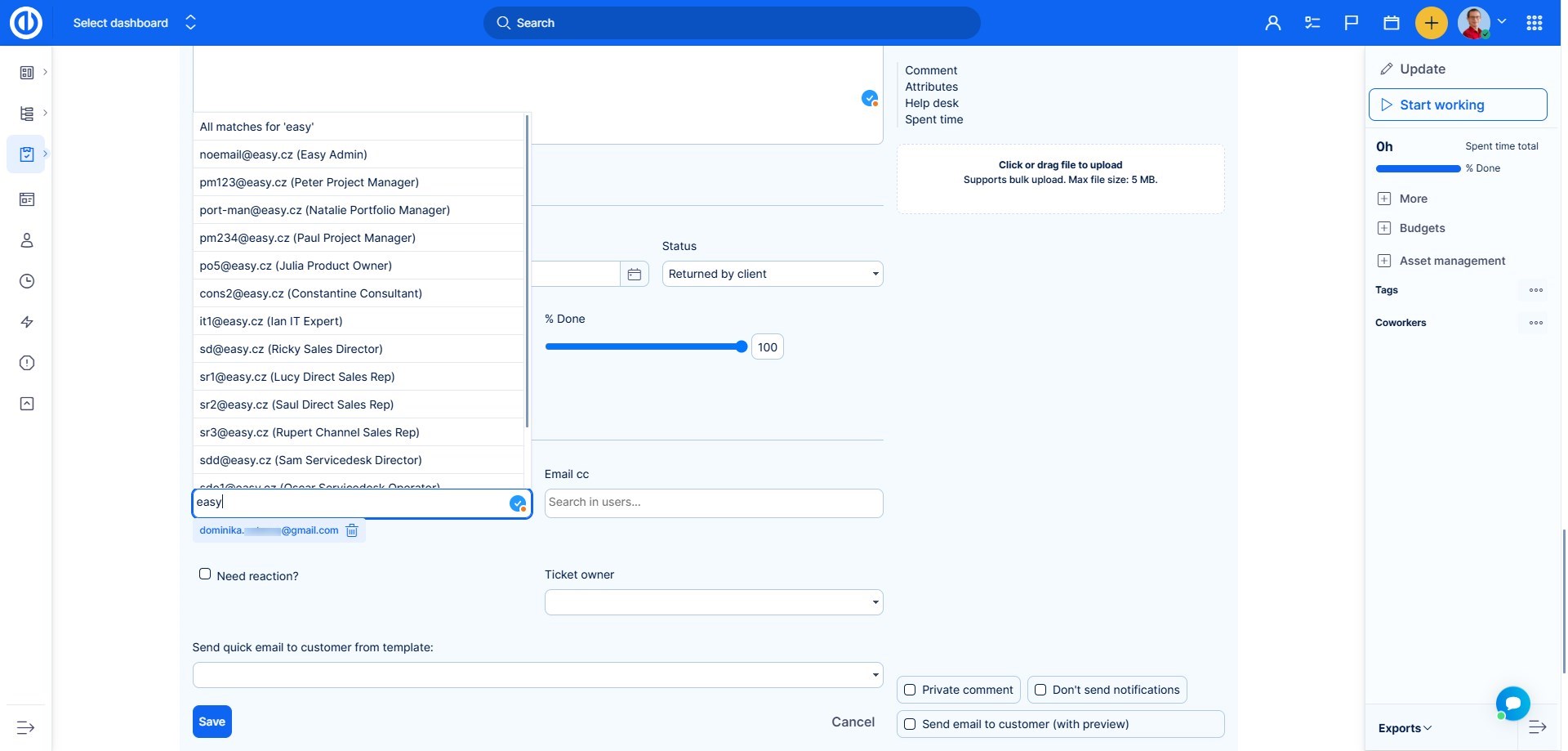
Without enabling any of the data resources, the feature natively searches through users. The user emails displayed are determined by the current user's User Type and visibility settings.
How it works
If enabled the task fields Email to and cc act as autocomplete.
5.2 Internally created tickets
If the client submits tickets by directly within your system, the workflow can be defined as if you were working with any other tasks. You will allow the client to create HelpDesk Ticket or Bug. They will initially be in the default status (most time called simply New). Then communication goes back and forth between client and the operator by series of ticket updates and by changing the assignee, which is necessary to keep all users active in the communication. SLAs are monitored as in the email generated ticket Response: Change of status; Resolve: Closing the ticket.
5.3 Tickets created via the REST API
There is a possibility for tasks/tickets created via the REST API (for example from a web form) to look like HelpDesk tickets created from e-mail. Just send the "easy_helpdesk_mailbox_username" parameter via the API, for example: issue[easy_helpdesk_mailbox_username] = 'support@company.com". This will cause the newly created task to look like a HelpDesk ticket from the given e-mail address, the SLA settings will be applied accordingly and a thank-you message will be sent to the sender.
6 Mail templates
It was already foreshadowed during the last chapter, but without a proper explanation of the processing, it would not be as easy to understand as it will be now. The last HelpDesk menu item we haven't introduced.
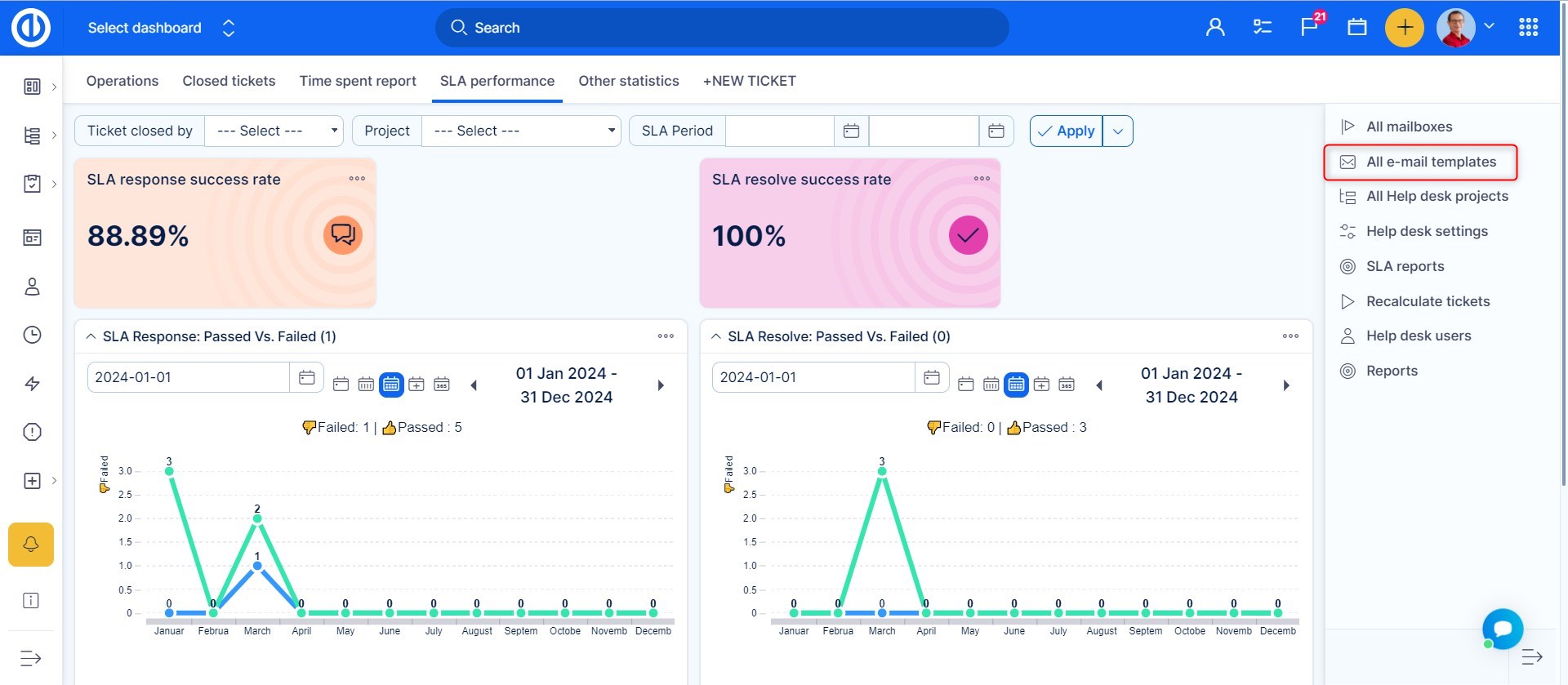
Email templates bring a certain level of automatization and formalization of the communication with clients, by which they recognize your company as a professionally dealing one.
An important property of Mail templates is that they are configured per mailbox, you can't use a template from a mailbox IT@mycompany.com for emails sent to support@mycompany.com.
6.1 Creating a mail template
There are effectively two types of mail templates: autoreply and standard template. Because they are not configured differently, we will explain both cases at once.
6.1.1 Add new template
To make a new template click on the button on the right.
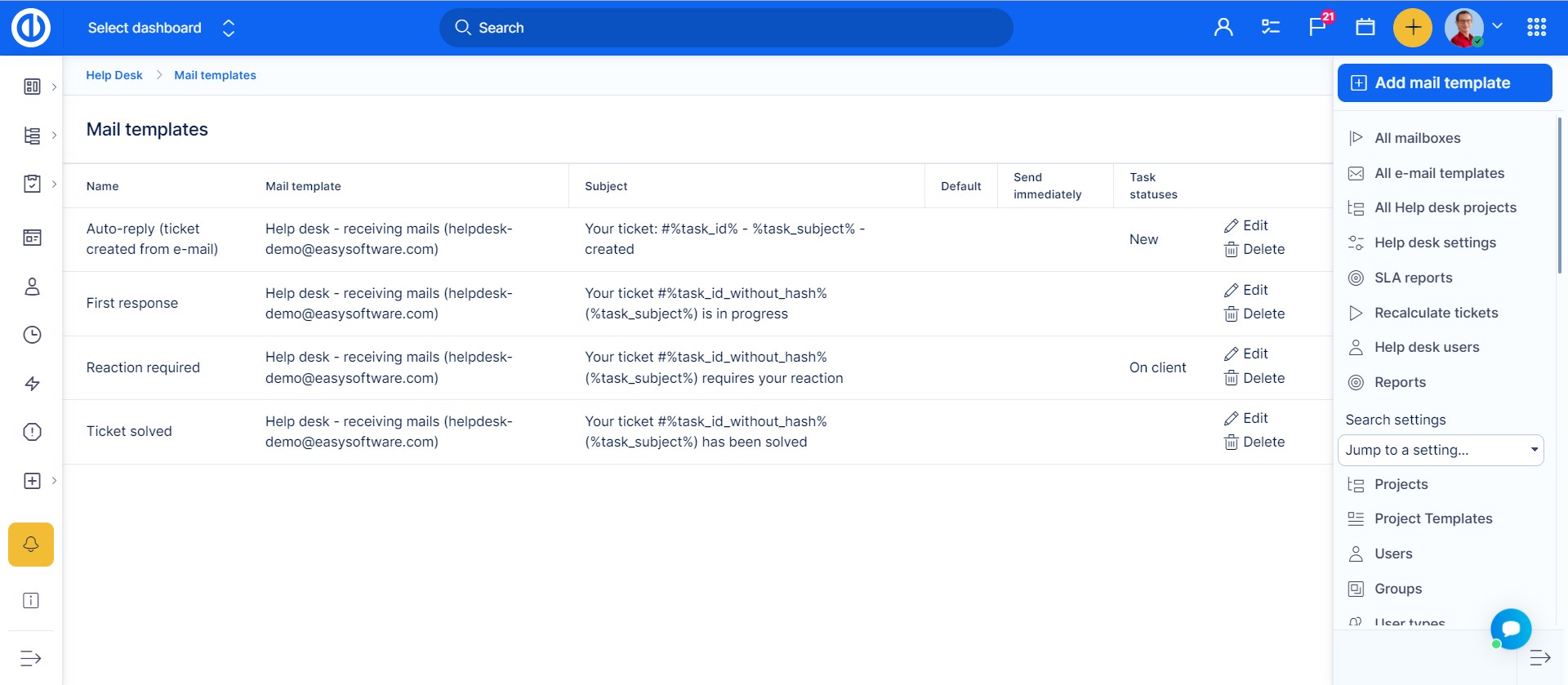
6.1.2 Basic attributes
Here you can see what the page for creating a new template looks like. You will be able to choose to what mailbox the template belongs to, and for which status it will appear.
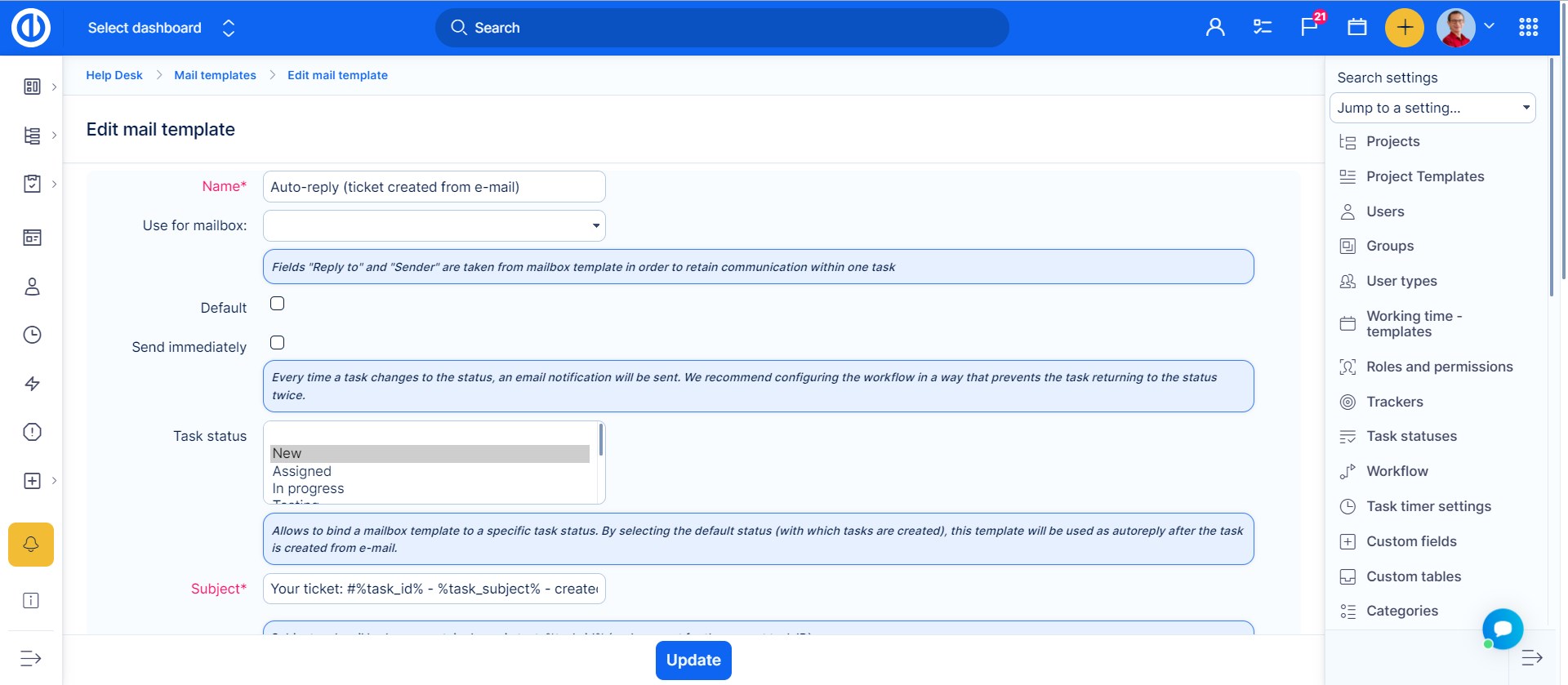
Setting notes:
- Send immediately - an email notification will be sent every time a task's status changes.
- To avoid unnecessary notifications, it is recommended that workflows be configured to prevent tasks from returning to the same status multiple times.
- This feature ensures email notifications are triggered immediately when a request is created or updated, bypassing the usual delay caused by waiting for the next cron job. While this is beneficial for instant status updates, it may lead to duplicate emails if request creation is enabled via email.
- Avoid using the "Send Immediately" option for all types of notifications if SLA rules are configured. This feature should be restricted to status changes only to ensure notifications are relevant and to prevent excessive or redundant messaging.
- Use for mailbox – which mailbox will have this template available
- Task status – according to this status, the template will be prefilled in the dialogue when sending the reply to an external mail (see chapter 5.1.3.)
- To use the template as autoreply to newly created tickets from email, set the status to the default one (as configured in administration >> task statuses). In effect, when a ticket is created from an email, the autoreply according to this template will be sent immediately. It can be used to confirm to the client that the ticket was created and what the next steps will be.
- You may leave the status empty, in which case it will never be prefilled automatically in the send mail dialogue, but users will be able to choose it manually
- Subject – what will the subject contain
- It is recommended to include the task ID in the autoreply – if you have many tickets with the same client, you will be better able to distinguish between them, when talking to the client
- You may also use the actual subject used the client's original email
6.1.3 Dynamic tokens and mail body
Dynamic tokens can be used to provide particular ticket information to the client. In a template, they are entered as one of the below, and in the email sent to the client, they will be replaced by the actual value from the ticket.
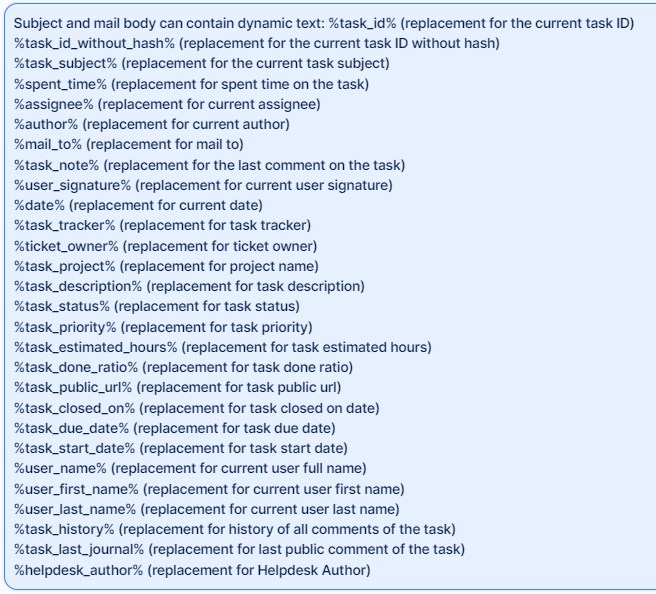
A simple example of an autoreply.
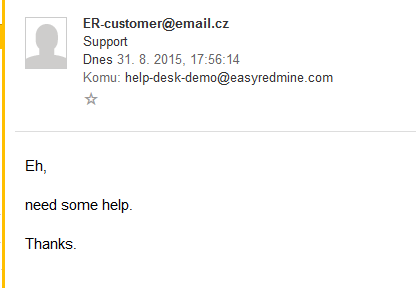
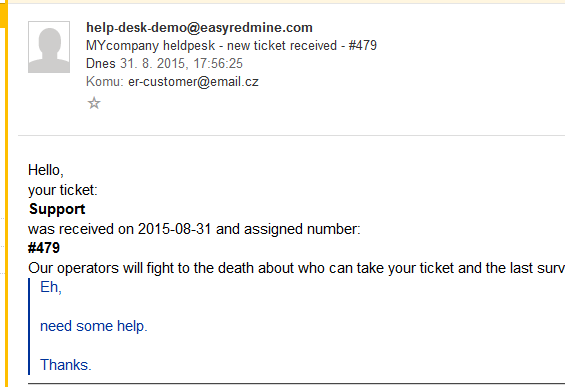
6.1.4 Important dynamic tokens
If you are going to use mail templates effectively, it is necessary to include the token %task_note% into the template. It will use the comment you last added to the ticket and surround it by the other text in the template.
To add a corporate signature into the outgoing emails, use the token %user_signature%. It will use the HTML signature of the current user (who is updating the ticket) that can be set on the user's profile.
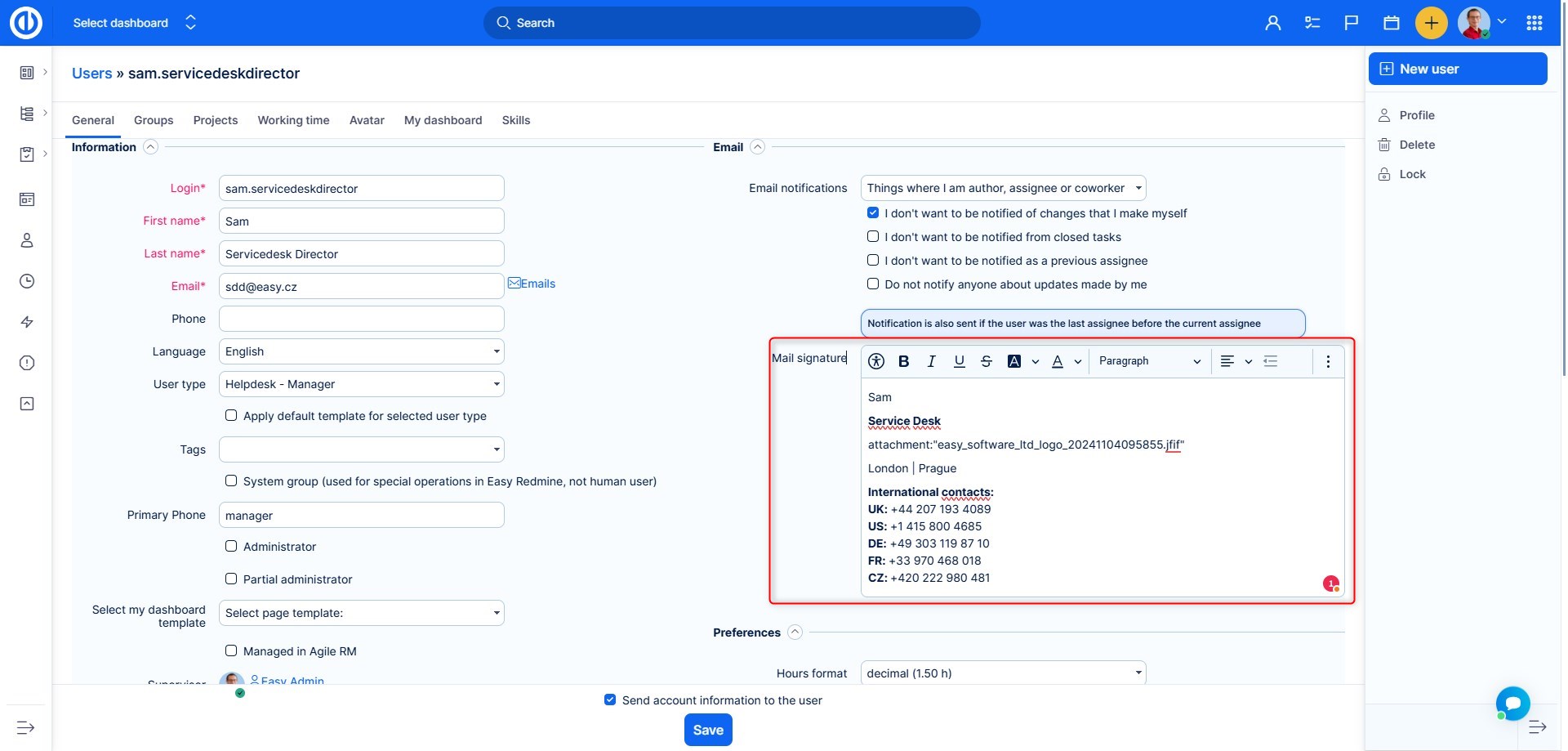
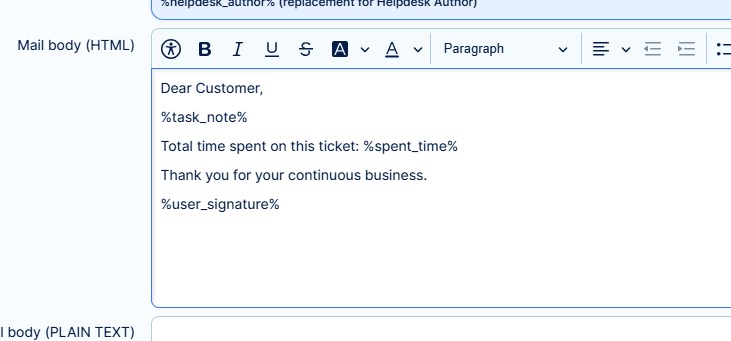
Example: Let's devise a simple template containing comment of the support operator, total time spent on the ticket and company signature of the user.
This is how the template looks like.
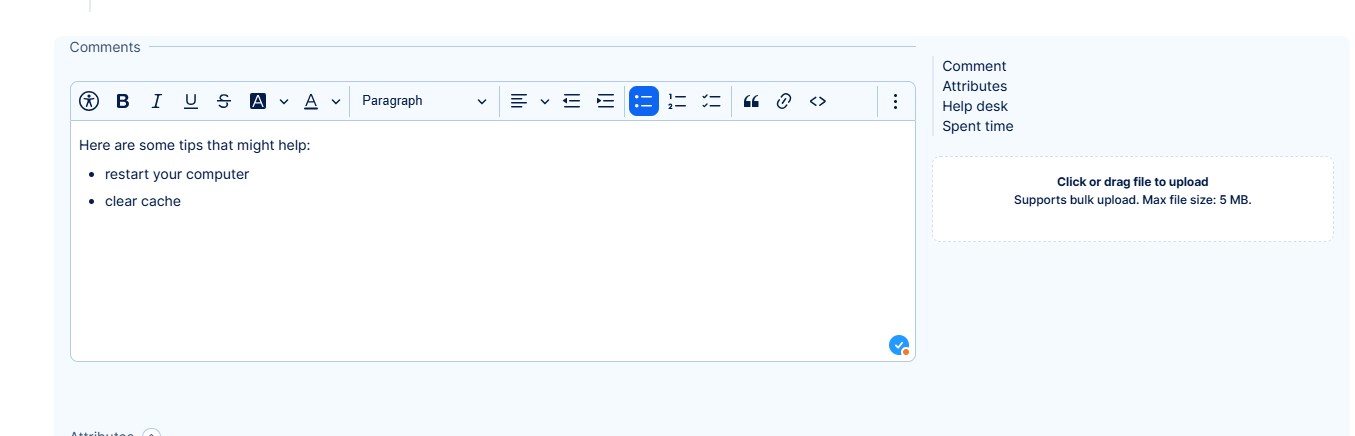
This how the operator writes the comment ticket update.
And this will be the sent email according to the template.
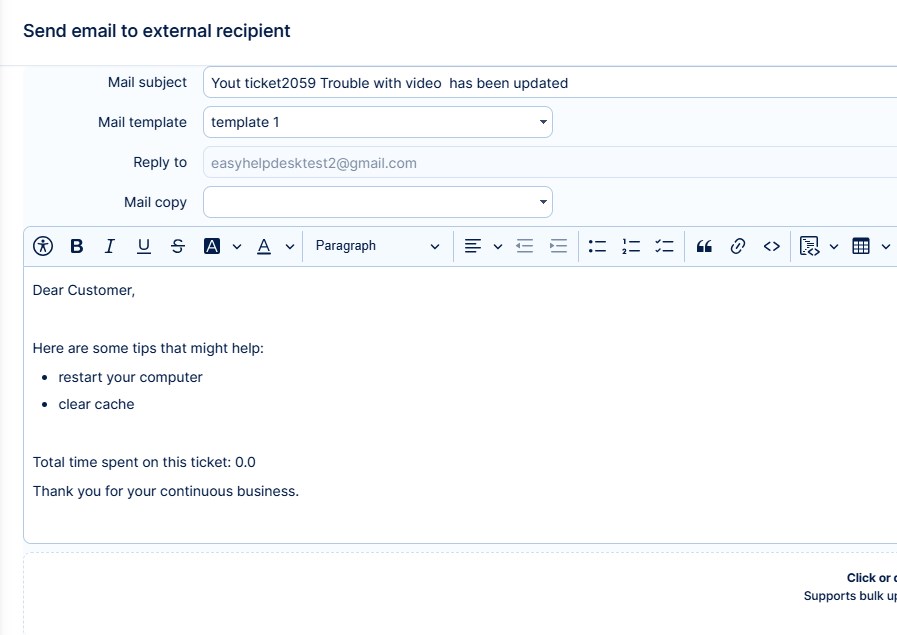
Note: When using email templates together with special heading and footing of emails on a certain project (Chapter 4.3.), the project header and footer wrap the whole email send to the client, not just the email template, or just the part which added by the last comment.
6.2 Default email template
It is possible to select a HelpDesk email template as default. Meaning that when you are sending a comment to a customer, there is a higher chance that a template is preselected (leaving less manual work for the support operator).
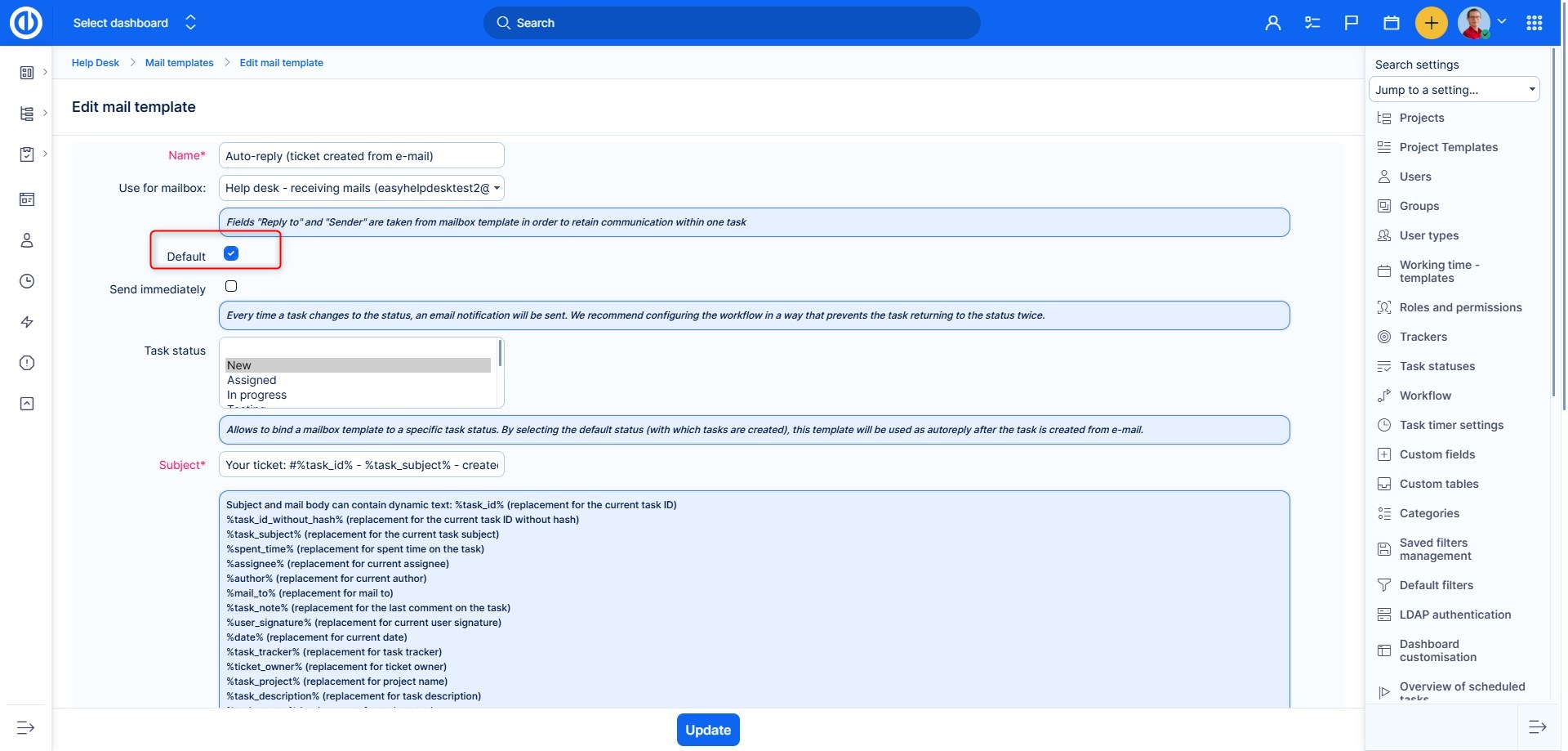
The behavior is as follows:
Prerequisites
- one email template can be set as default
- every email template must have a linked mailbox
- you can have more mailboxes in your system
- email template may be (but it is not required) connected to a certain status
Situations
- a ticket is created manually (not from email) - template from a is preselected according to status; if not found, the default template is preselected
- a ticket is created from a different mailbox than the one with which the default email template is used – template with this mailbox is preselected based on the status (same as currently) => no template is automatically preselected if using status for which there is no template assigned
- a ticket is created from the mailbox with which the default template is used – the template is preselected based on the status – if no such template is found, the default template is preselected
7 Global settings
Now that we have gone through the whole usability, we can finish the rest of the settings remaining to be explained.
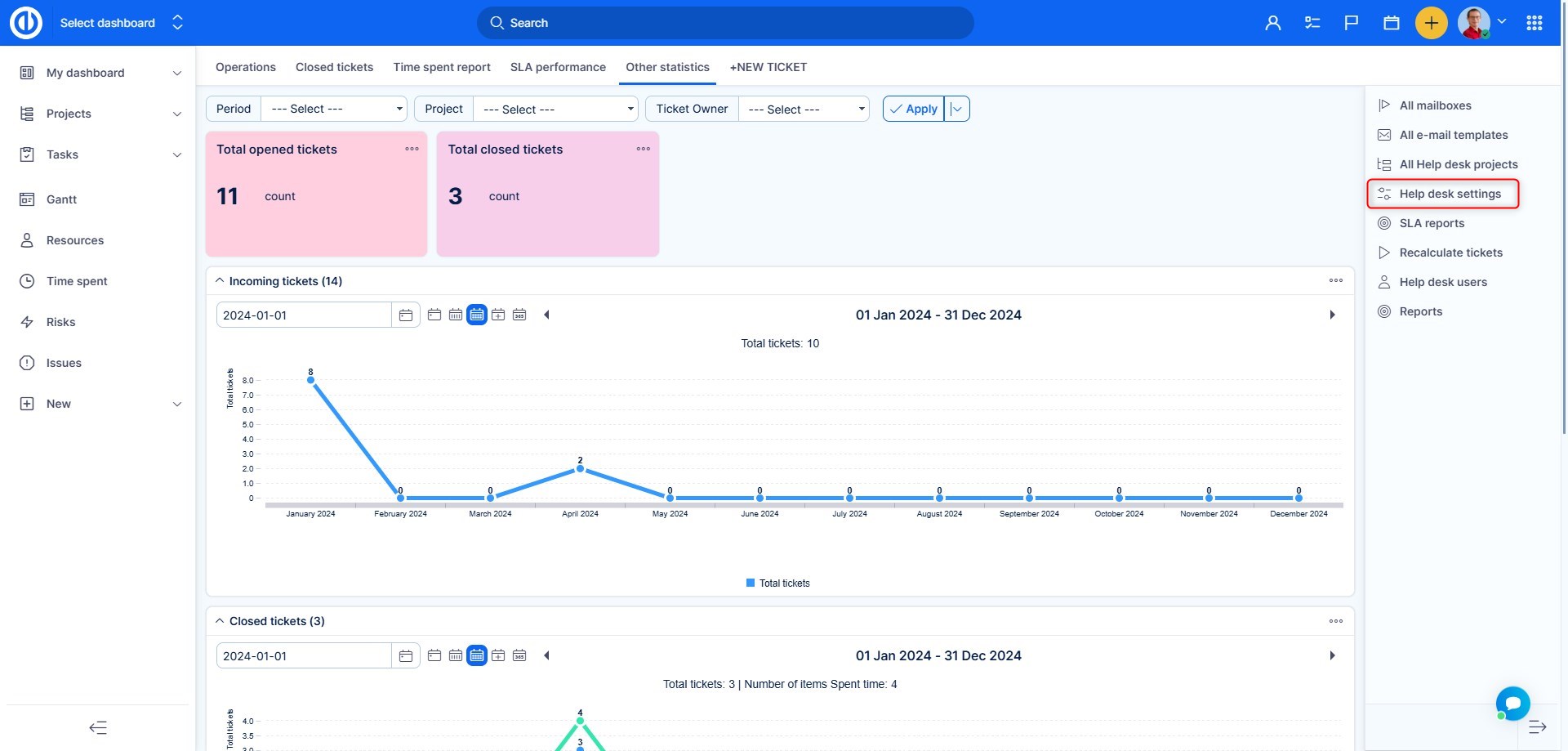
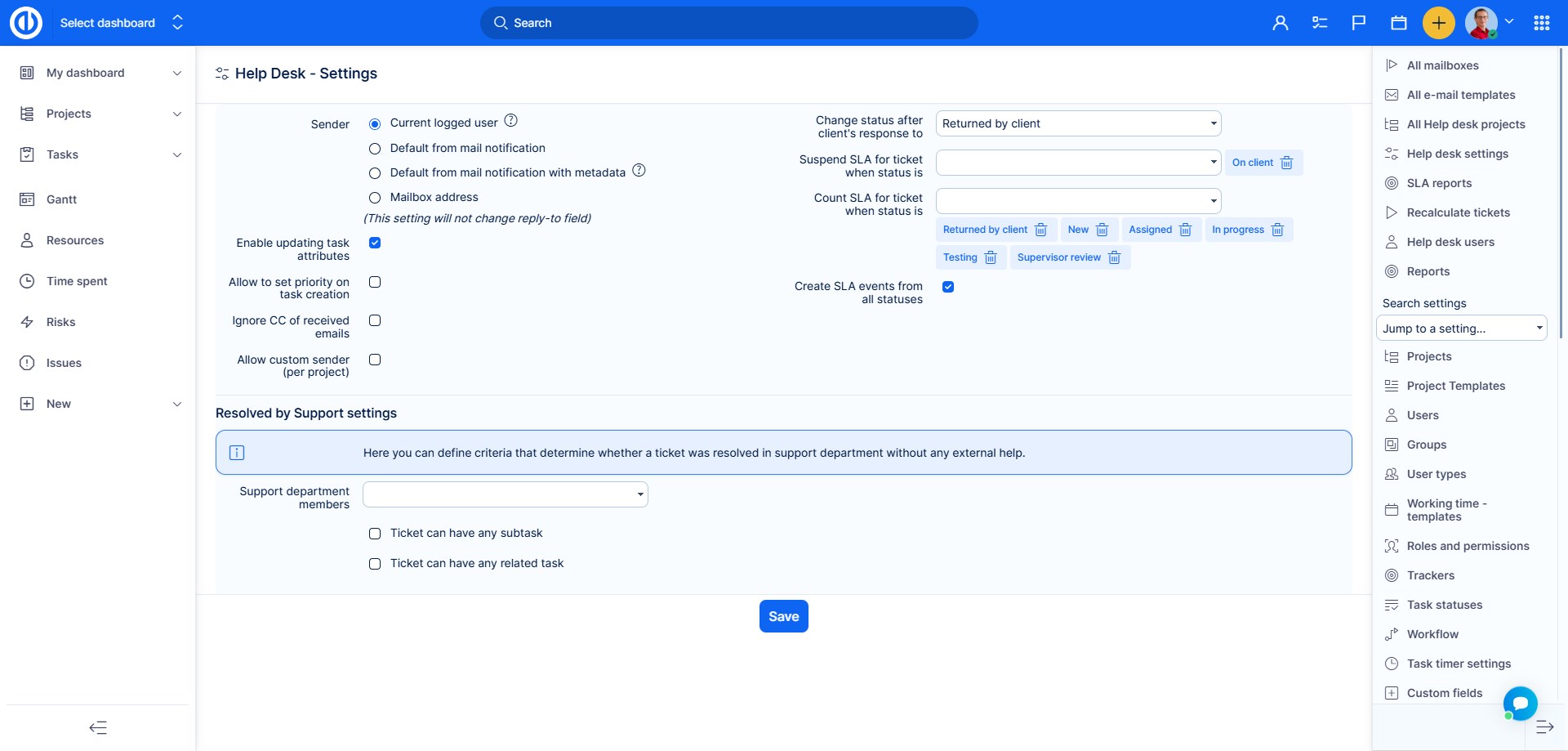
Setting notes:
- Sender – which email is listed as FROM on ticket replies to client (in relation to Chapter 5.1.3.)
- Current logged user – user who is updating the ticket
- Default from mail notification – email which is used to send standard notifications from the system to users. Set in Adminsitration >> settings >> email notifications
- Mailbox address – email, which received the original mail from the client
- This setting is loosely tied to the last checkbox Allow custom sender – if enabled, you can set a custom email as the sender on project HelpDesk settings. If a project has an email filled in the setting, it will override the Sender setting
- Enable updating task attributes – if enabled, it is possible to change certain attributes on the ticket by email. For example, by writing priority: High in the mail body, you would change the priority accordingly. This is a rather advanced function and it is not recommended to use with clients
- Accept autogenerated mails – for example newsletters
- Ignore CC of received emails – if enabled, emails in the CC are not processed and used in the field "email to" of the ticket (Chapter 5.1.3. note about mail recipient)
- Change status after client response to – everytime a client writes a reply which updates the ticket, status will be changed accordingly. This is particurarly useful when tickets are put to a closed status after a reply was sent by the operator. Unless the client replies back with some additional question, the ticket will stay closed and hidden from the active listings. When the client replies, ticket would be reopen and back to active queue of open tickets
- Suspend SLA for ticket when status is – these are statuses, when SLA deadline is not determined, because the ticket is waiting for input from the client, without which the operator has no chance of providing support
- Count SLA for ticket when status is – when the SLA is normally measured. With these functions, you can nicely set the ticket cycle. For example, operator asks the client for more information, puts the status to pasive and SLA is paused. After client replies, status is changed to consultation and SLA is recalculated according to the remaining time to SLA deadline, when the ticket was replied to
In version 12, Help desk received another interesting metric - Tickets resolved by support. You will be able to report total number or ratio of tickets that have never left the support team.
How it works
- Firstly you have to define which users are members of support in Help desk >> Help desk settings - Resolved by support settings
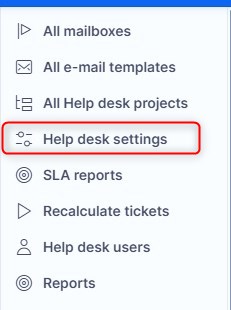
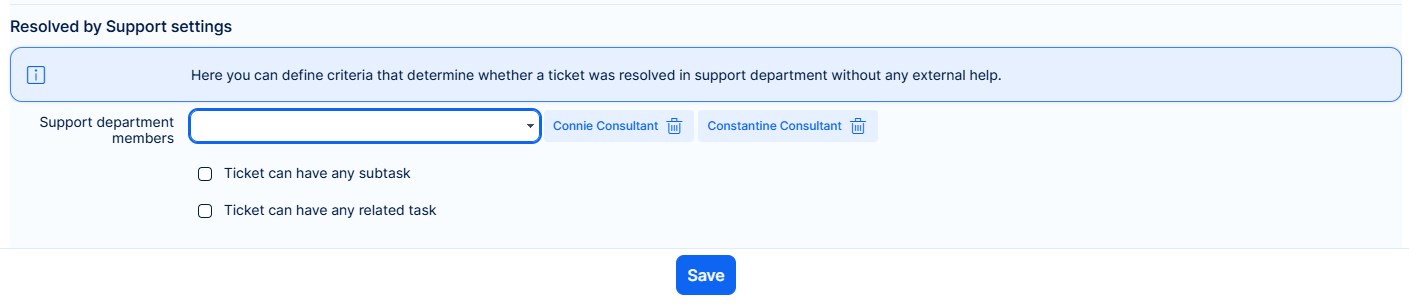
- Settings for subtasks/related tasks will determine whether tickets resolved by support can or cannot contain subtasks or related tasks
- Now, we recommend to push the button in help desk menu - Recalculate
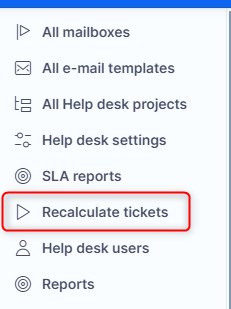
This will evaluate tickets from the last 90 days - Finally, go to task list and find the filter Resolved by Support
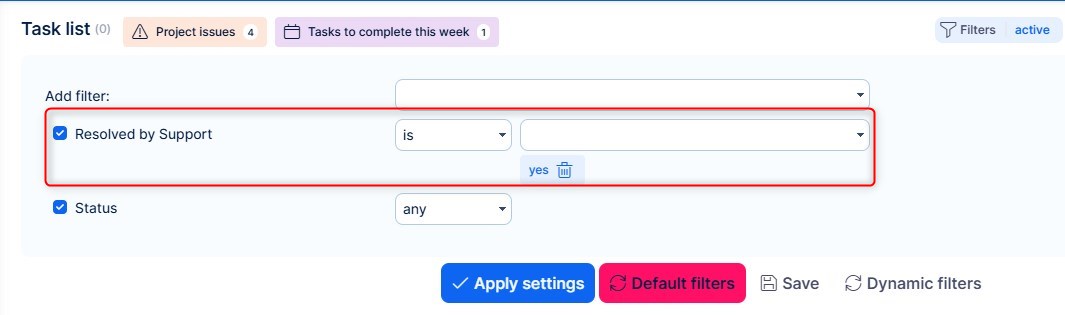
This filter will show tickets that were only assigned to members of support (as per setting in point 1). Based on settings on point 2, tickets that contain subtasks or related tasks may or may not be counted as resolved by support.
8 Filter "Need reaction"
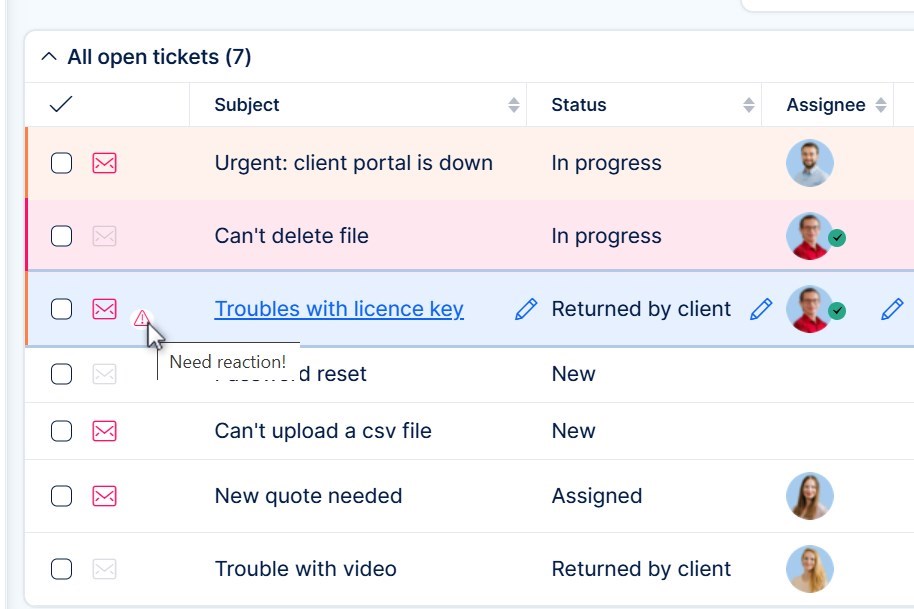
"Need reaction" is an attribute of HelpDesk tickets and CRM cases. By default, this attribute is set to "No". It will change to "Yes" when a ticket/case is assigned to a person who answers to it by sending an email message instead of assigning it back to the sender in the Client zone or Easy8. In such a case, the assignee of the ticket/case remains unchanged and so the intended recipient may not notice that the update has been made. To prevent this, the recipient should regularly check all items with "Need reaction" attribute set to "Yes" so he easily gets to know that there is something new he should check or answer even it's not assigned to him. Or you can use it when you need to "mark" some customer ticket you already answered but there is still some work on it and you need to inform customer later again. Using "Tasks from filter" widget, you can simply create a box on your Dasboard, CRM Dashboard or HelpDesk Dashboard like the one below.
9 HelpDesk users
HelpDesk users simplify the management of client access to your Easy8. They let your clients submit tickets and communicate with your operators directly in the application, without access to the rest of Easy8.
9.1 Preconditions
Management of HelpDesk users is controlled by the permissions View/Manage HelpDesk users in the HelpDesk section of Administration » Roles and permissions.
Every HelpDesk user belongs to a workspace. A workspace defines:
- Projects – the HelpDesk projects the users can create tickets in.
- Task types – the task types the users can use.
- Dashboard template – the homepage the users see after logging in.
Create workspaces in Administration » Help Desk → Help desk workspaces → New help desk workspace. Dashboard templates for HelpDesk users are managed in Administration » Dashboard customisation. Make sure each workspace has a template; otherwise, its users see an empty page after they log in.
The HelpDesk user homepage can contain these widgets:
- New ticket form – has no settings; place it where it is most convenient for your clients.
- HelpDesk tickets – a list of tickets of the HelpDesk user. It is configurable like other list widgets and shows the fields that are visible to HelpDesk users. If you want to show both open and closed tickets, we recommend using separate widgets.
- Noticeboard – for sharing custom information with your clients.
- Trends, Charts, New task from template and Workflow button.
9.2 HelpDesk user management
To manage HelpDesk users, go to Administration » Help Desk and click Help desk users in the sidebar. To create a user, click New help desk user.
Information (all fields except Language are required):
- First name
- Last name
- Workspace – defines the projects, task types and homepage of the user (see 9.1).
- Email = Login – the user logs in with this email address.
- Language
Additional permissions:
- View all tasks – the user can view tickets in their projects created by other HelpDesk users. It doesn't give access to tasks outside HelpDesk.
- Manage all tasks – the user can edit tickets in their projects created by other HelpDesk users (Subject, Description and adding new attachments, but not editing existing ones).
Warning: Use these permissions only when a project serves a single client. Otherwise, one client could see or edit another client's tickets.
Use case: A client has a dedicated project for their tickets in your HelpDesk. Several users submit tickets on behalf of this client in the HelpDesk portal. One of them needs to see all submitted tickets, because they evaluate the service you deliver.
Authentication: When you create a user, enter a Password and Password confirmation, or select Generate password token so the user can set their own password from a link in an email. Generating a token only works if password reset is allowed in your settings. When you edit an existing user, you don't have to change the password.
9.2.1 CSV import
You can import HelpDesk users from a CSV file. Contact your consultant about this option.
9.3 Logging in as HelpDesk user
HelpDesk users log in through the same login page as regular users (/login), using their email address as the login name. There is no separate HelpDesk login page – the former address /helpdesk/login redirects to the main login page.
IMPORTANT: HelpDesk users and regular users are separate accounts. Because both log in on the same page, Easy8 doesn't allow the same email address or login for a regular user and a HelpDesk user. For each person, decide whether they need a HelpDesk user account or a full account.
After logging in, the HelpDesk user sees their homepage, which is configured by an administrator and can't be changed by the HelpDesk user. In the top right corner, they can open and edit their profile and log out. When they open an existing ticket or create a new one, they are taken to the ticket detail, where they can add comments or attachments. To return to the homepage, they click the logo in the top left corner.
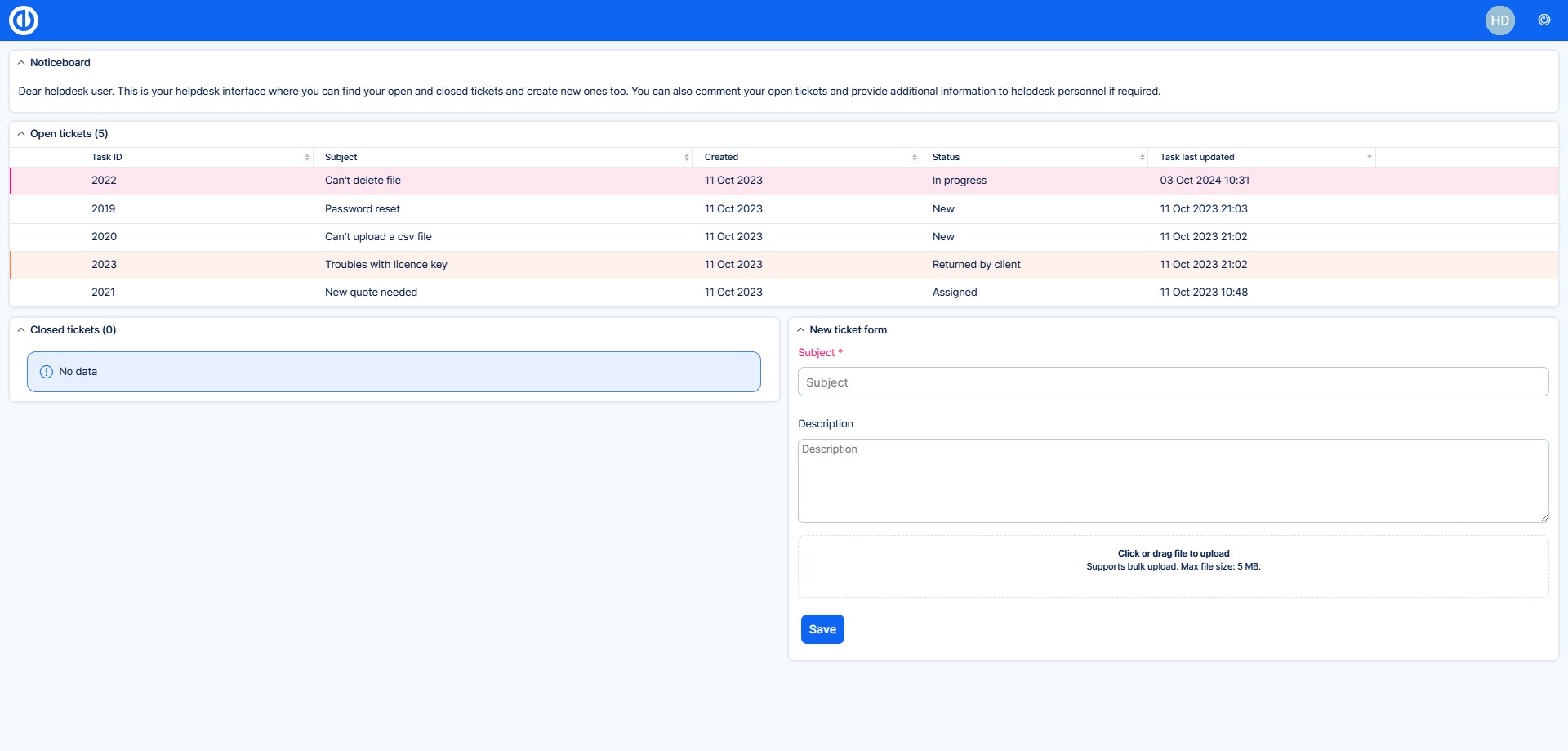
HelpDesk users have no roles or permission settings, and you can't give them access to other areas. Don't send them links to other items in your application; they would only see an access denied message.
9.3.1 Authentication modes: two-factor authentication and LDAP
To manage authentication of HelpDesk users, go to Administration » Help Desk → Help desk users and click Authentication modes in the sidebar.
- Two-factor authentication for help desk users – choose Disabled, Optional or Required for all help desk users. If you choose Required, users must set up two-factor authentication at their next login. If you choose Disabled, all existing pairings are removed.
- New authentication mode – connect an LDAP server for HelpDesk users. The form is the same as the regular LDAP configuration, but it applies only to HelpDesk users. With On-the-fly user creation enabled, a HelpDesk user is created automatically at their first login.
9.4 Working with Tickets
From the Client's Perspective
A HelpDesk user creates a ticket using the New ticket form on their homepage. The form contains only what the client needs to describe the issue, such as Subject, Description and Attachments. Clients don't have to deal with organisational matters when they need help – they describe their issue, and your support team manages the rest.
The ticket is created in a project from the user's workspace. The Email To field in the ticket is filled with the HelpDesk user's email. The user is also set as the ticket's Help Desk Author, which is separate from the general Author field of tasks. This ensures the user can always see the ticket, even if it is moved to another project.
Ticket details visible to the HelpDesk user:
- Subject
- Description
- Attachments
- Status
- ID
- Last Update (time and date)
- Created (time and date)
- Non-private comments in the history
IMPORTANT: The limited ticket view for HelpDesk users is accessible under a different URL than the regular ticket view. For example, ticket no. 123 is visible to the HelpDesk user under the URL /easy_helpdesk_issues/123. The regular link /issues/123 is not accessible to HelpDesk users.
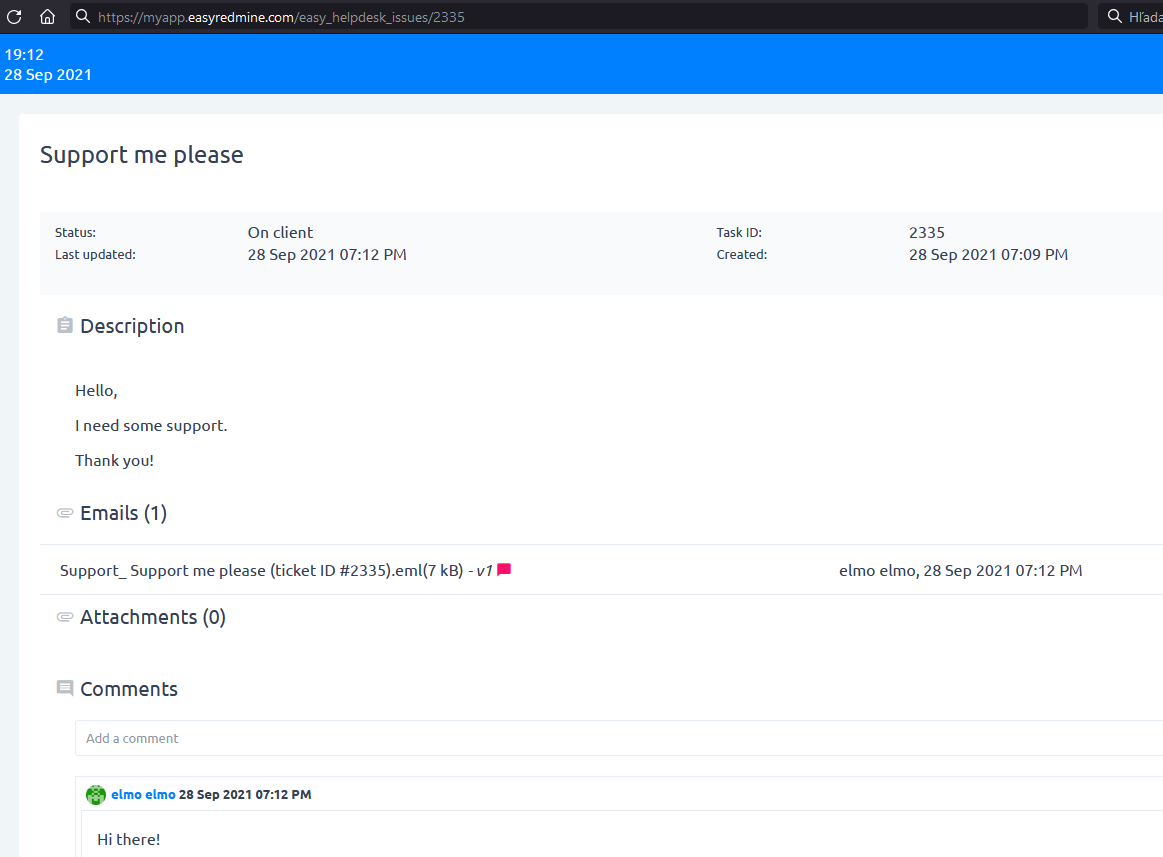
Updating a ticket from the HelpDesk user's side is simple: they can add a comment and/or an attachment.
What happens when a client adds a comment?
- The status changes automatically based on the setting Change status after client reply to in the HelpDesk settings (see Chapter 7).
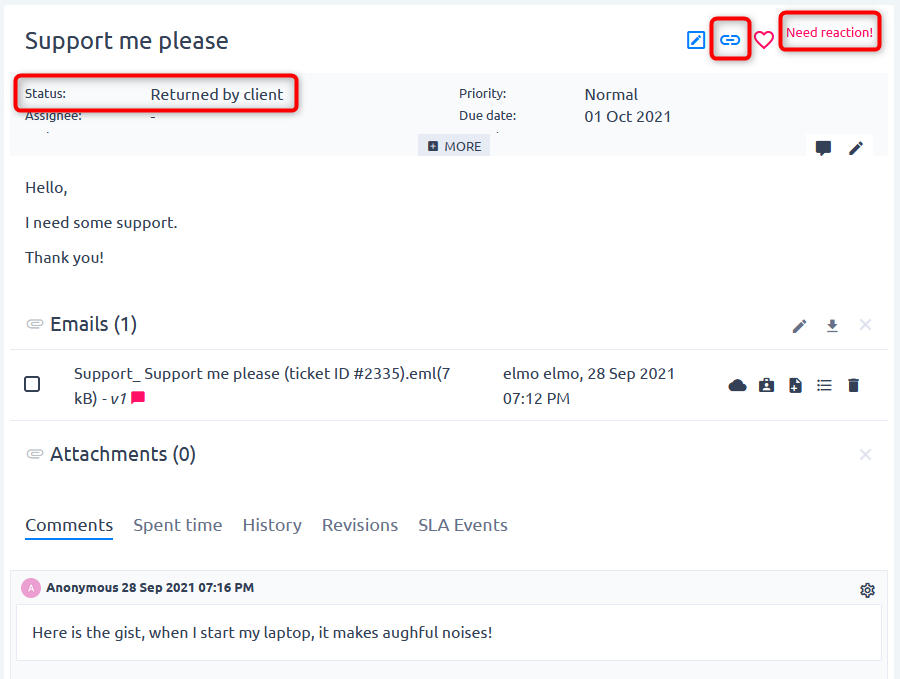
- The Need reaction flag is set automatically (see Chapter 8).
This follows the same logic as ticket and email communication, where the client simply sends an email and doesn't worry about how it is processed. The difference is that the client can see the ticket in a clear structure instead of piecing it together from their inbox.
From the Operator's Perspective
For operators, not much changes when working with tickets. Keep these points in mind:
- HelpDesk users have a limited view of each ticket under the URL /easy_helpdesk_issues/123, so you can't share the regular /issues link with them. Use the Copy HelpDesk Ticket Link button in the top right corner of the ticket detail (highlighted in the image above).
- HelpDesk users only see non-private comments. When you write a comment for a HelpDesk user, make sure the Private checkbox is not selected.
- The client sees all attachments in the ticket. Don't upload sensitive files meant only for your colleagues to the HelpDesk ticket.
- There are no automatic email notifications for HelpDesk users. To send them emails, use the same approach as for tickets created by email (Chapters 5.1.2 and 5.1.3).
- Tickets updated by HelpDesk users are set to a status based on the existing settings, and Need reaction is enabled, so you won't miss them.
- A ticket can't be assigned to a HelpDesk user, because they aren't a regular user. The assignee should be the person currently handling the ticket. Use clear statuses to show HelpDesk users which tickets are resolved or need their input.
9.4.1 Assign Existing Tickets to HelpDesk Users
If you have been using HelpDesk for some time and now want to give your clients access as HelpDesk users, you can link them to their existing tickets:
- Go to Administration » Help Desk → Help desk users.
- In the sidebar, click Populate ticket authors.
- Set a filter for the tickets that should be made accessible. If you don't filter by status, only open tickets are updated.
- Select the HelpDesk user.
- Confirm.
Warning: In the authorised project, the HelpDesk user will see all tickets from the filter, including their content. If a ticket already has a Help Desk Author, it is replaced.
If you make a mistake, you can revoke access to these tickets by selecting the HelpDesk user <<none>>.
9.5 User Fields on the Ticket Form
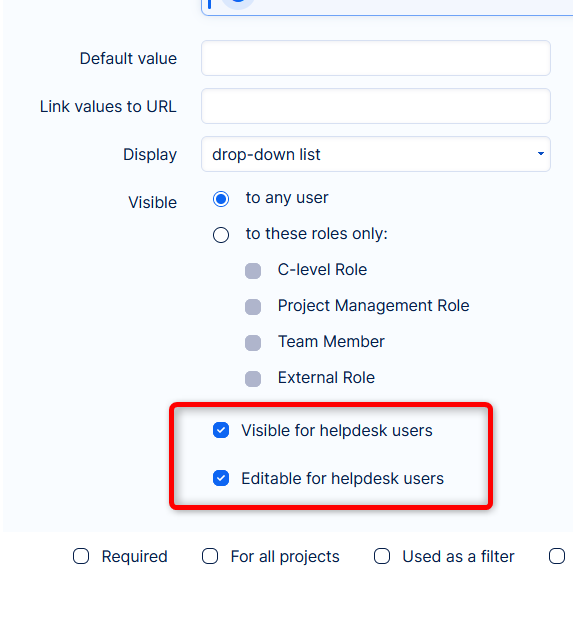
Relevant types of user fields (amount, yes/no, date, key/value list, link, list, dependent list, text) can be displayed to or used by HelpDesk users. First, make sure the user fields are enabled for the projects and task types used by HelpDesk users. Task user fields have two options:
- Visible to HelpDesk users – the field content is displayed in the ticket detail in the HelpDesk portal.
- Editable by HelpDesk users – the HelpDesk user can fill in the field when creating a ticket. Editing existing tickets is not possible, because customers aren't responsible for managing ticket attributes.
9.6 Our Recommendations
HelpDesk users can be highly customised. Here are some best practices for inspiration.
Name ticket statuses intuitively
- Especially the status in which the ticket is handed back to the client. It should be clear whether the next move is on their side or the ticket has been resolved and will be closed automatically.
- The HelpDesk user sees the status, so it should be clear what is happening with the ticket without explicit operator comments.
Keep the homepage simple for HelpDesk users
- Add only one New ticket widget to the page.
- Separate ticket lists by purpose – for example, open and closed tickets, or tickets that need the client's action and the rest. Don't overdo the number of lists.
- Use the customisable headers of ticket lists to help your clients.
- Organise ticket lists logically.
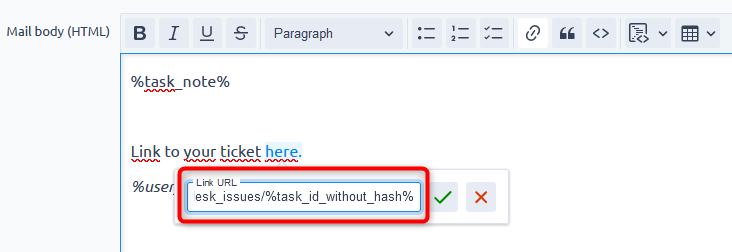
Add a ticket link to email templates
- You will probably keep using email templates to notify clients about ticket updates. A link to the ticket makes it easy for them to open it. The link format is https://[your_application_URL]/easy_helpdesk_issues/%task_id_without_hash%.
- If the client clicks the link while not logged in, they are taken to the login page first.
Report on tickets created by HelpDesk users
- You can add lists, reports, charts, trends, general indicators and time series to dashboards (for example, the HelpDesk dashboard) and select HelpDesk ticket entities for them.
Set one email template as default
- See Chapter 6.2.
- Tickets created by HelpDesk users aren't automatically linked to a mailbox, so operators may see many email templates when sending an email. Make their work easier by setting one template as default.
Troubleshooting: Email Delivery Failure with Large Attachments
This issue occurs when outgoing emails with large attachments (e.g., 20 MB) fail to deliver. The problem is usually caused by server-side limits (Nginx, Postfix, or the recipient's mail server) rather than Easy8 itself. These limits may prevent the email from being accepted, even if no error is shown in the application logs.
Common Causes
– Attachment exceeds application limits
– Nginx request size is too small (client_max_body_size)
– Postfix message size limit is too low (message_size_limit)
– Recipient mail server rejects large messages
– Infrastructure-wide limits on managed servers
How to Troubleshoot
Check application attachment settings
Ensure the maximum allowed attachment size accommodates the file.
Verify Nginx configuration
Increase client_max_body_size (e.g., to 50M) if needed.
Check Postfix configuration
Adjust message_size_limit (default ~10MB) to a higher value
Example: message_size_limit = 52428800 (50MB).
Review mail server logs
Look for errors such as queue file size limit exceeded or message size exceeds limit.
Check limits on the recipient server
Even if your server allows large emails, the recipient's server may reject them.
Recommendations
– Inform users about maximum attachment size
– For very large files, use cloud storage (Google Drive, OneDrive, Dropbox)
– Compress or split files before sending
– Document any configuration changes for future maintenance
Corner situations
- The situation when a task assignee is not a member of the project can occur in the following cases:
- the assignee was removed from the project but the tasks remain assigned to him,
- an automatic ticket updating process is set within the HelpDesk module in such a way that some tickets are automatically assigned to a former project member.
- Information about SLA Response appears in the task detail only when the task is in the default status, which is defined on a respective tracker.
- We strongly recommend that you do not change the priority of a ticket when the ticket has suspended SLA, as such an action would adversely affect the correct calculation of the SLA on that ticket.
- If tickets show unexpectedly high SLA remaining time (e.g., 130 hours instead of the configured 40 hours), check the Working Time Calendar assigned to the SLA rule. Days defined as Working exception in the calendar are treated as non-working days by the SLA engine — this has been the intended behaviour since the original implementation. If such days were recently added or changed in the calendar (e.g., converting regular working days to Working exception entries), SLA calculations will be affected accordingly. To resolve, ensure that days intended to count as working time are configured as regular working days, not as Working exceptions.