
en
Language
  • en
  • cs
  • hu
  • de
  • fr
  • es
  • br
  • ru
  • kr
  • jp
AI translation
  • it
  • pl
  • tr

Easy8 XML & CSV data import

The Easy8 data importer is a very useful tool when you are about to transfer any data from your existing system or from the database.


New Easy8 data importer is an ultimate tool when:

  • You need to migrate/synchronize data from existing system.
  • You are switching company/project management system and need to transfer all the data.

Are you using MS Project, Basecamp, Asana, Clarizen or some other application? Easy8 Importer can handle data from every application that can be exported into XML or CSV format.

Request Redmine data import

Easily map imported entities from XML & CVS via drag & drop.
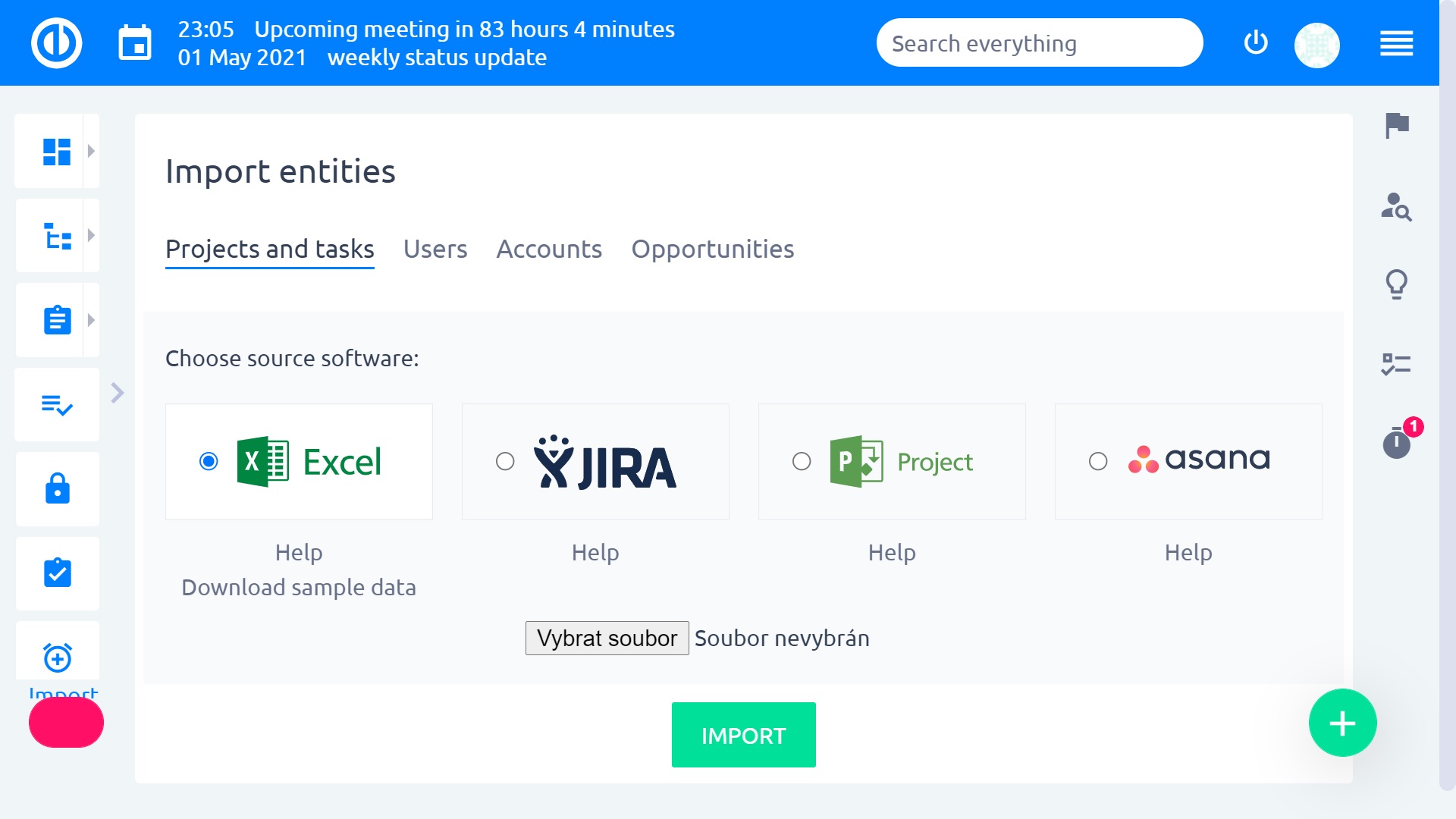
Easy8 Import XML/CSV


Key benefits of Redmine importer:

  • User-friendly solution - every user with basic IT skills can handle the import
  • Import of any existing data - basically any entity can be imported
  • Fast - ready-to-use Easy8 with all your imported data can be set-up in less than hour
  • Real-time synchronization - available via API
  • Supported formats - XML using URL, XML file, CSV file

Request Redmine data import


How to use Redmine importer by Easy

Importing data into Easy8 is a straightforward process, designed to ensure accuracy and efficiency. Whether you're working with XML or CSV files, the following steps will guide you through the process of setting up your import, mapping your data, and ensuring everything is correctly synchronised with your Easy8 projects. 

Follow these instructions to streamline your data import process and keep your project information up-to-date:

  1. To start import go to “More” > “Administration” > “XML data import” > “Advanced import”.
  2. Choose your option (XML or CSV) – name the new template and select entity type.
  3. Upload file or insert URL link.
  4. Mark off “Using for automatic” (in case you want data interval automatic synchronization).
  5. Click on “Save and preview”.
  6. Via “drag and drop” from left to the right side of screen map entities you want to be imported.
  7. Click on “Import”.
  8. In the new window, you will see successfully imported objects.

Easy8 data import: All supported entities 

Understanding which entities can be imported into Easy8 is crucial for optimising your project management workflow. Easy8 supports a wide range of importable entities, ensuring that you can seamlessly integrate various types of data into your projects. 

Below is a comprehensive list of entities that you can import, ranging from files and attachments to tasks, users, and project activities.

The following entities are importable:

  • Files
  • Attachments
  • Comments
  • Documents
  • Document categories
  • Easy Page Zone modules
  • Tasks
  • Tasks Custom Fields
  • Tasks priorities
  • Tasks statuses
  • Journal
  • Members
  • News
  • Projects
  • Project Activities
  • Project Activities Role
  • Projects custom field
  • Roles
  • Time entries
  • Time entry activities
  • Trackers
  • Users
  • Milestones

If you need our support or advice do not hesitate to contact us at any time - support@easyredmine.com
Request Redmine data import

Migrating and importing data with Easy8 importer

The Easy8 data importer provides a user-friendly and efficient solution to map and transfer data from XML, CSV, and other formats into Redmine. This allows companies to quickly set up their Redmine instance with all their existing project data, saving time and ensuring a smooth migration. 

The importer supports a wide range of entities, from files and attachments to tasks, users, and more, making it a comprehensive tool for consolidating data into the Redmine platform.

New Easy8 data importer is an ultimate tool when:

  • You need to migrate/synchronize data from existing system.
  • You are switching company/project management system and need to transfer all the data.
  • Easy8 Importer can handle data from every application or PM tool that can be exported into XML or CSV format.

Frequently asked questions

What are the benefits of data synchronization?

Data synchronization is crucial for maintaining data accuracy, consistency, and availability, which in turn drives better business performance, decision-making, and customer experiences.

The key benefits of data synchronization are:

  1. Removal of data silos: Data synchronization enables the constant sharing and updating of data across different systems, fostering collaboration and eliminating trust and authorization issues among employees.
  2. Prevention of extensive data entry: Data synchronization makes the flow of data between systems seamless, reducing the need for manual data input and saving time while reducing errors.
  3. Ability to perform multiple data operations: Data synchronization can automatically update, add, and delete data across all synchronized systems, ensuring data consistency.
  4. Real-time data syncing: Data synchronization can update changes made in one system immediately across other systems, ensuring users have access to the latest information.
  5. Prevention of data loss: Replicating and backing up data across synchronized systems helps prevent data loss, as data can be retrieved from another system if one fails.
  6. Improved data quality and trust: By keeping data consistent and up-to-date across systems, data synchronization enhances data integrity, security, and access control, leading to better decision-making.
  7. Enhanced collaboration and productivity: Synchronized data enables employees across departments to access and work with the same real-time information, improving collaboration and productivity.

How do I import data into Redmine?

To import issues from a CSV file in Redmine:

  1. In the Issues tab, there is an "Import" link on the right side. Click this to access the issue import functionality.
  2. You can import any CSV-type file. The first line of the CSV must contain the column names that will be mapped to the various Redmine issue fields.
  3. When mapping the CSV columns to Redmine issue fields, you can freely assign them. Some key things to note: For the "Parent Issue" field, you can use the issue ID (e.g. "#23") or the index of the issue in the import (e.g. "10"). To import existing issue statuses (not just "New"), you need to configure the workflow in the Administration area first. The "Assignee" field should contain the Redmine username. Redmine can automatically create new Categories and Versions as needed during import.
  4. The import assistant will guide you through selecting the field separator, field wrapper, encoding, and date format for the CSV file.
  5. After mapping the CSV columns, you can proceed with the import.

For larger imports of 500+ entries, it's recommended to use the "Import in background" option rather than the regular "Import" button.

If you need to import data from other sources like databases or other project management tools, there are also third-party plugins available that can help with that process.

The key is to ensure the source data is properly formatted and mapped to the corresponding Redmine fields during the import. With the built-in importer and available plugins, Redmine provides flexible options to migrate data from various systems.

How does the Easy8 importer handle data from different applications?

Easy8 importer is a comprehensive and user-friendly tool that enables seamless migration of project data from various applications into the Redmine platform, saving time and effort in consolidating information into a centralized system.

Key features include:

  • Ability to import data from any application that supports exporting to XML or CSV formats, such as MS Project, Basecamp, Asana, Clarizen, etc.
  • User-friendly interface that allows mapping imported entities from XML & CSV via drag & drop
  • Supports importing a wide range of entities including files, attachments, tasks, projects, users, time entries and more
  • Provides a fast setup, with the ability to have a ready-to-use Easy8 instance with all imported data in less than an hour
  • Offers real-time synchronization capabilities via API
  • Supports importing data from XML using a URL, XML file, or CSV file

Try Easy8 in 30 days free trial

  • Access all features
  • SSL protected
  • No credit card required